













![AtrocityUI [C] ElvUI profile image](https://warperia.com/wp-content/uploads/2025/09/elvui-logo-9389-68cc3cd231b79-300x169.png)
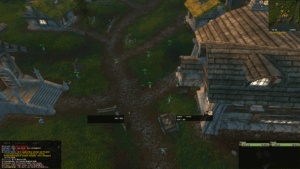
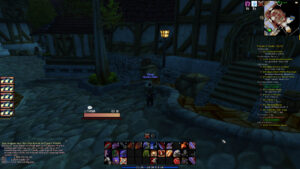
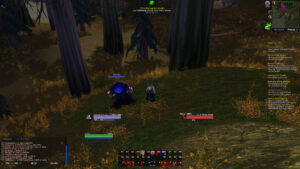
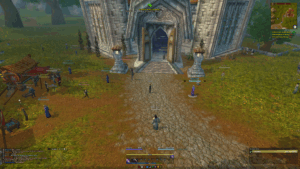
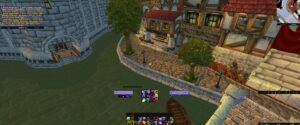
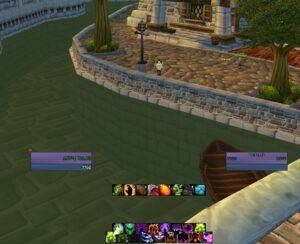
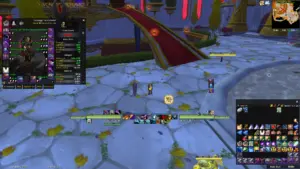
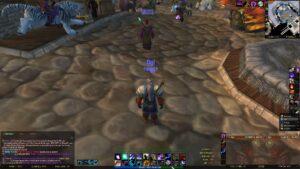
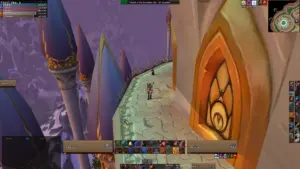
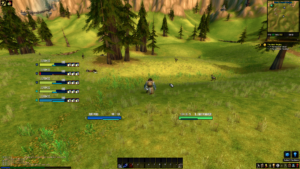
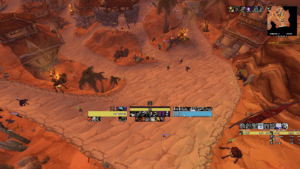
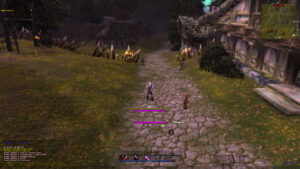
ElvUI replaces the default World of Warcraft interface with a single, configurable addon covering unit frames, action bars, chat, and more. A profile is a saved configuration for it, so instead of setting up every panel by hand, you import one string and get a finished layout. This page lists ElvUI profiles for Wrath of the Lich King and Cataclysm private servers.
Why use an ElvUI profile instead of building your own
ElvUI has a lot of settings, and getting unit frames, action bars, and datatexts to line up the way you want can take a while, especially the first time. A profile skips that process. Someone has already tuned it for a role or class, and importing it gives you the same setup in a couple of minutes.
This does not lock you in. Once a profile is imported, every panel is still editable through the normal ElvUI settings, so you can use one as a starting point and adjust colors, positions, or scale from there.
Profile categories on this page
Profiles here are grouped by what they are built for, so you can filter by role or playstyle instead of scrolling through the full list:
- General, for an all-around layout that works for most classes
- Damage dealing, tuned around cooldown and resource tracking
- Healing, with raid frames and cooldown visibility prioritized
- Tanking, with threat and positioning information front and center
- Raiding, built around visibility during boss encounters
- PvP, for Arena and battleground-focused layouts
- Leveling, for a simpler setup while questing
You can also filter by class and by expansion, since profiles here are made for Wrath of the Lich King or Cataclysm clients specifically.
How to import an ElvUI profile
- Install ElvUI itself first. Warperia has downloads for Wrath of the Lich King and Cataclysm.
- Log into the game once so ElvUI runs its setup and creates its default profile.
- Open a profile’s page on Warperia and copy its import string.
- In-game, open the ElvUI config with
/ec, go to the Profiles tab, and paste the string into the import box. - Confirm the import and reload your UI with
/reload.
If a panel looks off after importing, check your screen resolution and UI scale first. Most ElvUI profiles are built at a specific resolution, and layouts can shift slightly on a different one.
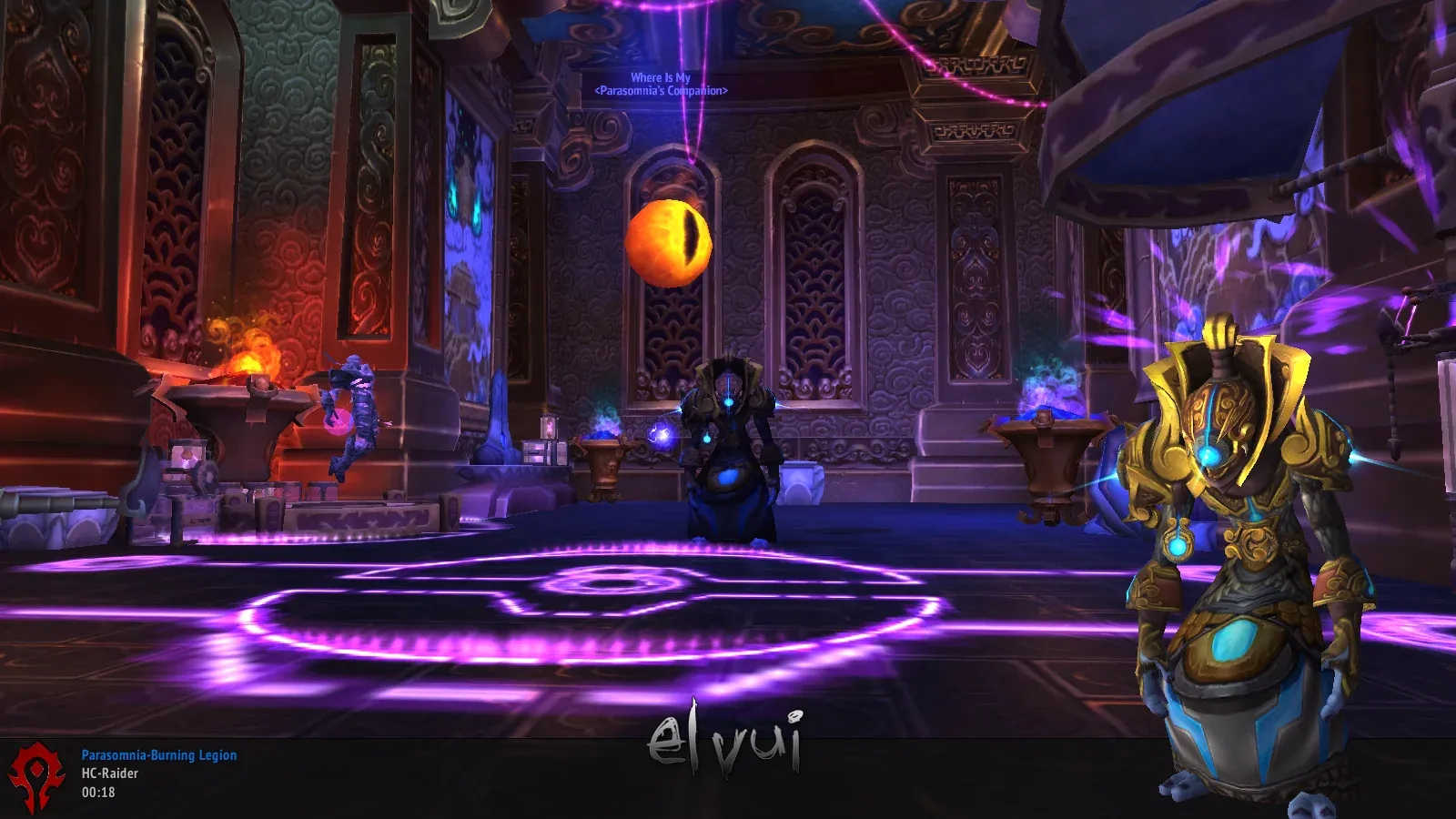
Popular ElvUI profiles
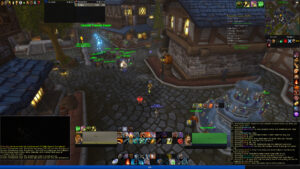
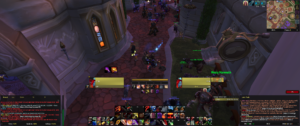
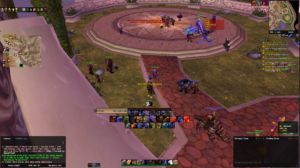
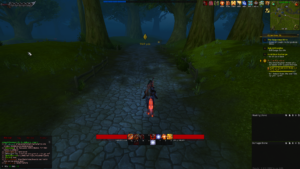
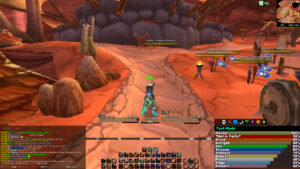
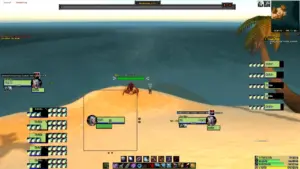
ElvUI Good For All Class is a general-purpose 3.3.5 layout built to work reasonably well across roles rather than being tuned for one.
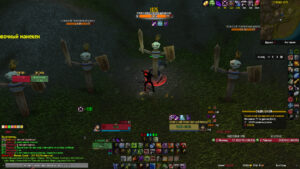
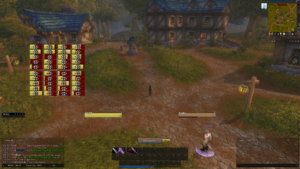
Ascension: Conquest of Azeroth covers several class action panels and datatexts in one profile for players who want a fuller setup out of the box.
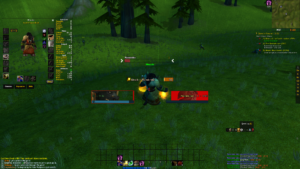
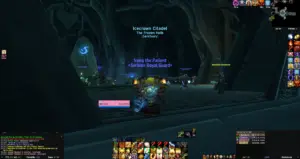
Project Epoch Healer Profile is built around raid frame visibility and cooldown tracking for healing on Project Epoch specifically.
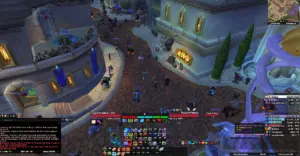
Circle is a PvP-oriented profile that keeps unit frames and cooldowns visible during Arena and battlegrounds.
ExadUI is set up for general use and raiding, with a layout that keeps action bars and raid frames within easy reach.
Frequently asked questions
Do ElvUI profiles work on any private server?
Yes, as long as the server runs the expansion client the profile was built for. Profiles here are labeled for Wrath of the Lich King or Cataclysm, so match the profile to your client version.
Will importing a profile overwrite my current ElvUI settings?
Yes. Importing replaces your current profile, so if you want to keep your existing setup, create a new ElvUI profile first and import into that one instead of your active profile.
Why does my UI look broken after importing a profile?
This is usually a resolution or UI scale mismatch. Try setting your UI scale to match what the profile was built at, then reload your UI. If elements are still missing, confirm you have any plugins the profile depends on, such as WeakAuras or Tidy Plates, installed as well.


