

OakUI – (Base Preset Here) Get the OakUI Addon for the Full Feature Set
Profile Details
Profile ID:
29711
Uploaded:
Nov 16, 2026
Updated:
Nov 16, 2026
Installs:
1,074
Website:
Source Link
Theme & Expansion
Roles
Content
Resolution
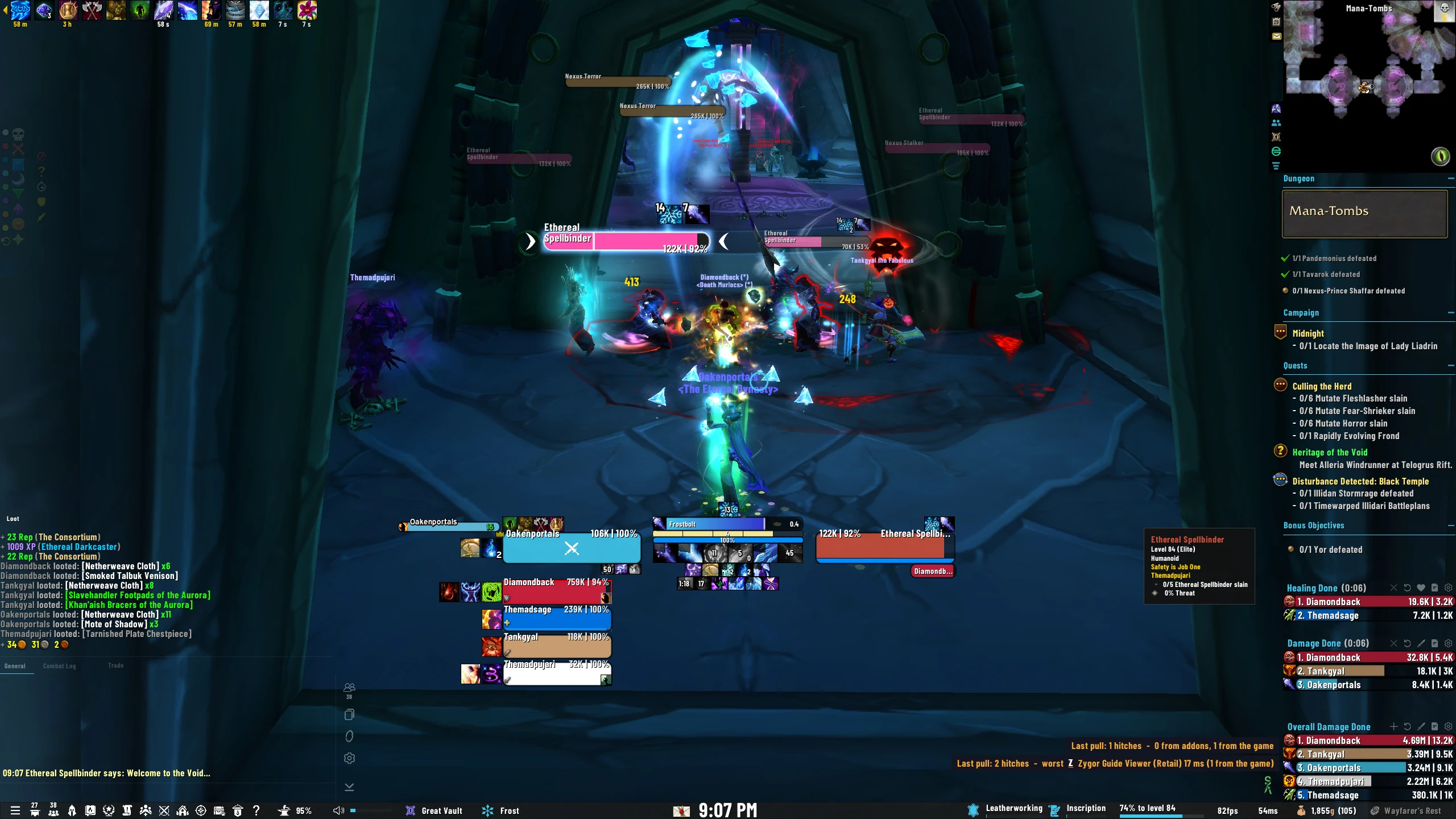
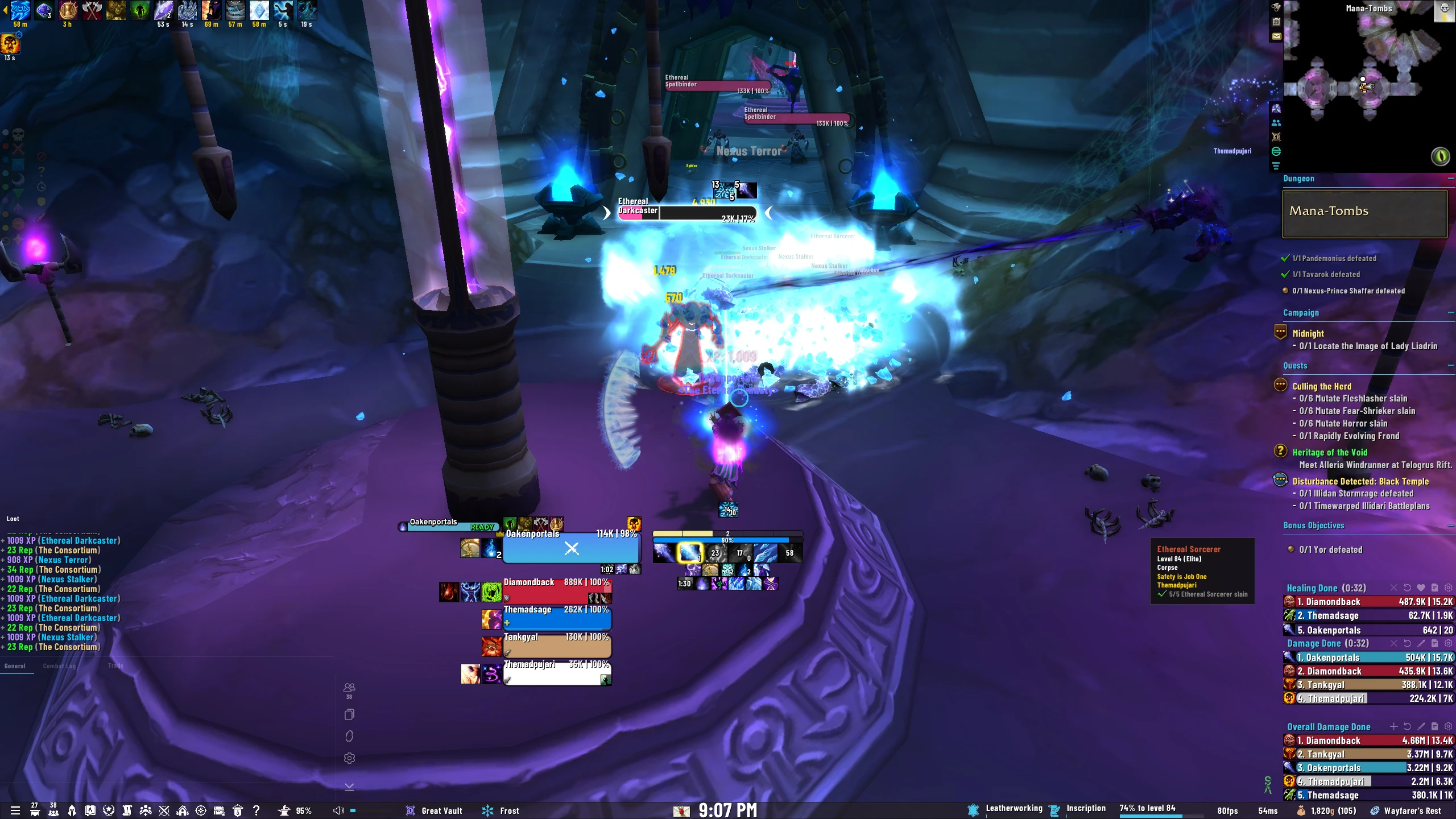
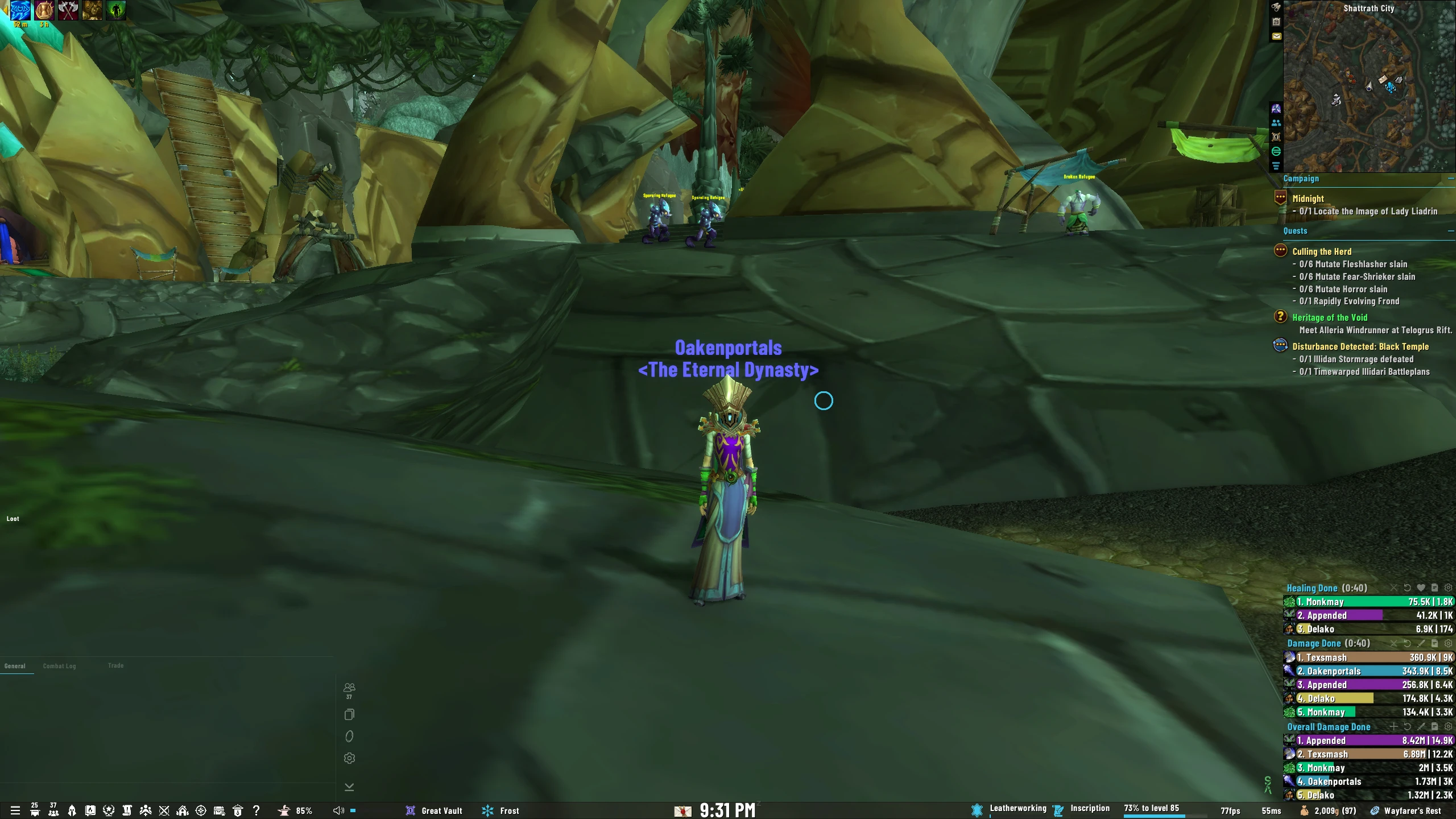
# OakUI: The EllesmereUI EditionWelcome to the next evolution of **OakUI**—a sleek, high-performance World of Warcraft UI installer built around **EllesmereUI**.OakUI delivers polished, role-aware profiles and powerful quality-of-life enhancements for raiding, Mythic+, PvP, and everyday play. Choose your resolution, role, profile name, visibility options, borders, fonts, and optional addon integrations, then install everything with a few clicks.Built for players who want a clean interface without spending hours positioning every frame by hand.### 🚀 Key Features* **EllesmereUI Core Integration:** OakUI is built alongside EllesmereUI to provide a lightweight, modern, and highly optimized interface experience.
* **Role-Aware Profiles:** Install dedicated Healer or Tank/DPS layouts with custom profile names and profile switching support.
* **Quick Install and Guided Install:** Choose your resolution, UI scale, role, visibility preferences, rounded borders, and optional addon profiles through a streamlined setup process.
* **Resolution and UI Scale Support:** Includes polished layouts for 1080p, 1440p, 4K, and ultrawide displays.
* **Ellesmere Tweaks Suite:** A powerful collection of visibility, layout, and gameplay-focused options:
* **Hide Player/Pet:** Hide Player and Pet frames when you do not have a target.
* **Smart Player:** Automatically show Player and Pet frames when you or your pet are injured.
* **Show Player in Group:** Automatically show your Player frame when joining a party or raid.
* **Hide CDM:** Hide EllesmereUI’s Cooldown Manager when you have no active target.
* **Hide Action Bars:** Hide action bars until you mouse over them. Mousing over any bar reveals them all.
* **Hide Chat Background:** Create a clean, transparent chat layout with a smooth background fade.
* **Chat Line Fade:** Use Blizzard’s native per-line chat fading instead of EllesmereUI’s full-window chat fade.
* **Adjustable Chat Fade Delay:** Tune how long each chat line remains visible before fading.
* **Hide Error Messages:** Suppress most unnecessary red UI errors while keeping important warnings visible.
* **Dragon Riding Anchoring:** Keep the Dragon Riding bar anchored to EllesmereUI’s Class Resource bar, with an opt-out toggle for manual customization.
* **DBM Anchoring:** Automatically position DBM bars to match the OakUI layout, with an opt-out toggle so users can customize DBM freely.
* **wMarker Mouseover Fading:** Fade the raid-marker, world-marker, and control-button bars when not in use, with gradual transitions, adjustable opacity, and shared hover behavior.
* **Rounded Borders:** Apply OakUI’s clean Round Thin border style across EllesmereUI frames, nameplates, cast bars, tracking bars, boss bars, damage meters, raid frames, absorb overlays, and Blizzi interrupt bars.
* Rounded borders can be enabled or disabled during installation or from the Ellesmere Tweaks menu.
* When disabled, OakUI falls back to EllesmereUI’s shadow border styling.
* Border preferences are preserved across profile imports and Healer/Tank-DPS profile switching.
* **In-Game Font Engine:** Choose fonts, sizes, outlines, and global font rules directly inside OakUI using LibSharedMedia—no folder swapping or logout required.
* **OakUI Chat Engine:**
* **Auto-Layout:** Instantly size, position, and stack the General, Loot, and Trade chat windows.
* **Smart Filtering:** Clean up Loot, XP, Reputation, Quest, Achievement, and other chat spam.
* **Loot Parser:** Display clear, colorful loot messages showing exactly who looted what.
* **Chat Persistence:** Preserve chat layout, docking, and placement through reloads and profile changes.
Code
How to install
1 Copy the entire code string shown above.
2 Open World of Warcraft and open the EllesmereUI settings in the chat to open the EllesmereUI settings.
3 In the EllesmereUI window, go to Profiles → Import Profile.
4 Paste the code string into the box.
5 Click Import to apply the profile.