
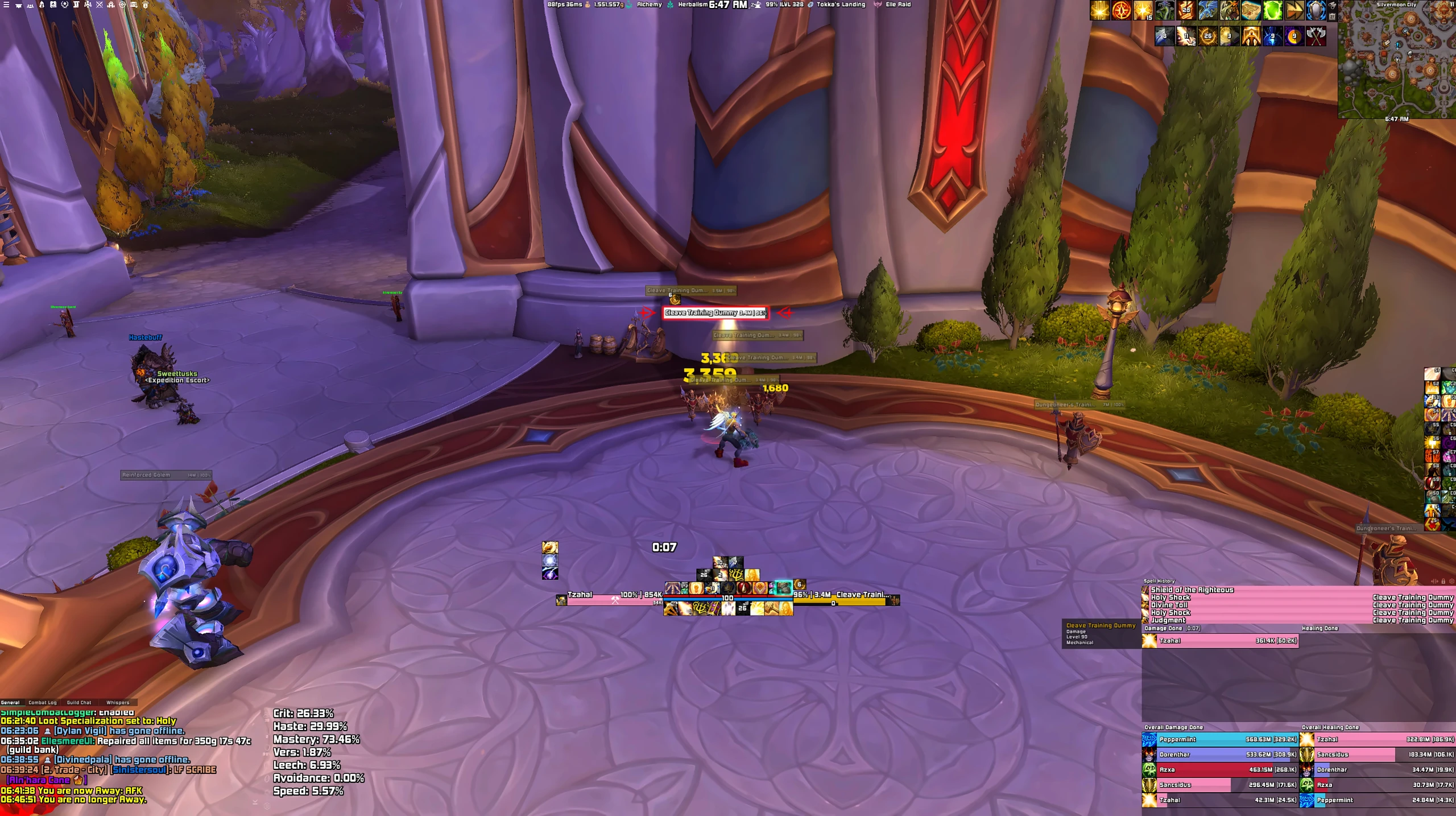
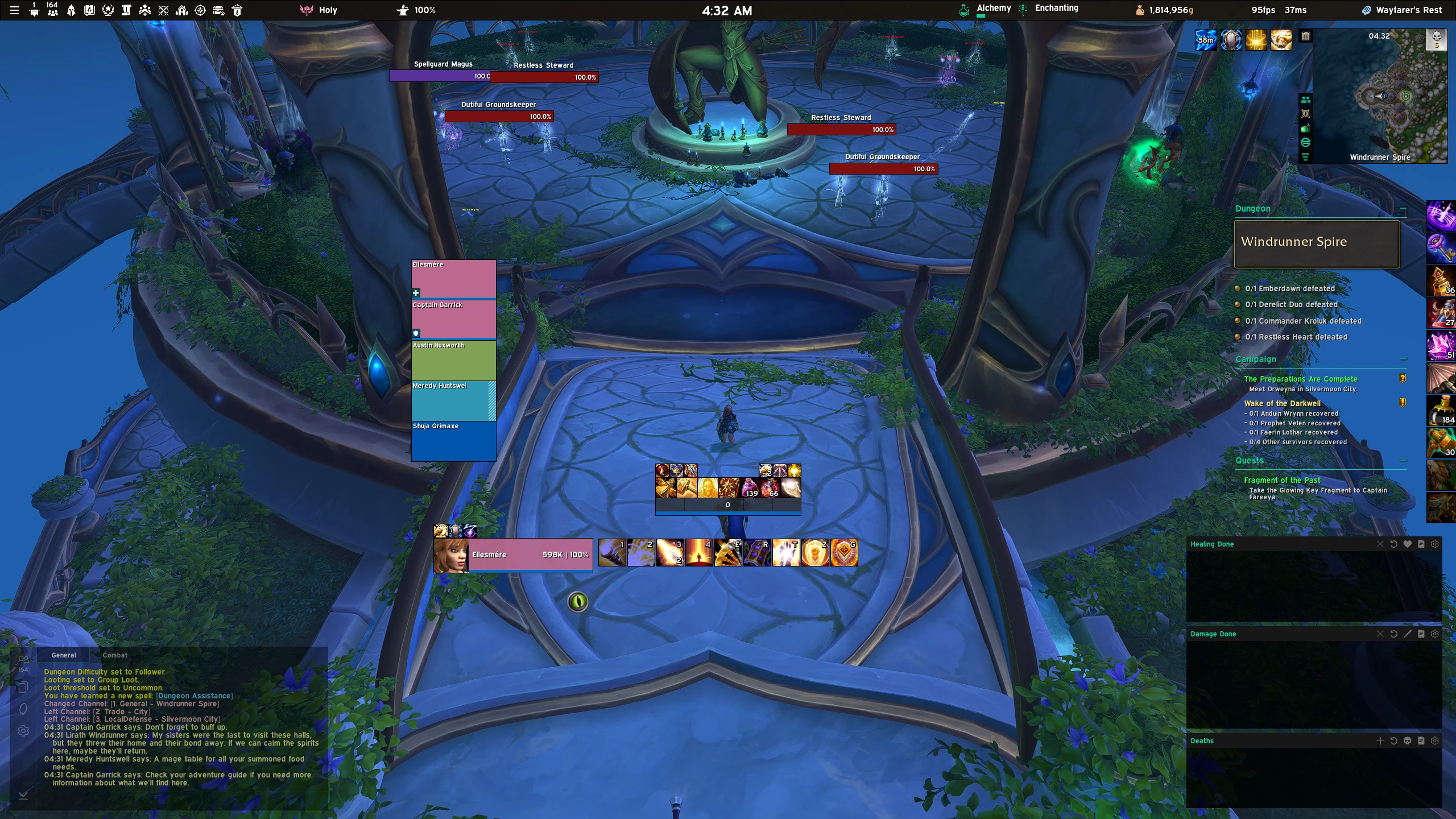

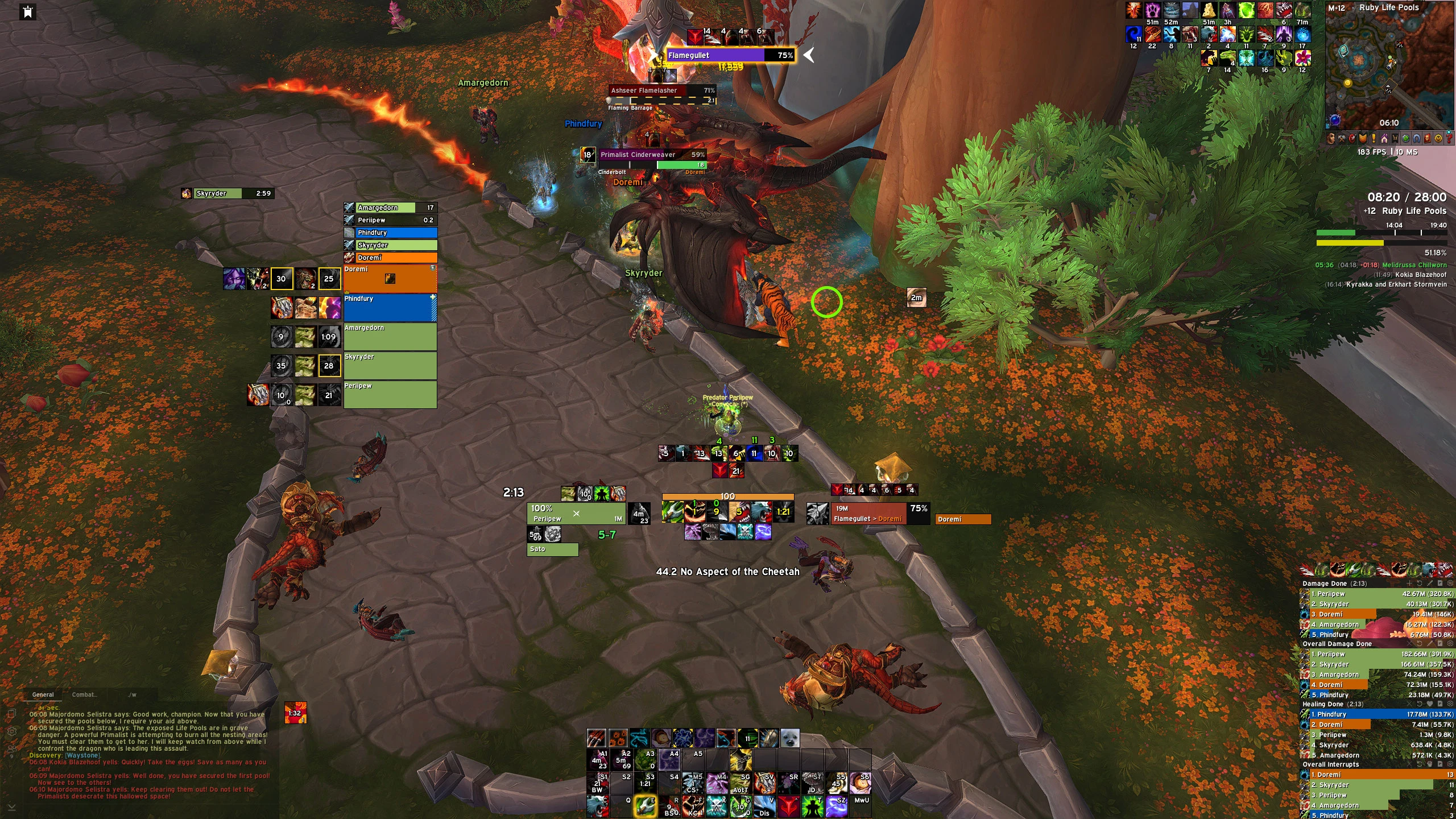

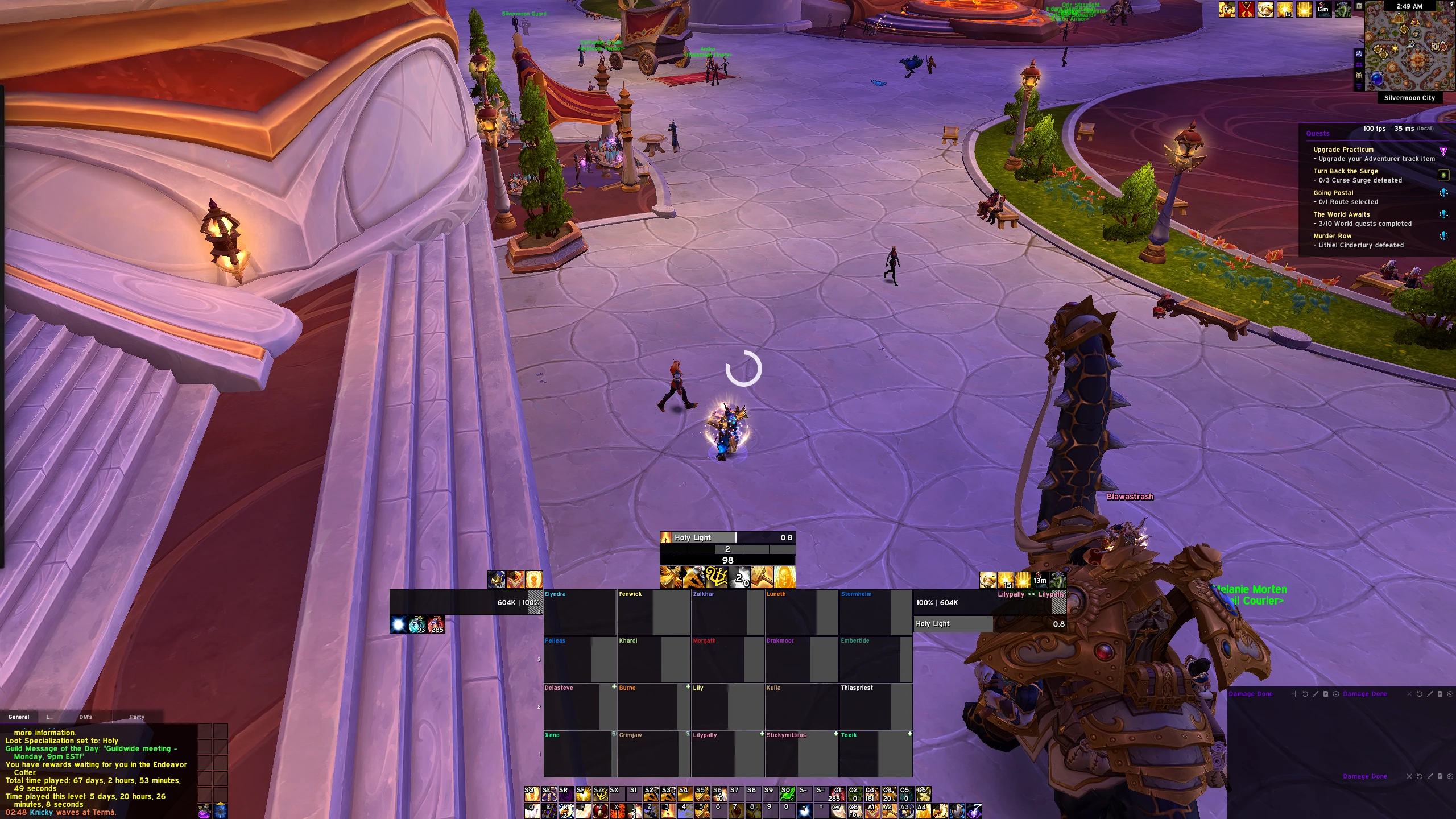

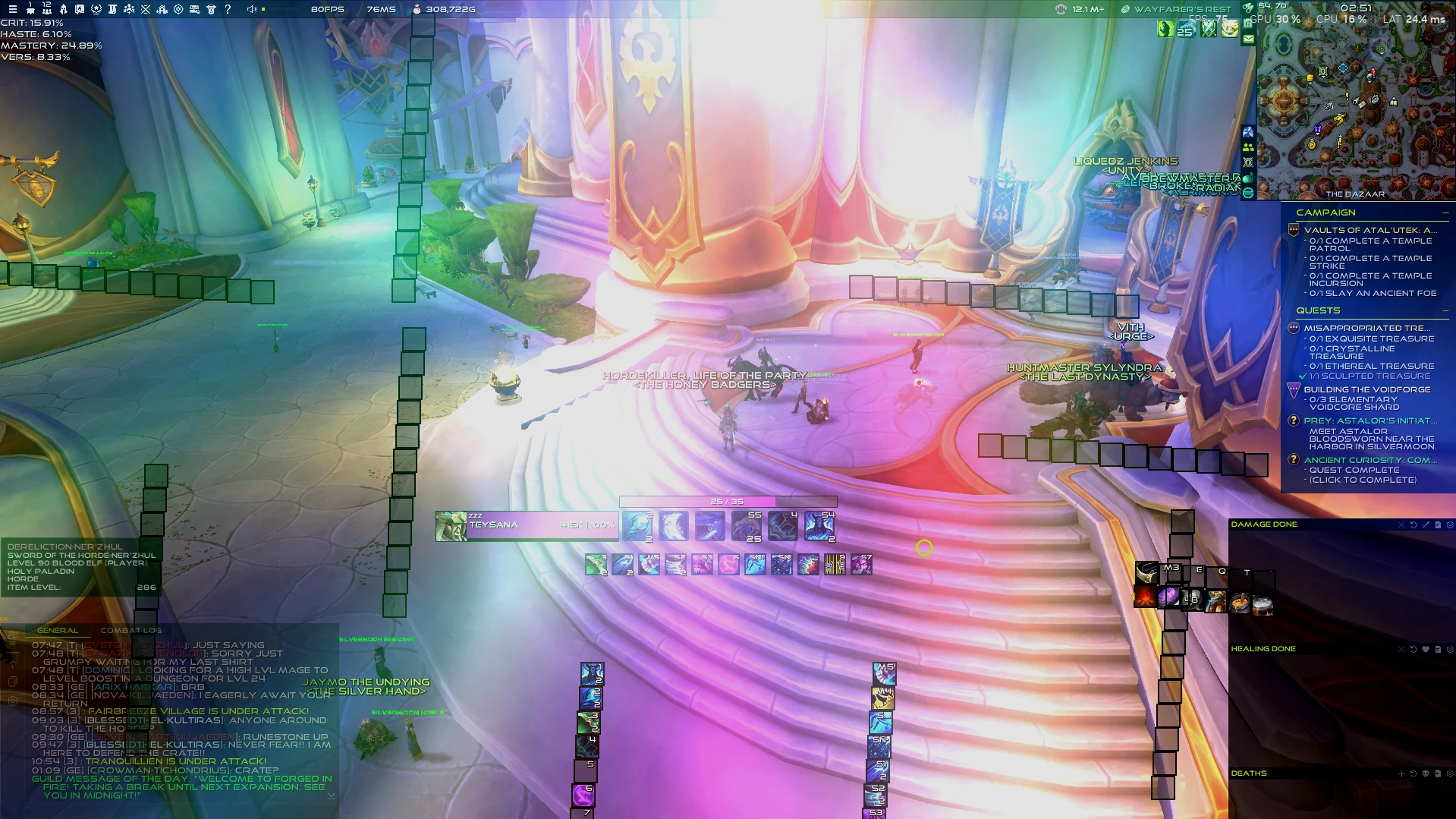
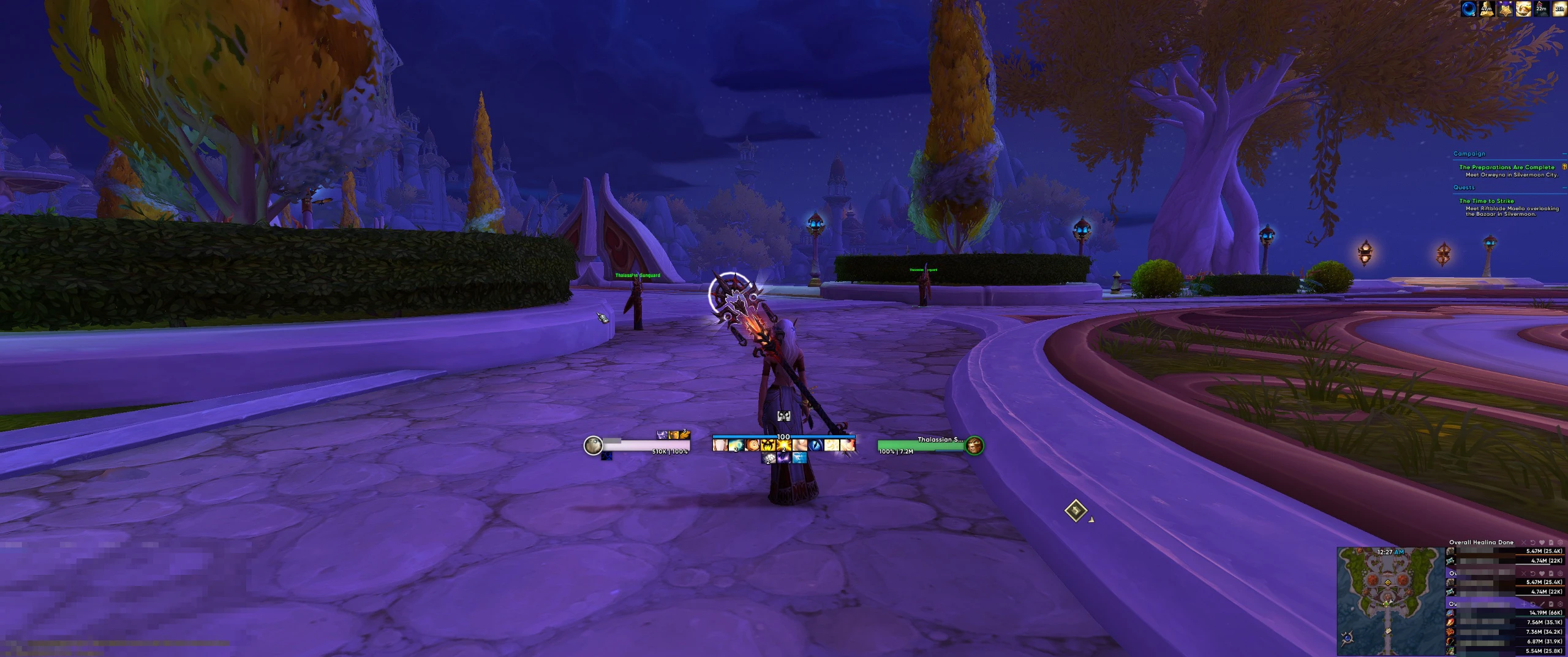

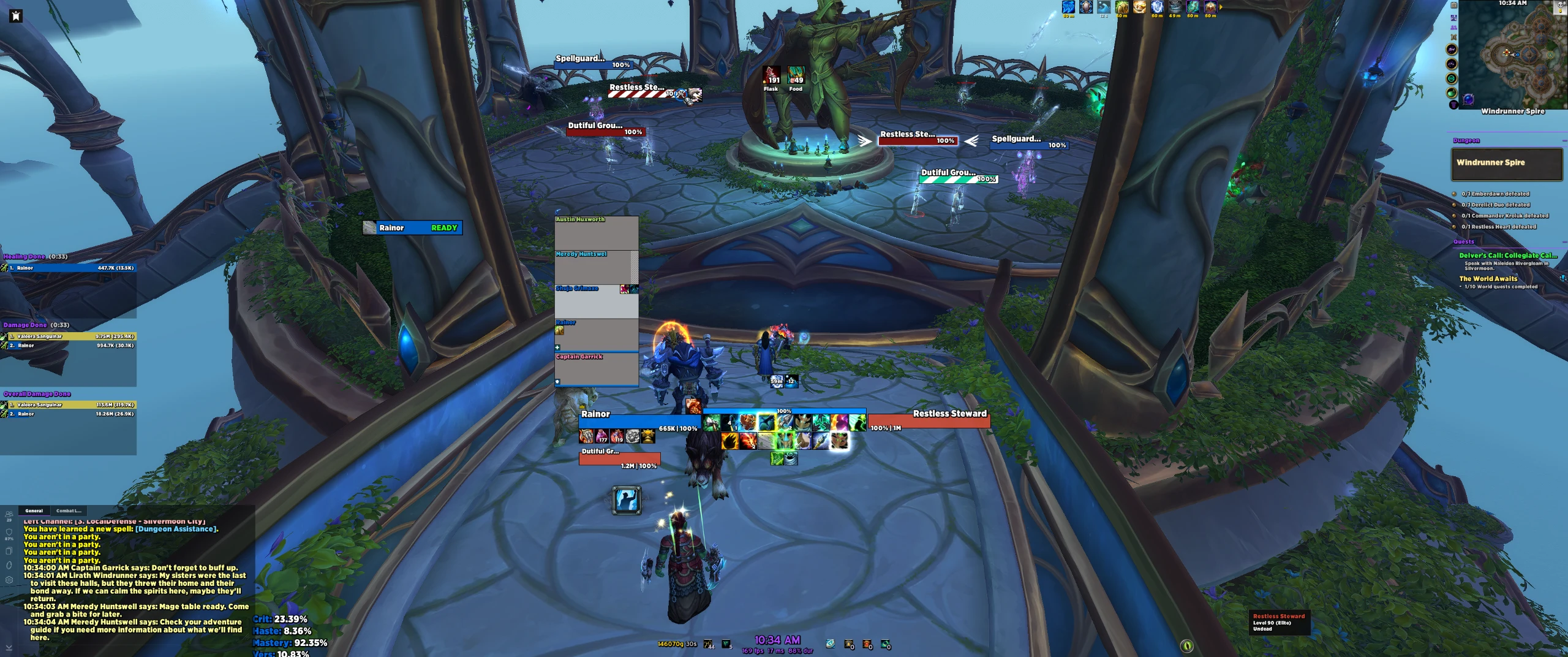

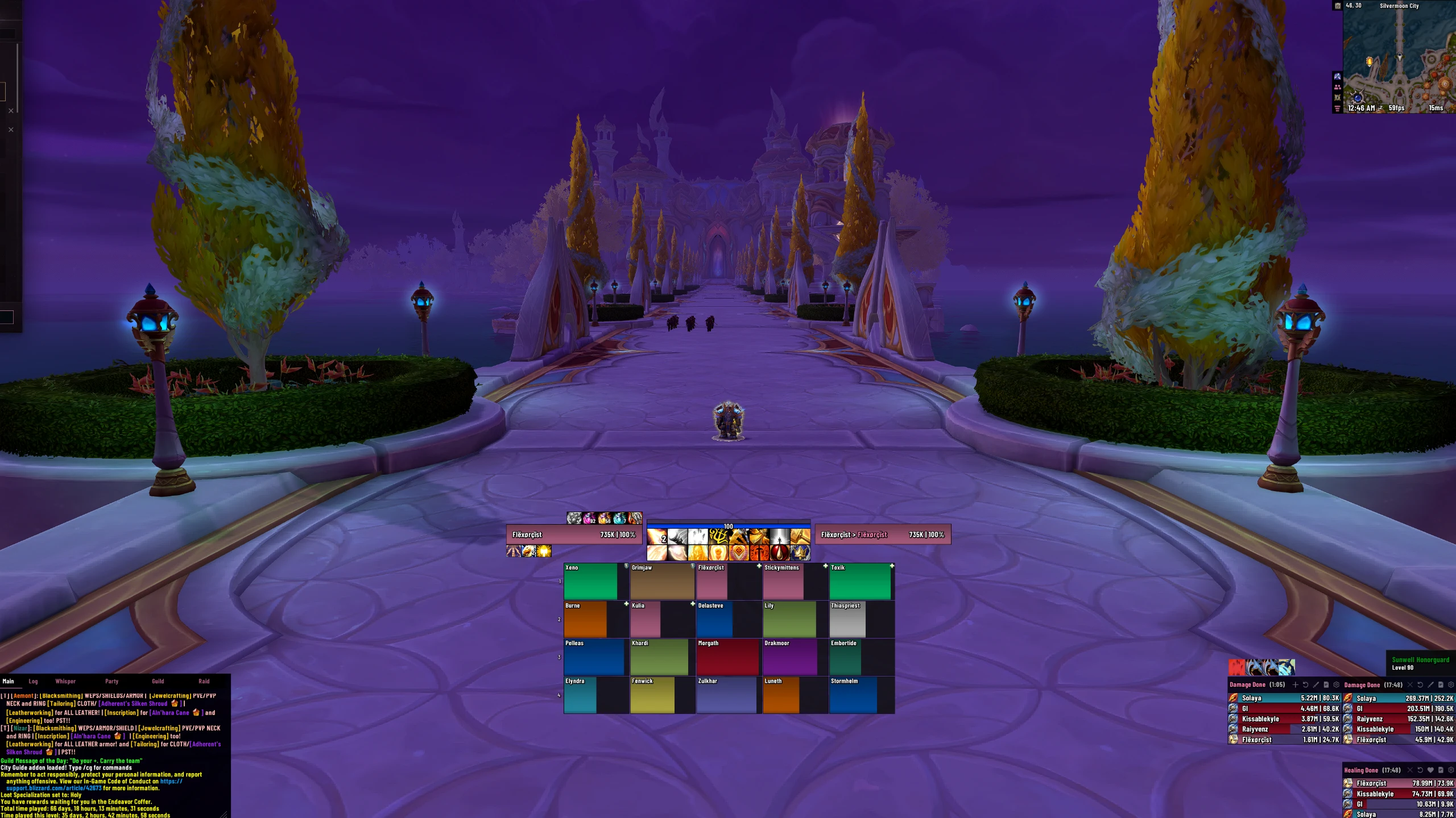

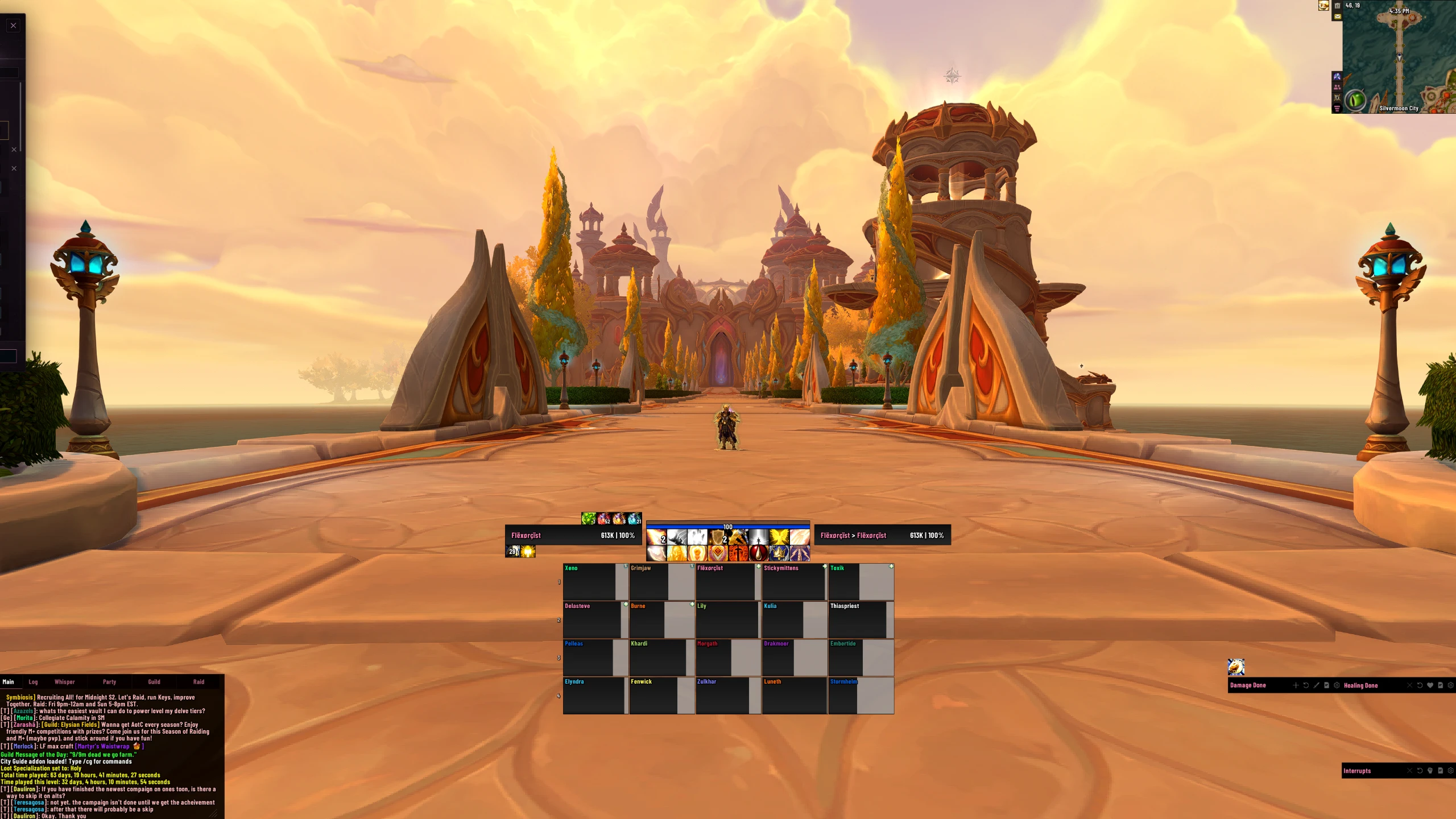
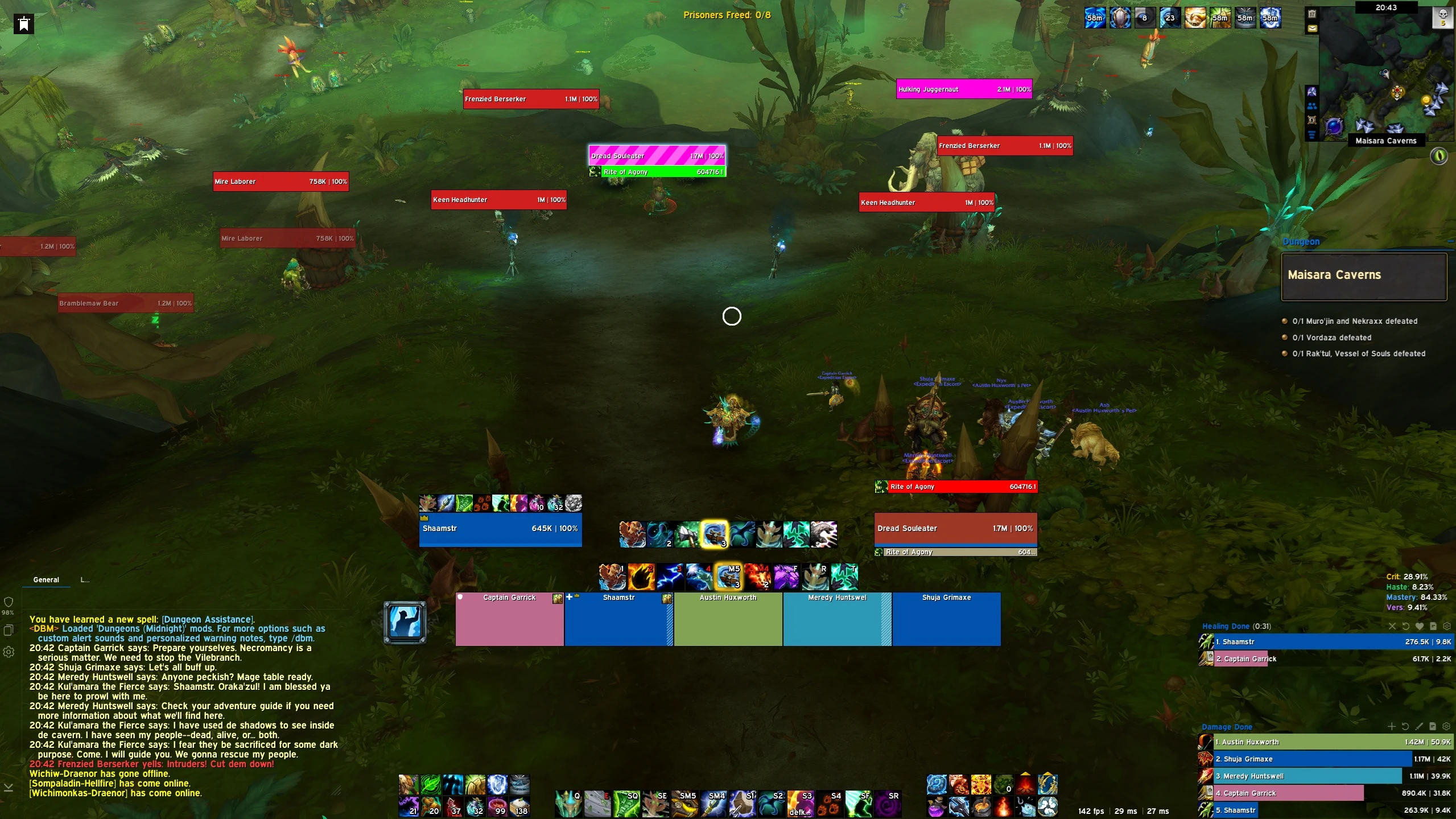

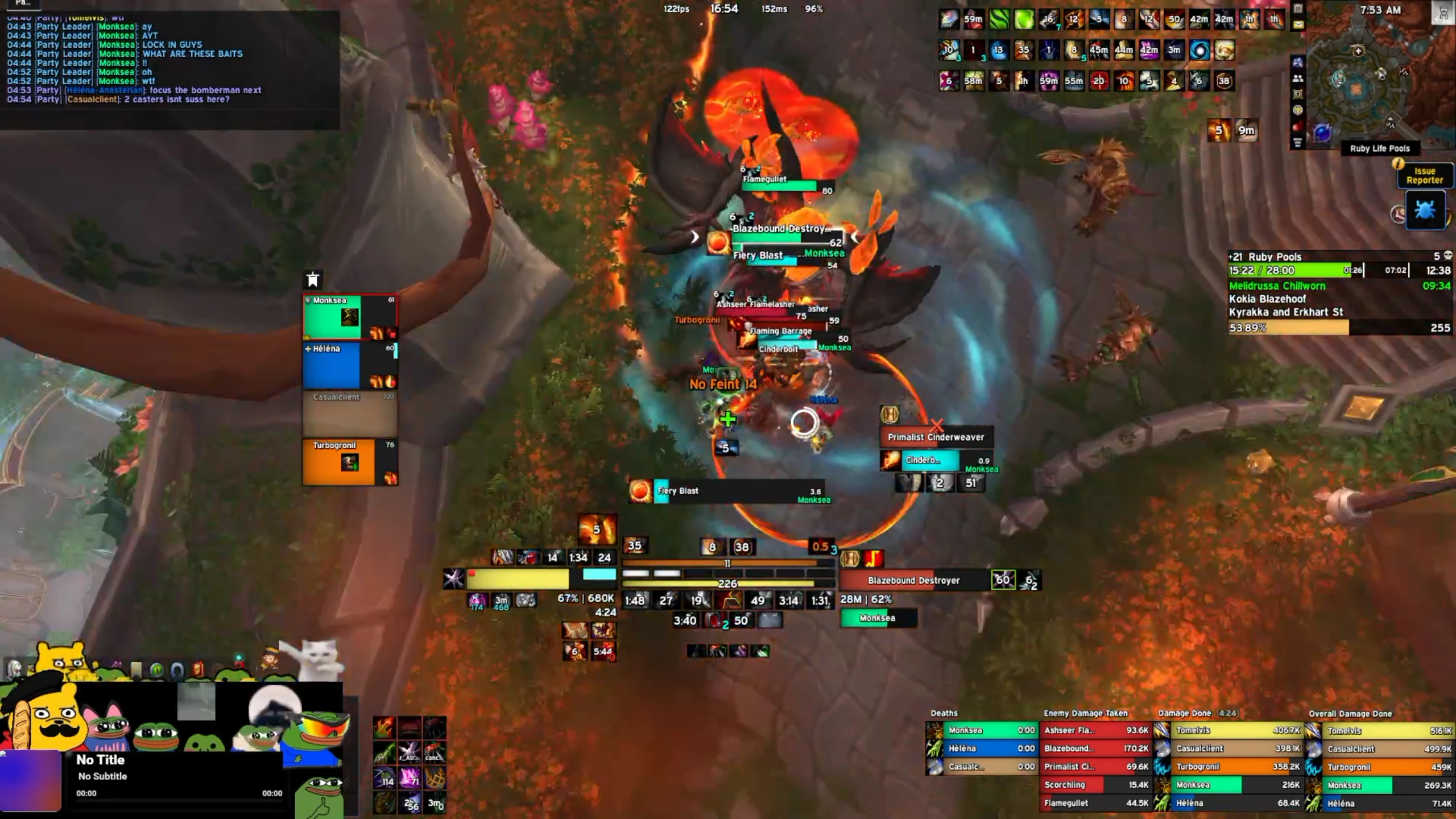
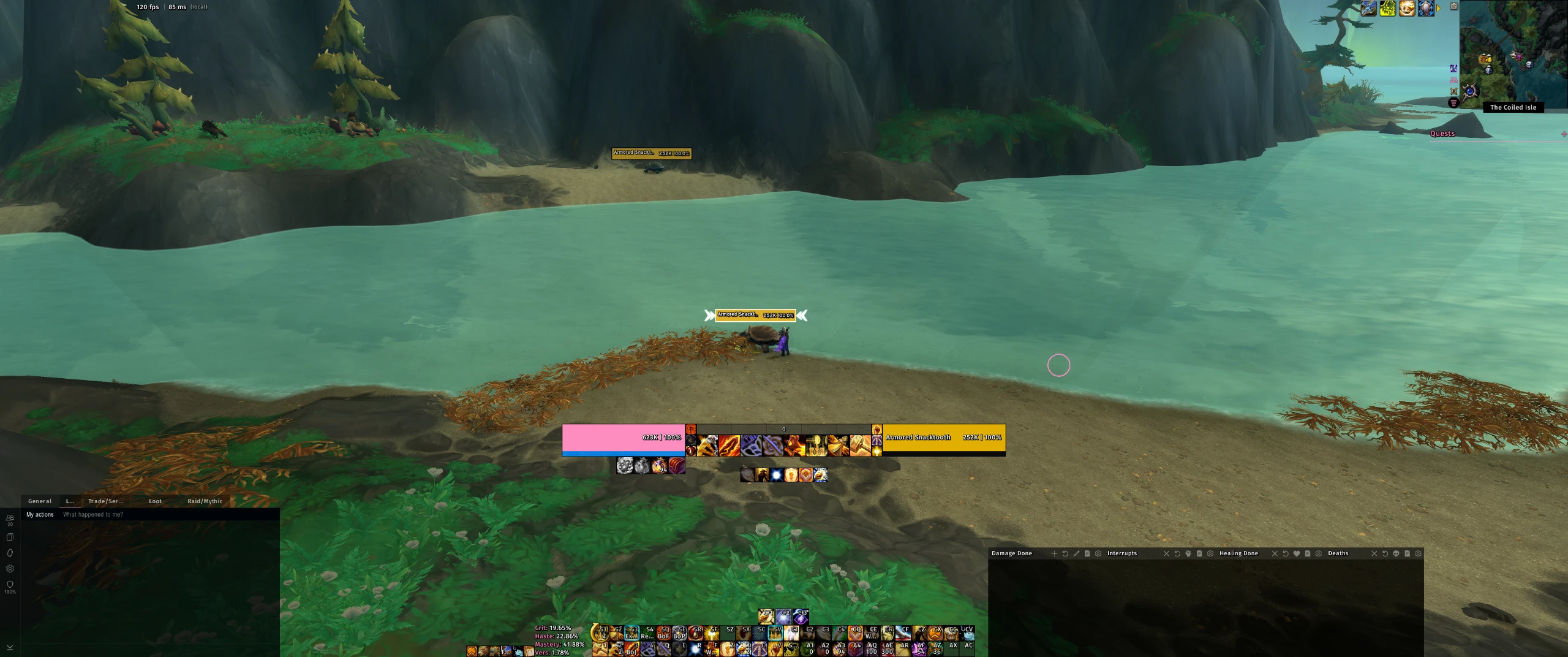

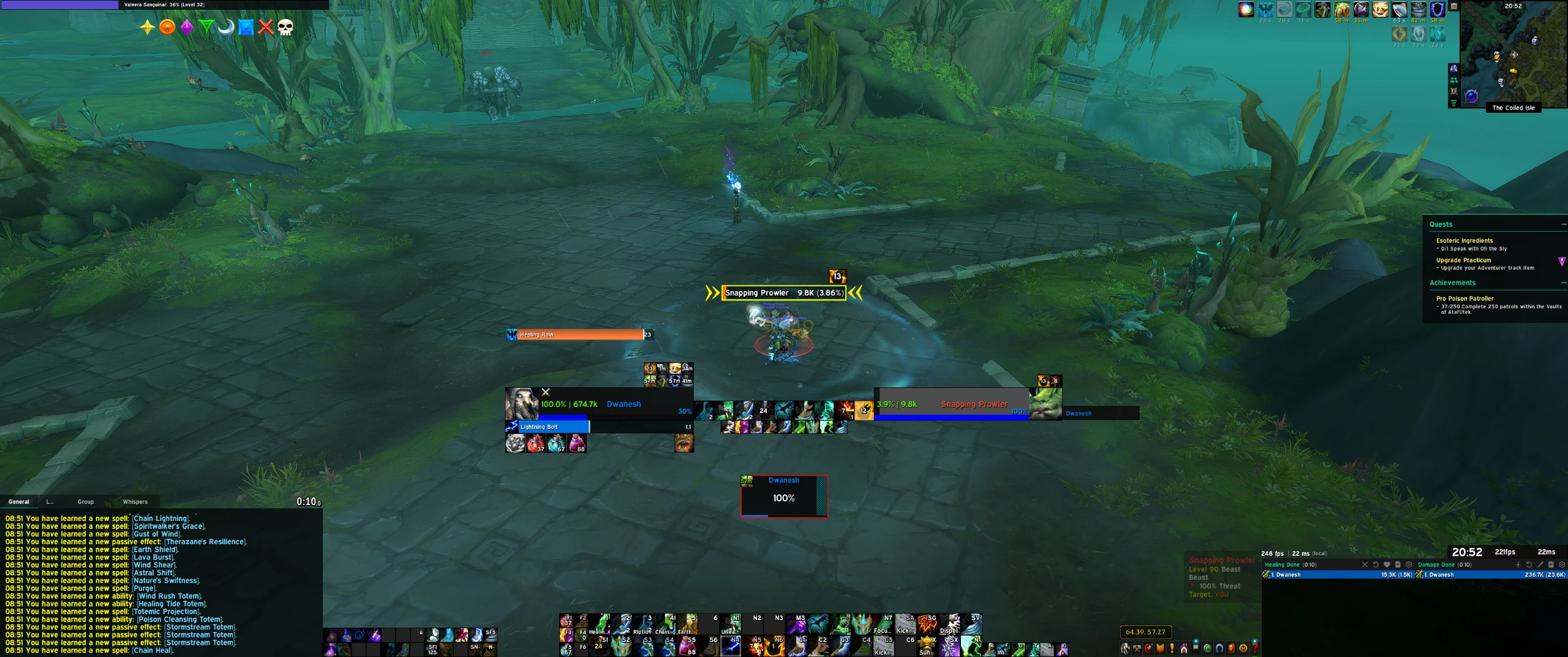

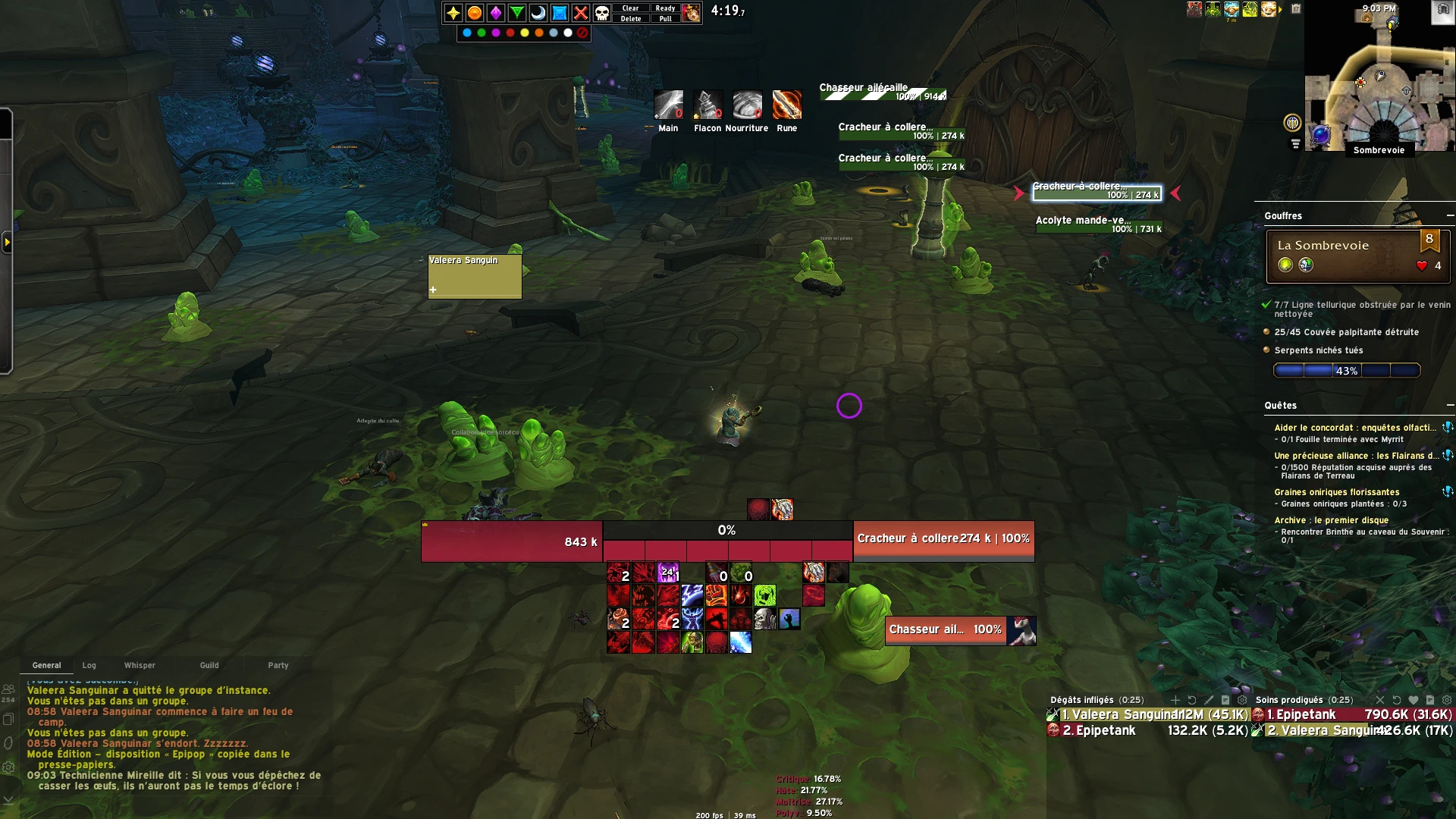


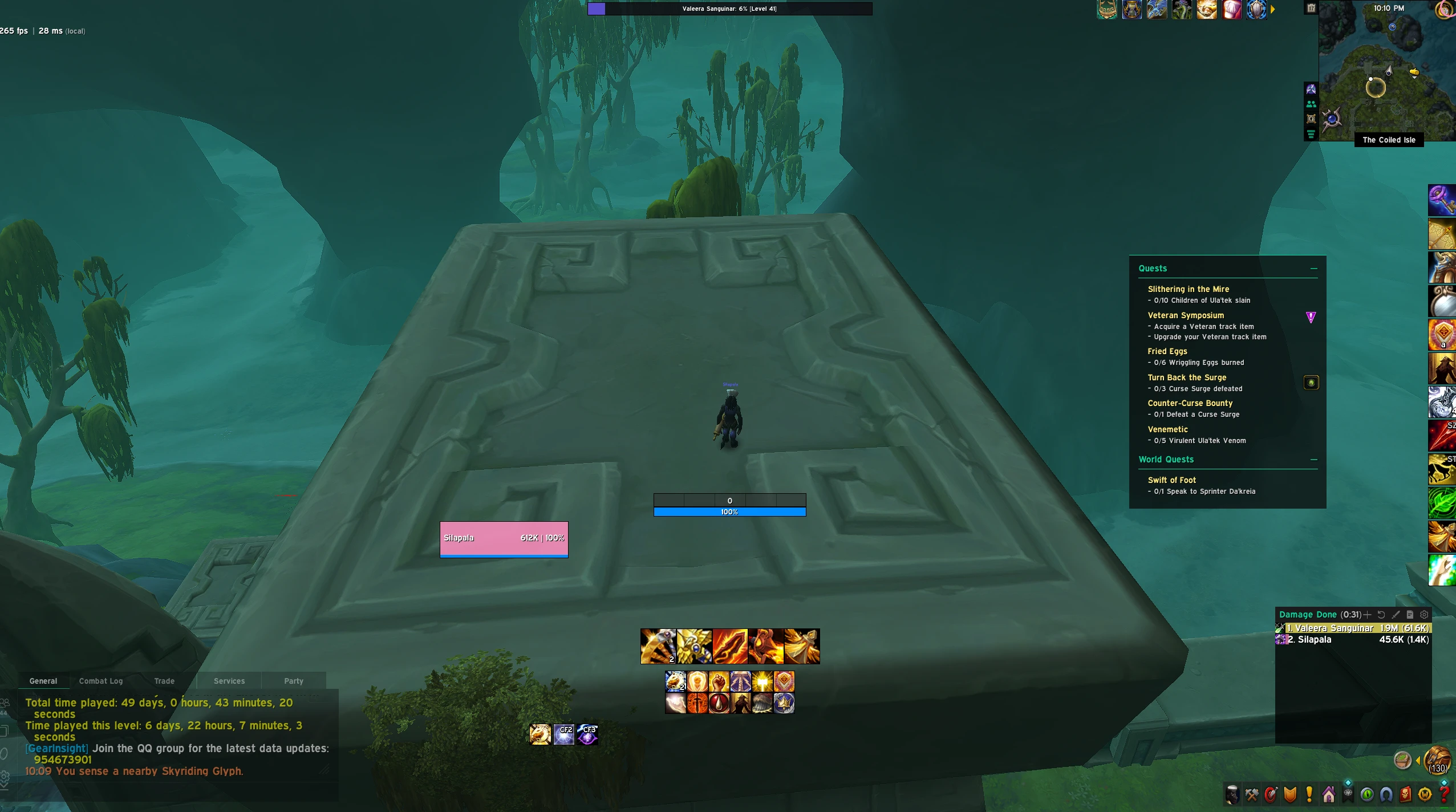

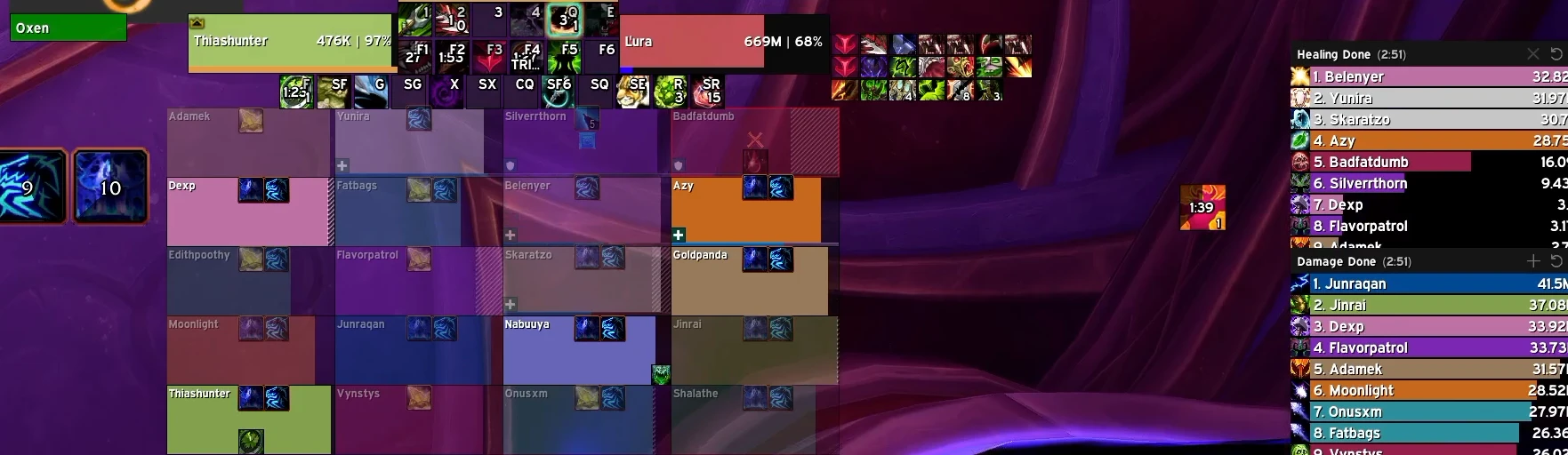

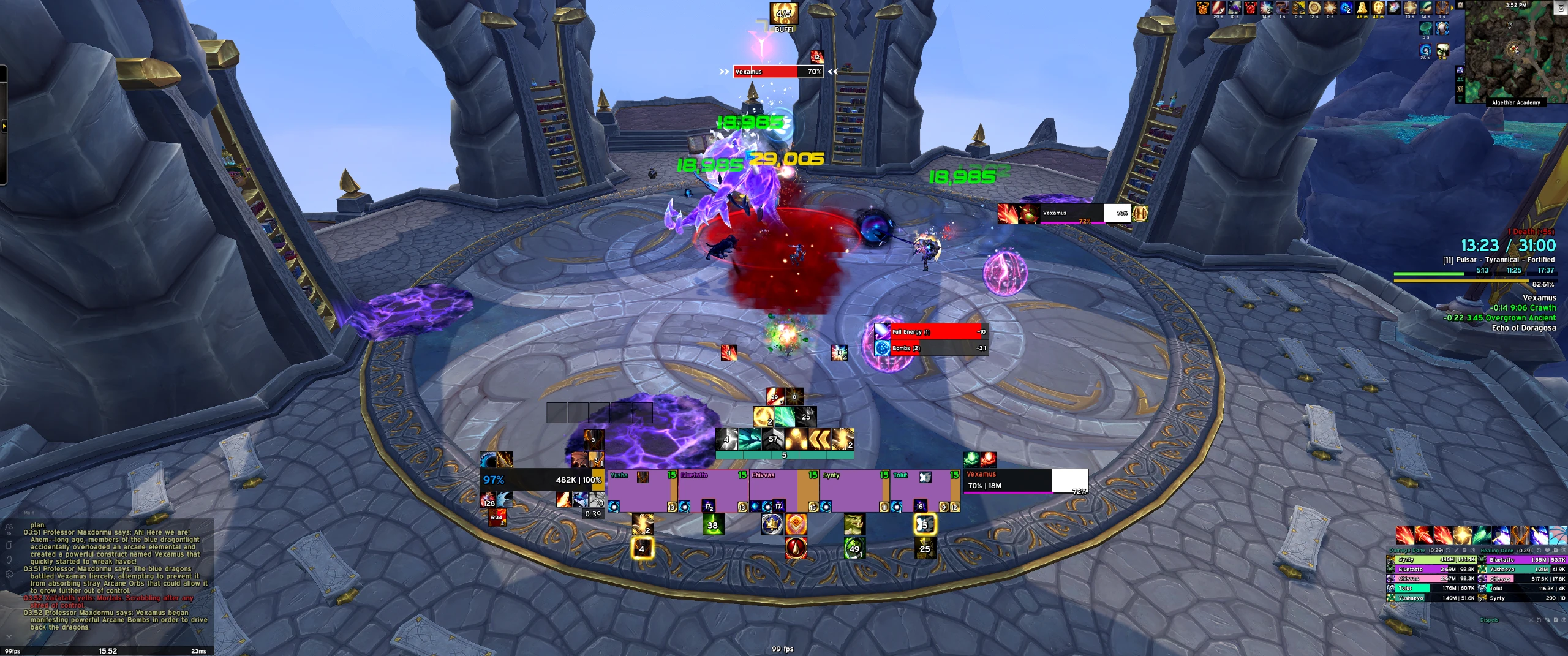

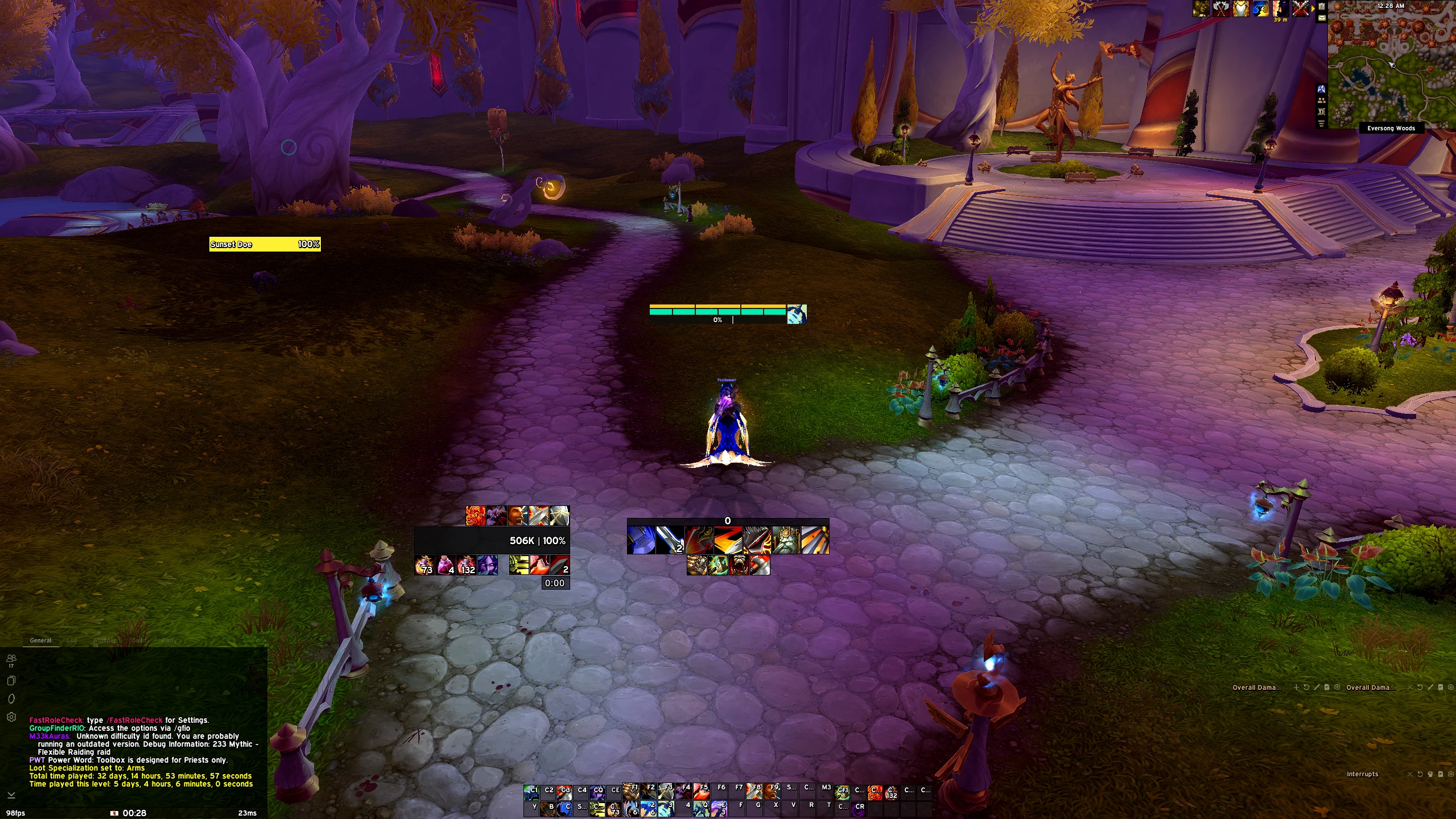
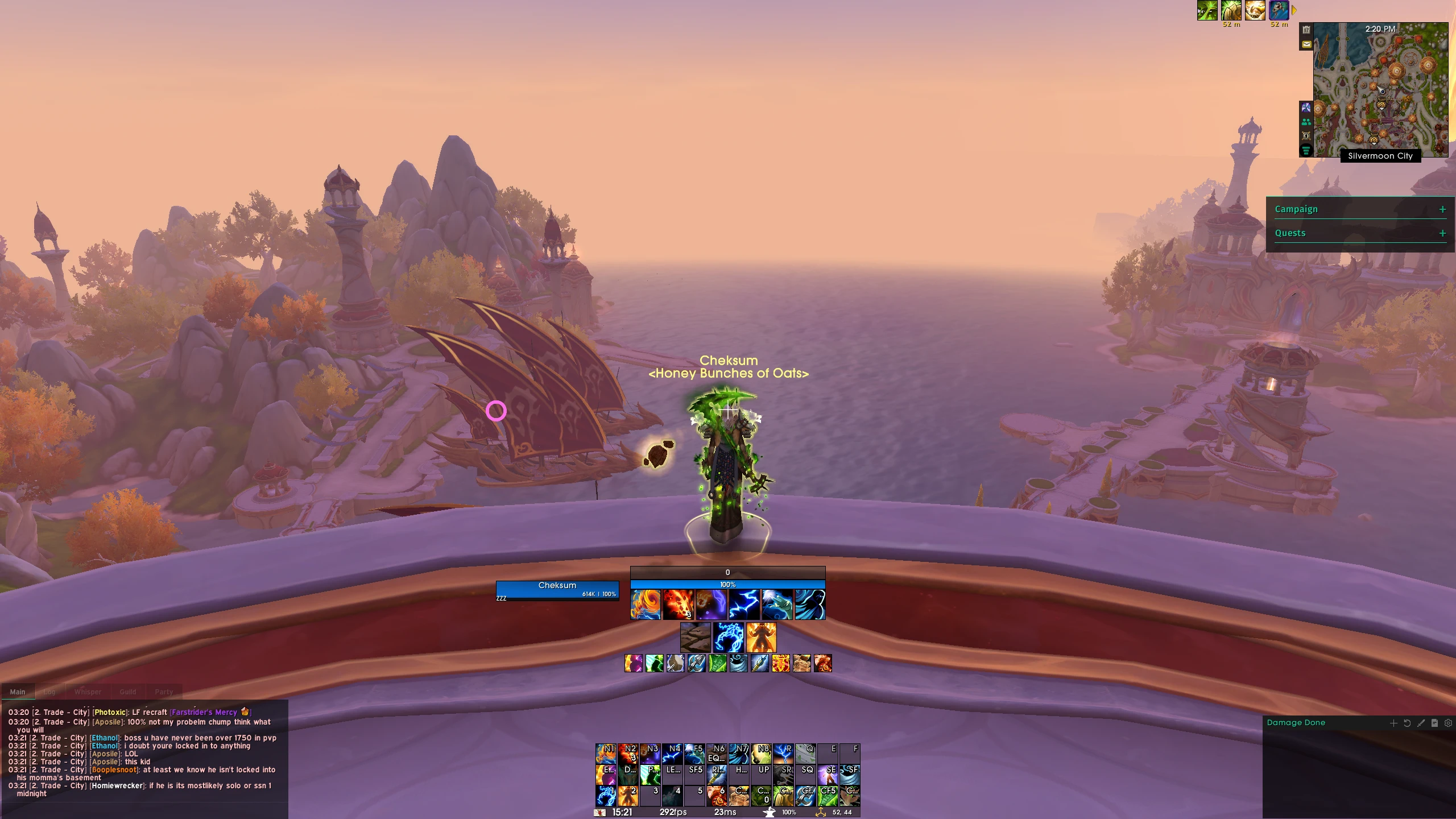

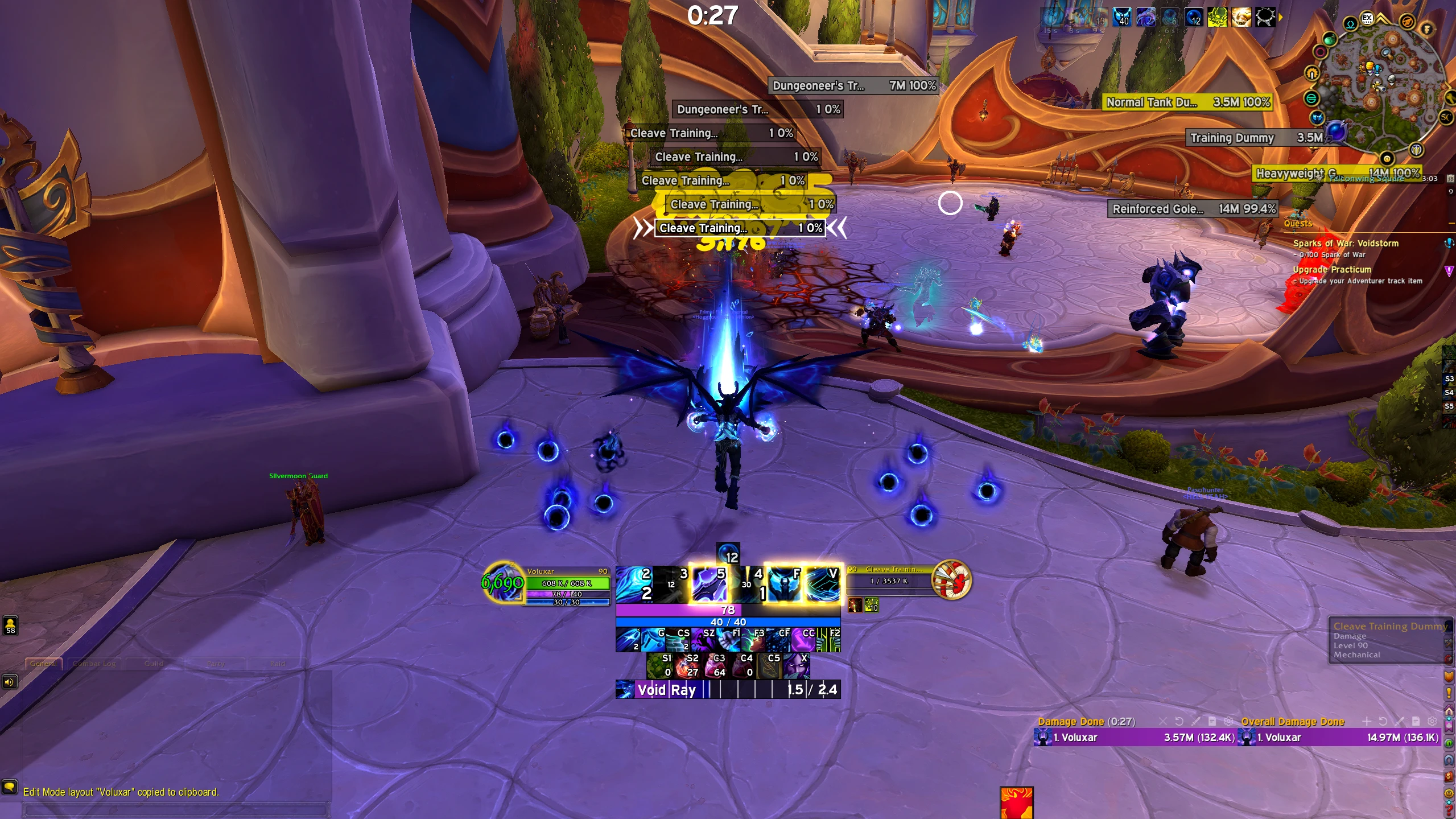

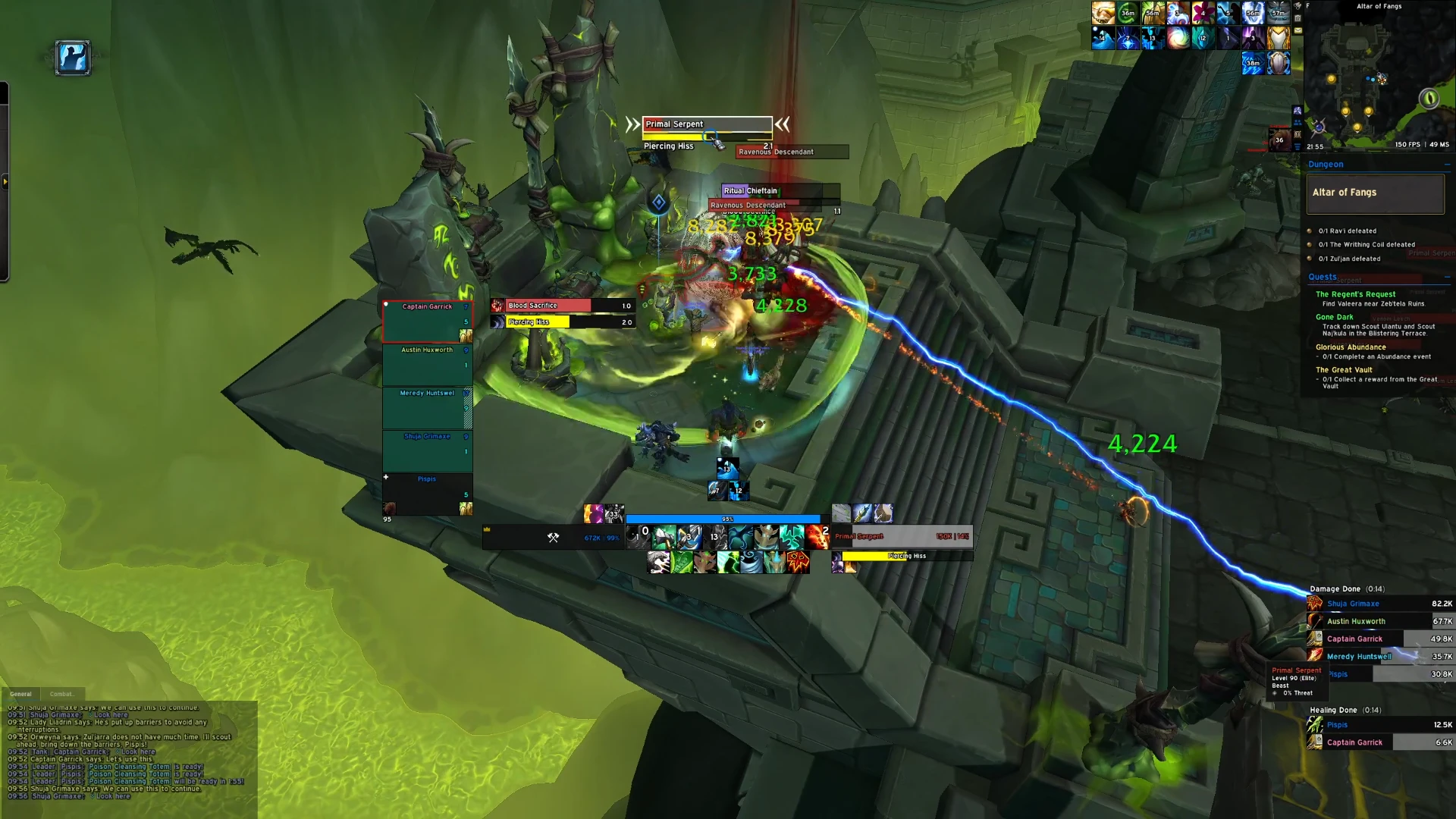

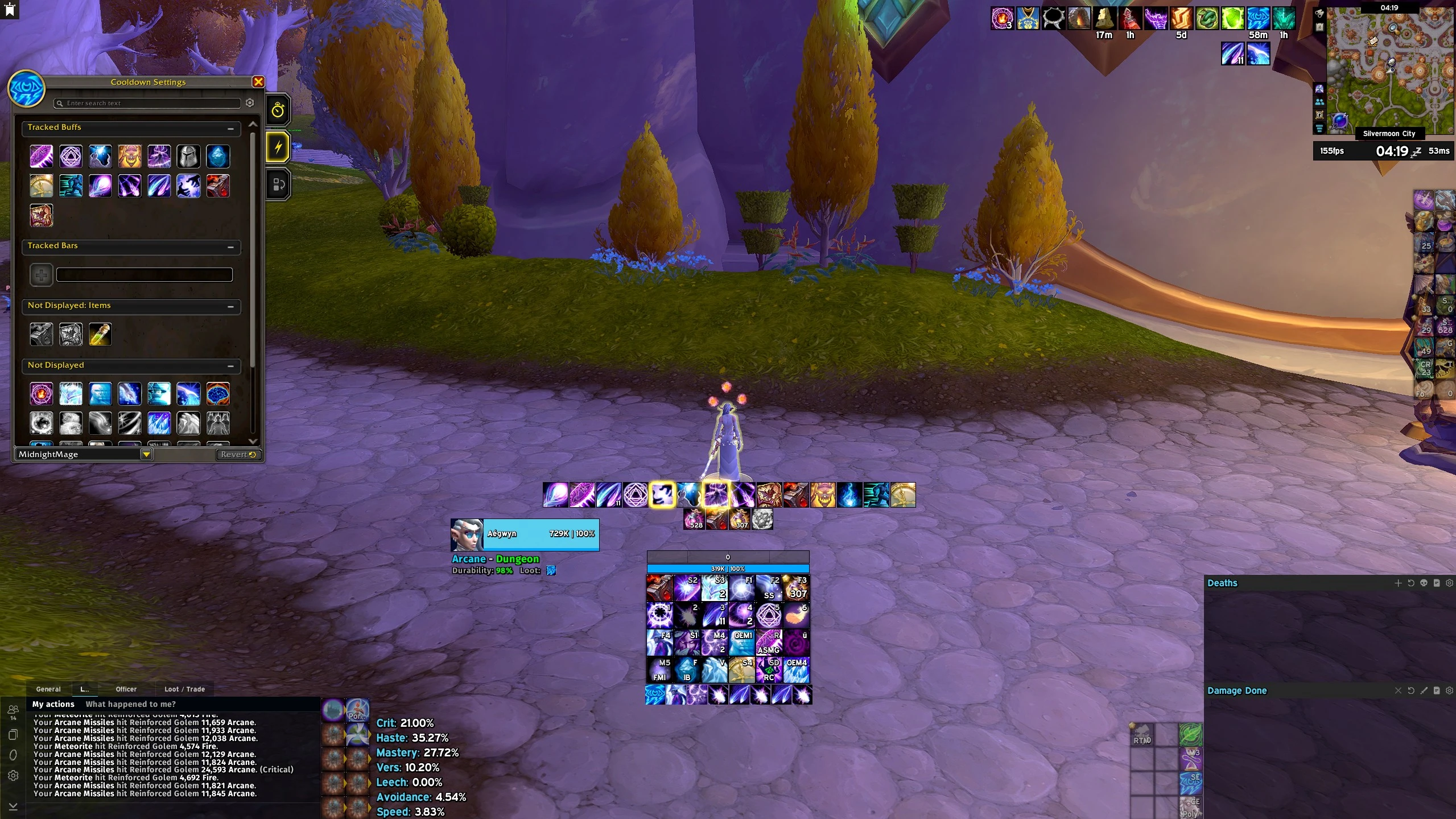

Get into the action faster and copy paste EllesmereUI profiles that are already configured
EllesmereUI is a World of Warcraft Retail addon that replaces large parts of the default interface with its own unit frames, action bars, cooldown tracking, chat, bags, and damage meters. It comes with a built-in UI editor, and each part of it is a separate module, so you can turn on only what you use. A profile is a saved copy of that setup. Instead of configuring every module yourself, you paste one import string and get a finished layout. This page lists EllesmereUI profiles shared by the community.
Why use an EllesmereUI profile instead of building your own
EllesmereUI has a lot of options, and getting frames, bars, and cooldown displays to sit where you want takes time, especially if you have never used it before. A profile skips that step. Someone has already arranged it for a role or a screen size, and importing it gives you the same layout in a couple of minutes.
You are not locked into what you import. Every module stays editable afterwards, so you can treat a profile as a starting point and change colors, positions, or sizes to fit how you play.
Profile categories on this page
Profiles are grouped by what they are built for, so you can filter by role instead of scrolling through everything:
- General, for an all-around layout that suits most classes
- Damage dealing, with cooldowns and resources easy to read
- Healing, with party and raid frames given the most space
- Tanking, with threat and incoming damage in view
- Raiding, for visibility during boss encounters
- PvP, for Arena and battleground layouts
- Leveling, for a lighter setup while questing
- Mythic+, for dungeon runs
You can also filter by class. Many profiles are made for a specific screen size such as 1080p, 1440p, or ultrawide, and the profile page says which one it was built for.
How to import an EllesmereUI profile
- Install EllesmereUI first. You can download it from here.
- Log into the game once so the addon loads and creates its default profile.
- Open a profile’s page on Warperia and copy its import string.
- In-game, open the EllesmereUI settings, go to the profile section, and choose Import.
- Paste the string, pick which modules you want to import, and confirm.
- Reload your UI with
/reloadif the game does not do it for you.
Some profiles also come with a Blizzard Edit Mode layout. If the profile page includes one, import it through Edit Mode (Esc, then Edit Mode, then the Layout dropdown, then Import) before or after the EllesmereUI string, following the profile author’s notes.
If something looks off after importing, check your screen resolution and UI scale first. A profile built for 1440p will not line up exactly on a 1080p monitor.