

ThiccUI
QoL for WoW: Forever. Keybinds that follow your abilities across bars, a Mobile Trainer spellbook tab, a Classic-style quest log, and snapshots from beta to live. Plus movable/resizeable windows, custom party frames and nameplate combo points.
Details
Expansion
 Forever
 Categories
Developers

Having issues?
Thicc UI
Quality-of-life features for World of Warcraft: Forever, all in one addon and one settings window. Type /thicc to open it.
Every feature can be switched off completely with the tick beside its name. After a reload, nothing of a switched-off feature is loaded.
Built and tested for the WoW: Forever client. It is not made for Retail or the Classic clients.
Features
Action bars and keybinds
Action Keybinds
- Keys stay with the ability, item or macro they're bound to when you drag it to another slot or bar.
- Up to two keys per action. Keys you set in Quick Keybind Mode (/kb) are picked up as you set them.
- A safety net: bindings that look unloaded are never touched, movement keys are never taken, and a daily backup is kept.
Radial Menu
- Rings of icons that open on a key of your choice, centred on your mouse.
- Holds game windows, spells, professions, items, toys, macros, mounts, raid and world markers, and tracking.
- Up to 8 rings with up to 12 icons each. Rings are per character, or shared with a tick.
- Spells always use your highest rank. Hold the key, point, let go.
- Presets: a Professions ring filled from what your character knows, plus Tracking, Raid markers, World markers and Windows.
Last Cast Ability
- A small icon that flashes on every button press.
- A green copy flies off to the side when the cast actually lands.
Characters and gear
Gear/Item Manager
- Point at an equipment slot in your character window to see everything in your bags that fits it. Click to swap.
- Changes picked while dead, or armour picked in combat, wait until you can make them.
- Item levels on your gear, in your bags, in loot windows and on the inspect window, each switched on separately.
- Your overall item level (average or total) in the character window, and the same for anyone you inspect.
- "BoE" on unbound Bind-on-Equip items in your bags and bank.
- Enchant icons on slots that can be enchanted: point at one to see the enchant, or that it's missing.
- The game's "Item Level" tooltip line only on gear, not on crafting materials.
- A durability icon listing every piece's durability.
Alt Inventory
- Remembers every character's bags, gear, bank, mail and auctions.
- Item tooltips list which of your characters have the item, where, and the total.
- Show another character's bags or bank right in your bag window.
- See what another character is wearing, with its model, right in your character window.
Mailbox Bag
- Your inbox as one bag: every item, coin and letter in a grid, each showing the time left before it's returned.
- Search for anything: an item's name, kind, slot or quality, the sender, the subject, "money", "cod" or "soon".
- Sort by time left, name, item level, level needed, quality, kind, sender or amount, and filter by equipment, consumables, crafting and more.
- Gear your class can't equip is marked red.
- Click or right-click an item to put it in your bags. Take all, or only what the search and filter show. Never pays a C.O.D. for you.
- A button on your bags shows any character's recorded mail away from a mailbox, with the same sort and filter.
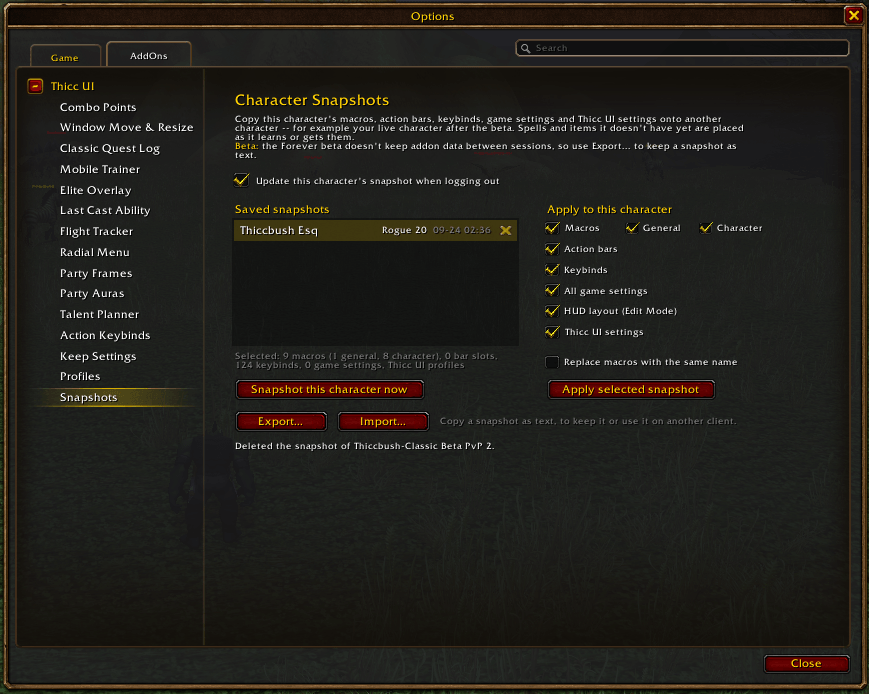
Character Snapshots
- Save a character's macros, action bars, keybinds, game settings, HUD layout, radial rings and Thicc UI settings.
- Apply them to another character, for example from the beta to your live character.
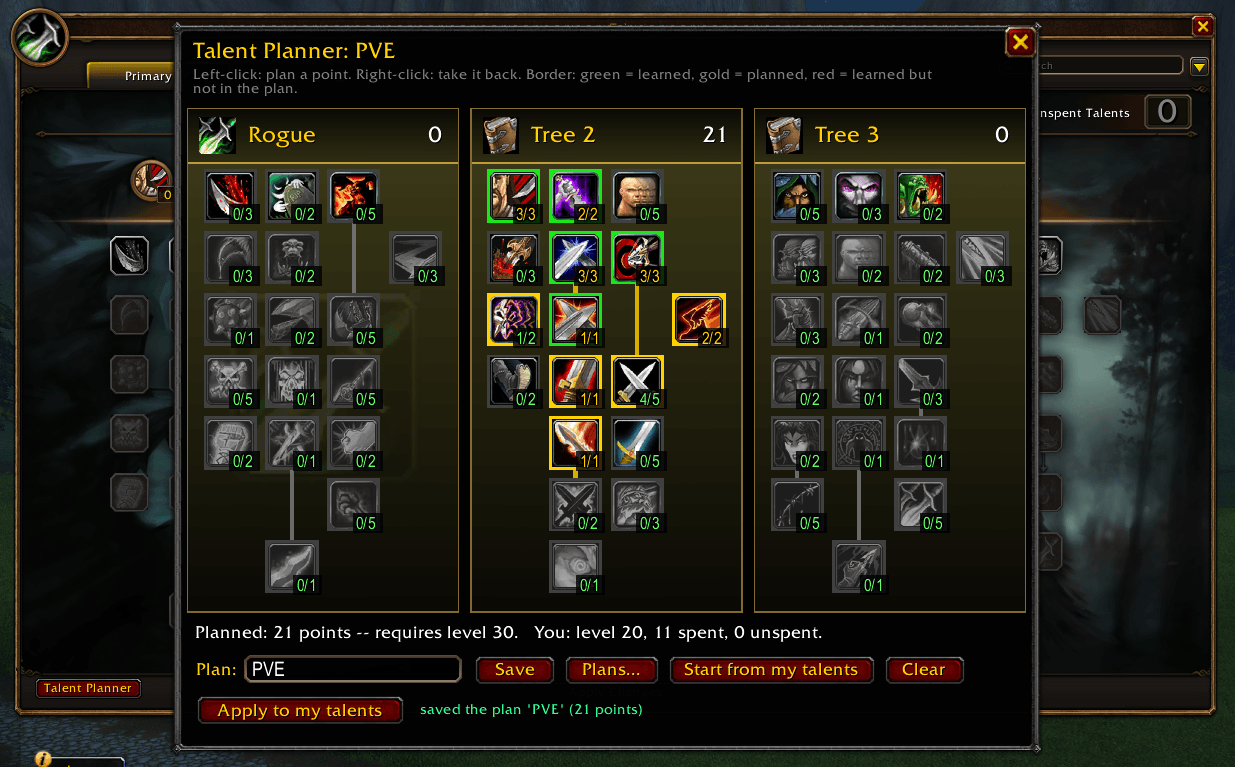
Talent Planner
- Plan your talents point by point without spending anything, and save plans by name.
- Plan any class: every class's beta trees are built in, with notes on what changed from Classic.
- Apply a plan to spend your points along it as you level.
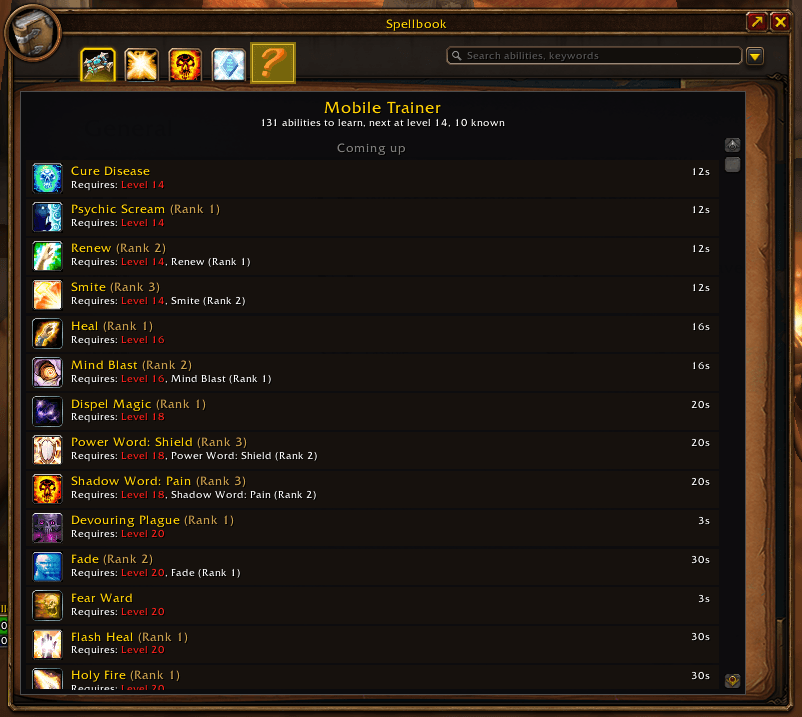
Mobile Trainer
- A spellbook tab listing the abilities you can learn next, with their level and cost.
- Every class trainer's list is built in, so you never need to visit a trainer to see it.
Dungeons, groups and social
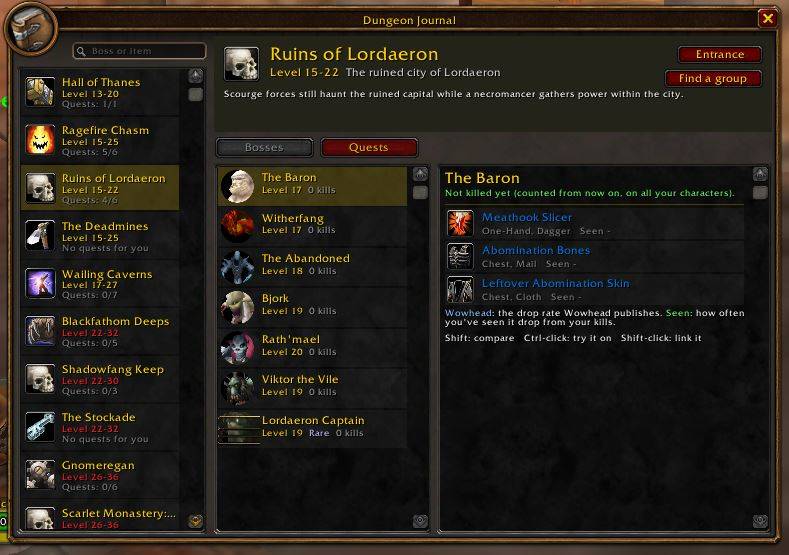
Dungeon Journal
- Every Forever dungeon in one window, by level, from Ragefire Chasm to Stratholme: bosses with their level and loot.
- Point at loot for its tooltip, Shift to compare, Ctrl-click to try it on. A green tick means one of your characters has it.
- Your faction's dungeon quests: where they start and end, the level you need, the quests to do first, rewards and XP. Share one from your log.
- Show on Map puts a pin on the quest giver or the entrance. Find a group opens the Group Finder on that dungeon. The Ruins of Lordaeron has an Alliance route guide.
- What each boss does and how to start it, for the dungeons the beta reaches.
- Search for a boss, an ability or an item; the journal shows only what matches.
- Optional stats: your kills of each boss and how often you've seen each item drop, next to Wowhead's published drop rate.
- Opens on the boss you have targeted, the dungeon you're in, or where you left off. An optional minimap button of its own.
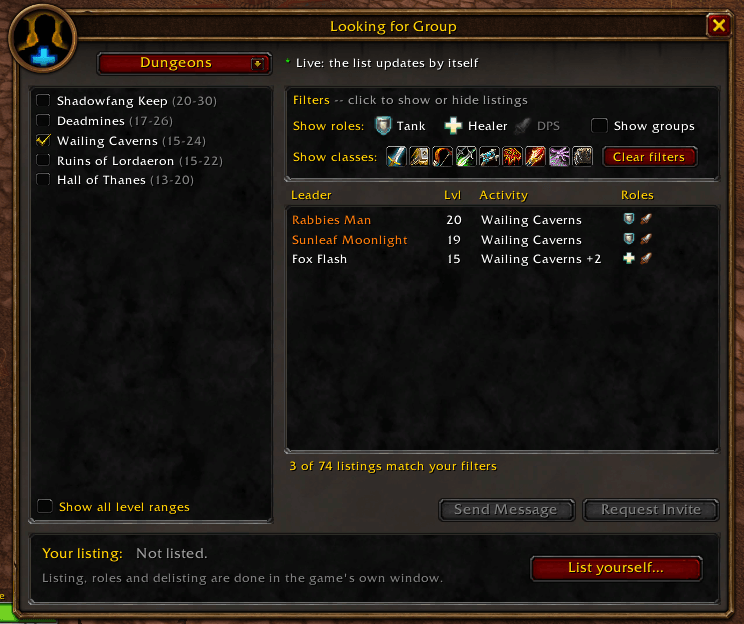
Group Finder
- Looking for Group in its own window, with role and class filters and sortable columns.
- Whisper, invite or ask to join straight from the list.
- Notify me plays a sound when a new group you'd want is listed, even with the window closed.
Custom Tooltips
- Who a player or NPC is targeting, on their tooltip.
- A player's guild rank and item level (average or total).
Classic Appearances
- A Classic-style quest log book on your quest log key.
- A Classic-style Friends / Who / Guild / Raid window on your social key.
Interface
Window Control
- Drag any window by its title bar to move it. Right-click and hold to resize it.
- Windows open where you left them. Unit frames and the minimap can be moved too.
- An optional alignment grid with snapping.
Nameplates+
- Combo point pips and your resource number on your target's nameplate.
- A label on every nameplate showing who that unit is targeting.
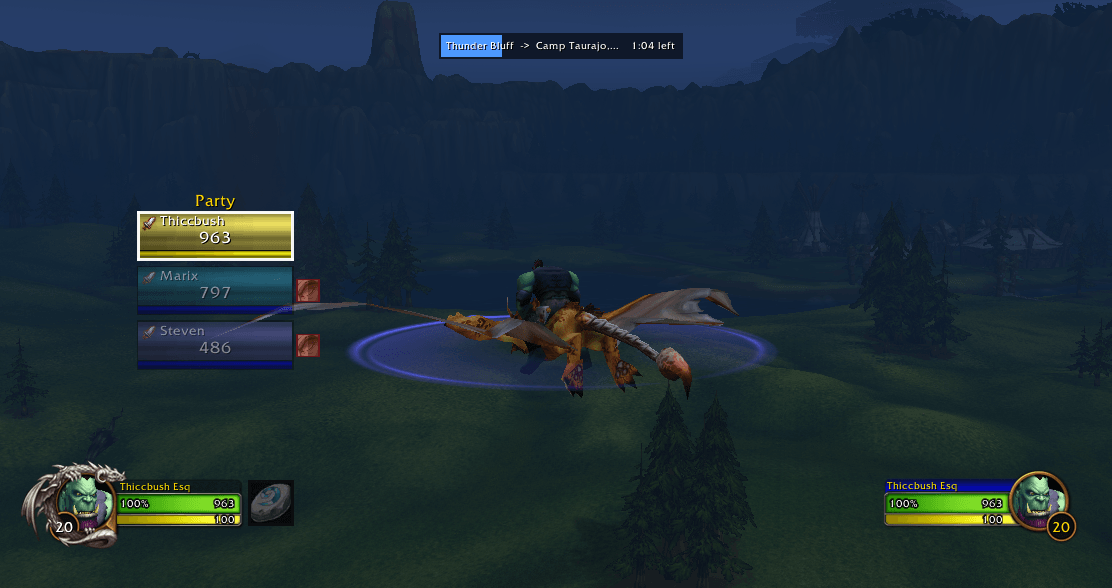
Flight Tracker
- A bar while you're on a flight path, showing where you're going and how long is left once the route is learned.
Elite Overlay
- The elite dragon border around your own player frame. Off by default.
Minimap button
- Left-click for settings, right-click for Looking for Group.
Commands
| Command | What it does |
|---|---|
/thicc | Open the settings (also /thiccui, /tui) |
/thicc features | List which features are on and off |
/tuikb | Quick Keybind Mode (also /kb) |
/tuiradial | Open a radial ring (/tuiradial edit to change one) |
/tuilfg | Open the Group Finder |
/tuidj | Dungeon Journal (/tuidj dm opens a dungeon) |
/tuiinv | Alt Inventory |
/tuisnap | Character Snapshots |
/tuitalents | Talent Planner |
/tuilog | Classic quest log |
/tuisocial | Classic social window |
/tuibindings | Keybind backups: save, restore |
If another addon also uses /tui or /kb, use /thicc and /tuikb instead.
Installing
- Install with the CurseForge app, or download the zip.
- If you downloaded it, extract the ThiccUI folder into your WoW: Forever
Interface/AddOnsfolder. - Enable Thicc UI on the character select screen and type /thicc in game.
Good to know
- Moving windows, resizing and changing keybinds wait until combat ends. The game doesn't allow addons to do them in combat.
- Thicc UI makes no network requests. Its settings are saved in
ThiccUIDBin your WTF folder.
Reporting a problem
Please include the game version, what you did, any Lua error text, and the output of the command for the feature involved:
| Problem with | Type |
|---|---|
| A feature not running | /thicc features |
| Windows not moving | /tuiwin |
| Unit frame handles | /tuiframes |
| Quest log | /tuilog debug |
| Keybinds | /tuikeys |
| Mobile Trainer | /tuispells debug |
| Radial Menu | /tuiradial debug |
| Nameplates+ | /tuiplates debug |
| Alt Inventory | /tuiinv debug |
| Group Finder | /tuilfg debug |
| Dungeon Journal | /tuidj debug |
| Gear/Item Manager | /tuigear |
| Elite Overlay | /tuielite |
World of Warcraft and Blizzard Entertainment are trademarks of Blizzard Entertainment, Inc. Thicc UI is a fan-made addon and is not affiliated with or endorsed by Blizzard.
You must be logged in to leave a comment.