

QuietUI
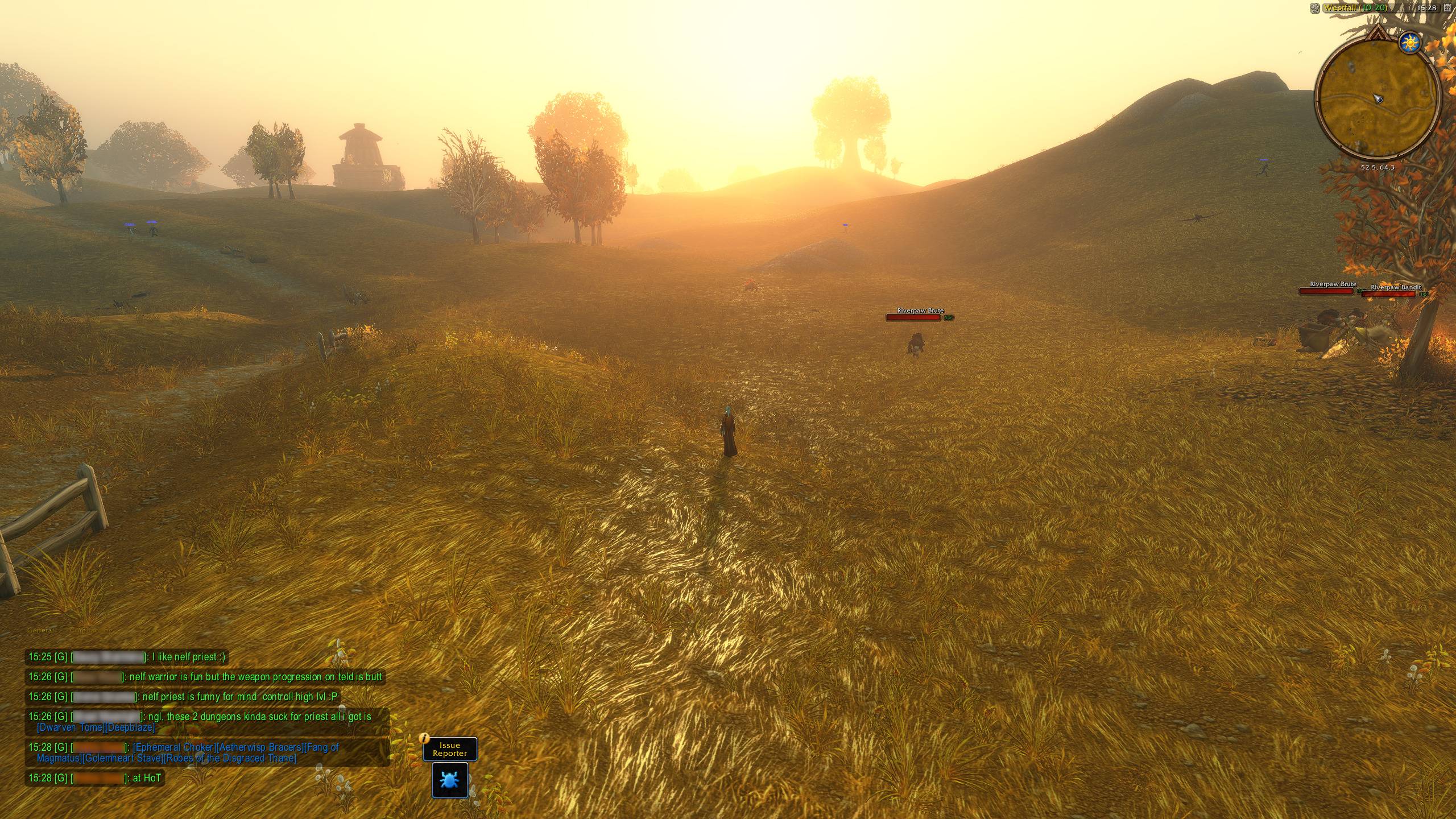
A quiet interface for WoW Forever. Few frames. Few buttons. The world stays on screen.
Details
Expansion
 Forever
 Categories
Developers

Having issues?
QuietUI — Less UI. More world.
Let Azeroth fill your screen. QuietUI fades the Blizzard HUD while you explore and brings back the parts you need through combat, hover, and your current situation.
Built for WoW Forever. Supports keyboard and mouse, and the client's Gamepad interface.
Quiet by default. Yours in one window.
- Action bars that know when to appear. Group bars to fade together, keep a group visible, or show individual bars for enemy and friendly targets.
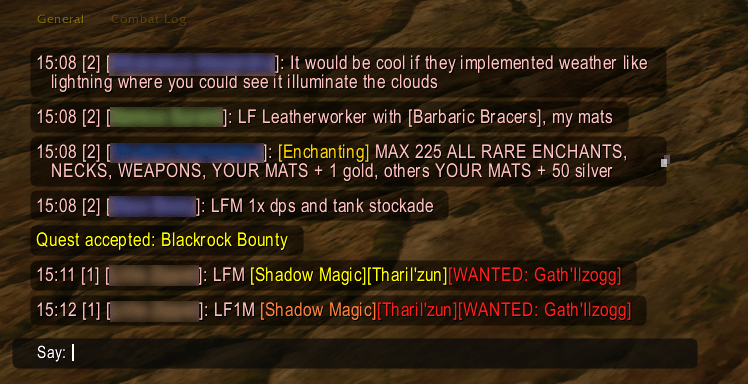
- Chat that leaves room for the world. Clean, dark message bubbles fade after a delay you choose. Hover to read faded messages and scroll through your history.
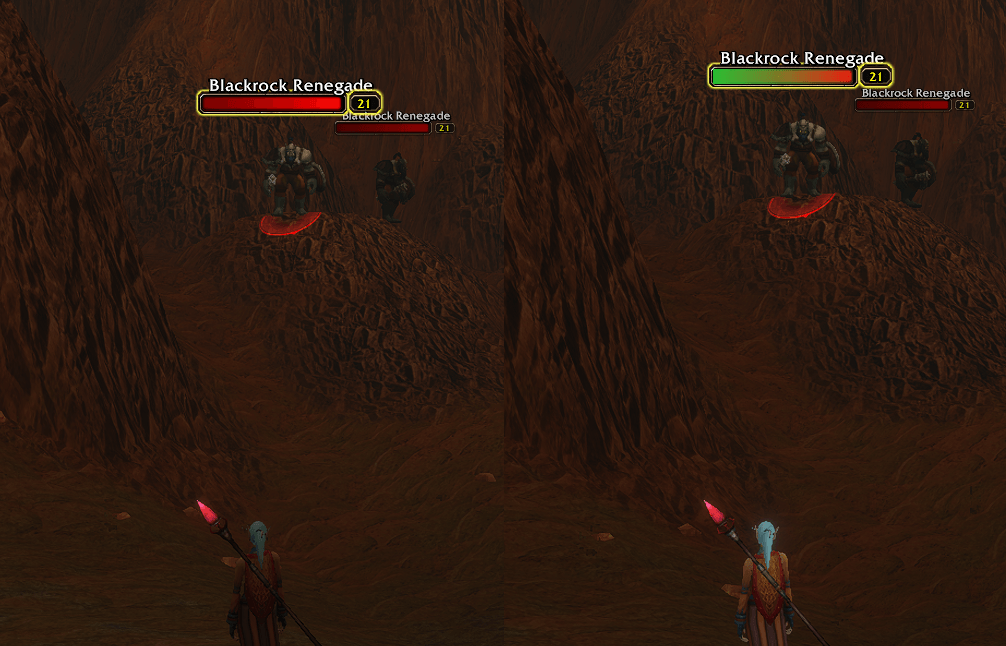
- Range without the bars. An optional green gradient on your target's nameplate shows when a living target is within your chosen spell's range while action bars are faded. Check your reach before starting a fight.
- Shared presets across characters. Save your visibility settings with an existing Edit Mode layout, then reuse them on characters in the same interface mode.
- Your HUD, one key away. Glance reveals the faded HUD at once. Toggle it again to return to your usual rules.
Choose what stays visible, what appears only on hover, and what follows QuietUI's automatic rules. A bundled Edit Mode layout is available if you want a starting point.
Get started
Type /quiet setup or click the minimap button to choose what stays on screen. Change your settings and click Save. Glance defaults to the backtick key when it is free; change it under QuietUI in Key Bindings.
Commands and shortcuts
/quiet— Toggle QuietUI on or off./quiet on//quiet off— Enable or disable it explicitly./quiet setup— Open the setup window, even while QuietUI is off./quiet glance— Toggle the faded HUD into view while QuietUI is enabled. It leaves chat unchanged and does not save the Glance state./quiet preset— List your current preset and the presets available for your interface mode./quiet preset "Adventure"— Select an existing shared preset by name. Names ignore letter case; use quotes for names with spaces. While QuietUI is off, the selection waits for the next enable.
/quietui also works in place of /quiet. Controller users can put /quiet glance in a macro and assign it through their controller setup. The minimap button opens settings with a left click; drag it to move it around the minimap. The bag button opens bags with a left click, reveals bag slots with a right click, and can also be dragged.
Make it yours
One setup window holds seven tabs:
- General: Keep personal settings with <no preset>, or create, rename, and select shared presets. Link a preset to an existing Edit Mode layout. Without a preset, optional Force QuietUI layout selects the bundled layout when you enable QuietUI and restores your previous layout when you disable it.
- Visible: Choose Always visible or Only on hover for individual HUD elements. Leave both unchecked to use their usual rules. XP defaults to Only on hover; action bars and the swing timer have their own settings in Bars and Groups.
- Bars: Assign action bars and the swing timer to fade groups. Enemy and Friend keep an individual bar visible for a living target of the matching type, without revealing the rest of its group.
- Groups: See which bars belong together. Keep a whole group Always visible, choose Only on hover, or leave both unchecked for automatic visibility. Hover-only groups stay quiet even in combat; Glance and Edit Mode still reveal them. Group modes override Enemy/Friend choices without clearing them.
- Player: Turn the portrait and pet on or off, group buffs with the player frame, and choose Always show debuffs. Optional Require a living target fades player, pet, and target frames when your target is dead. Optional In range offers 10 yards, 28 yards, or Spell, with Unfriendly or Friendly targets. Enter a spell name, or leave it empty to use the longest matching spell on bar 1. The indicator needs a visible target nameplate and stays off during combat and while the action bars are up.
- Chat: Toggle Modern chat and choose how long messages stay visible: 10 seconds by default, or Stay to keep them at the bottom. Hover reveals faded lines; scrolling lets you revisit history, and hovering a line lets you copy it.
- Info: A short introduction to QuietUI and Glance.
Save applies your choices and leaves the window open. X or Escape closes it without saving pending changes. A preset's layout previews as soon as you select it; closing without saving restores the layout used before the preview. Layout switches wait until combat ends.
Shared presets carry settings across characters in the same interface mode. Saving changes updates the shared preset; other characters using it load those changes on their next login. Reset default immediately saves the defaults and returns this character to personal settings without changing the shared preset. Import layout adds or updates the bundled QuietUI layout immediately, including if you previously chose Not now.
You must be logged in to leave a comment.