
QuadHeal – Click-Cast Healing Zones. Not only for healers ;-)
NEW! Divides your raidframes into multiple healing zones. Replaces Blizzard click-casting during combat. Keeping your original Blizzard click-casting settings untouched. Upgrade your healing without the aircraft cockpit.
Details
Expansion
 Forever
 Categories
Developers

Having issues?
QuadHeal (new)
Click-cast healing zones for Blizzard Solo, Party and Raid frames.
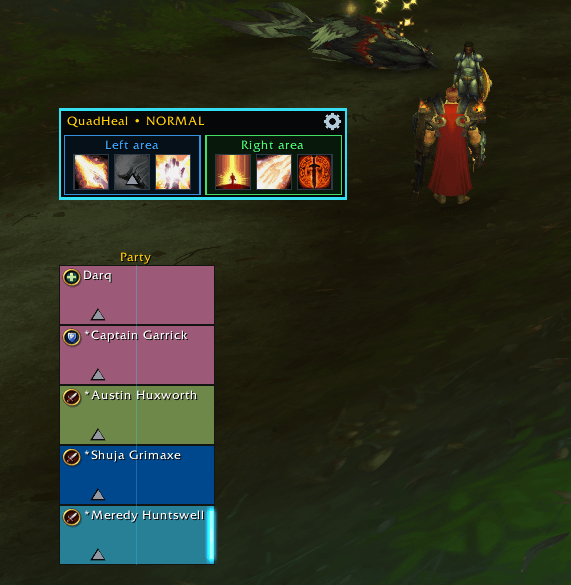
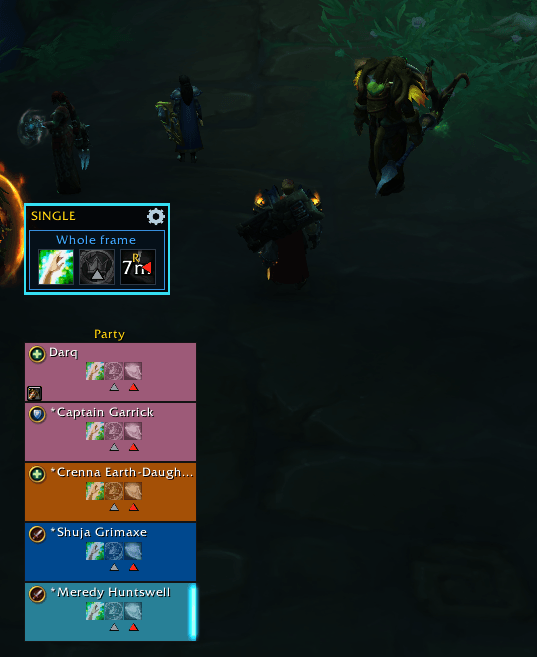
QuadHeal divides Blizzard unit frames into configurable clickable areas. Assign up to five mouse buttons to each area and cast spells directly on that player—without targeting them first or juggling Alt, Ctrl and Shift modifiers.
Watch the video in the gallery for a quick overview.
Features
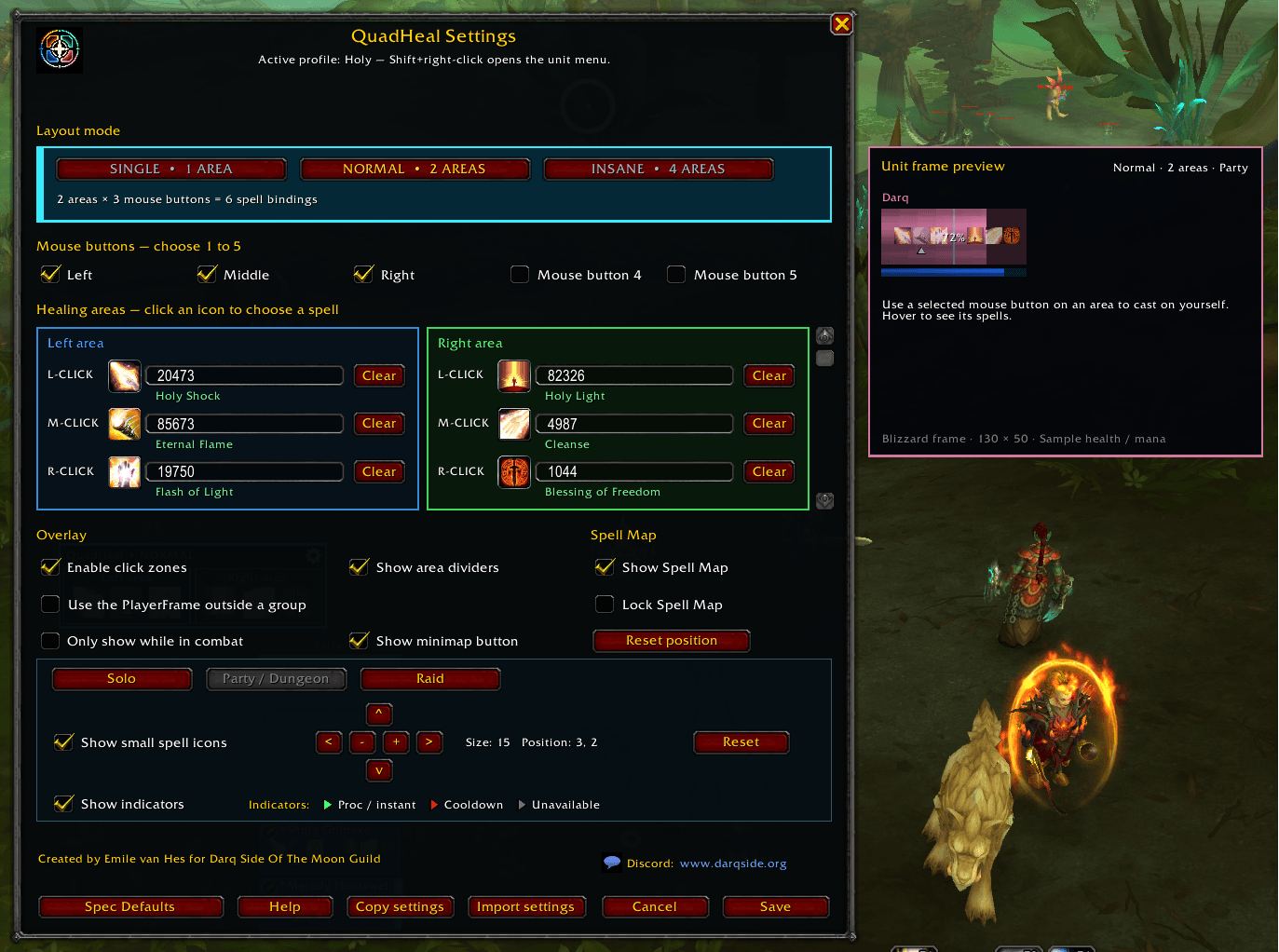
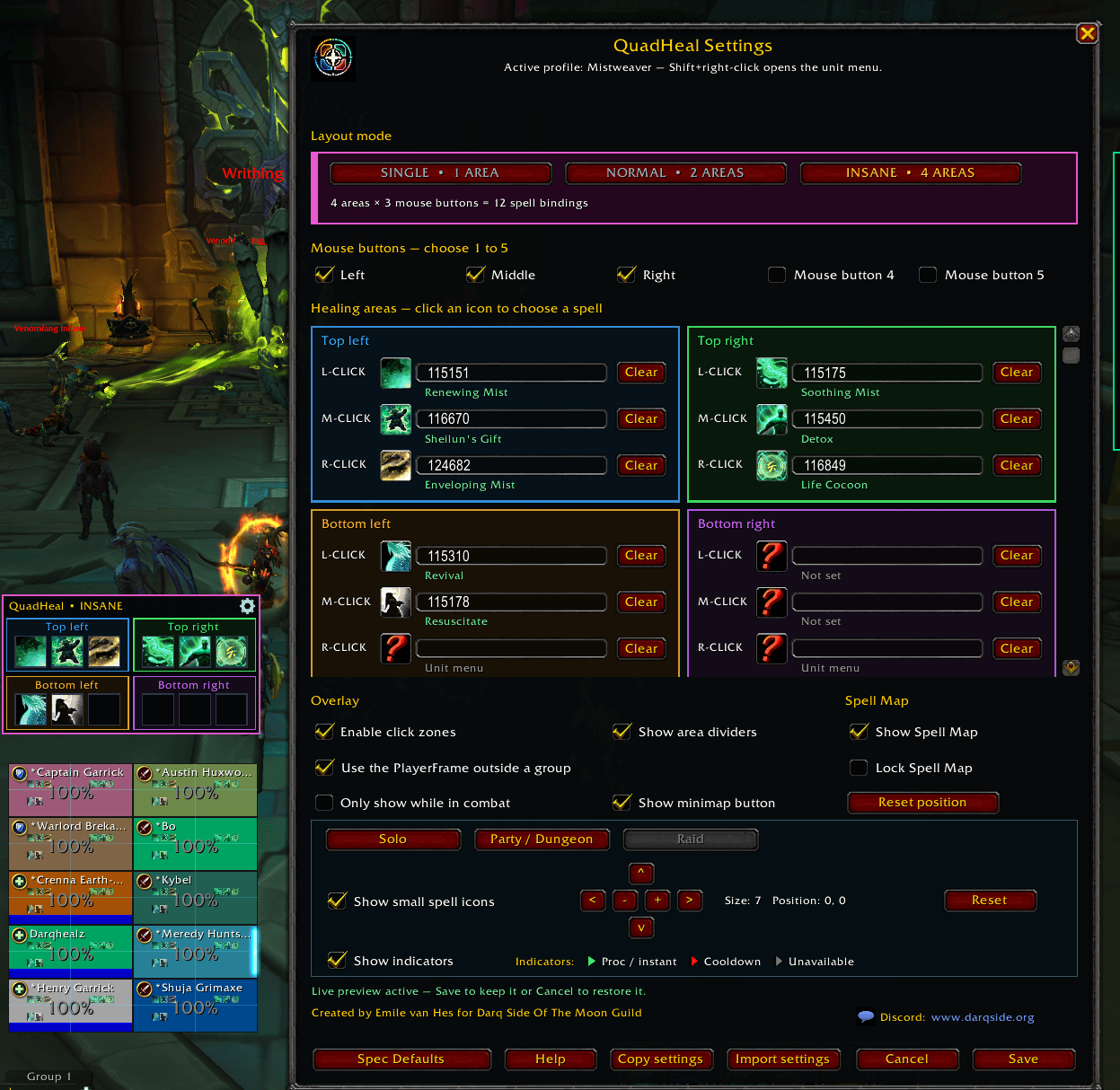
- Divide unit frames into 1, 2, 3 or 4 clickable areas
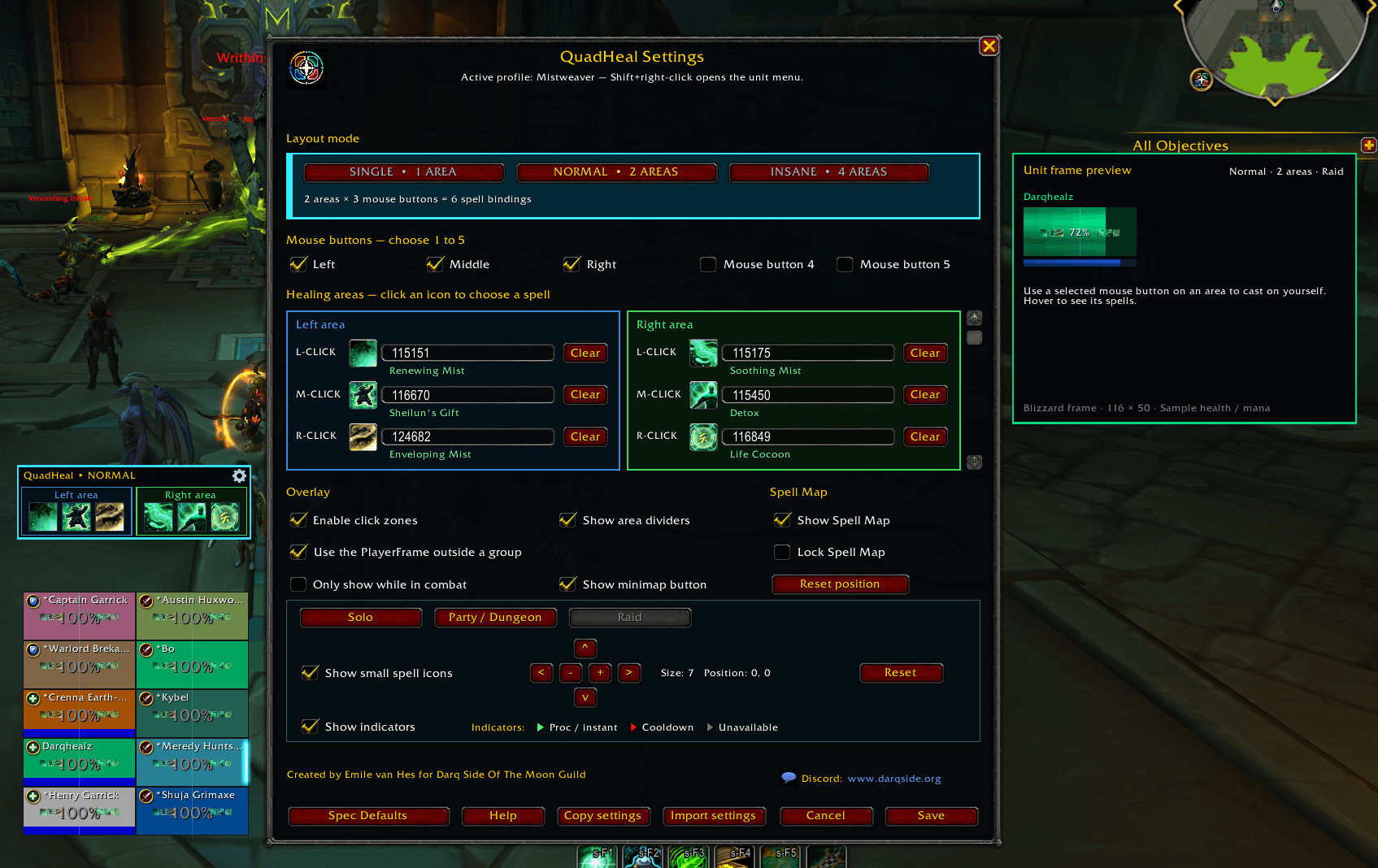
- Assign Left, Middle, Right, Mouse 4 and Mouse 5
- Cast up to 20 different spells per unit frame
- Separate settings for Solo, Party/Dungeon and Raid
- Individual binding profiles for every specialization
- Starter presets for supported healer specializations
- Live, clickable configuration preview
- Movable spell icons and status indicators
- Draggable and clickable Spell Map
- Cooldown, charge, proc and availability tracking
- Optional combat-only activation
- Copy and import settings using readable JSON
- Uses the standard Blizzard unit frames
- Built for healers, but available to every role
Small frames. Big spells. Questionable amounts of clicking.
Pick your level of chaos
Choose between one, two, three or four clickable areas per unit frame.
- One area: spacious, simple and difficult to miss
- Two areas: the comfortable everyday setup
- Three areas: more options without embracing complete chaos
- Four areas: maximum flexibility and up to 20 spell bindings per frame
Each area can use any combination of:
- Left Click
- Middle Click
- Right Click
- Mouse Button 4
- Mouse Button 5
Use one button or all five. QuadHeal provides the options; you provide the fingers.
Built for healers. Open to everyone.
QuadHeal was designed for healing through Blizzard party and raid frames, but every specialization can use it.
Healers receive practical starter presets for supported specializations. Tanks and damage dealers start with empty slots for their own heals, defensives, dispels, externals and utility spells.
Every specialization keeps its own bindings, so changing spec will not turn your carefully planned setup into interpretive mouse dancing.
Solo, Party and Raid layouts
Configure icons and indicators separately for:
- Solo play
- Parties and dungeons
- Raids
Move spell icons using the arrow controls, adjust their size and decide when icons or indicators should be visible. QuadHeal automatically switches to the correct layout when your group changes.
Placement remains under your control. If an icon leaves its assigned area, the preview warns you instead of quietly rearranging everything.
Live clickable preview
The settings preview follows the dimensions and scale of the available Blizzard unit frame, including classic and raid-style party frames.
Outside combat, click a preview area to cast its assigned spell on yourself. Hover over an area to inspect its bindings and immediately see how your setup behaves.
Save keeps your changes. Cancel restores the previous configuration. Secure click changes made during combat are applied after combat ends—because even chaos has rules.
The Spell Map
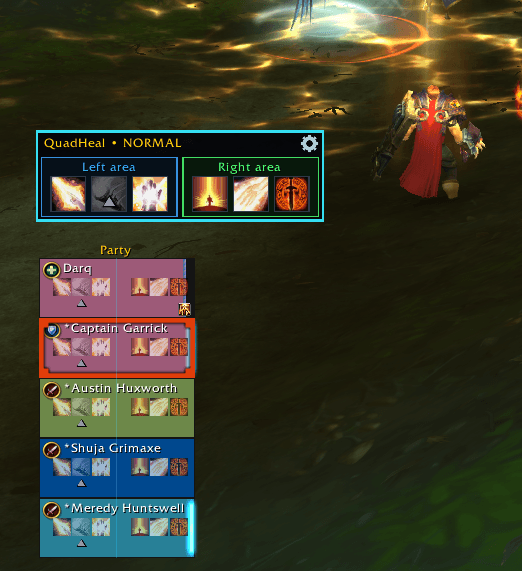
The draggable Spell Map gives you a compact overview of every configured binding.
It displays:
- Spell icons
- Mouse-button assignments
- Cooldowns
- Charge recovery
- Procs and temporarily instant spells
- Currently unavailable abilities
Its indicators use three simple colours:
- Green: recommended, highlighted or temporarily instant
- Red: on cooldown
- Gray: currently unavailable
The Spell Map can also cast its assigned spells on yourself. Lock it when you find the perfect position; unlock it when you inevitably change your mind.
Share your setup
Use Copy Settings to export your configuration as readable JSON.
Imports can include:
- Current-specialization bindings
- Display options
- Solo, Party and Raid layouts
- Spell Map positions
The imported specialization must match your current specialization. Missing settings retain their existing values, unknown fields are ignored and older QH1/QH2 export codes remain supported.
Your other specialization profiles and Blizzard Edit Mode settings remain untouched.
Getting started
- Open QuadHeal with
/qh,/quadhealor the minimap button. - Choose the number of clickable areas.
- Select your mouse buttons.
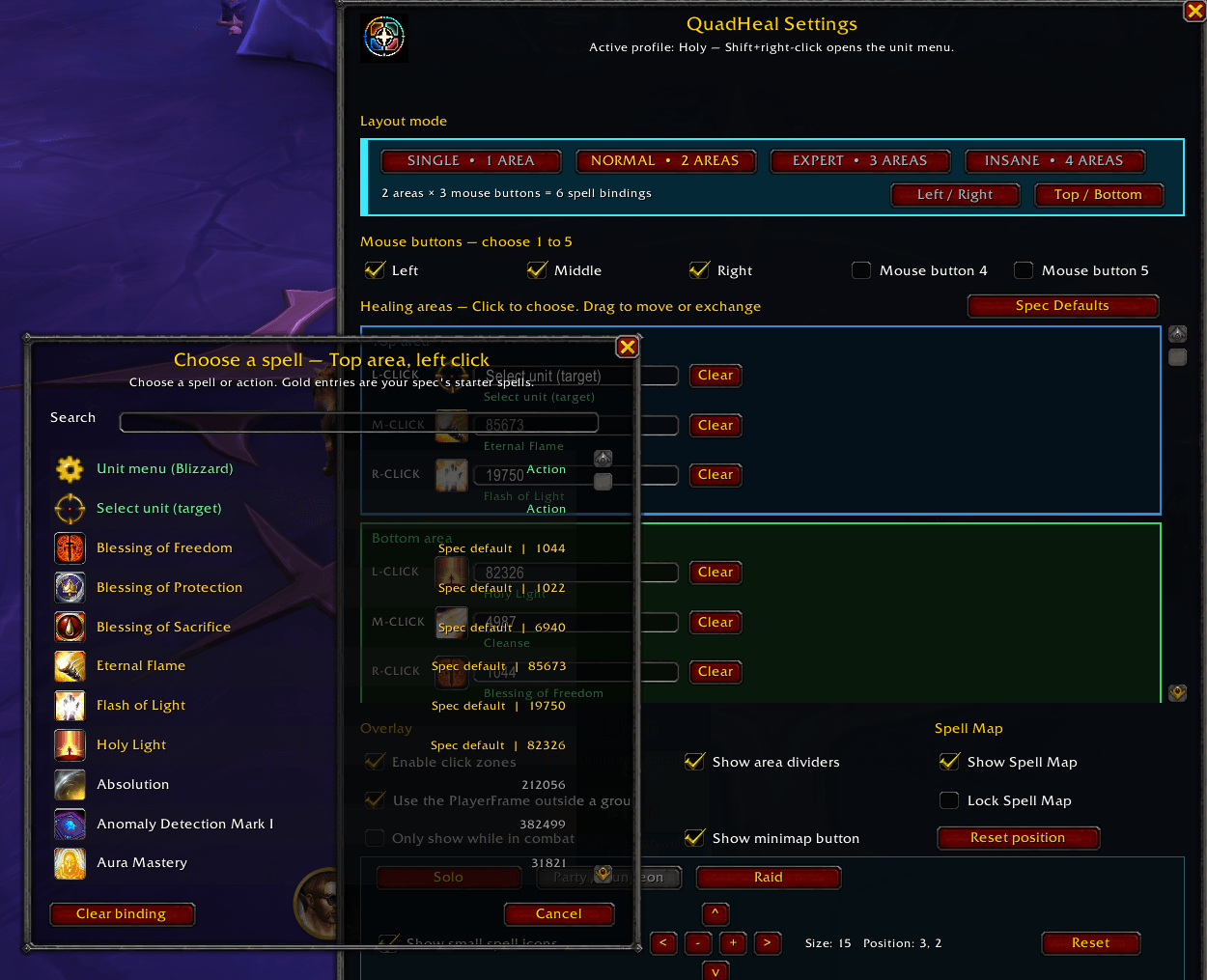
- Assign spells or load Spec Defaults.
- Test everything using the live preview.
- Save, join a group and start clicking health bars professionally.
For the best party and dungeon experience, enable Blizzard’s Use Raid-Style Party Frames option.
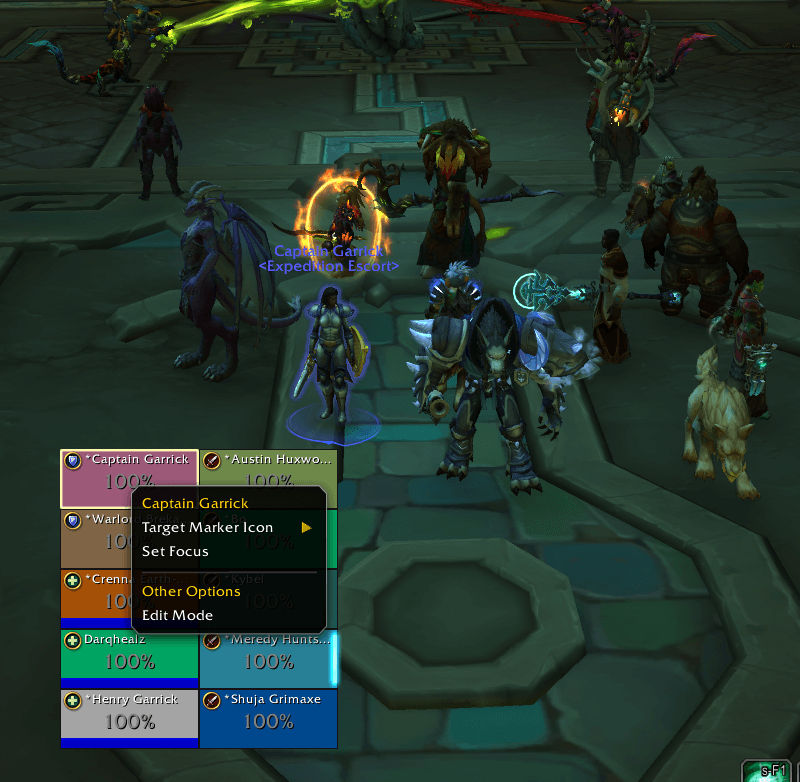
Shift + Right Click continues to open the standard Blizzard unit menu.
Created by Emile van Hes for the Darq Side Of The Moon Guild.
Questions, feedback or an increasingly elaborate feature request? Visit darqside.eu.
QuadHeal: because “just click their health bar” apparently needed a settings window.
You must be logged in to leave a comment.