
P5UI
A flat, X-Perl style UI: unit, party and raid frames with 3D portraits, a cursor ring for casts, swings and GCD, and restyled cast bar, cooldowns, action bars, bags, loot, chat, quest tracker and tooltips.
Details
Expansion
 Forever
 Developers

Having issues?
P5 UI
Available languages: English · 简体中文 · 繁體中文
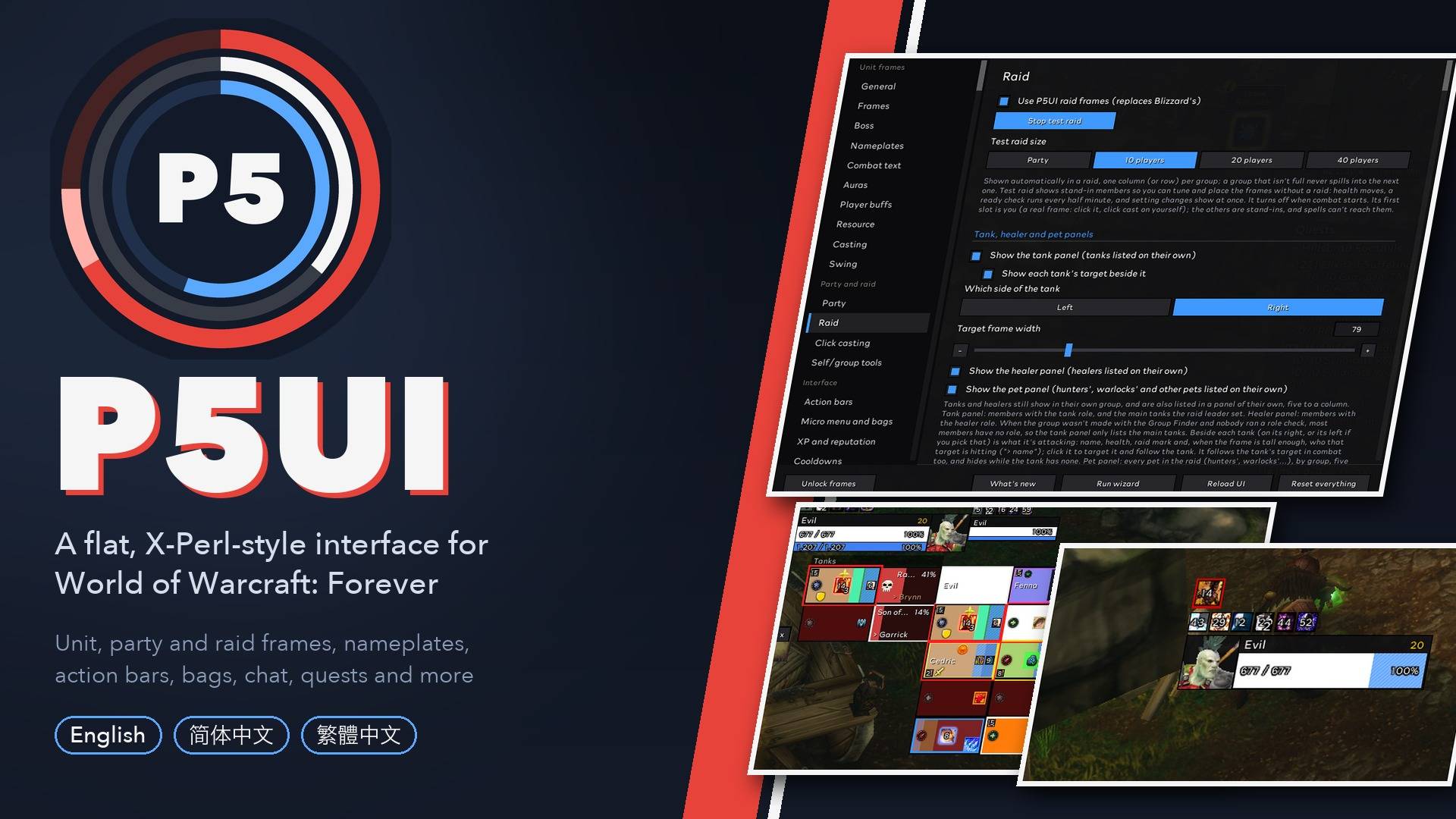
A complete flat, X-Perl-inspired interface for World of Warcraft: Forever: unit, party, raid and boss frames, nameplates, action bars, bags, maps, chat and more, each part with its own switch.
**Found a bug or want a feature? Tell us here: https://p5ui-board.cweihc.com/feedback/** (no account needed, screenshots can be pasted in).
In game the addon shows up as P5UI; before 0.8.1 it was called Ryuji UnitFrame, after Ryuji Sakamoto from Persona 5.
P5UI restyles almost the whole default UI in one flat, X-Perl inspired look: unit, party, raid and boss frames with 3D portraits, nameplates, combat numbers, action bars, a cursor ring for casts and swings, the damage meter, the minimap and world map, quest windows, bags, loot, chat, quests and tooltips.
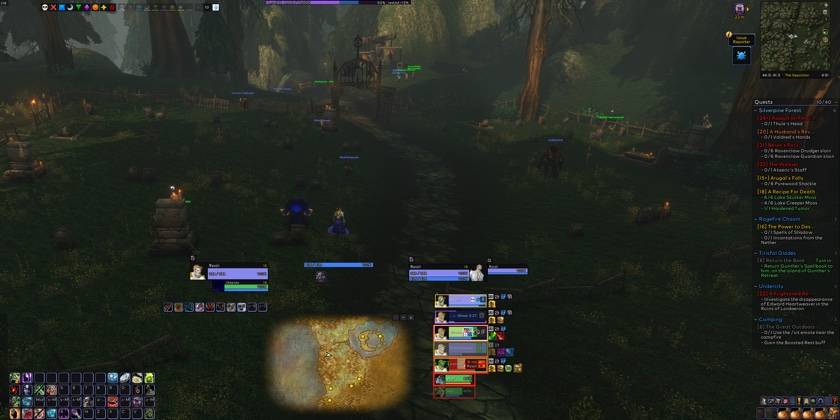
- Every part has its own switch. Turn off anything that replaces a Blizzard frame and Blizzard's comes back.
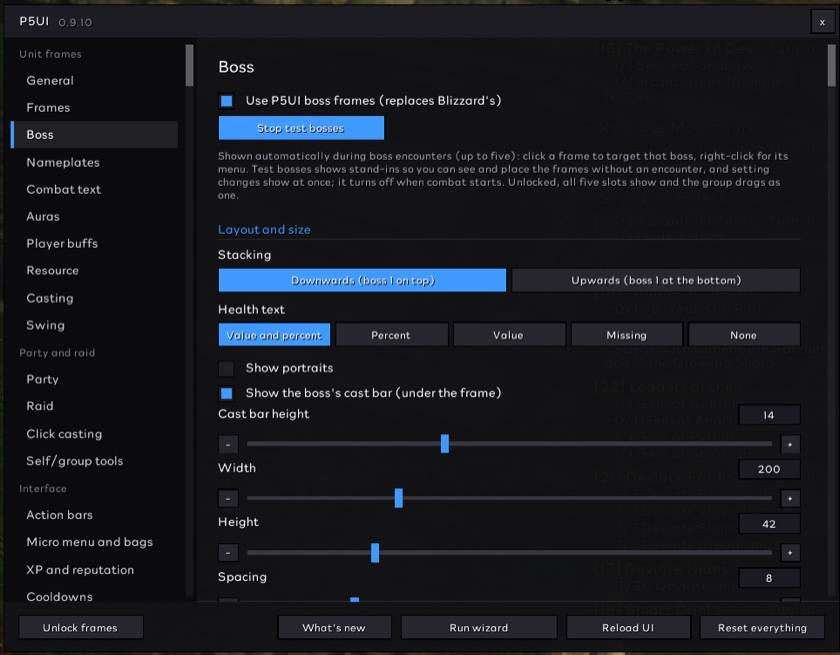
- Every settings page has a test mode. Test party, test raid, test bosses, sample auras, sample loot, a mock vendor: set things up without a group or a dungeon.
- Your language. The interface follows your game client: English, Simplified Chinese or Traditional Chinese (Taiwan wording).
Setup wizard
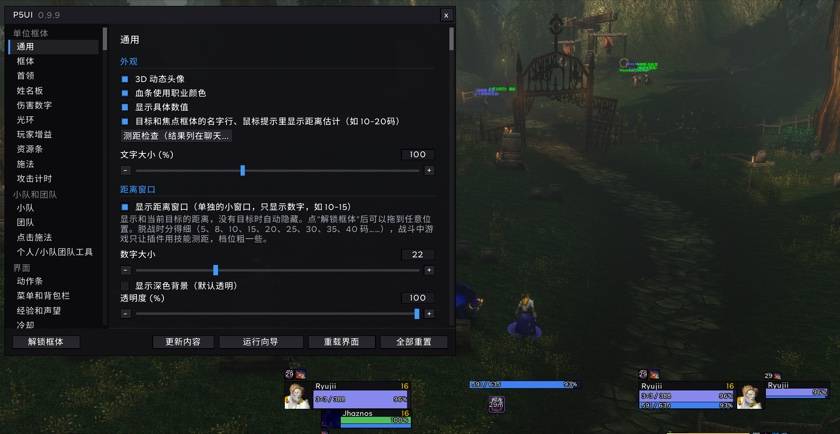
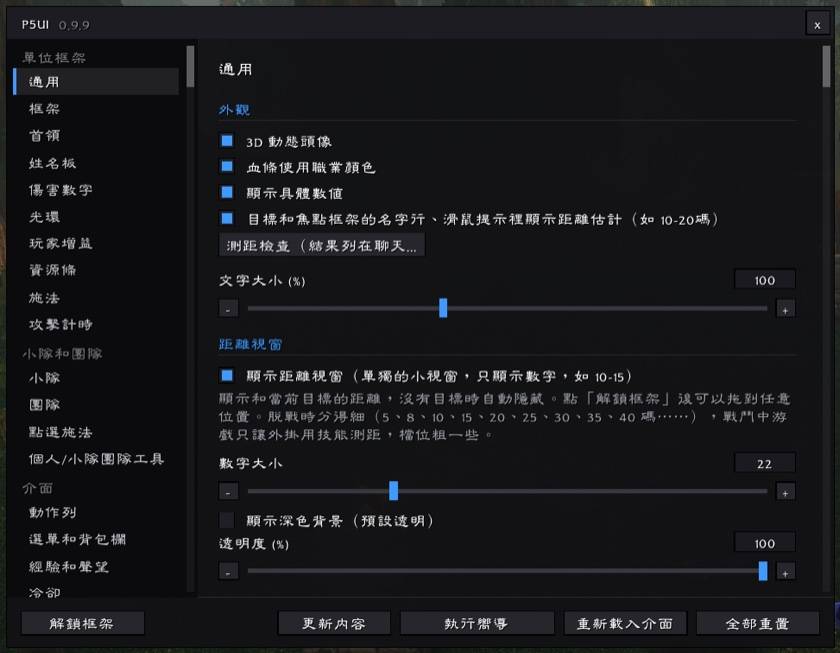
The first time you log in, P5UI puts on its recommended look in one go (one made for 1080p and narrower screens, one for ultrawide) and offers a one-minute illustrated tour: each page shows a part of the UI that changed and where to adjust it. Nothing in the tour changes a setting; run it again any time with "Run wizard" or /p5ui wizard.
Unit frames
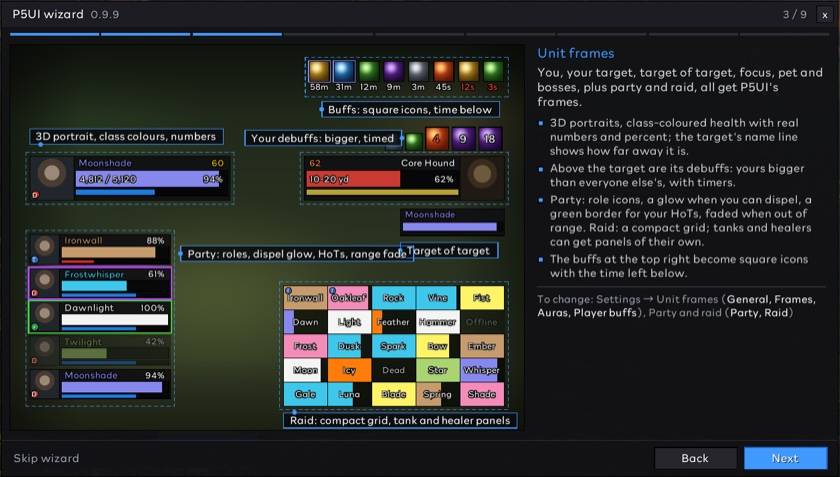
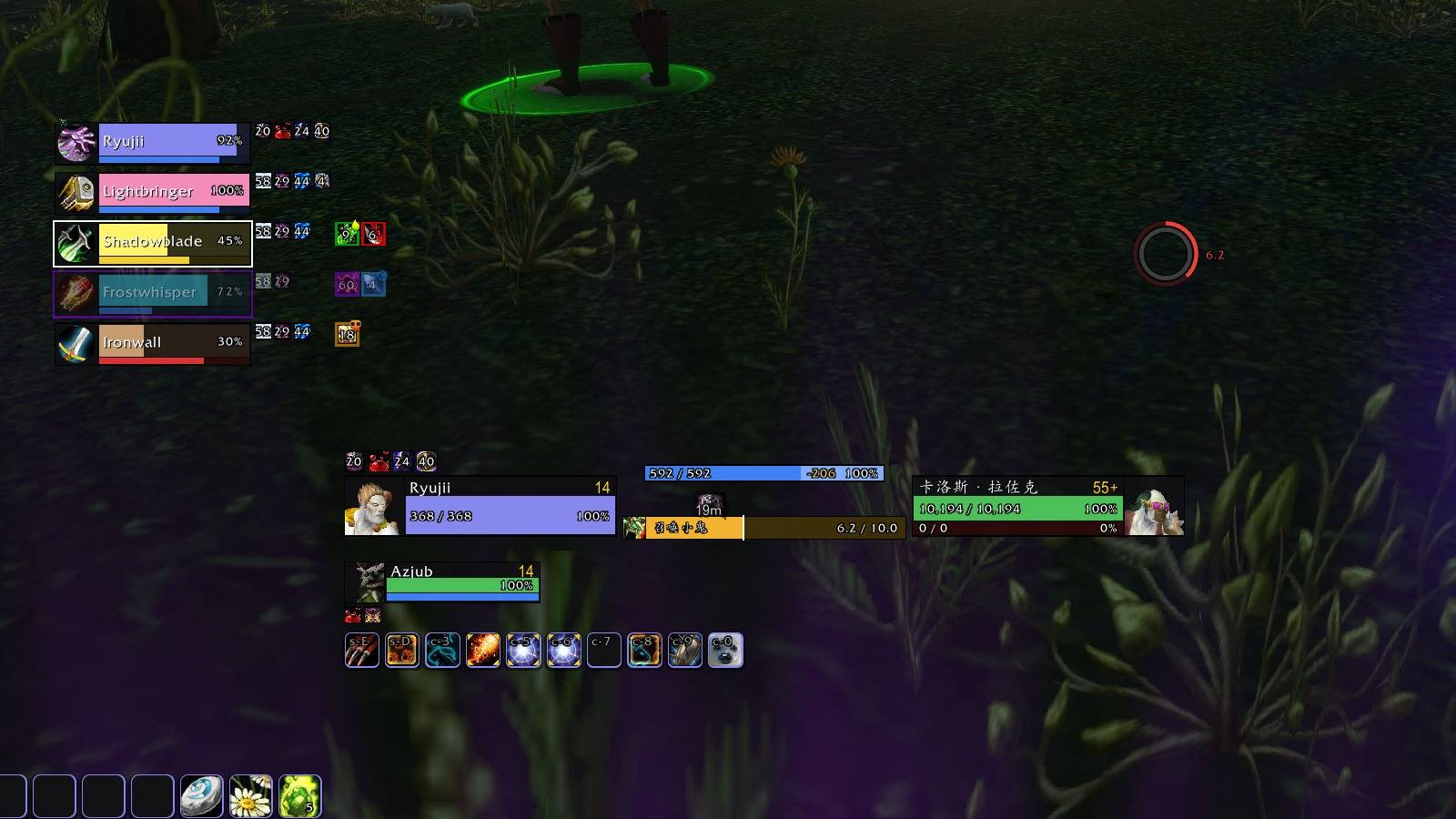
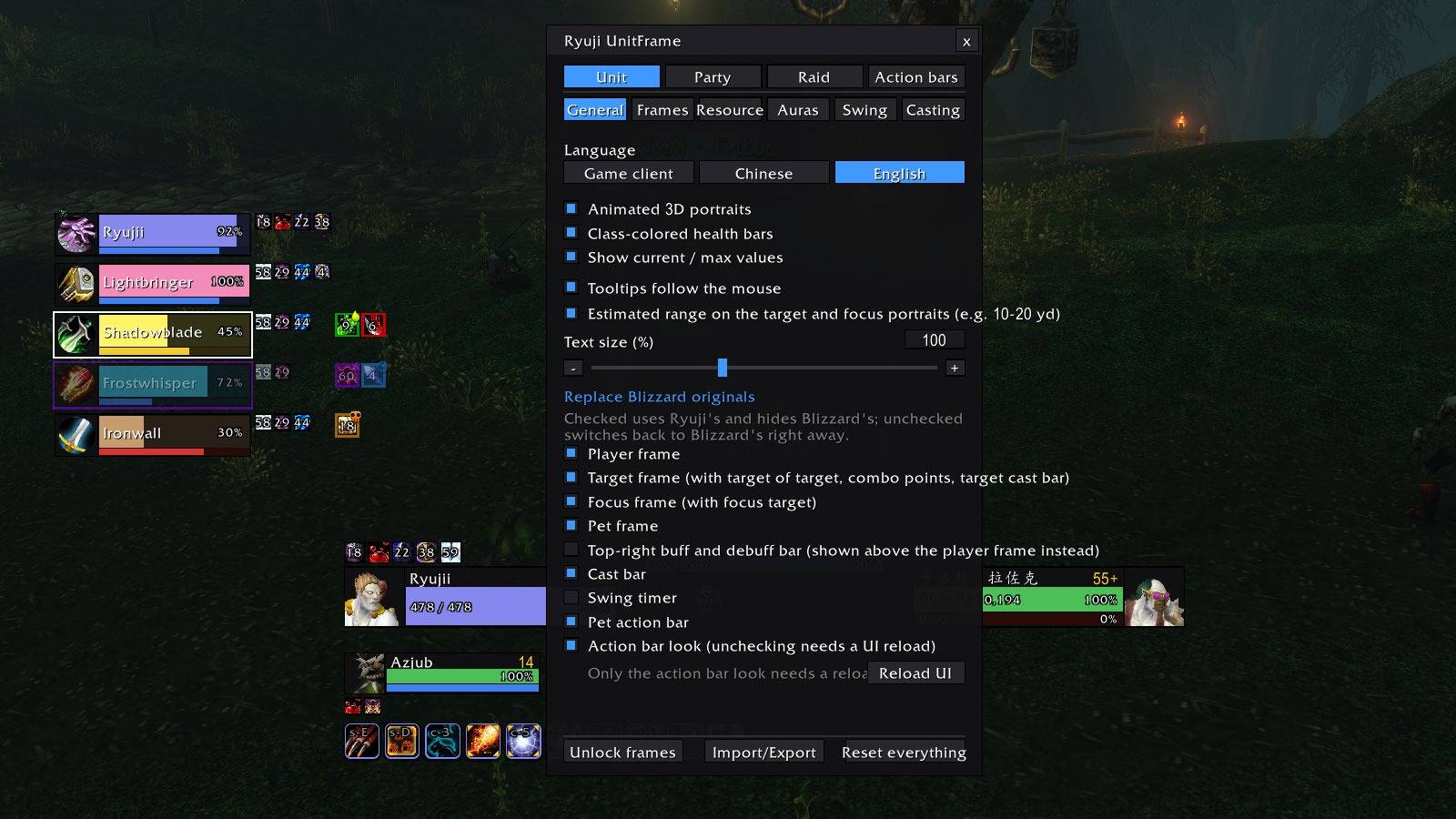
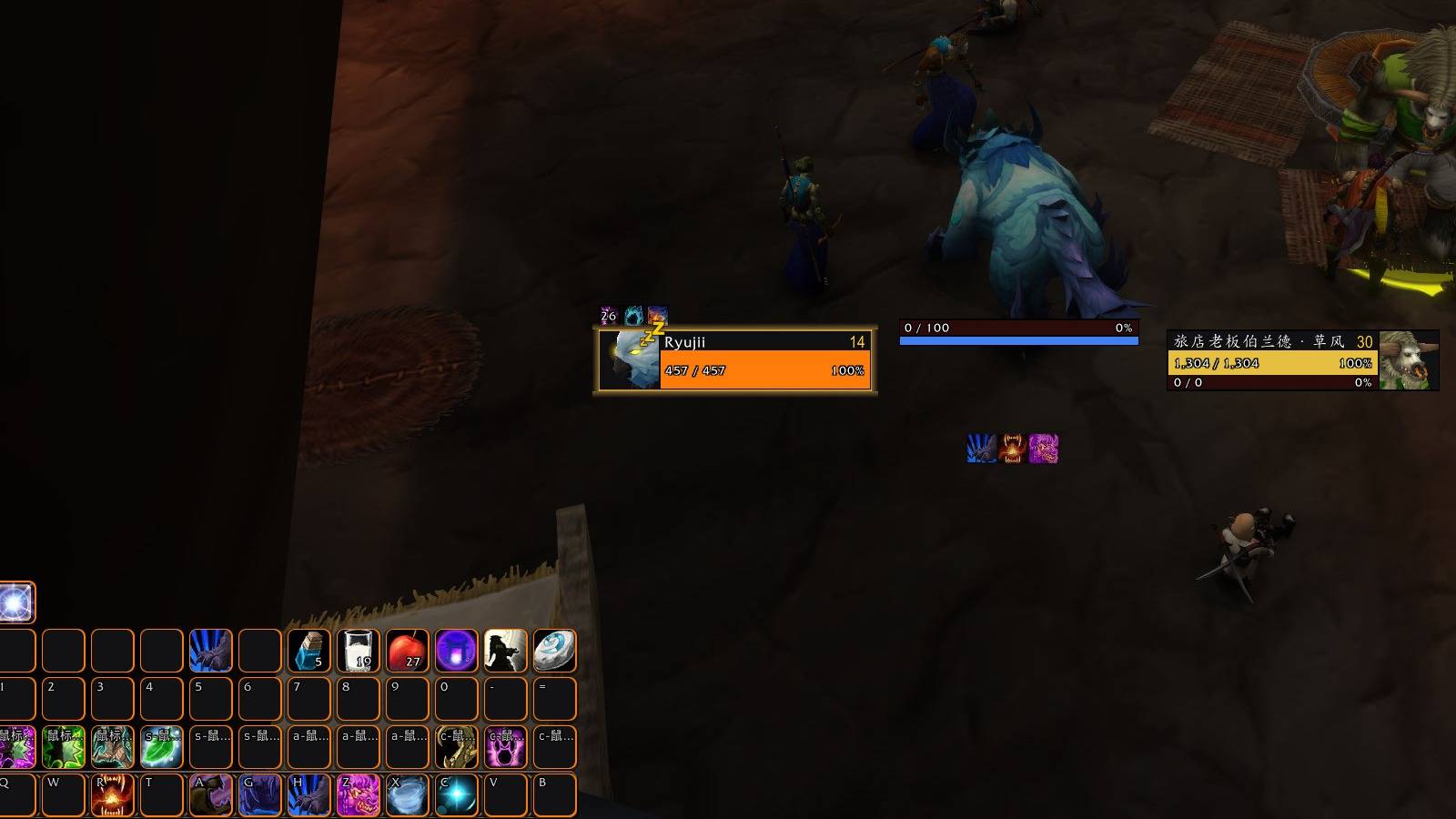
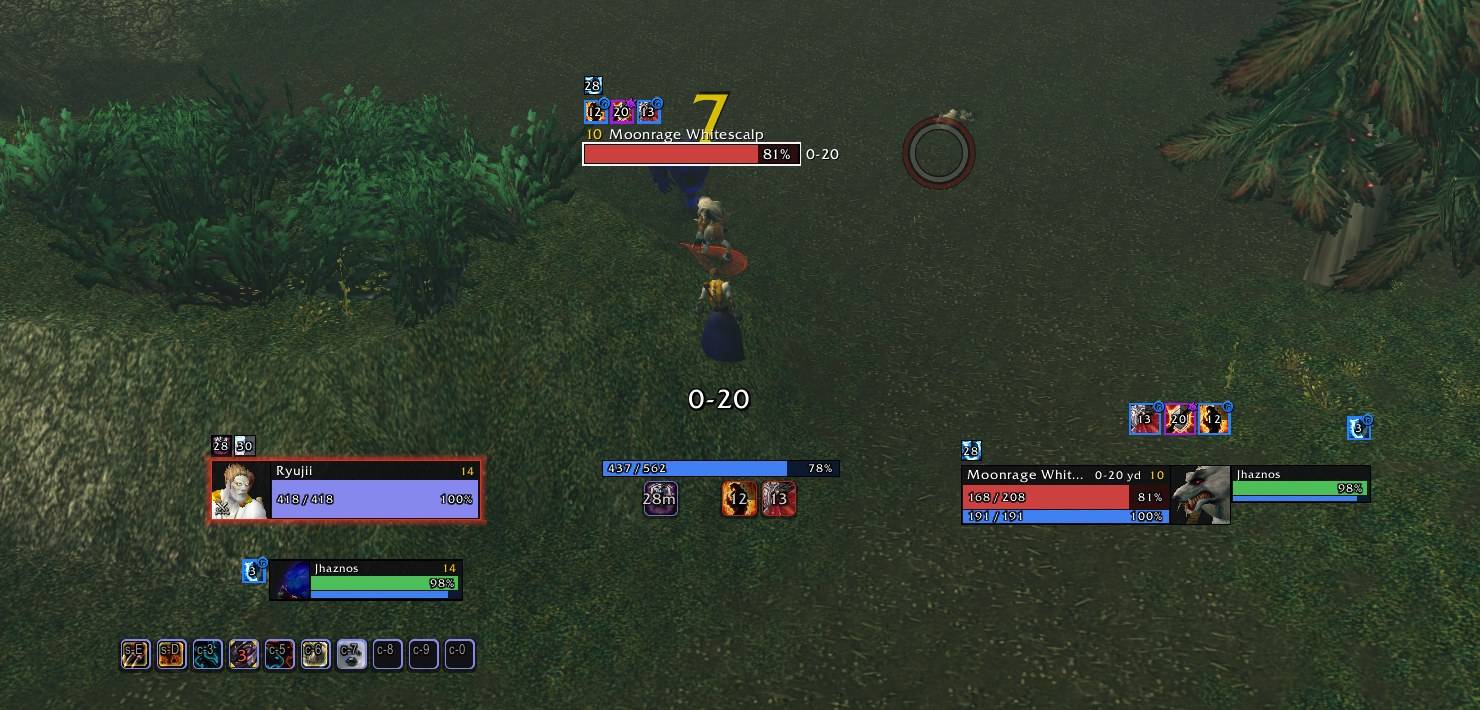
Your own frames (player, target, target of target, focus and pet) in the flat X-Perl look with 3D portraits, real numbers and percentages, and everything around them: a detachable resource bar, auras on every frame, absorb shields and heal numbers.
- Player, target, target of target, focus, focus target and pet
- Animated 3D portraits (2D when the unit is out of sight)
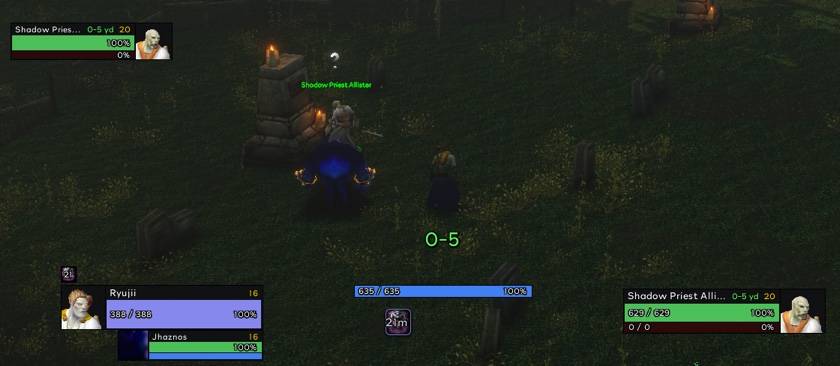
- Class-colored health; red, yellow and green for hostile, neutral and friendly NPCs; grey for mobs someone else tagged
- Health and power as values and percent, adjustable text size
- A warm glow on the player frame while resting, red in combat
- Hunter pet happiness: an icon on the pet frame (mad, neutral, happy) with damage, loyalty and food in its tooltip; position and size in the settings, shown only for hunters with a pet
- Druid mana strip under the resource bar in bear and cat form: its own height, spacing and number format, with a preview
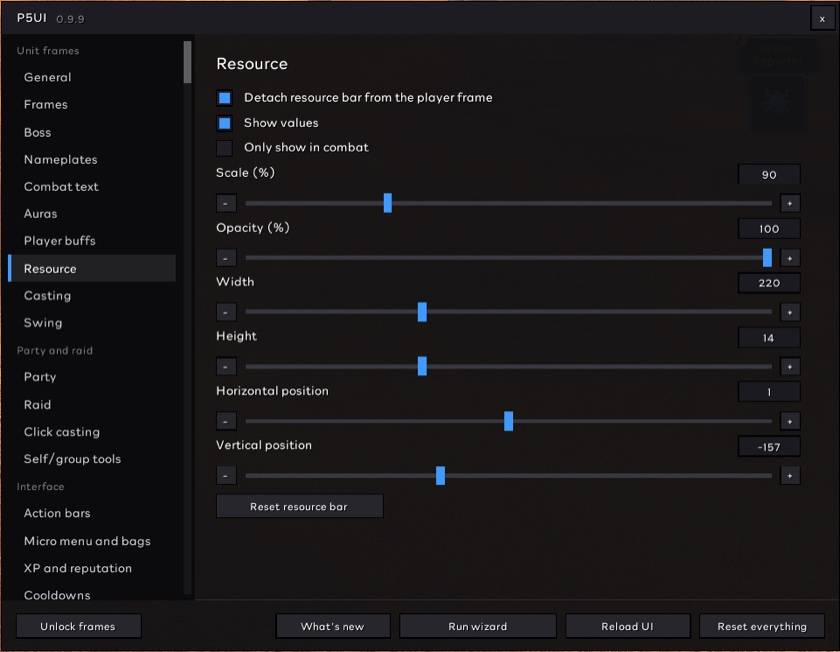
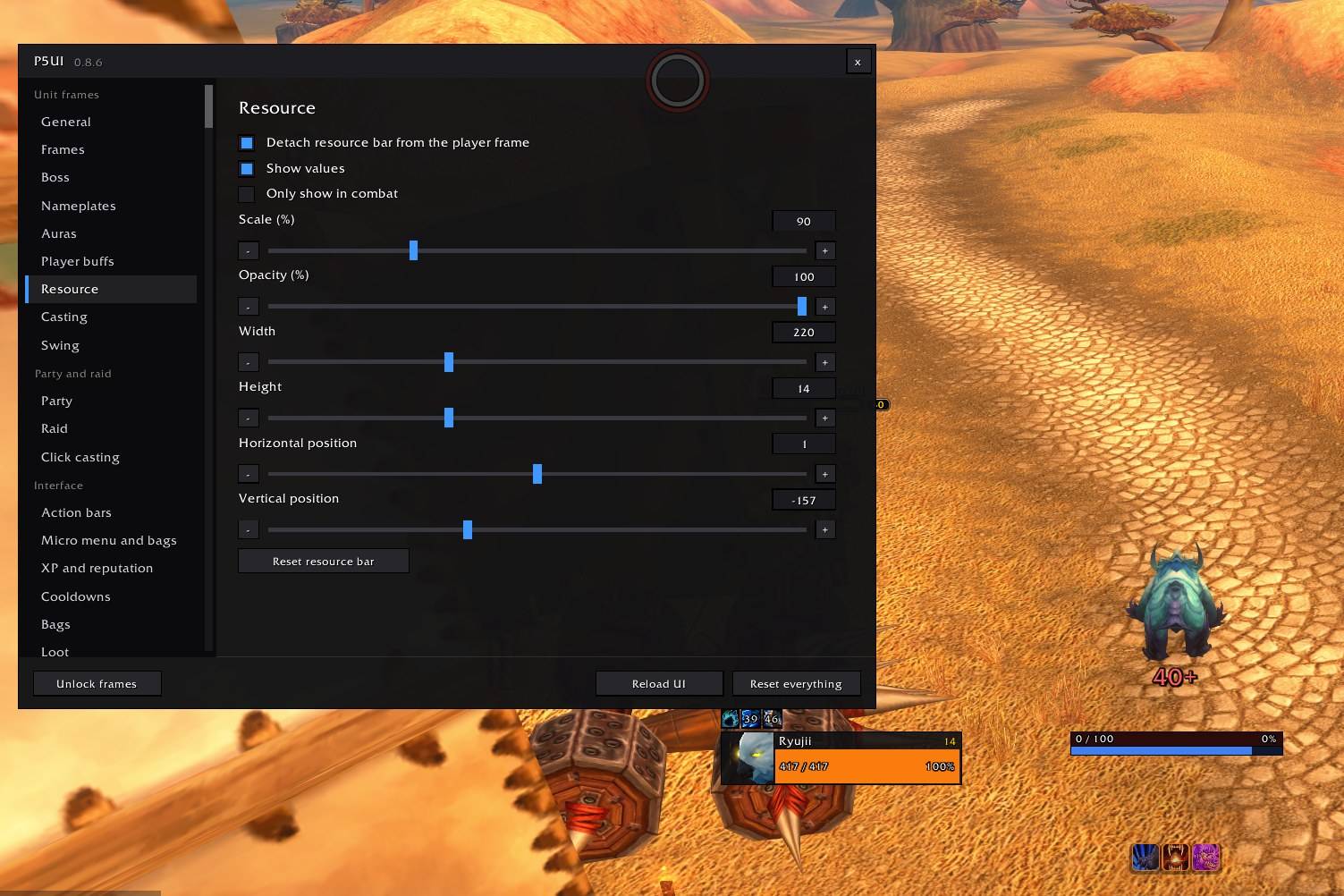
- Resource bar you can detach and place anywhere:
- rage in bear form, energy in cat form, druid mana underneath
- player health above the power bar (on by default, one switch to turn it off, with a preview): same width, height, numbers, scale and opacity as the resource bar, so you can drop Blizzard's own health bar
- combo points
- the power your cast will spend pulses while you cast
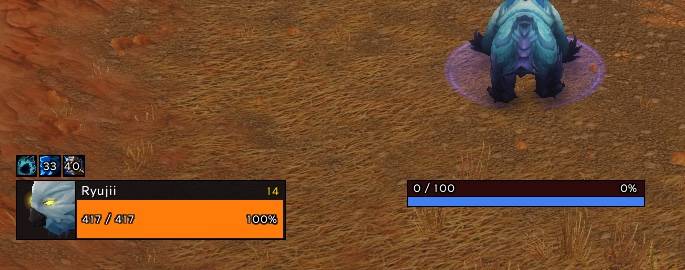
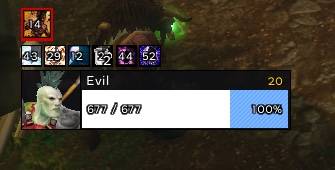
- Buffs and debuffs on every frame: side, alignment, size, count and "only mine" set per frame; debuff types in colored borders
- Aura filters and sorting per frame: only crowd control or only dispellable auras, sort by time left or by name, a highlight on buffs you can steal or purge, and a countdown that turns red near the end
- Cast bars on the unit frames: casts, channels and interrupts show in the name and level row of the player, target, focus, pet and target-of-target frames (health and resources stay visible), each with its own switch and a preview; or back as separate bars under the target, focus and pet frames with their own height and offset
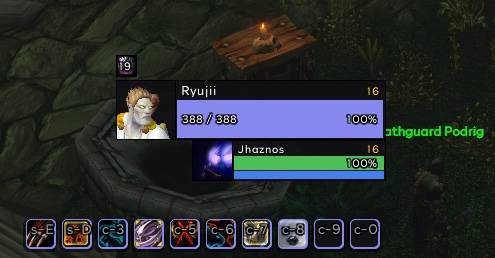
- Raid marks, ready checks and a "Missing" health text (-1,234, blank at full health) on every frame
- Absorb shields (Power Word: Shield and the like) as a blue striped stretch at the right end of the health bar, at full health too
- Heal numbers on portraits: a green "+number" pops over the portrait of the player, target, focus, pet and party frames when that unit is healed (crits bigger)
- Portrait style (player, target, focus and party, each its own): 3D, 2D, class icon, portrait backdrop (the class icon in the slot and the unit's 2D portrait as a still picture behind the health and power bars) or none; the old 3D switch carries over, and the default is unchanged
- Number and name formats: unabridged, k / M or 万 / 亿 health numbers, name, name-realm or no name, and current value plus percent; separate for the unit frames, the party and each raid size
- Out-of-combat fade (off by default): party, player, focus and pet frames fade out of combat with no target (the party only when everyone is healthy), with your own opacity and delay; hover to reveal, and combat or damage brings them back at once
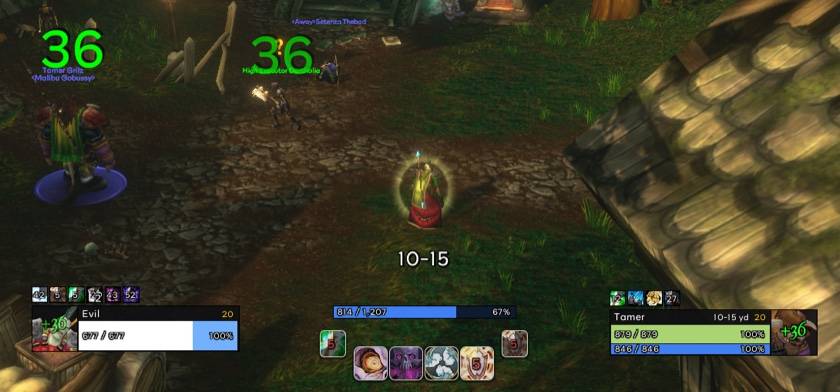
Party frames
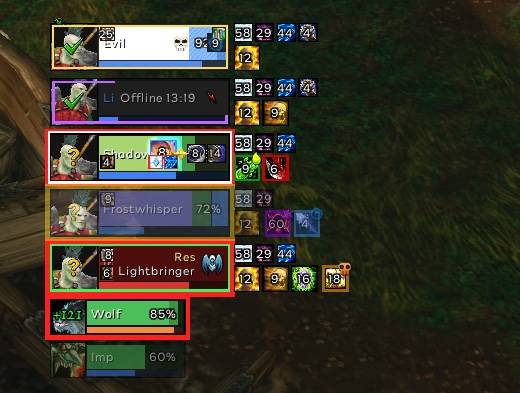
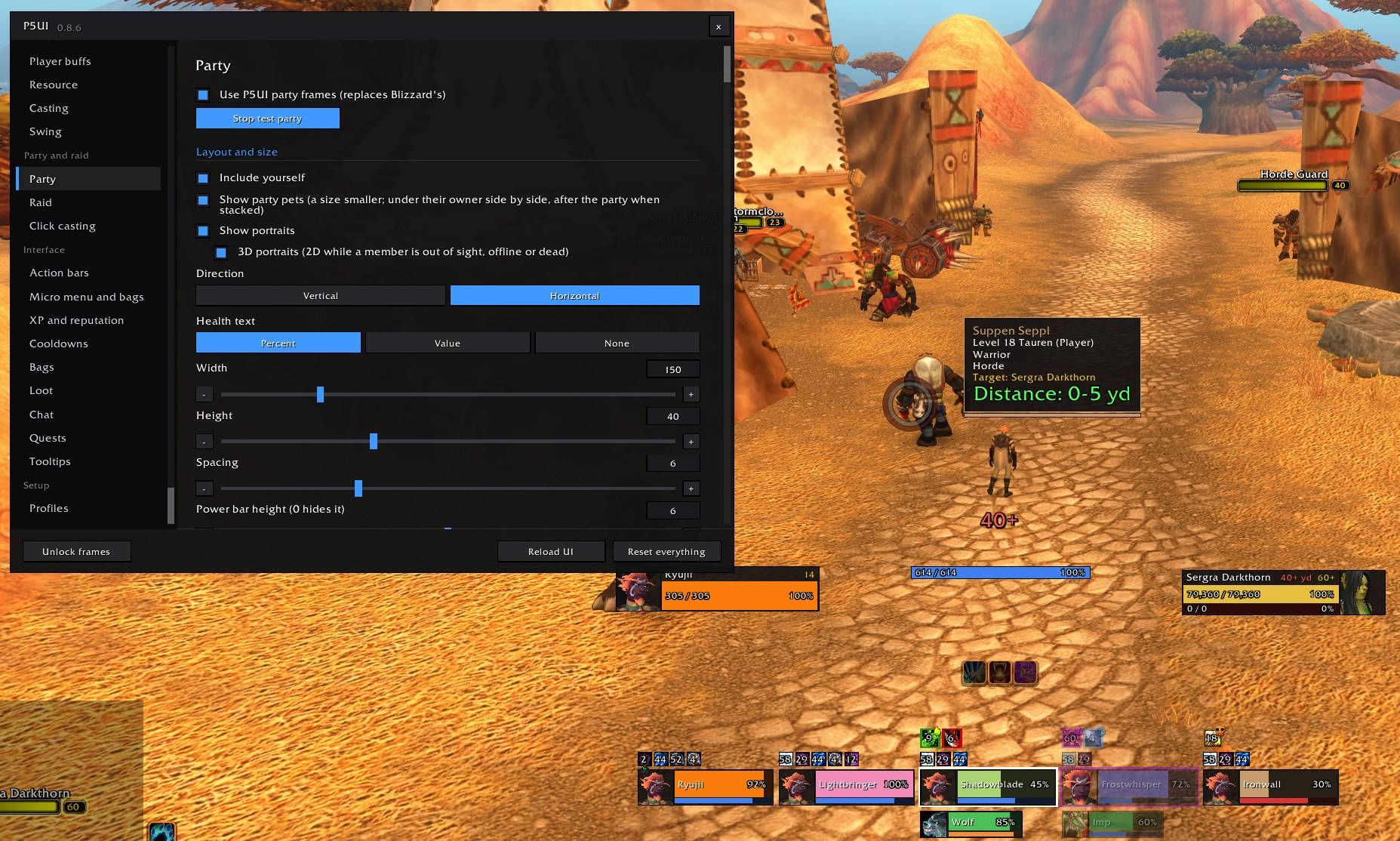
Healer-grade party frames: two rows of auras beside each member, boss debuffs in the middle and your heals over time in the corners like Grid, defensives, missing buffs, custom indicators, dispel and debuff alerts, and a test party to set it all up alone.
- Yourself (optional) and four members, stacked or side by side
- Range fade, target highlight, leader and role icons
- Two rows of auras beside each member: small group buffs above (Fortitude, Intellect, Mark of the Wild, Blessings); below, your own heals over time, shields and short buffs on them, then their debuffs
- A debuff you can dispel covers the frame in soft pulsing white; your Renew, Rejuvenation or Regrowth draws a green border inside it
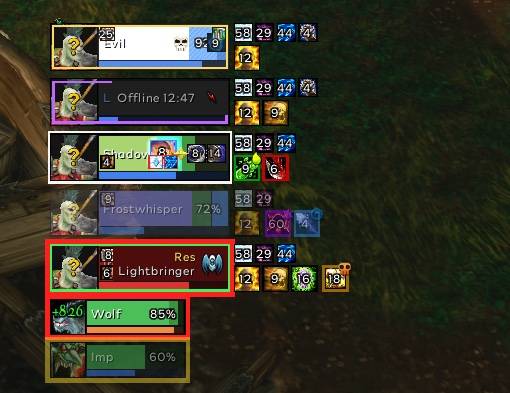
- Incoming heals and absorb shields on the health bar; death, release and offline at a glance, away, feigning death and another phase as small icons, a timer on dead and offline members; resurrections (battle res or normal, and who casts), soulstones and summons
- Boss debuffs as a big icon in the middle, your heals over time in the four corners like Grid
- The boss debuff icon glows and can follow the game's own order (boss, important, dispellable by you)
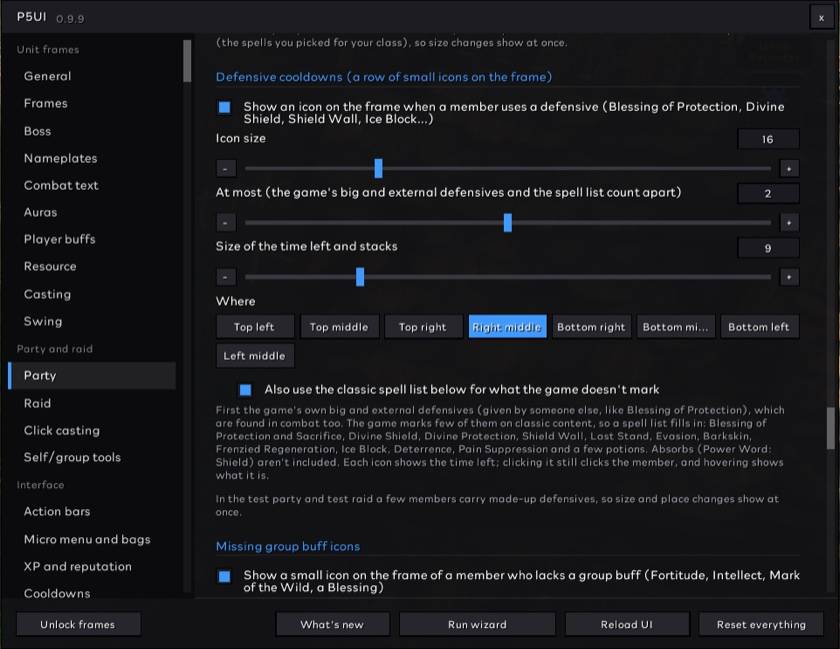
- Defensive cooldowns (Pain Suppression, Blessing of Protection, Shield Wall, Ice Block and the like) as small icons with the time left
- Missing group buffs: a small icon when someone lacks a buff you can give (or, if you choose, anyone in the group can)
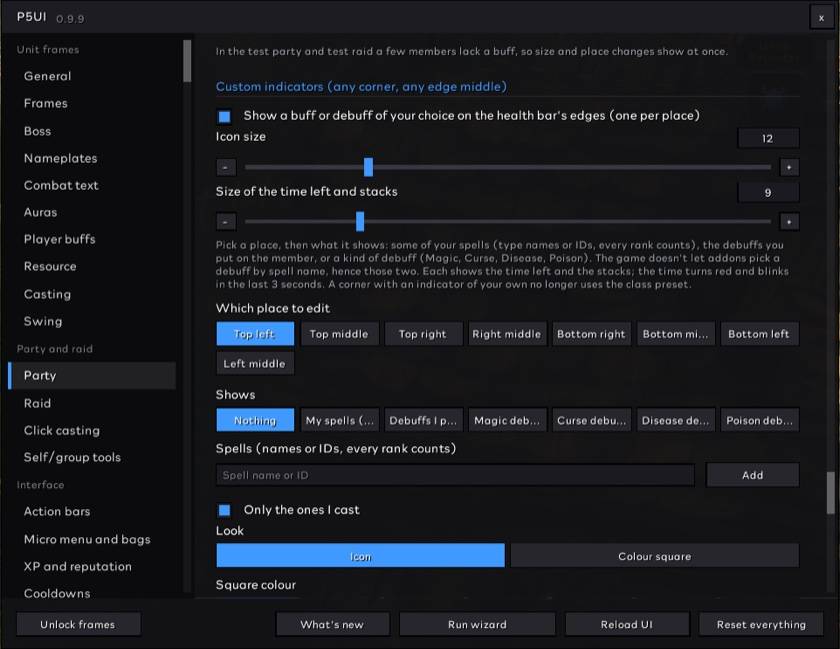
- Custom indicators: any corner or edge middle shows the buffs you pick, your debuffs or a debuff type, as an icon or a colour square, with a mark when it's missing and a red blinking last 3 seconds; each of the eight places has its own icon size, font size and offsets
- Buff block list and always-show list; Alt+Ctrl+right-click a buff icon to block it
- Party member cast bars: each member has a name and level header (on by default) that shows their cast or channel while it lasts and the name again afterwards, so health and resources stay in full view; interrupted casts flash red, uninterruptible ones are grey; one switch puts the casts back over the resource bar
- Me in the party: puts yourself, your target and your target's target into the party frames, even when you are alone, and hides the separate player, target and target-of-target frames (outside raids). Your target and its target are as big as the members and hang off your frame on the side you choose; side-by-side frames can spread evenly around the middle (alone you sit exactly there), and you can stand first, in the middle or last; the two target frames can be dragged separately
- Merged party bars use a 7:3 health to power split by default (adjustable); your target and your target's target have their own size, scale, opacity, portrait, text, health colour and power split, and old party settings carry over once
- Heal-over-time corners in the aura row (optional): move your helpful corner indicators into the lower aura row, which follows each layout; boss and harmful lockout indicators stay
- Healer option (Settings → General → Healer, off by default): in a group, a healing class (priest, druid, shaman, paladin) that has the tank targeted casts offensive-only spells (Smite, Wrath, Shadow Word: Pain…) at the tank's target; spells that work on friends too (Penance, Holy Shock) and everything when the tank has no enemy target go to your target. Works for keys, not mouse clicks
- Debuff alerts: a sound and a flash when a debuff you can dispel, or one on your list, lands on someone
- Enemy casts: an enemy casting at a member puts the spell icon on that member's frame, with how many enemies target them (off by default)
- Mouse-over and focus highlights, and health colours by class, by health (green to red) or one colour of your choice; a frame turns red or blinks below a health share you set, and the bars glide to new values
- Vertical health bars like Grid (Party / Raid page → "Health bar direction"): health fills from the bottom up, the power bar stands on the right, heals and shields turn with it
- Raid marks on the health bar, ready checks, a blinking threat button on the portrait of whoever has aggro (yellow: about to pull, red: aggro), and sorting by role (tank, healer, damage)
- 3D portraits, and your party's pets in smaller frames, in one row after the last member
- Party targets (optional): each member's target beside their frame (name, health, raid mark, who it's hitting; click to target), on the right when stacked with the auras on the left, underneath side by side with the pets to the right of the last member
- Fonts and health textures from other addons (LibSharedMedia): chosen for the party and for each raid layout, with an immediate preview; nothing changes until you pick, and nothing is bundled
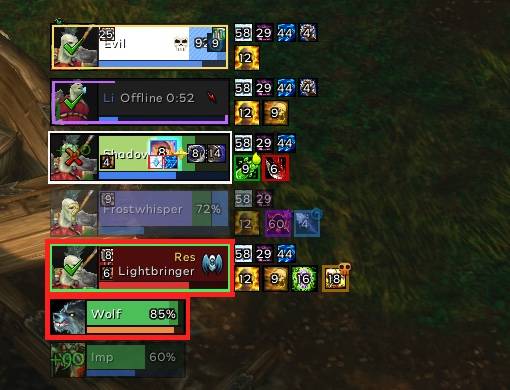
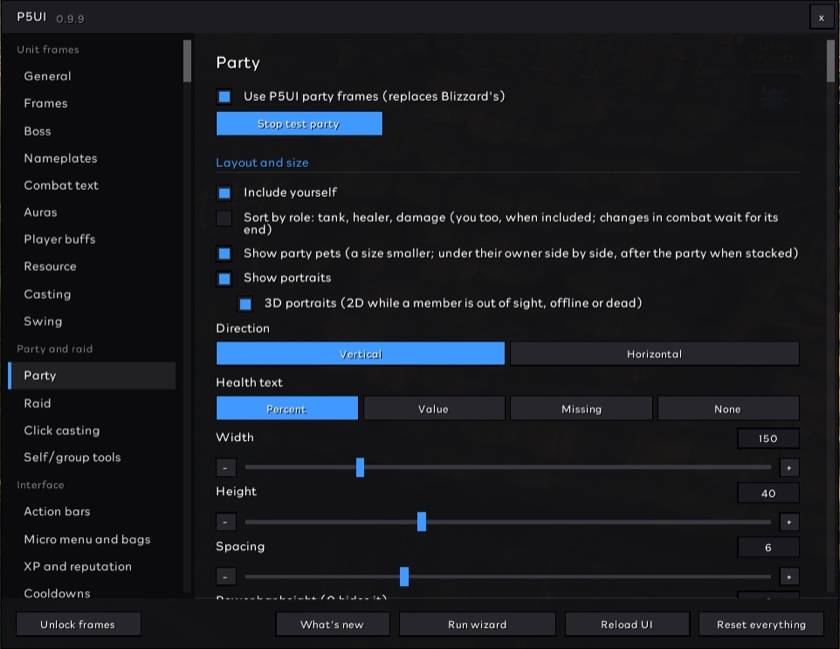
- Test party: four mock members with buffs and debuffs
Raid frames
Compact raid frames for 10, 20 and 40 players with everything the party frames have, plus tank and healer panels, each tank's target, a pet panel, a spotlight for the people you watch, and a complete set of settings for each raid size.
- A complete set of settings per raid size: 1–10, 11–20 and 21–40 players each keep their own layout, panels, spotlight, texts, icons, aura lists and alerts, with a tab for each on the Raid page (the test raid follows the tab, and a set can be copied into another); the raid switches by itself out of combat; or by place: a battleground, a dungeon, a raid instance and the open world can each use their own; a party can use the raid frames too
- Grouping and sorting: a column per group, or all together by role (in your order) or by class; by name; only the first groups; your group first
- Names or role icons; power bars by role (healers only by default), and a healer low on mana gets a blue name or a blinking bar
- Range fade, target highlight, leader, main tank and main assist, ready check, incoming resurrection, dispel outlines and debuff icons
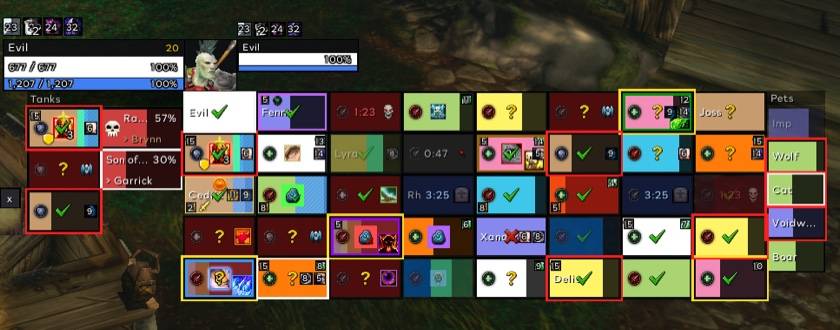
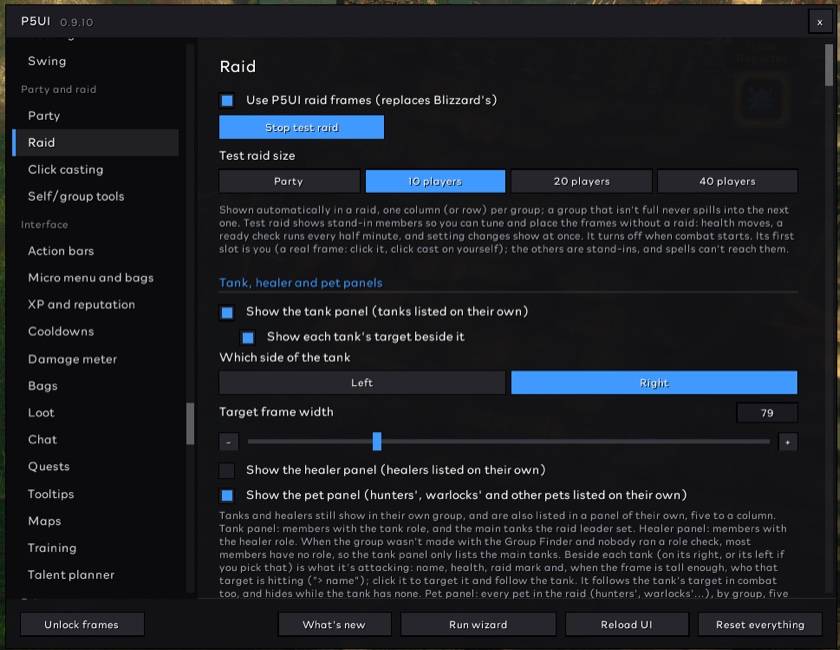
- Tank panel (on by default) and healer panel (optional): the raid's tanks and healers in panels of their own, moved by dragging the strip on top
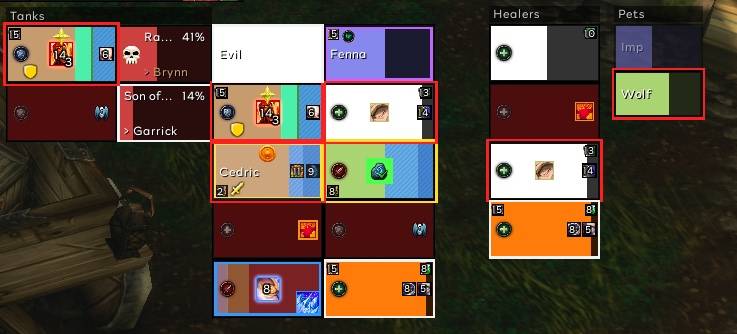
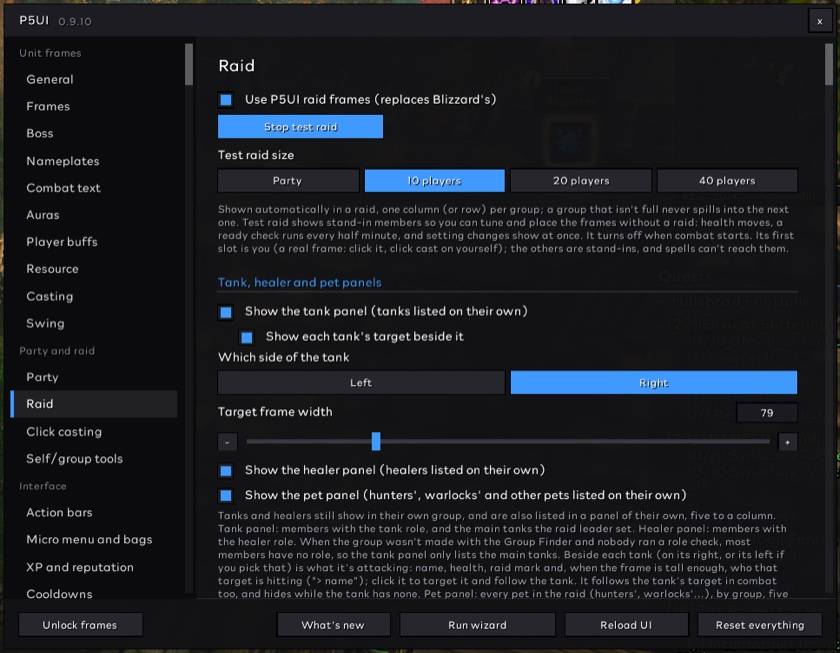
- Test raid, with you in the first slot
- Everything the party frames have: incoming heals and absorbs, status icons and timers, boss debuffs, heal-over-time corners, defensives, missing buffs, custom indicators, alerts, the aggro ring, highlights and health colours
- Raid cast bars (off by default): a thin bar under each member's health for healers only or for everyone, chosen separately for each raid size
- Spotlight: up to 5 cells that always show your target, your focus, the tanks or the players you name (in a raid; a party never shows the panels or the spotlight)
- Each tank's target right beside the tank panel (left or right), and a pet panel with the raid's hunter and warlock pets
- Named raid layouts: save, copy, rename and delete layouts, and pick one automatically by place, role and group size; they switch after combat and travel with shared profiles
- Timer bars and time text for custom indicators: horizontal or vertical bars that count down, your own colours, and time text you can hide or move; the last three seconds still warn
- Raid leader tools (own page, off by default): invite by whisper keyword, preview online guild or friends with the reason each is skipped, and save and restore raid subgroups (leader only, out of combat, with a preview first)
Self/Party/Raid Readiness, Marker & Buff Check Tool
One small toolbar for getting a group ready: marks, world markers, ready check, pull countdown and a buff check that tells you who is missing what.
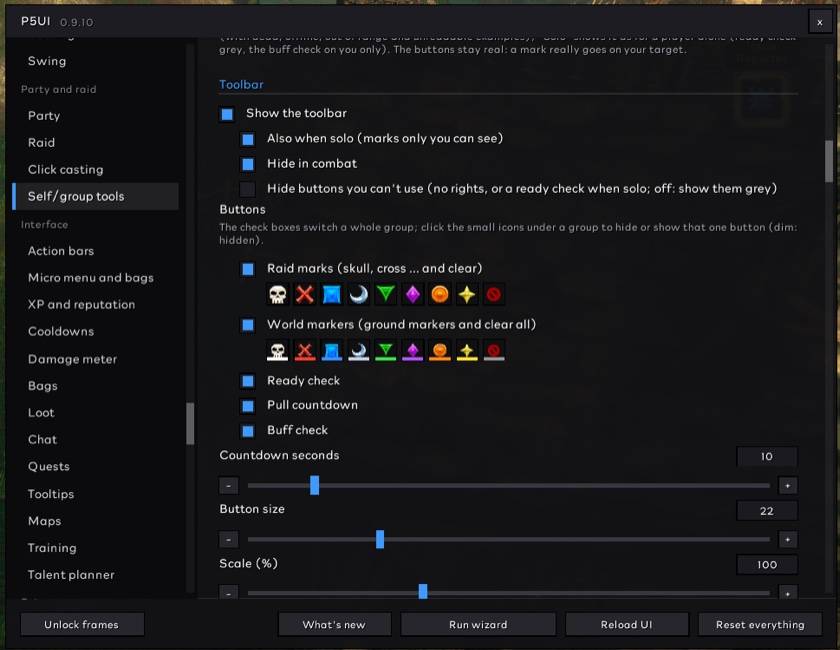
- One draggable toolbar, solo, in a party or raid: raid marks on your target, world markers, ready check, pull countdown (click again to cancel) and a buff check. Every button can be hidden on its own; buttons you lack the rights for are greyed out and say why; solo, marks are only seen by you, world markers are greyed out (the game doesn't place them for a player alone) and the buff check looks at you; the bar can hide in combat
- Buff check: a panel of who's missing Fortitude, Intellect, Mark of the Wild or a Blessing (only checked when a class that casts it is in the group), by subgroup in a raid, plus your own class buffs, food and weapon enchant. Buffs that can't be read show "?" rather than "missing". It can run on your own ready checks, with an optional announce to group chat
- Ready check results: after a ready check, a movable list of who is ready, not ready, did not answer or is unknown, kept until the next check; shown automatically to the leader, assistants and party leader
- Food and flask check: leaders and assistants also see who is missing food or a flask / elixir (flasks off by default); everyone in the group still sees the class buffs
- Dispel assistant (off by default): a separate list of who has a debuff you can dispel, with fixed left and right click spells; in restricted combat the game may hide the debuff type, so the list can be empty there

Boss frames
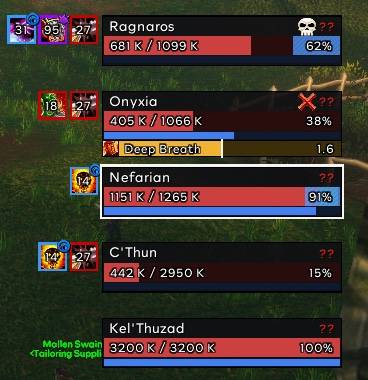
Up to five boss frames with cast bars, your debuffs and raid marks, and test bosses to place them.
- boss1–5 with cast bars (grey when it can't be interrupted)
- Your debuffs, raid marks and a target outline
Nameplates
Flat nameplates that tell you what matters while levelling and in fights: quest mobs in their own colours with a sword or a bag, elite marks, your target at a glance, your debuffs on every enemy, threat colours, and friendly NPCs that fade when they have a quest for you.
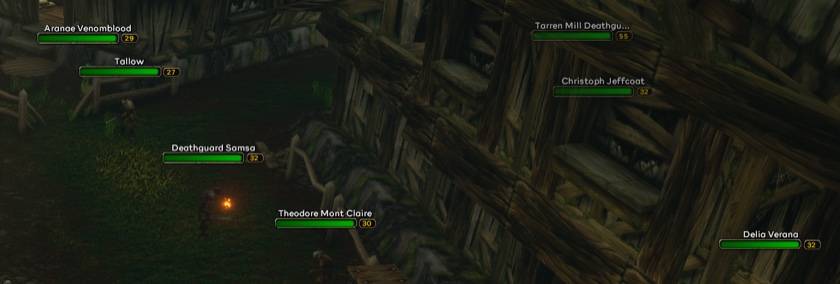
- Flat enemy and neutral nameplates in the same style as the frames
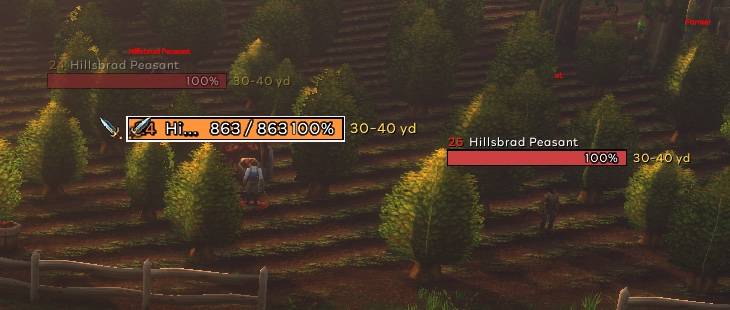
- Quest colors: mobs with no quest for you stay red if they attack you and yellow if they don't, as Blizzard has them; quest mobs get their own colors, amber if they attack you and peach if they don't; grey when someone else tagged it
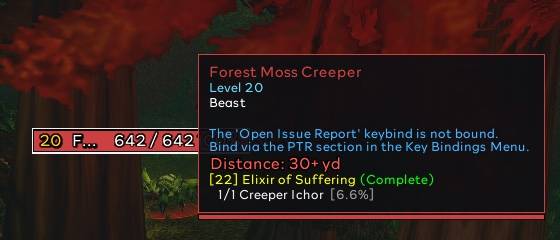
- Quest icons: a sword on mobs you need to kill, a bag on mobs that drop a quest item
- Elite marks: Blizzard's gold dragon beside elite mobs (silver for rare elites, a star for rares)
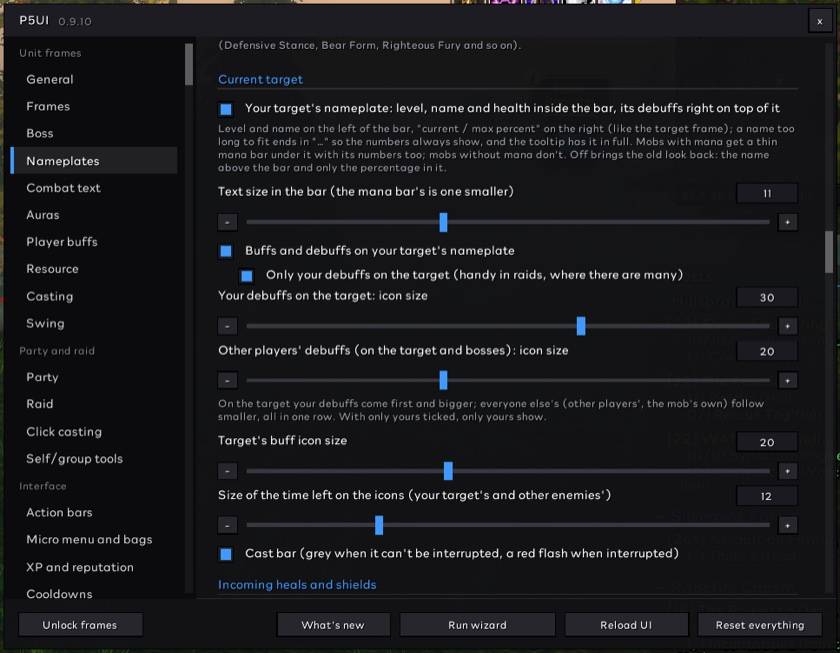
- Your target at a glance: level and name inside a taller bar, "current / max percent" on the right, a mana bar for casters; your debuffs right on top of the bar and bigger than everyone else's
- Threat colors in combat by your role (tank: safe, slipping, on another tank, lost; others: on you, about to pull, safe)
- Your debuffs on every enemy with the time left: keep DoTs up on several mobs at a glance
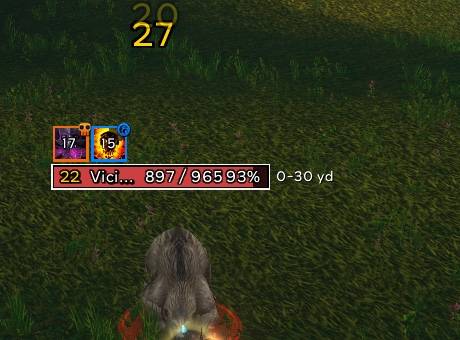
- Your target: a white outline and all its buffs and debuffs (or only yours)
- Aura icons sized your way: your target's buffs, its debuffs and your debuffs on other enemies each have a size slider, and so does the time left on them; sample plates on the settings page show the sizes without a fight
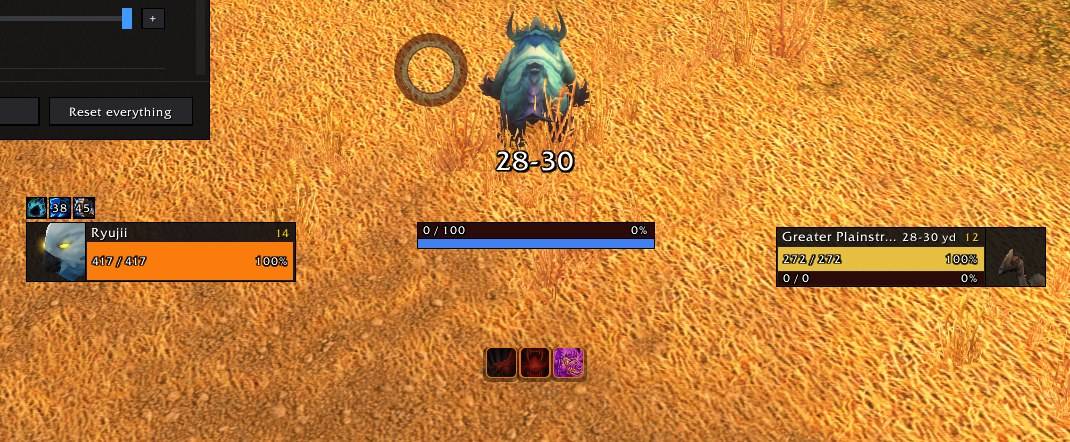
- Distance with its unit (0-20 yd, 40+ yd) and cast bars
- Cast target: the enemy's cast bar shows who the spell is aimed at (the game hides the name in some places, then nothing is shown) and outlines interruptible casts during their last second; two switches and a preview
- Enemy focus marker: your focus enemy's nameplate gets a purple border (outside the target's white one) or a small crosshair icon, so you can find the one to control or interrupt while you attack another; a switch, a style choice and a preview
- Nameplate distance and spacing: the game's own "how far away plates show" and "vertical spacing" settings in P5UI's nameplate page; applied only out of combat, your earlier values come back when you switch it off, and anything you change elsewhere is left alone
- Friendly players' nameplates stay Blizzard's
- Friendly NPCs look like friendly players' (the same frame, name above and level box, in the NPC green, with Blizzard's own cast bar and interact icon). An NPC with a quest to pick up or hand in gets its nameplate faded, so the "!" / "?" shows through. P5UI never switches friendly nameplates for you: with them off, the names, guilds and titles over heads are the game's own
Combat numbers
Your damage over the enemy's nameplate the way Blizzard draws it, optionally with the icon of the spell that did it, and the game's own heal numbers switched on for you.
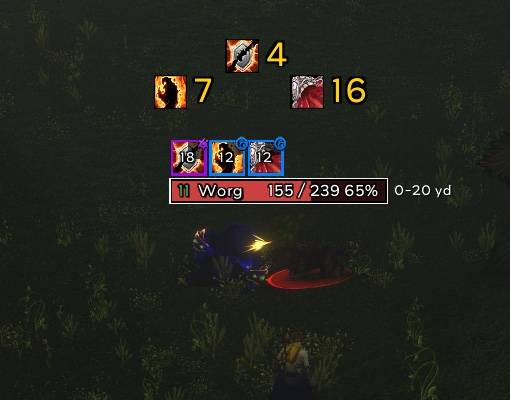
- Your damage floats up over the enemy's nameplate the way Blizzard shows it: yellow for spells, white for melee, crits big and shaking
- Optionally the icon of the spell that did it beside every number (off by default: the spell is P5UI's guess): each Curse of Agony tick, a Shadow Bolt crit, your melee swings
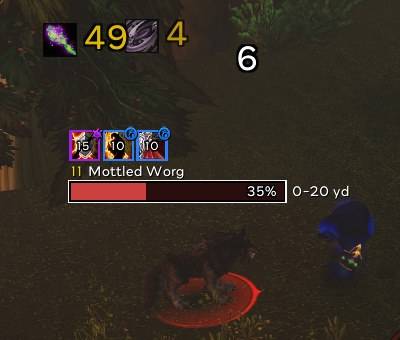
Heals are the game's own numbers, which P5UI switches on for you: the game draws them over the healed player's head, targeted or not, with no friendly nameplates and in instances too
Blizzard's own damage numbers are hidden while these are on (your setting comes back when you turn them off); where the numbers start can be moved; a simulation on the settings page
The game doesn't let addons read the combat log, so P5UI works out the spell from your casts, your damage over time and your swings; in a group, numbers it can't tell are yours are left out
With icons on, a party or raid still shows the numbers without them, so a guessed icon can't mislead you
Combat: cursor ring, cast bar, distance
What you watch in a fight, kept near your eyes: a ring around the mouse for casts, the global cooldown and swings, a cast bar that shows when you can move, and the distance to your target everywhere.
- Cursor ring, three rings around your mouse:
- outer: your cast (latency as a lighter tip) or your main-hand swing / auto shot
- middle: the global cooldown
- inner: the off hand
- seconds left beside it
- Out of combat it fades away half a second after your last cast
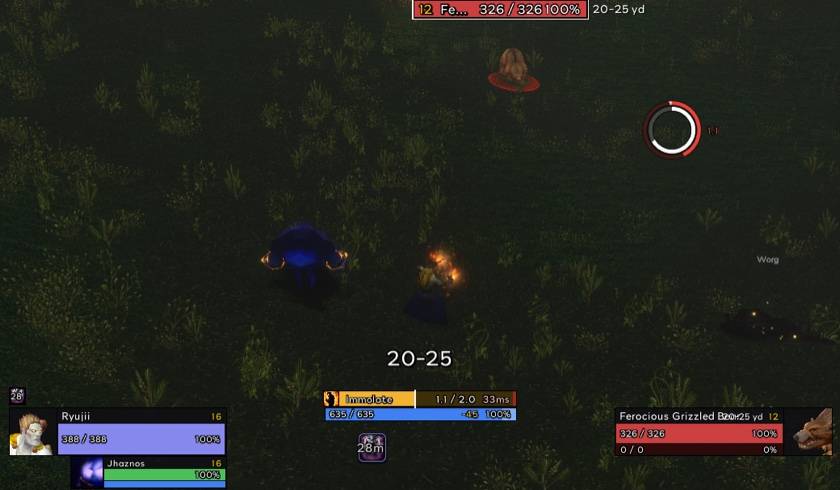
- Cast bar replacing Blizzard's, with latency marked in red at the end: once the cast reaches it, you can move
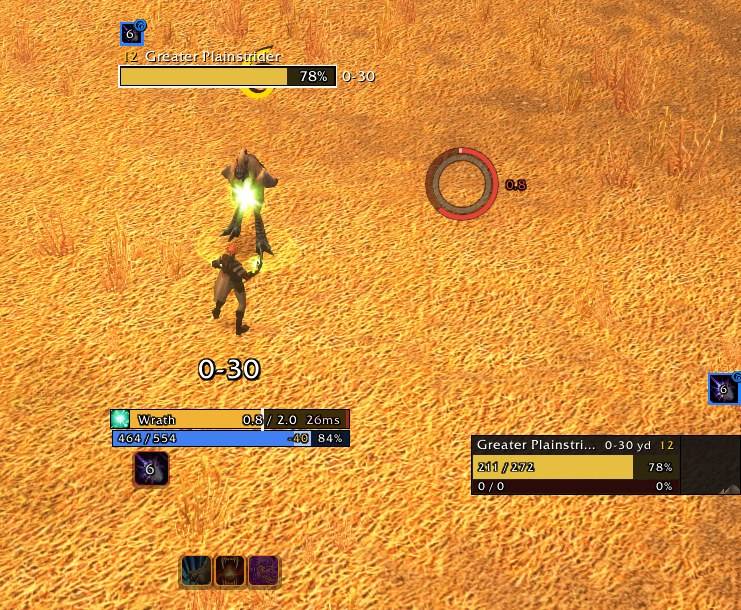
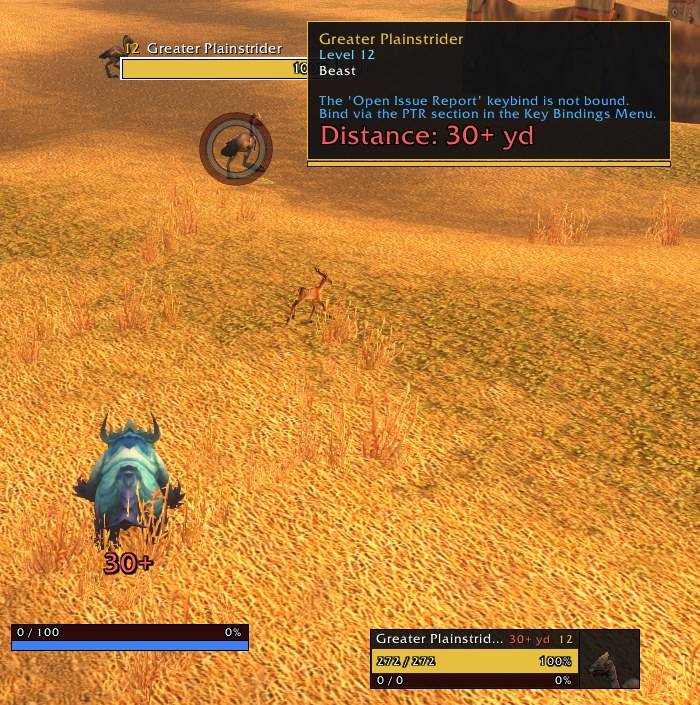
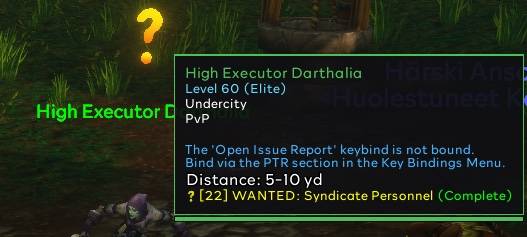
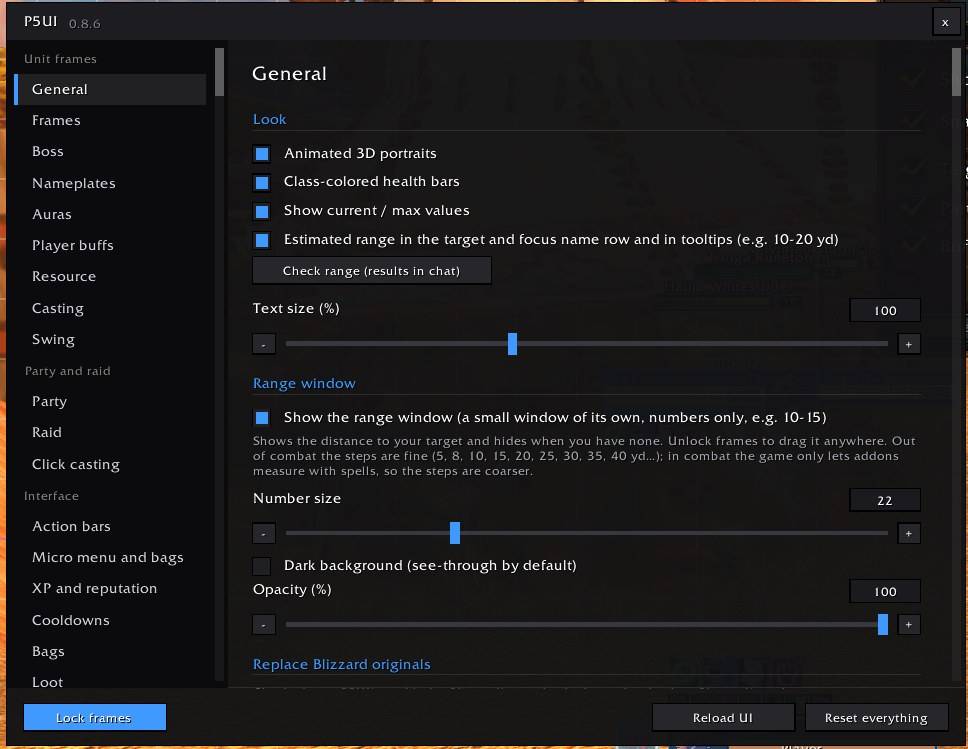
- Distance window: the distance to your target as plain numbers (10-15, 40+), green in melee range, white within 30 yards, yellow within 40, red beyond. The distance also shows on the target frame and in tooltips.
- Optional swing timer bars for main hand, off hand and ranged
Action bars and cooldowns
Rounded, clean action bars in your class colour, Blizzard's Cooldown Manager in the same style, readable cooldown numbers, and a glow when a reactive ability lights up.
- Rounded, soft action buttons with optional class-color borders; icon size and spacing adjustable
- Clean from the start: Blizzard's frame behind the main bar, the gryphons, the dividers and the page arrows are hidden (each can be turned back on)
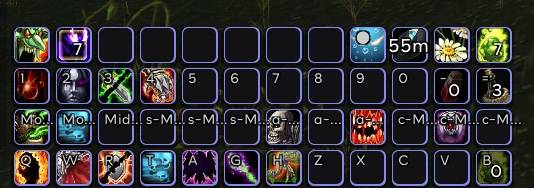
- Movable pet action bar
- Action bar fading: each action bar, the stance bar and the pet bar can show only on mouseover or only in combat, with its own faded opacity, delay and fade time; buttons and keybindings keep working while faded (off by default)
- Shaman totem bar: your four totems as square icons with countdowns, the game's own tooltips and right-click to dismiss; size, spacing and position adjustable
- Blizzard's Cooldown Manager with rounded icons and flat bars
- Cooldown numbers on action buttons: resizable, hidden for short cooldowns, red in the last 5 seconds
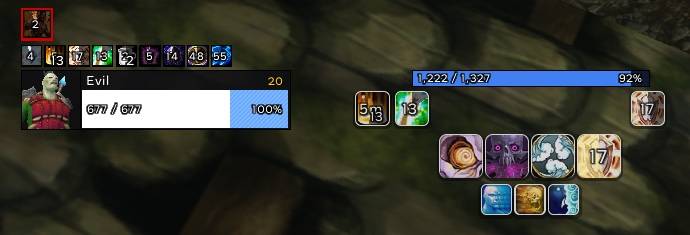
- Your buffs and debuffs (top right of the screen) in the same rounded style
- Menu buttons and bag slots restyled to match
- Flat experience and reputation bars: as wide as the main action bar by default (they follow it when you resize it in Edit Mode), or your own size; movable, rested XP shown; point at the XP bar for what you gained this login, XP per hour and the time to the next level
- Reactive abilities glow when they become usable (Overpower, Revenge, Execute, Riposte, Mongoose Bite, Counterattack, Hammer of Wrath), not while on their own cooldown; style, colour and the list per class are adjustable
- Out-of-range icons turn red when the game confirms the target is out of range (blue for no resources and grey for unusable stay), pet abilities included
- Hotkey and macro-name text: show or hide each and set its font size separately, with a live preview
Damage meter
Blizzard's own damage meter, restyled to match and free to move and resize.
- Blizzard's own damage meter in the P5UI look: flat dark panels, thin black edges, flat class-colored bars
- Every window, the main one too, moves by its title bar and resizes by its corner any time, without Edit Mode; P5UI remembers where and how big
- Up to three windows, each showing what you pick (damage done, healing done, DPS, damage taken, interrupts, dispels…) from Blizzard's gear menu; the settings page explains how and has sample windows
Maps
A square minimap, the world map and quest log in the same flat look, and a HUD map under your character for levelling.
- Square minimap in a thin outline, the buttons around it (tracking, calendar, mail, the addon menu and other addons' icons) lined up on its right edge, and a bar under it with your coordinates, the zone and the time
- World map in the same flat look: a dark panel with a thin outline, flat title strip and buttons, and a bar along the bottom with your coordinates, the map's name and the cursor's coordinates
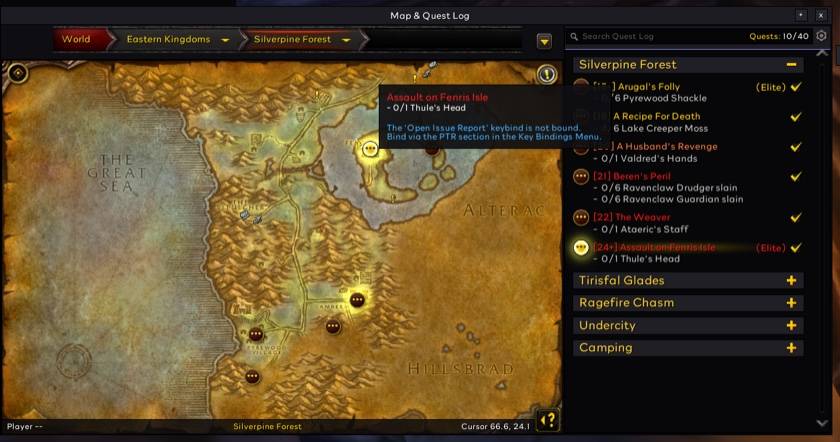
- Quest log beside the world map in the same flat dark look
- Manual waypoint arrow: set a waypoint by coordinates or from the world map and a movable arrow shows the direction and the straight-line distance; it never invents a route and steps aside when the game is already tracking the pin
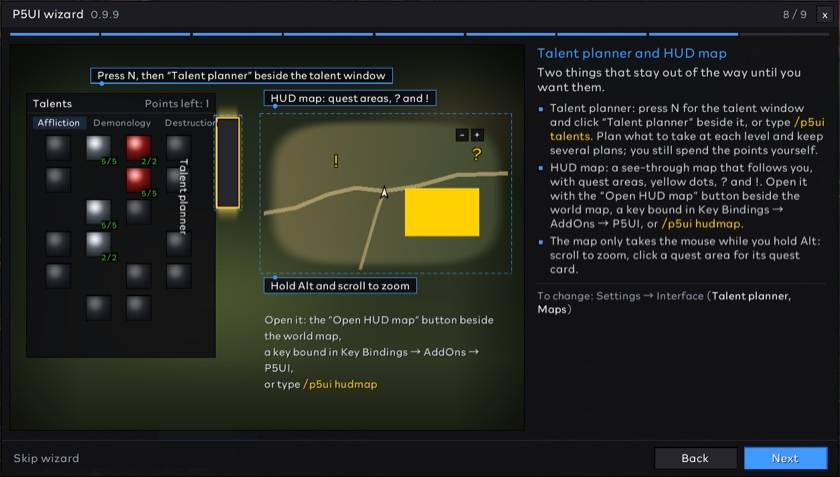
- HUD map for levelling (off by default): your zone drawn under your character with soft faded edges, following you. Zoom from 50 yards to the whole zone with the + / - buttons, Alt + mouse wheel or key bindings. Quest areas, objective dots, "?" where quests are handed in and "!" at quest givers you still have quests from (P5UI learns them whenever any character on your account talks to one); click one for a quest card with Details, Track and Focus, in combat too. It never takes the mouse from the world unless you hold Alt; an "Open HUD map" button sits beside the world map
Bags
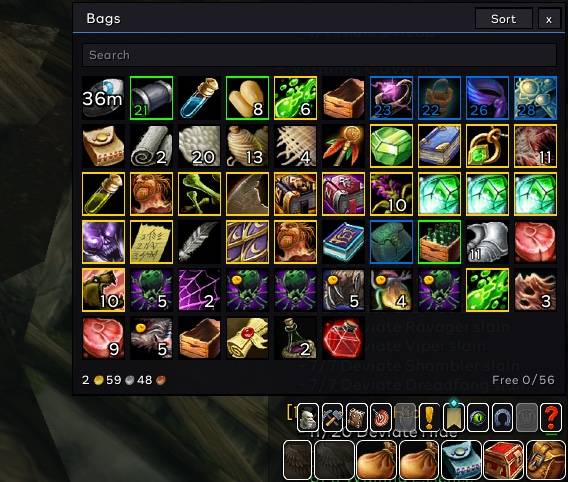
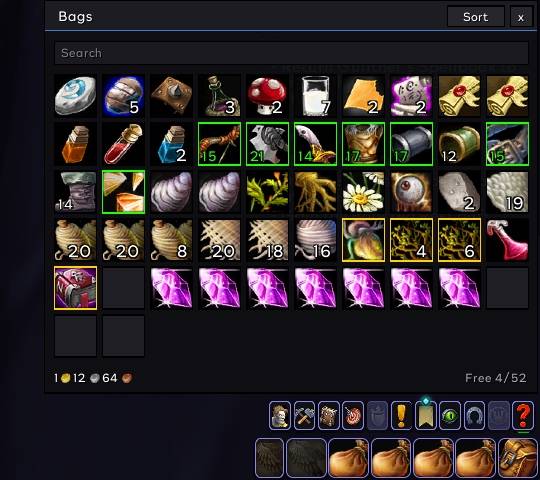
All your bags in one window, with item levels, quality borders, search and sorting, and how many of an item each of your characters has.
- All bags in one window
- Quality borders, item level, junk marks, new-item glow
- Search, sorting, free slots and money
- Bag categories: group the slots under Weapons, Armor, Consumables, Quest, Materials, Other and Empty slots, with counts, or your own categories (up to 12, by item ID) and a Recent items section for what you just looted; items stay in their real bag slots, and the window scrolls when it gets taller than the screen
- Item markers: bound / bind on equip / bind on use / account marks, a red tint on items your character can't use, and an arrow on usable gear with a higher item level than what you wear (item level only, not stats)
- Gold and currencies in the character records: the saved-items window has a Balances page with each character's gold and currencies, account-wide ones apart, each with the time it was recorded and a search; a value the game won't show keeps its old record
- Bank in the same slots inside the game's bank window, character and Warband bank, with pages, search and sorting
- Other characters' bags and banks: P5UI records each character's bags and last-seen bank slot by slot; look through them read-only from any character
- Records inside the bank: a tab under the bank's page tabs opens that read-only view in the bank window, with when each bag or bank was recorded
- Recipe materials: a panel beside the professions window shows the game's own craftable count and, from your records, each character's bag and bank materials and the account bank, each with the time it was recorded (a bank you haven't visited shows as unknown)
- Mailbox tools (can be turned off): a button under the mailbox takes the mail you can safely take, one item at a time, and stops the moment anything unexpected changes (never cash-on-delivery or GM mail); recipient suggestions from your recorded characters; a button to clear a mail's attachments. It never sends or deletes mail
- Item counts on all your characters (like Syndicator): an item's tooltip lists how many each character on your account has in their bags and bank, the account bank and the total
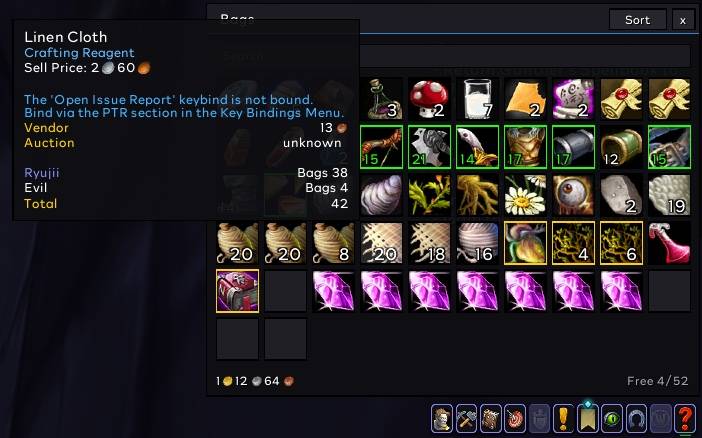
- Sells junk and repairs automatically at vendors
- Rule-based custom categories: match item type, quality and binding state, set the priority, and preview which slots each category takes; your item lists and the recently-received section keep working
- Advanced search in the bags and the bank: type conditions next to the item name, for example
ilvl>=400 q:epic type:plate bound:no count>=5 price>1g; all conditions must match, the rest of the text searches as before, and a "?" button lists the words - Item counts in tooltips now include what each character has equipped and what sits in their mailbox (with the time it was recorded)
Loot
A flat loot window that stays long enough to see what dropped, one roll bar, a roll log, and a master loot helper.
- Flat loot window
- With auto loot, the window stays up for 0.8 seconds (adjustable) so you can see everything that dropped, with a tick on what's already in your bags
- One roll bar with Need / Greed / Pass
- Roll log: each group member in class color, what they picked and what they rolled
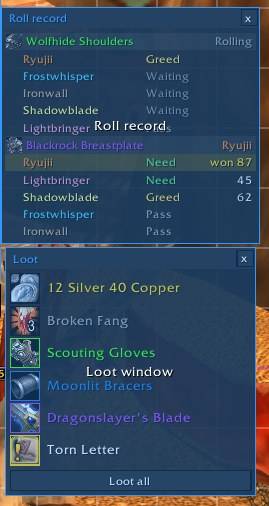
- Fast loot
- Master loot helper: as master looter, click an item for P5UI's own assign menu (raid members by class, To me, Roll), with a confirm step for epics; a loot log records who got what, when and where (
/p5ui loot); try it without a raid from the loot or raid settings page
Quests
Questing without extra addons: a tracker grouped by zone, flat quest windows, quest objectives and your party's progress in tooltips, and optional auto accept and turn-in.
- Quest tracker grouped by zone, with quick abandon (hover × or right-click)
- Achievements and scenario goals stay visible: when the game has such extra objectives, its full tracker shows and the P5UI list steps aside (no duplicate quests), and comes back when they end
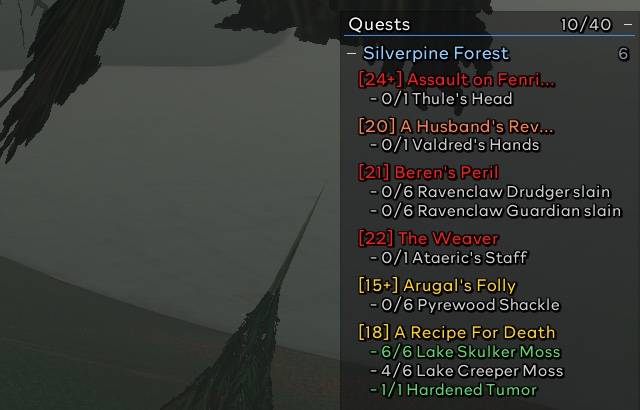
- Position, size, scale and font adjustable; it fades in combat
- Larger reading text: dialog, book and quest text can be enlarged up to 175%, with a sample
- Quest windows restyled: taking and handing in quests (and the quests in an NPC's dialog) in a flat dark window with a title strip in your class color, [level] quest names in difficulty color and reward icons outlined by quality
- XP after turn-in: in the world map's quest details, the XP reward also shows the level progress you will have once you hand the quest in
- Level after your quests: each quest in the tracker can show roughly what level and percent you will be at once you finish that quest alone, and the footer shows it for all the open ones together (two switches, both on by default, with a sample preview); P5UI learns each level's XP needs as you see them and says "at least" while data is missing
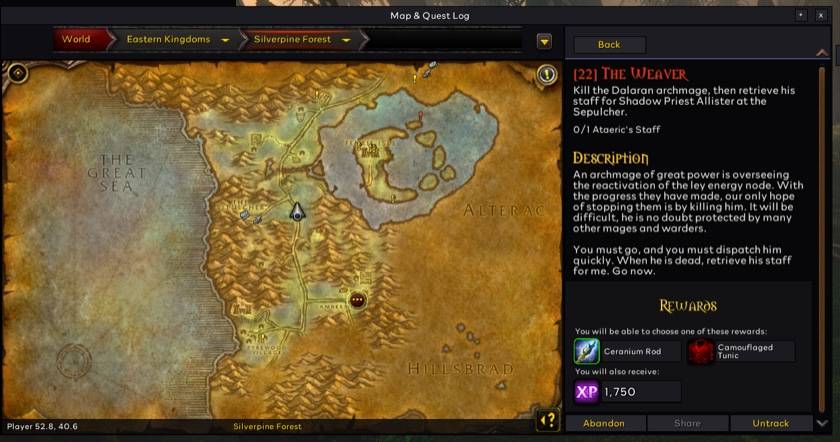
- Quests in tooltips: the quests on a mob's tooltip get their [level] in difficulty color, a sword (kill it) or bag (loot it) before each objective, and turn green when done; a quest item's tooltip lists its quest and your progress. In a party every quest lists everyone: "Name - objective (x/y)", "not on quest", then you; point at a party member to see your quests around here that way. They don't need P5UI. No Questie needed.
- Auto accept and turn in:
- stops when you have to choose a reward (or picks the one that sells for most, if you turn that on)
- hold Shift to pause it for one NPC
- never pays money, hands over ordinary items, or accepts quests other players share (unless you turn that on)
Spellbook: training
What your class trainer has for you now and at every level to come, right in the spellbook.
- A book tab in the spellbook's row of tabs lists what you can learn from your class trainer now (with the price, red when you can't afford it) and at every level to come; spells you know are left out
- Learn what you can afford: a panel beside the class trainer previews the class skills you can afford, in list order, with the total price; nothing is bought until you confirm, and it stops if a price, the list or your money changes
- What the spellbook says about spells at future levels is remembered between logins
- Visit your class trainer once and the whole list is recorded; characters of the same class share it
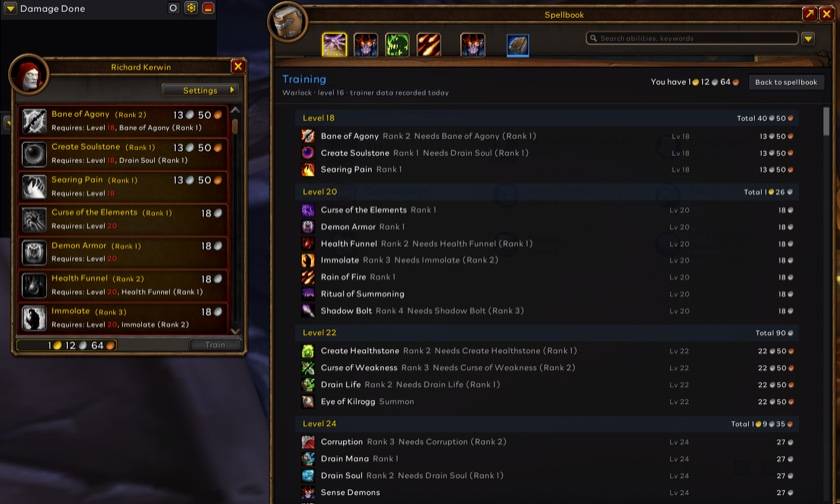
Talents: planner
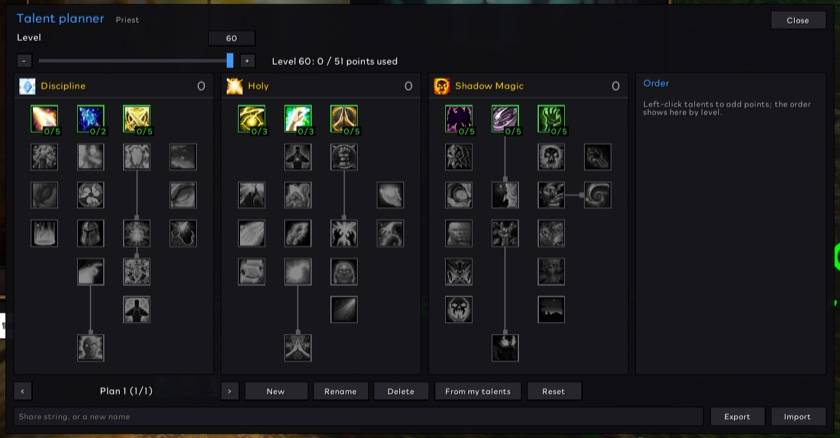
Plan your talents level by level with your class's real trees, keep several plans and share them.
- A button beside the talent window (or
/p5ui talents) opens a planner with your class's three trees read from the game: plan points under the tier rules, see what to take at each level, keep several plans per class, share them as a string, and see the plan's next talent marked in the talent window - The native talent window in P5UI's look (default on): flat dark background, thin black borders and outlined labels; switching it off, or opening the spellbook page, brings back the native look, and the talent layout and actions never change
Chat and tooltips
A flat chat with one-click channel buttons and levels before names, and tooltips with class colours, the target and the distance.
- Chat: flat look, short channel names, clickable links, copy chat, one-click channel buttons (also as a column beside the chat), and speakers' levels in front of their names when known, e.g. [16:Name]
- English names in links: on a Chinese client, an item or quest you shift-click into the chat box goes in with its English name, read from the tooltip the link opens (left alone when the game gives no English name; switch under Settings → Chat)
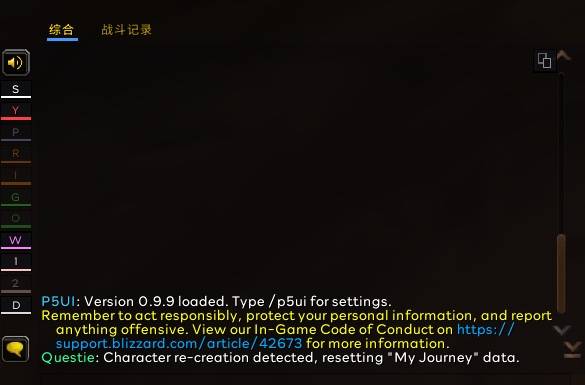
- Tooltips: flat look, names in class or faction colors, a "Target:" line and a slightly larger "Distance:" line, item level with a quality-colored border; can be hidden in combat
- Chat filtering (optional, off by default): hide messages that contain your keywords, or repeats from the same sender within a few seconds, in the channel types you pick, with a list of what was hidden; messages the game marks secret always pass
- Saved chat history (optional, off by default): keeps the readable messages of the channels you pick across sessions, 100 to 2000 of them, with a read-only window to search, page and copy; whispers aren't saved unless you choose them, and anything the game restricts is skipped
Character and inspect
Item levels, empty slots and durability beside the character window.
- A side panel beside the character window and the inspect window lists the item level of each slot and marks empty slots (shirts and tabards, and the off hand with a two-hander, are not counted); on your own character it also shows durability and can remind you once when it falls under a level you pick (20% by default). An inspected player's data only shows once the game has really sent it
- Missing permanent enchants: on your own character, a red "!" beside slots that can take a permanent enchant and don't have one (chest, boots, wrists, hands, cloak, weapons, shield), only at the level cap; switches for each slot and a preview. The panel now sits beside the character window's side tabs instead of under them
- Side panels you can move: the recipe materials panel and the equipment info panels can be dragged anywhere, remember their place per profile and have a reset button; they no longer sit on the profession tabs
- Breath and fatigue bars: flat, movable bars that follow the game's own breath, fatigue and other mirror timers, with size, position and a preview on the Status bars page, and they show a drag handle in Edit Mode
Settings, profiles and Edit Mode
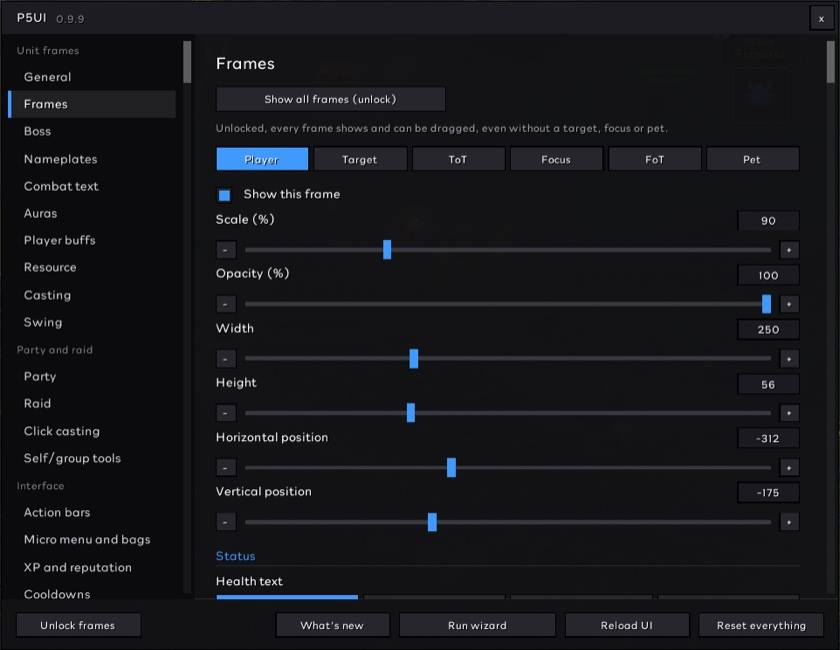
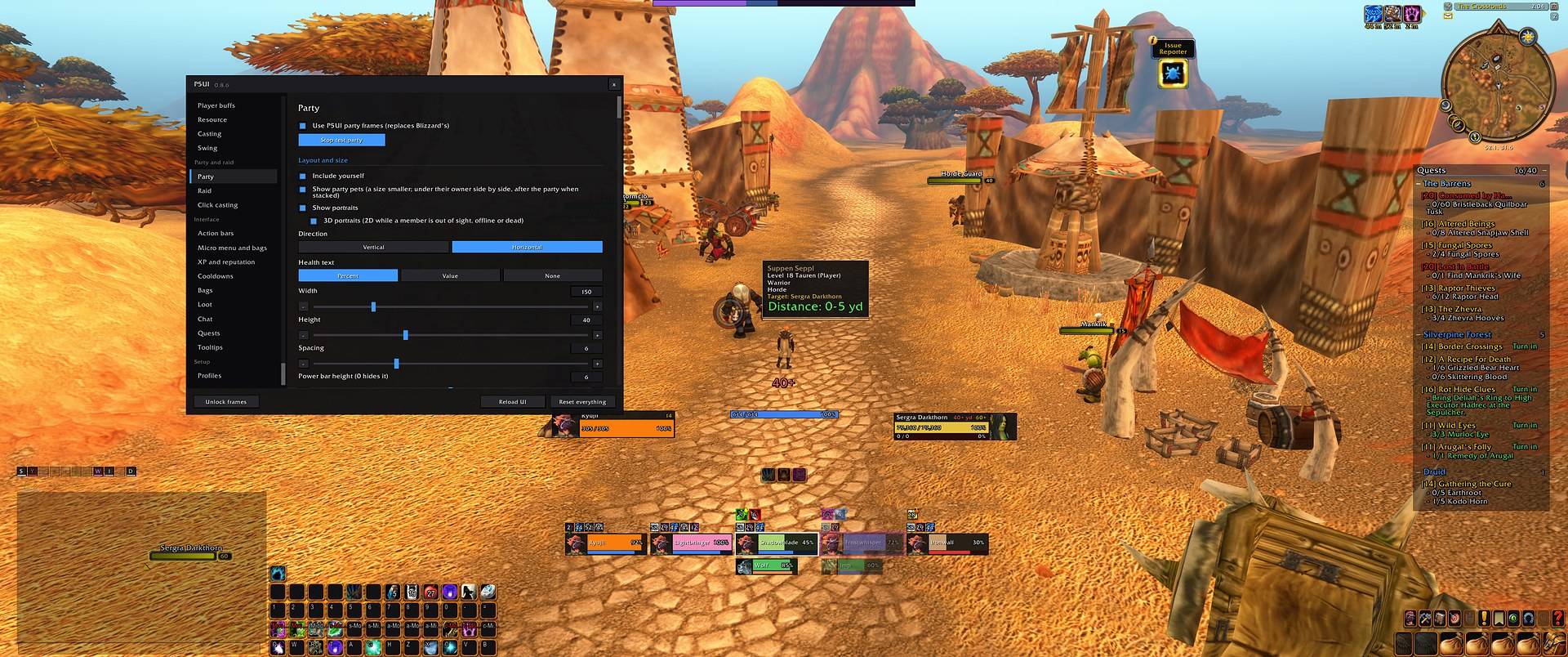
One settings window for everything, with a preview or test mode on every page; profiles that carry Blizzard's windows too and fit any screen; Edit Mode snapping, click casting, and pages for feedback and performance.
One settings window with the pages on the left
Its own icon in the game's AddOns list and the addon compartment: the logo's rings and "P5", drawn to stay readable at 28 pixels
Sections in the menu and search: a page's sections are listed under it in the left menu (it opens like a folder) and the one you pick shows on the right; the search box in the title bar jumps straight to the page, section and setting
A General page for every settings page that used to repeat the same controls above each section, so the specialized settings start at the top of the window
Blocks drawn as panels: every block of a settings page is a panel with its own title bar (an accent edge and a line under it), so page, block and control are easy to tell apart; the pages for the resource bar, auras and swing timer each start with a General block too
Persona 5 and Ryuji Sakamoto styles for the whole UI: two buttons on their own row at the bottom of the settings window ("Turn on the Persona 5 style UI" and "Turn on the Ryuji Sakamoto style UI") dress the settings window and the game's frames in red, black and white (Persona 5) or yellow, black and white (Ryuji Sakamoto): unit, party, raid, boss and nameplate frames, cast, experience and resource bars, tooltip, minimap and maps, chat, quest tracker, bags, bank, loot, damage meter and the addon's other windows get a white edge, a hard shadow in the style's colour and accent lines, with square corners; class, quality and state colours stay as they are. Off by default; one choice for the whole account (either style or neither), not part of any profile
Leveling dungeon information (
/p5ui dungeons, or Settings > Leveling dungeons): the classic dungeons in recommended-level order, and each one's quests by level with the level you can take them at, the side, who starts them and where, and who ends them; quests you have done or have in your log are marked. English, Simplified and Traditional Chinese; the data is built into the addon (from pfQuest, MIT licence)Profiles: as many as you like, shared by every character, but each character keeps its own settings (a copy of its profile). Changes go back into the profile only when you press Save, and they survive logging out until you do; Discard changes, Save as new profile, and Undo for a delete, an overwrite or a discard. One Profiles page, no sub-menus: Apply to this character, Rename (every character sees the new name), Export as a string (the saved version, plus the current settings with unsaved changes below it), and Delete (only when no other character uses the profile). A pasted string can only become a new profile, which you then apply. A new character starts from the recommended wide or narrow profile. "Compact" and "Healer" are ready-made read-only rows
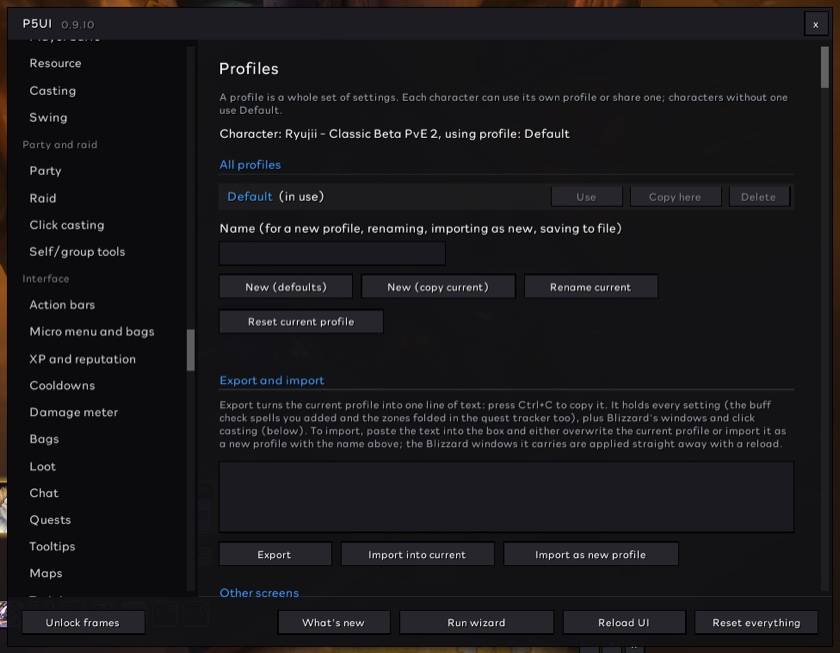
- Profiles carry everything: every P5UI setting plus Blizzard's windows (the Edit Mode layout, every damage meter window with its place and size (kept by itself as you change them), the cooldown manager, your click-casting bindings, chat timestamps). Applying a profile no longer reloads the UI: Blizzard's windows wait behind one button on the Profiles page, and it applies them with one reload when you press it
- Setup wizard: a new install starts with the recommended profile (one for 1080p and narrower screens, one for ultrawide) and a short illustrated tour of what P5UI changed and where to adjust it; see it again any time with "Run wizard" at the bottom of the settings or
/p5ui wizard - Profiles fit your screen: a profile remembers the screen it was made on and scales sizes and positions to yours, whatever your UI scale, monitor or aspect ratio
- Profiles by talents: pick a profile for each talent set, and switching talents switches the profile
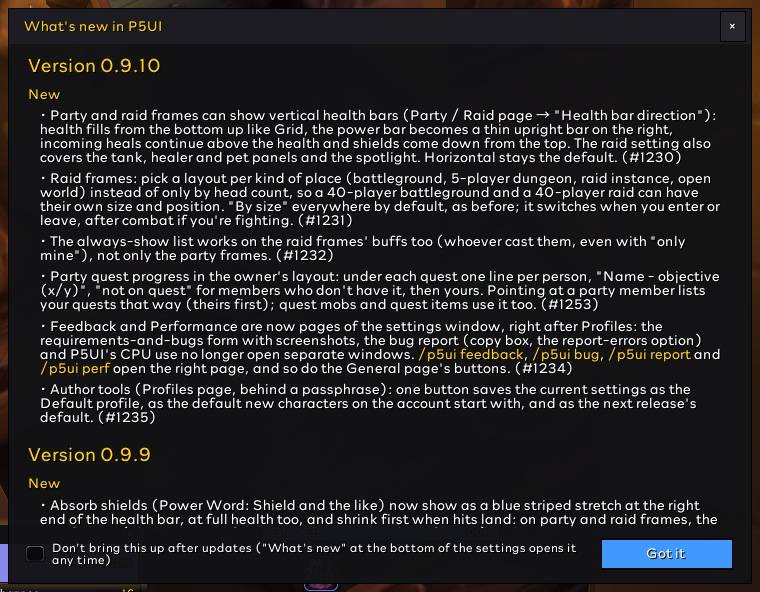
- What's new: the first login after an update with new features shows what changed;
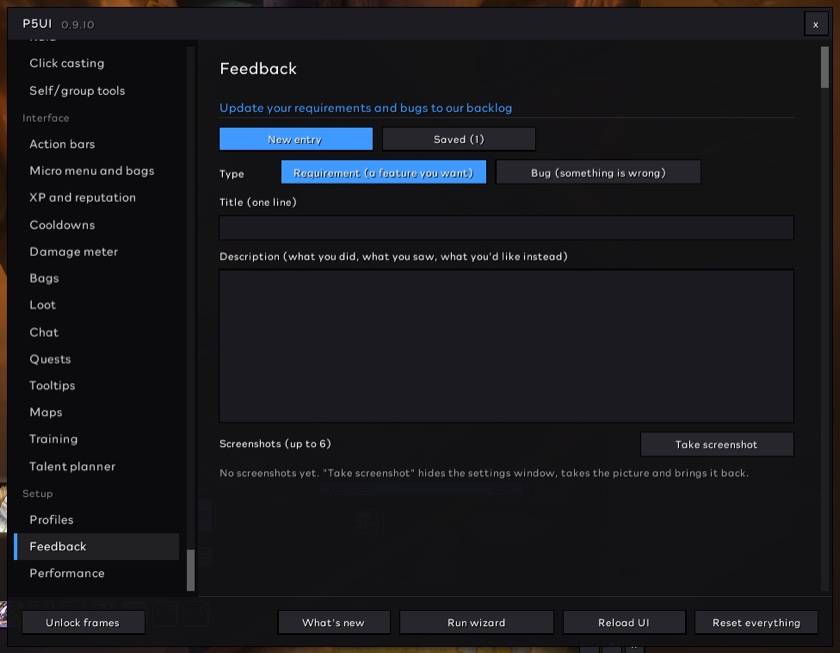
/p5ui newshows it any time - Feedback and Performance pages at the end of the settings: write down a requirement or a bug (a Screenshot button on every page hides the settings for you), copy a ready-made bug report, see P5UI's CPU use
A "P5UI settings" button in the game menu (Esc)
Corners (General page): square corners, or rounded with a radius slider from 0 to 10% of the short edge (4% by default) for portraits, unit, party and raid frames, bars, aura icons, action buttons, cooldown swipes and the proc glow, all in one go; the first time you update to it, quit and restart the game (it adds a file)
Camera distance (General page): an optional higher zoom-out limit, within the range the game allows; turning it off brings back your previous limit
Edit Mode: unlocking opens Blizzard's Edit Mode, and frames snap to its grid, to Blizzard's frames and to each other (hold Shift to place freely); unlocking shows only the frames you're setting up (the party, or the raid tab you picked)
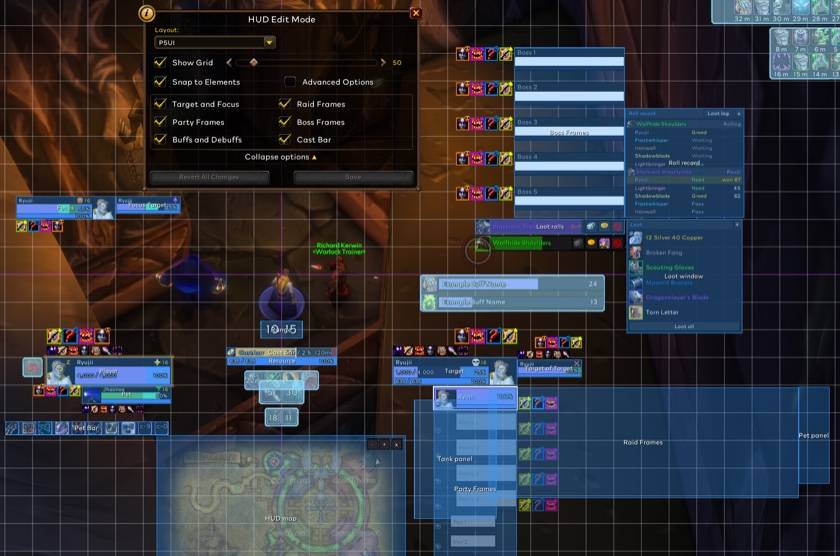
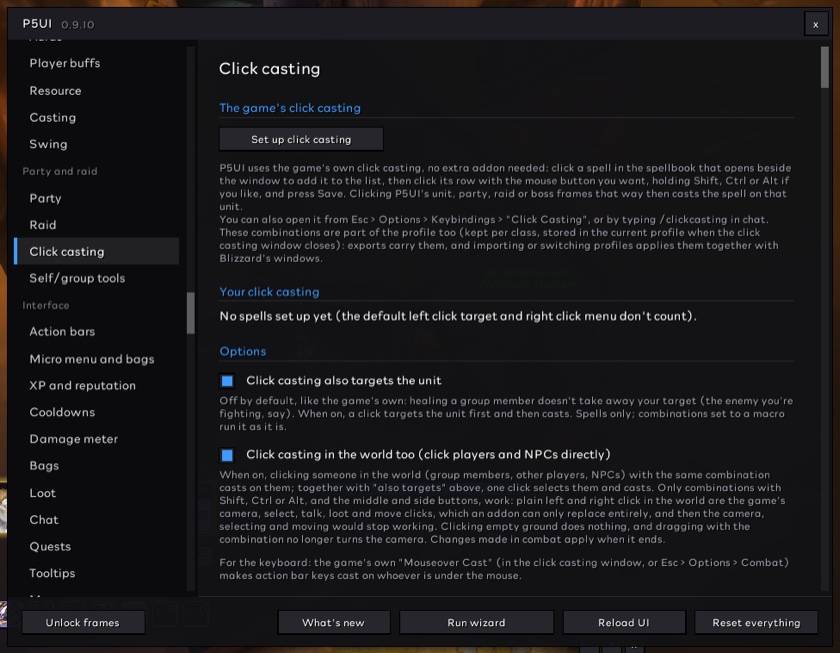
- Click casting on unit, party, raid and boss frames with the game's own bindings (kept per class in your profile); optionally a click cast also targets the unit
- Keys over frames: with the mouse over a party, raid or unit frame, a key you set up casts a spell or a one-line macro on that unit (elsewhere the key keeps its usual action; in combat too). Smart resurrection: left-click a dead member to cast your class's resurrection
- PvP page: optional automatic spirit release in battlegrounds (off by default; resurrection offers and self-resurrection stay manual)
- Invites and duels (off by default): decline duels and guild invitations, and accept group invitations from friends or guild members you trust
- Hide minor notices: zone names and red error text, and boss banners and talking heads where this client has them
Commands
/p5uiopens the settings (so do the addon button by the minimap and Options → AddOns)/p5ui unlock//p5ui lockto move frames/p5ui testshows a test party,/p5ui raidtesta test raid,/p5ui bosstesttest bosses/p5ui talentsopens the talent planner,/p5ui hudmapswitches the HUD map on or off,/p5ui wizardruns the setup wizard/p5ui buffsruns the buff check,/p5ui lootopens the loot log/p5ui newshows what's new,/p5ui feedbackand/p5ui reportopen the Feedback page,/p5ui perfthe Performance page/p5ui party,/p5ui range,/p5ui platesand/p5ui questpartyprint troubleshooting info, and/p5ui probe <topic>prints what the game answers about its interfaces (useful in bug reports)/p5ui resetresets everything
Good to know
- Forever uses the modern addon API, where many combat values are secret: an addon can show them but not calculate with them. That's why distance is shown as a range rather than an exact number.
- Found a bug or missing something? Write it up on the feedback page, **https://p5ui-board.cweihc.com/feedback/**: no account needed, and screenshots can be pasted straight in. In game,
/p5ui feedbackopens the Feedback page to write it down and copy it,/p5ui reportgathers everything a bug report needs (paste the error from BugSack too if you have it), and/p5ui screenshottakes a picture with the P5UI settings hidden (it can also be bound to a key). Add-ons can't go online, so paste the copied text into the website: we read every report.
中文说明
支持语言:English · 简体中文 · 繁體中文
扁平风格、灵感来自 X-Perl 的整套界面,适用于 魔兽世界:Forever:头像、小队、团队、首领框体,姓名板,动作条,背包,地图,聊天等,每个部分都能单独开关。
**发现问题或想要新功能?到这里告诉我们:https://p5ui-board.cweihc.com/feedback/**(不用账号,截图可以直接粘贴)。
扁平风格的整套界面,灵感来自 X-Perl,适用于 魔兽世界:Forever:头像、小队、团队、首领框体,姓名板,伤害数字,动作条,鼠标圈,伤害统计,小地图和大地图,接交任务窗口,背包、拾取、聊天、任务和鼠标提示。游戏里的插件名是 P5UI(0.8.1 之前叫 Ryuji 头像框体,名字来自女神异闻录5 的坂本龙司)。
- 每个部分都能单独开关:替换暴雪原版的部分关掉就换回暴雪的。
- 每个设置页都有测试:测试小队、测试团队、测试首领、示例光环、示例拾取、模拟商人,不组队、不进副本也能调好。
- 简体中文、繁体中文(台湾用词)和英文界面:跟随游戏客户端。
安装向导
第一次登录时,P5UI 一次换上推荐的样子,再给你看一分钟的图示导览:每页讲一块换掉的界面和以后在哪调。导览本身不改任何设置;设置底部的“运行向导”或 /p5ui wizard 随时再看。
头像框体
你自己的框体(玩家、目标、目标的目标、焦点、宠物)换成 X-Perl 风格的扁平样子,带 3D 头像、真实数字和百分比,还有可以拖出来的资源条、每个框体上的增益减益、吸收盾和治疗数字。
- 玩家、目标、目标的目标、焦点、焦点的目标、宠物
- 3D 动态头像(看不到单位时换成 2D)
- 玩家按职业着色;NPC 敌对红、中立黄、友好绿;别人先打的怪灰色
- 血量和能量显示数值和百分比,文字大小可调
- 休息时玩家框体有暖金色光晕,战斗中变红
- 猎人宠物快乐度:宠物框上的图标(生气 / 一般 / 开心),鼠标提示里有伤害、忠诚度和食物;位置和大小可调,只对带着宠物的猎人显示
- 德鲁伊法力条:熊和猫形态下在资源条下面显示法力,可调高度、间距和数字格式,带预览
- 资源条可以拖出来单独摆放:熊形态怒气、猫形态能量、德鲁伊法力在下方;资源条上方可以加玩家生命条(默认开,一个开关,带预览,宽高、数字、缩放、透明度和资源条一致,不用再开暴雪自带的血条);连击点;读条时将要消耗的那一段会闪
- 每个框体都有增益减益:位置、对齐、大小、数量、只看自己的都能分开设;减益类别用彩色边框标出
- 光环筛选和排序(每个框体分开设):只显示控制类或只显示可驱散的,按剩余时间或名字排序,可偷取 / 可驱散的增益高亮,快结束时倒计时变红
- 头像框体的施法条:施法、引导、打断显示在自己、目标、焦点、宠物、目标的目标的姓名和等级栏里(血量和资源一直可见),各有开关,有预览;也可以改回目标、焦点、宠物框体下面各自独立的施法条(高度和位置可调)
- 每个框体都有团队标记、就位确认和“缺血”血量文字(-1,234,满血不显示)
- 吸收盾(真言术:盾等)画在血条最右端,是一段蓝色斜纹,满血时也看得到
- 头像上的治疗数字:玩家、目标、焦点、宠物和小队框体受到治疗时,头像上跳绿色“+数字”(暴击更大)
- 头像样式(玩家、目标、焦点、小队各自选):3D、2D、职业图标、头像背景(头像位显示职业图标,血条蓝条下面铺一张该单位的 2D 头像作静态背景)或不显示;原来的 3D 开关会迁移过来,默认不变
- 数字缩写和文字格式:血量可选完整数字、k / M 或 万 / 亿,名字可选名字、名字-服务器或隐藏,还能显示当前值加百分比;头像框体、小队和每个团队人数分别设置
- 脱战淡出(默认关闭):小队、玩家、焦点、宠物框体在脱战且没有目标时变淡(小队还要所有队友满血),透明度和延迟自己调;鼠标移上去恢复,进战或受伤立刻恢复
小队框体
给治疗用的小队框:每个队友旁边两排状态,中间是首领减益,四个角像 Grid 一样显示你的持续治疗,还有减伤、缺增益、自定义指示、驱散和减益提醒;有测试小队,一个人也能调好。
- 自己(可选)加四名队友,竖排或横排
- 超出距离变暗、目标白框、队长和职责图标
- 旁边两排状态:上排是小图标的团队增益(耐力、智力、爪子、祝福);下排先是你给队友的持续治疗、盾和短时间增益,后面接着他的减益
- 有你能驱散的减益时整格盖上闪动的白色;有你的恢复、回春术、愈合时框体里面一圈绿框
- 血条上的治疗预估和吸收盾;死亡、释放灵魂、离线一眼分清,暂离、假死、不在同一位面用小图标标出,死了和离线的有计时;复活中(战复还是普通复活、谁在复活)、灵魂石、召唤
- 首领减益在血条中间显示大图标,四个角像 Grid 一样显示你的持续治疗
- 首领减益图标会发光,也可以按游戏自己的先后(首领、重要、你能驱散的)显示
- 减伤图标:痛苦压制、保护祝福、盾墙、寒冰屏障这类,带剩余时间
- 缺增益提示:有人缺你能加的增益(也可以选看全队能加的)时出一个小图标
- 自定义指示:每个角和每条边的中间都能放你选的增益、你放的减益或某类减益,图标或色块,缺了有提示,最后 3 秒变红闪;八个位置各有自己的图标大小、字号和偏移
- 增益黑名单和白名单;Alt+Ctrl+右键点增益图标直接屏蔽
- 队友施法条:每个队友有独立的姓名和等级顶栏(默认开),施法、引导时顶栏显示技能,结束后恢复名字,血量和资源一直完整显示;被打断闪红,不能打断的是灰色;一个开关可以改回放在资源条上
- 合并自己:把你自己、你的目标、你的目标的目标都放进小队框体里(只有你一个人也显示),不在团队时单独的玩家、目标、目标的目标框体隐藏;目标和它的目标和队友一样大,挂在你的框体旁边,位置可选;横排框体可以从中点向两边均匀排开(只有自己时正好在正中间),自己也可以站在第一个、中间或最后;目标和目标的目标框体可以各自拖动
- 合并后的小队条默认血条和能量条按 7:3 分配(可调);你的目标和目标的目标可以分别设置大小、缩放、透明度、头像、文字、血条颜色和能量条比例,旧的小队设置会自动迁移一次
- 持续治疗角标放进光环下排(可选):把你的有益角标挪到下排光环里,跟随各种排列;首领和有害锁定提示保留
- 治疗者选项(设置 → 通用 → 治疗者,默认关):在小队里,治疗职业(牧师、德鲁伊、萨满、圣骑士)选了坦克后,按攻击性法术(惩击、愤怒、暗言术:痛……)就对坦克的目标施放;对友方也有效的法术(苦修、神圣震击)以及坦克没有敌人目标时,仍对你的目标。只对按键有效,不管鼠标点击
- 减益提醒:有人中了你能驱散的减益或名单里的减益时,响一声、框体闪一下
- 敌人读条提示:怪对队友读条时,那个队友的框体上出现技能图标,还能显示有几个怪盯着他(默认关)
- 鼠标指向和焦点高亮;血条颜色可以用职业色、按血量(绿到红)或自选一种颜色,血量低于你设的比例时整格变红或闪,血条平滑变化
- 竖血条,像 Grid 那样(小队 / 团队页 →“血条方向”):血从下往上涨,能量条竖在右边,治疗预估和盾跟着转
- 血条上的团队标记、就位确认、被怪打时头像右上角出现会闪的仇恨按钮(黄色快拉到、红色有仇恨),可选按职责排列(坦克、治疗、输出)
- 3D 头像;队友的宠物用小一号的框体,排在最后一个队友的右边(竖排在所有队友下面)
- 队友的目标(可选):每个队友的目标显示在他旁边(名字、血量、团队标记、它在打谁,点一下就选中);竖排时在右边、增益减益在左边,横排时在下面、宠物在最后一个队友右边
- 字体和血条材质(来自别的插件,LibSharedMedia):小队和每套团队配置各选一套,即时预览;不选就不变,P5UI 不自带任何字体和材质
- 测试小队:四个带增益减益的模拟队友
团队框体
10、20、40 人的紧凑团队框,小队框有的都有,另外还有坦克栏、治疗栏、坦克的目标、宠物栏、聚焦框,每种人数各有一整套设置。
- 每种人数一整套设置:1–10 人、11–20 人、21–40 人各有自己的布局、坦克栏、聚焦框、文字、图标、增益黑白名单和提醒,团队页一个标签管一套(测试团队跟着标签换,还能把一套复制到另一套);人数变了脱战后自动换;也可以按场所:战场、五人本、团本、野外各用一套;小队也可以用团队框
- 分组和排序:每个小队一列,或合在一起按职责(顺序你来定)、按职业排;按名字排;只显示前几个小队;把你的小队放最前面
- 显示名字或职责图标;能量条按职责显示(默认只给治疗),治疗蓝量低时名字变蓝或蓝条闪
- 距离变暗、目标白框、团长、主坦克/主助理、就位确认、复活中、驱散描边和减益图标
- 坦克栏(默认打开)和治疗栏(可选):团队里的坦克和治疗另外列成一栏,拖栏顶的细条就能挪
- 测试团队,第一格是你自己
- 小队框体有的这里都有:治疗预估和吸收盾、状态图标和计时、首领减益、角落 HoT、减伤、缺增益、自定义指示、减益提醒、仇恨红圈、高亮和血条颜色
- 团队施法条(默认关):每个成员血条下面一条细的,可以只给治疗或给全部,每套人数各自设置
- 聚焦框:最多 5 格,一直显示你的目标、焦点、坦克或你指定的人(只在团队里;小队里不显示这些栏和聚焦框)
- 坦克的目标显示在坦克栏旁边(左边或右边),另有宠物栏列出团里猎人和术士的宠物
- 命名团队布局:可以保存、复制、改名、删除布局,并按场所、职责、人数自动选用;战斗后才切换,布局随配置档分享
- 自定义指示器的倒计时条和时间文字:横向或竖向倒数条,颜色自选,时间文字可隐藏或挪位置,最后三秒仍然提醒
- 团长工具(单独一页,默认关闭):密语关键词自动邀请,预览在线的公会 / 好友成员并说明跳过原因,保存并恢复团队分组(只有团长、脱战时能执行,先预览)
个人/小队/团队标记准备检查工具
准备开打用的一条小工具条:标记、世界标记、就位确认、开怪倒数,还有增益检查,告诉你谁缺什么。
- 单人、小队和团队里一条可以拖动的工具条:给目标加团队标记、放世界标记、就位确认、开怪倒数(再点取消)、增益检查;每个按钮可以单独隐藏;没权限的按钮变灰并说明原因;单人时标记只有自己看得到,世界标记是灰的(游戏不让单人放),增益检查只查自己;可以设置战斗中隐藏
- 增益检查:一个窗口列出谁缺耐力、智力、野性印记、祝福(队里有对应职业才查),团队按小队分开,还查你自己的职业增益、食物和武器强化;读不到的显示 ?,不算缺;可以在自己发起就位确认时自动检查,可选通报到队伍频道
- 就位确认结果名单:就位确认结束后留一份可拖动的名单,分已准备、未准备、未回应和未知,保留到下一次;队长、团长和助理自动显示
- 食物和合剂检查:团长和助理还能看到谁缺食物或合剂 / 药剂(合剂默认关闭);全队的职业增益名单所有队员照常能看
- 驱散助手(默认关闭):一个独立清单,列出带着你能驱散的减益的人,每行固定左右键法术;受限制的战斗里游戏可能不给减益类型,清单可能为空
首领框体
最多五个首领框体,带施法条、你的减益和团队标记,可以用测试首领摆位置。
- boss1–5,带首领施法条(不能打断时灰色)
- 你施放的减益、团队标记、目标白框
姓名板
练级和打架都用得上的扁平姓名板:任务怪有自己的颜色和小剑、小袋子,精英标记,当前目标一眼看全,每个敌人身上你的减益,仇恨上色,有任务的友方 NPC 会变淡。
- 敌对和中立单位的姓名板换成和框体一样的扁平样式
- 任务颜色:没有你的任务的怪,主动攻击的红色、不主动攻击的黄色(和暴雪一样);任务怪换成自己的颜色,主动攻击的橙黄色、不主动攻击的橙粉黄色;别人先打的灰色
- 任务图标:要杀的怪有一把小剑,会掉任务物品的有一个小袋子
- 精英标记:精英怪旁边有暴雪那样的金色龙标(稀有精英银色,稀有怪是星标)
- 当前目标一眼看全:等级和名字放进加高的血条里,右边是“当前 / 最大 百分比”,有法力的怪多一条法力条;你的减益直接贴在血条上,比别人的大
- 仇恨上色:战斗中按你的职责给姓名板上色(坦克:稳住、快丢、在另一个坦克身上、不在你身上;输出和治疗:在你身上、快拉到、安全)
- 每个敌人身上显示你施放的减益和剩余时间:同时给几个怪上 DoT 也一眼看清
- 当前目标:白色描边,显示它全部的增益和减益(也可以只显示你的)
- 图标大小随你调:目标的增益、减益和其他敌人身上你的减益各有大小滑块,图标上的时间数字也能调;设置页有示例姓名板,不打怪也能看
- 距离带单位(0-20码、40+码),带施法条
- 施法目标:敌人的施法条上显示这个法术冲着谁(有些场合游戏不给名字,那时什么都不显示),可打断的法术最后一秒描边提醒;两个开关,带预览
- 敌方焦点标记:焦点敌人的姓名板有紫色边框(在目标白框外面)或一个小准星图标,打 A 的时候一眼找到要控制或打断的 B;有开关、样式选项和预览
- 姓名板距离和间距:把游戏自己的“姓名板显示多远”和“上下间距”放进 P5UI 的姓名板页;只在脱战时生效,关掉后恢复你原来的值,你在别处改的值不会被覆盖
- 友方玩家的姓名板仍是暴雪的
- 友方 NPC 和友方玩家的一个样子(同样的框、名字在上、等级框,血条是 NPC 的绿色,施法条和交互图标是暴雪自己的);有任务可接或可交的 NPC,姓名板变淡,看得见头顶的“!”“?”;P5UI 不替你开关友方姓名板,关着时头顶是游戏自己的名字、公会和头衔
伤害数字
你的伤害按暴雪的样子从敌人姓名板上飘起,可以带上造成它的技能图标;治疗数字用游戏自带的,P5UI 替你打开。
- 你打出的伤害按暴雪的样子从敌人的姓名板上方飘起:法术黄色、平砍白色,暴击变大并晃动
- 可以在每个数字旁边显示造成它的技能图标(默认关,技能是 P5UI 推断的):痛苦诅咒的每一跳、暗影箭的暴击、你的平砍
- 治疗用游戏自带的数字,P5UI 替你打开:游戏把它画在受治疗者头上,不用选中、不用开友方姓名板,副本里也有
- 开着时暴雪自己的伤害数字会隐藏,关掉就恢复你原来的设置;数字出现的位置可以调;设置页可以播放模拟
- 游戏不让插件读战斗记录,所以技能是按你的施法、持续伤害、平砍推断的;在队伍里认不出是你打的数字不显示
- 打开图标后,在小队或团队里数字还是不带图标,免得推断错的图标误导你
战斗:鼠标圈、施法条、距离
打架时要看的都放在眼前:鼠标周围一圈显示施法、公共冷却和攻击计时,施法条告诉你什么时候能走,到目标的距离到处都看得到。
- 鼠标圈:外圈是施法(延迟是末端浅色一段)或主手/自动射击,中圈是公共冷却,内圈是副手,剩余秒数显示在旁边
- 脱战后最后一次读条过去半秒,鼠标圈慢慢淡出
- 施法条:替代暴雪的,延迟用红色标出,读到那里就可以移动了
- 距离窗口:用数字显示和目标的距离(10-15、40+),近战范围绿色、30 码内白色、40 码内黄色、更远红色;目标框体和鼠标提示里也有
- 可选的主手、副手、远程攻击计时条
动作条和冷却
干净的圆角动作条,边框是职业颜色;暴雪的冷却管理器也换成同样的样子;冷却数字看得清;条件技能能用时会发光。
- 圆角柔和的动作条按钮,边框可用职业颜色,图标大小和间距可调
- 进游戏就是干净的动作条:主动作条后面的暴雪底板、两边的狮鹫、分隔线和翻页箭头默认隐藏(都能再打开)
- 可移动的宠物技能栏
- 动作条淡出:每条动作条、姿态条、宠物条都可以设成鼠标移入才显示或战斗中才显示,各自调透明度、等待和淡出时间;变淡时照样能点、能用快捷键(默认不开)
- 萨满图腾栏:四个图腾显示成方形图标和倒计时,鼠标提示是游戏自己的,右键取消;大小、间距、位置可调
- 暴雪冷却管理器换成圆角图标和扁平增益条
- 动作条冷却数字:大小可调,短冷却不显示,最后 5 秒变红
- 屏幕右上角的增益减益也是同样的圆角样式
- 菜单按钮和背包格也换成同样的样式
- 扁平的经验条和声望条:默认和主动作条一样宽(在编辑模式里调动作条也跟着变),也可以自己设大小;可拖动,显示休息经验;鼠标指着经验条可以看本次登录获得的经验、每小时经验和升级估时
- 条件技能发光:压制、复仇、斩杀、还击、猫鼬撕咬、反击、愤怒之锤这类技能能用时按钮亮一圈光,技能自己冷却中不亮;样式、颜色、每个职业的技能列表可改
- 超出距离整个图标变红:游戏确认超距时变红(资源不足的蓝色和不可用的灰色保留),宠物技能也支持
- 快捷键和宏名文字:分别显示或隐藏、分别调字号,带实时预览
伤害统计
暴雪自带的伤害统计换成同样的样子,随时拖动、改大小。
- 暴雪自带的伤害统计换成 P5UI 样子:深色扁平面板、细黑边、纯色职业颜色条
- 每个窗口(主窗口也一样)随时拖标题栏移动、拖右下角改大小,不用进编辑模式,P5UI 记住位置和大小
- 最多 3 个窗口,每个窗口在暴雪的齿轮菜单里选显示什么(伤害、治疗、每秒伤害、承受伤害、打断、驱散……);设置页写明怎么做,还有示例窗口
地图
方形小地图,大地图和任务日志也是同样的扁平样子,还有练级用的、画在人物脚下的练级地图。
- 方形小地图:细边框,周围的按钮(追踪、日历、邮件、插件菜单和其他插件的图标)收进右边一列,下面一条显示坐标、地名和时间
- 大地图也是同样的扁平样子:深色底、细边框、平的标题条和按钮,底部一条显示你的坐标、地图名和鼠标坐标
- 大地图旁边的任务日志也换成同样的扁平深色
- 手动路点箭头:用坐标或在大地图上设一个路点,一个可移动的箭头显示方向和直线距离;不会编造路线,游戏自己已经在追踪这个标记时会让开
- 练级地图(默认关):人物脚下一张边缘渐隐的区域地图,跟着你走;从 50 码到整张地图按档缩放(+ 和 - 按钮、按住 Alt 滚轮或快捷键);显示任务区域、任务目标点、交任务的“?”和接任务的“!”(账号里任何角色找任务 NPC 说过话就记下),点一下弹出任务卡片(详情、追踪、焦点),战斗中也能用。不按 Alt 时鼠标完全穿过它;大地图右边有“打开练级地图”按钮
背包
所有背包一个窗口,装等、品质边框、搜索、整理,还能看每个角色各有几个。
- 所有背包合成一个窗口
- 品质边框、装等、垃圾标记、新物品发光
- 搜索、整理、剩余格数和金币
- 背包分类:格子按武器、护甲、消耗品、任务、材料、其他、空格分组,标题带数量;也可以自己建分类(最多 12 个,填物品编号),还有“最近拿到的”分区;物品还在原来的格子里,窗口比屏幕高时可以滚动
- 格子标记:已绑 / 装绑 / 用绑 / 账号标记,角色不能用的物品变红,可用装备比身上的物品等级高时显示箭头(只比物品等级,不比属性)
- 角色记录里的金币和货币:记录窗口多一页“金币和货币”,列出每个角色的金币和各种货币,账号共用的单列,每项带记录时间,可以搜索;游戏读不到的值保留旧记录
- 银行:个人银行和战团银行在游戏的银行窗口里用同样的格子显示,分页、搜索、整理照常
- 查看别的角色的背包和银行:P5UI 按格子记下每个角色的背包和最后看到的银行,任何角色都能只读查看
- 银行里的记录页签:银行分页下面多一个页签,在银行窗口里打开同样的只读记录,并显示每个背包、银行是什么时候记下的
- 配方材料:专业技能窗口旁边的面板显示游戏自己算的可制作次数,以及根据你的记录每个角色背包、银行和战团银行里的材料(都带记录时间;没去过的银行显示“未知”)
- 邮箱工具(可关):邮箱下面的按钮一次收一件能安全收的邮件,遇到任何意外变化就停(货到付款和 GM 邮件不碰);按已记录的角色补全收件人;一个按钮清掉待发附件。不会替你发送或删除邮件
- 所有角色的物品数量(像 Syndicator):物品提示里列出同账号每个角色背包和银行里各有多少、战团银行和总计
- 到商人自动卖灰、自动修理
- 按规则的自定义分类:按物品类型、品质、绑定状态归类,可调优先级、预览每个分类会放哪些格子;原来的物品编号分类和“最近获得”照常
- 高级搜索:背包和银行里,在物品名字旁边写条件,例如
ilvl>=400 q:epic type:plate bound:no count>=5 price>1g;所有条件同时满足,其余文字照旧搜索,旁边的“?”按钮列出可用的词 - 鼠标提示里的物品数量现在加上每个角色已装备的和邮箱里的(带记录时间)
拾取
扁平的拾取窗口会停一会儿让你看清掉了什么,一条掷骰条、掷骰记录,还有队长分配助手。
- 扁平拾取窗口
- 自动拾取时窗口停留 0.8 秒(可调),看清这次掉了什么,已进背包的打勾
- 需求/贪婪/放弃集中在一条掷骰条上
- 掷骰记录:每个队员(职业颜色)选了什么、掷了多少点
- 快速拾取
- 队长分配助手:你是拾取分配者时,点物品打开 P5UI 自己的分配菜单(按职业分组、给自己、掷骰),紫色物品再确认一次;分配记录记下谁在什么时候、在哪得到了什么(
/p5ui loot);拾取页和团队页都能模拟,不用进团
任务
不装别的插件也好做任务:按地区分组的任务追踪、扁平的接交任务窗口、鼠标提示里的任务目标和队友进度,可选自动接交任务。
- 任务追踪按区域分组,快速放弃(指向时点 ×,或右键)
- 成就、副本、场景目标不被藏掉:有这些额外目标时,自动显示完整的暴雪追踪器并收起 P5UI 列表(避免任务重复),目标结束后恢复
- 位置、大小、缩放、字号可调,战斗中变淡
- 放大阅读文字:对话、书本、任务文字最大放到 175%,有示例
- 接交任务窗口:接任务、交任务的窗口和 NPC 对话里的任务换成扁平深色,标题条是你的职业颜色,任务名前带 [等级] 并按难度着色,奖励图标按品质描边
- 交任务后的经验:大地图任务详情里,经验奖励旁边还显示交任务后你的等级进度
- 做完任务后的等级:任务追踪里每个任务都可以单独显示“只完成这个任务后”大约到几级、百分之几,底部还有所有展开任务一起做完后的预估(两个开关,默认都开,有示例预览);自己记住你见过的每级经验需求,数据不够时写“至少”
- 鼠标提示里的任务:怪物提示里的任务加 [等级] 和难度色,每个目标前标剑(要杀)或袋子(要拾取),完成的变绿;任务物品的提示里列出所属任务和进度;在队伍里每个任务列出所有人:“名字 - 目标(x/y)”、“没接这个任务”,最后是你;鼠标指着队友也能这样看你附近的任务。队友不用装 P5UI。不需要 Questie
- 自动接任务、交任务:有几个奖励可选时停下来让你选(打开选项后自动挑卖价最高的);按住 Shift 暂停这一次;要交钱、交普通物品、别人分享的任务都不自动(分享的可以在选项里打开)
技能书:技能训练
在技能书里直接看职业训练师现在和以后每一级能教你什么。
- 技能书顶上那排标签里有一个书本标签,列出现在能在职业训练师那里学的技能(带价钱,钱不够标红)和以后每一级要学的,已经会的不列
- 一键学能负担的技能:职业训练师旁边的面板按列表顺序预览你负担得起的职业技能和总价;确认之前什么都不买,价钱、列表或金钱有变化就停
- 技能书对以后各级技能的说明会在重新登录后保留
- 访问一次你的职业训练师就记下完整清单,同职业的角色共用
天赋:模拟器
用你职业真实的天赋树,一级一级规划加点,存几套方案,还能分享。
- 天赋窗口旁边的按钮(或
/p5ui talents)打开模拟器,三系天赋直接读自游戏:按层级规则规划加点,看每一级该点哪里,每个职业存几套方案,导出成字符串分享,天赋窗口里标出下一个要点的天赋 - 原生天赋窗口换成 P5UI 的外观(默认开):扁平深色背景、细黑边、描边文字;关掉或切到技能书页时恢复原生外观,天赋布局和操作不变
聊天和鼠标提示
扁平的聊天框,一键切换频道,名字前带等级;鼠标提示有职业颜色、目标和距离。
- 聊天:扁平外观、频道名缩写、可点击网址、复制聊天、频道快捷按钮(也能竖着排在聊天框旁边),说话的人名字前面带等级,比如 [16:名字](只在知道等级时加)
- 链接里放英文名:中文客户端里,shift+点击任务或装备放进聊天框的链接用点开后提示框里的英文名(游戏给不出英文名时保持原样;设置 → 聊天里可以关)
- 聊天过滤(可选,默认关):按你选的频道类型,隐藏含你的关键词的消息、或同一个人短时间内的重复消息,并列出被隐藏的内容;游戏标成“秘密”的消息一律放行
- 聊天记录保存(可选,默认关):按你选的频道,把读得到的消息跨登录保存,100 到 2000 条可选,有只读窗口可以搜索、翻页、复制;密语默认不存,游戏限制的消息一律跳过
- 鼠标提示:扁平外观,名字按职业或阵营着色,有“目标”一行和稍大一点的“距离”一行,物品显示装等、边框按品质上色;战斗中可以隐藏
角色和观察窗口
角色窗口旁边显示装等、缺项和耐久。
- 角色窗口和观察窗口旁边各有一个侧面板,列出每个格子的装等并标出空格(衬衫、战袍,以及双手武器时的副手不算缺);自己的角色还显示耐久,低于你设的百分比(默认 20%)时提醒一次。观察别人的数据要等游戏真的发回来才显示
- 缺永久附魔提示:你自己的角色,能附魔但没附的部位(胸、脚、腕、手、披风、武器、盾牌)旁边显示红色“!”,只在满级时提示;每个部位可单独开关,带预览。面板现在从角色窗口的页签右边开始,不再被页签盖住
- 可以拖动的侧面板:配方材料记录和装备信息侧栏可以拖到任何地方,位置按配置档记住,有重置按钮;不再挡住专业窗口旁边的页签
- 呼吸和疲劳条:扁平、可移动,跟着游戏自己的呼吸、疲劳等计时,在状态条页设大小、位置,有预览,编辑模式里也有拖动把手
设置、配置档和编辑模式
所有设置一个窗口,每页都有预览或测试;配置档连暴雪的窗口一起带上,换屏幕也合适;编辑模式吸附、点击施法,还有“反馈”和“插件表现”两页。
- 一个设置窗口,左边是页面列表
- 自己的图标:游戏的插件列表和插件菜单里显示 logo 的圆环和 “P5”,缩到 28 像素也看得清
- 菜单里的二级项和搜索:有多个分组的页面,分组列在左边菜单里该页面的下面(像文件夹一样展开),选中哪个右边就显示哪个;标题栏的搜索框直接带你到输入的页面、分组和设置
- “通用”子页:以前顶上那段公共设置在每个分组里重复出现,现在每个这样的页面都有一个单独的“通用”子页,具体设置直接出现在窗口顶部
- 区块是面板:设置页里的每一块都是一块带标题栏的面板(标题栏有强调色竖条和下面的细线),页面、区块、控件一眼分得清;资源条、光环、攻击计时三个页面也都以一块“通用”开头
- 整个界面的女神异闻录5风格和坂本龙司风格:设置窗口最底下单独一排有两个按钮“开启女神异闻录5风格界面”和“开启坂本龙司风格界面”,点了设置窗口和游戏里的框体换成红黑白(女神异闻录5)或者黄黑白(坂本龙司):单位、小队、团队、首领和姓名板框体,施法条、经验条、资源条,鼠标提示、小地图和地图、聊天、任务追踪、背包、银行、拾取、伤害统计和插件的其他窗口都有白边、风格色的硬阴影和强调线,边角变方;职业、品质和各种状态颜色不变。默认关闭;整个账号共用一个选择(两套二选一,或都不开),不跟配置档走
- 练级副本信息(输入 /p5ui dungeons,或设置 → 练级副本):经典旧世的副本按推荐等级排列,每个副本的任务按等级列出几级可接、哪个阵营、谁给的任务在哪、找谁交;你已经完成或者正在做的任务会标出来。简体中文、繁体中文、英文都有,数据内置在插件里(来自 pfQuest,MIT 许可)
- 配置档:可以建多个,所有角色共用这些配置档,但每个角色保存自己的设置(配置档的一份副本)。改动只有在点保存后才写回配置档,下线再上线也还在;有放弃改动、另存为新配置档,以及对删除、覆盖、放弃改动的撤销。只有一页,没有二级菜单:应用到当前角色、重命名(所有角色都看到新名字)、导出为字符串(配置档里保存的版本,下面另有带未保存改动的当前设置)、删除(只有没有别的角色在用时才行)。粘贴的字符串只能先另存为新配置档,再应用。新角色第一次登录用推荐的宽屏或窄屏配置。“紧凑”“治疗”是自带的只读配置档
- 配置档什么都带上:P5UI 的全部设置,加上暴雪的窗口(编辑模式布局、伤害统计的每个窗口和它们的位置、大小(改了自动记下)、冷却管理器、点击施法的按键组合、聊天时间戳);应用配置档不再重载界面:暴雪的窗口放在配置档页的一个按钮后面,点了才用上并重载一次
- 安装向导:新装插件时自动用上推荐配置(1080p 和窄屏一份,超宽屏一份),再用几页图示告诉你 P5UI 换掉了哪些界面、以后在哪里调;设置底部的“运行向导”或
/p5ui wizard随时再看 - 配置档适配你的屏幕:配置档会记住做它的屏幕,在你的屏幕上按比例换算大小和位置,界面缩放、显示器、宽屏不同都行
- 按天赋换配置档:两套天赋各选一个配置档,换天赋时自动换过去
- 更新了什么:有新功能的版本,更新后第一次登录会告诉你改了什么;
/p5ui new随时再看 - 设置最后有“反馈”和“插件表现”两页:提需求、报问题(每页都有截图按钮,会先把设置藏起来),复制现成的问题报告,看 P5UI 占多少 CPU
- 按 Esc,游戏菜单里有“P5UI 设置”按钮
- 统一边角(通用页):方角,或圆角(半径滑块 0–10%,按短边的百分比,默认 4%),头像、单位 / 小队 / 团队框、条、增益减益图标、动作按钮、冷却遮罩和技能发光一起变;第一次更新到这一版要完全退出再启动游戏(多了一个文件)
- 镜头距离(通用页):可以把镜头拉远的上限调高(在游戏允许的范围内),关掉就恢复原来的上限
- 编辑模式:解锁时打开暴雪编辑模式,拖动时吸附到网格、暴雪框体和彼此(按住 Shift 不吸附);解锁时只显示你正在调的那一种(小队,或团队页选中的那一套)
- 点击施法:头像、小队、团队、首领框体都能用游戏自带的点击施法绑定(按职业存进配置档);可选点击施法时同时选中目标
- 鼠标指着按键施法:鼠标指着小队、团队或头像框体,按设好的键就对这个人放法术或一行宏(不在框体上时键照旧,战斗中也能用);智能复活:左键点死了的队友就复活他
- PvP 页:战场里可选自动释放灵魂(默认关闭;复活邀请和自我复活的选择仍然手动)
- 邀请与决斗(默认关闭):自动拒绝决斗和公会邀请,自动接受信任的好友和公会成员的组队邀请
- 隐藏杂项提示:区域名、红字错误,以及这个客户端里有的首领横幅和说话头像
输入 /p5ui 打开设置,/p5ui test 打开测试小队,/p5ui raidtest 打开测试团队,/p5ui bosstest 打开测试首领,/p5ui talents 打开天赋模拟器,/p5ui hudmap 开关练级地图,/p5ui wizard 运行向导,/p5ui buffs 查增益,/p5ui loot 打开分配记录,/p5ui new 看更新了什么,/p5ui probe <主题> 打印游戏对接口的回答(报问题时有用),/p5ui feedback、/p5ui report 打开设置里的“反馈”页,/p5ui perf 打开“插件表现”页。有需求或遇到问题:到反馈网页 https://p5ui-board.cweihc.com/feedback/ 提交,不用登录,截图可以直接粘贴。游戏里 /p5ui feedback 打开“反馈”页写好、点“复制”,/p5ui report 收集问题报告需要的全部信息(有 BugSack 的报错也贴上),/p5ui screenshot 隐藏 P5UI 设置后截图(也可以绑定按键)。插件不能联网,把复制的内容贴到网页上就行,每条都会看。
Support P5UI
Building and maintaining a complete UI takes a lot of time: every feature is tested again with each new Forever build, and reported bugs get fixed as fast as possible. If you enjoy using P5UI, please consider supporting it: every little bit of support helps the project keep going and keep improving for the whole community. P5UI is free and always will be: every feature is for everyone, whether you donate or not.
- Venmo (United States): scan the code, or donate on Venmo
- PayPal (worldwide): scan the code, or donate with PayPal
- Alipay (China): scan the code with the Alipay app
- Interac e-Transfer (Canada):
cweihc@gmail.com
支持 P5UI
做一整套界面插件不容易:每个功能都要跟着 Forever 的每次更新重新测一遍,大家报的错也要尽快修。如果你喜欢用 P5UI,欢迎支持一下:您的一点点支持都会让这个项目走得更久,一直更新下去,服务更多玩家。P5UI 现在免费,以后也永远免费,所有功能人人都能用,赞不赞助都一样。
- Venmo(美国):扫上面的码,或在 Venmo 上支持
- PayPal(全球):扫上面的码,或用 PayPal 支持
- 支付宝(中国):打开支付宝扫一扫
- Interac e-Transfer(加拿大):
cweihc@gmail.com
You must be logged in to leave a comment.