
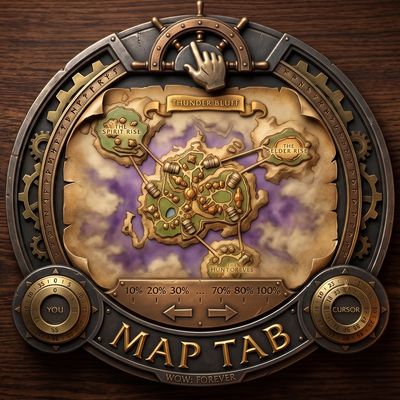
Map Tab – Movable, Resizable World Map, Coordinates & Fog Reveal
Drag or move the world map by its top bar and resize it from a tab under it, in 10% steps or with a grip. Player and cursor coordinates with copy to chat. Zone level ranges on the continent map. Optional fog of war reveal, tinted. Saved per character.
Details
Expansion
 Forever
 Categories
Developers

Having issues?
Map Tab
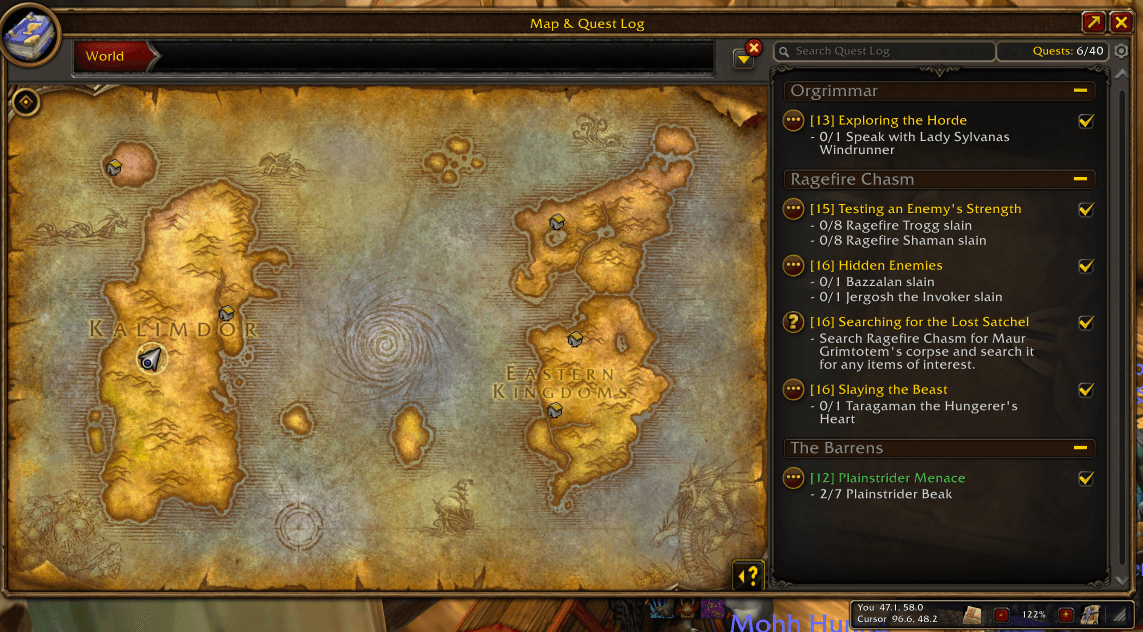
Map Tab lets you put the world map where you want it, at the size you want. Drag it by its top bar, size it from a small tab that hangs under it, and read your coordinates and the cursor's in the same tab. If you like, it also draws in the parts of the map you have not explored yet.
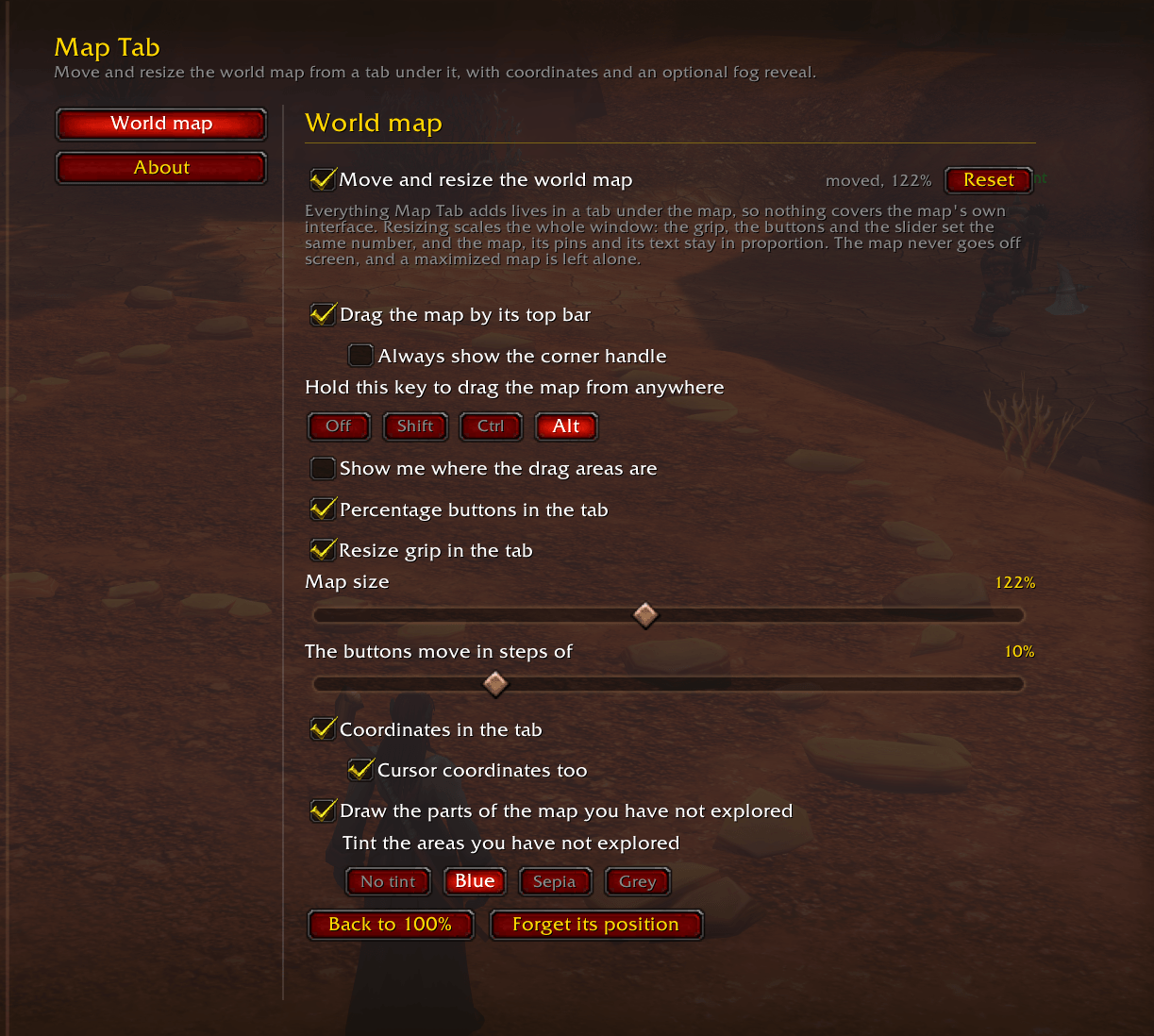
It is made for WoW: Forever (build 1.60.1, Interface 16001) and works the moment it is installed. Most parts have their own switch in Esc > Options > AddOns > Map Tab, or /maptab.
- CurseForge: https://www.curseforge.com/wow/addons/map-tab
Map Tab is the world map half of what used to be Casement. Moving the bag, bank and guild bank windows, and every character's saved bank, bags and guild bank, are in the separate addon Bank Tabs.
Features
Move it
- Drag the map by the empty stretches of its top bar. The game's own buttons up there are measured and left alone, so they keep working.
- Hold Alt and drag the map from anywhere on it, which helps when its top bar is busy. The key can be Shift, Ctrl, Alt or none.
- A small gold handle appears in the top left corner by itself if the top bar ever has no room to grab, or if top bar dragging is switched off, and can be switched on for good.
- It is kept on screen: clamped while you drag it, when the position is saved, and again if you change your resolution or UI scale. (A map sized taller than the screen is the one exception; see Known limits.)
- It stays exactly where you left it when the quest log opens or closes, and the game showing the map again does not undo your placing. Where you leave it and its size are remembered per character.
Size it from the tab
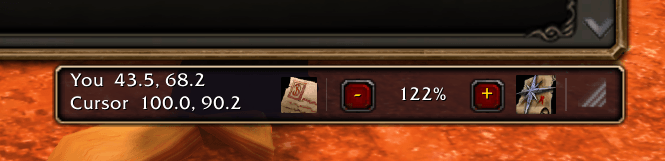
- The sizing controls live in a tab under the map, in the game's own panel art, so nothing covers the game's own buttons: minus, the current size, plus, a reset button and a resize grip (the same grabber the chat windows use).
- Plus and minus move in 10 percent steps (5 to 25 in the options) and land on a multiple of the step, so repeated clicks walk 90, 100, 110 even if a drag left you on 97. The ends of the range, 50 and 200 percent, are the exception with some step sizes.
- Drag the grip for any size from 50 to 200 percent. Hold Shift while dragging to snap to the step. Double-click the grip for 100 percent.
- The whole map scales rather than stretching: the pins, the zone art and the text keep their proportions. The tab itself stays the same size on screen, and moves above the map when the map sits at the bottom of the screen.
Coordinates
- Your position and, on a second line, where the cursor is pointing on the map, at the left end of the tab, as hundredths of the map the way every coordinate addon prints them, for example You 45.2, 67.8.
- Click the button next to them and your position goes into the chat box, zone name first, ready to send: The Barrens 45.2, 67.8. If you are already typing a chat line, it goes into that. Right-click the button for a box to copy the text out of with Ctrl+C.
Zone level ranges
- Point at a zone on the continent map and its level range follows its name in the label at the top of the map, for example Westfall (10-20), the way the game itself does for zones it knows the levels of. On this client it knows none, so Map Tab supplies them.
- The range is coloured by how hard the zone is for you, in the game's own quest colours: red or orange while it is above you, yellow while you are inside it, green or grey once you have outgrown it.
- Every zone on Kalimdor and the Eastern Kingdoms has its range, plus the WoW: Forever zones Zephras Isle (1-12), Shen'dralas (40-45), Riverglades (35-45) and Mount Hyjal (55-60), read off the levels of their creatures in the beta. The cities and Moonglade have no range.
- On by default, with its own switch in the options.
Unexplored areas (optional)
- Off by default. Switched on, the parts of the map you have not explored yet are drawn in with their real map art.
- Tinted blue, sepia or grey so you can still tell them from the parts you have been to, or not tinted at all.
- The areas of every map in this build ship with the addon (84 maps, generated from the client's own map tables). An area missing from that list is learned when a character who has explored it opens the map there with the reveal switched on. /maptab mapdata says how much of the open map is known.
Install
- Install it with the CurseForge app, or download the zip and unzip it into
World of Warcraft_classic_beta_InterfaceAddOnsso there is a MapTab folder with MapTab.toc inside it. - A brand new addon needs a full restart of the game, not just /reload. After that, /reload is enough for updates.
- Open the world map. The tab is under it.
Options
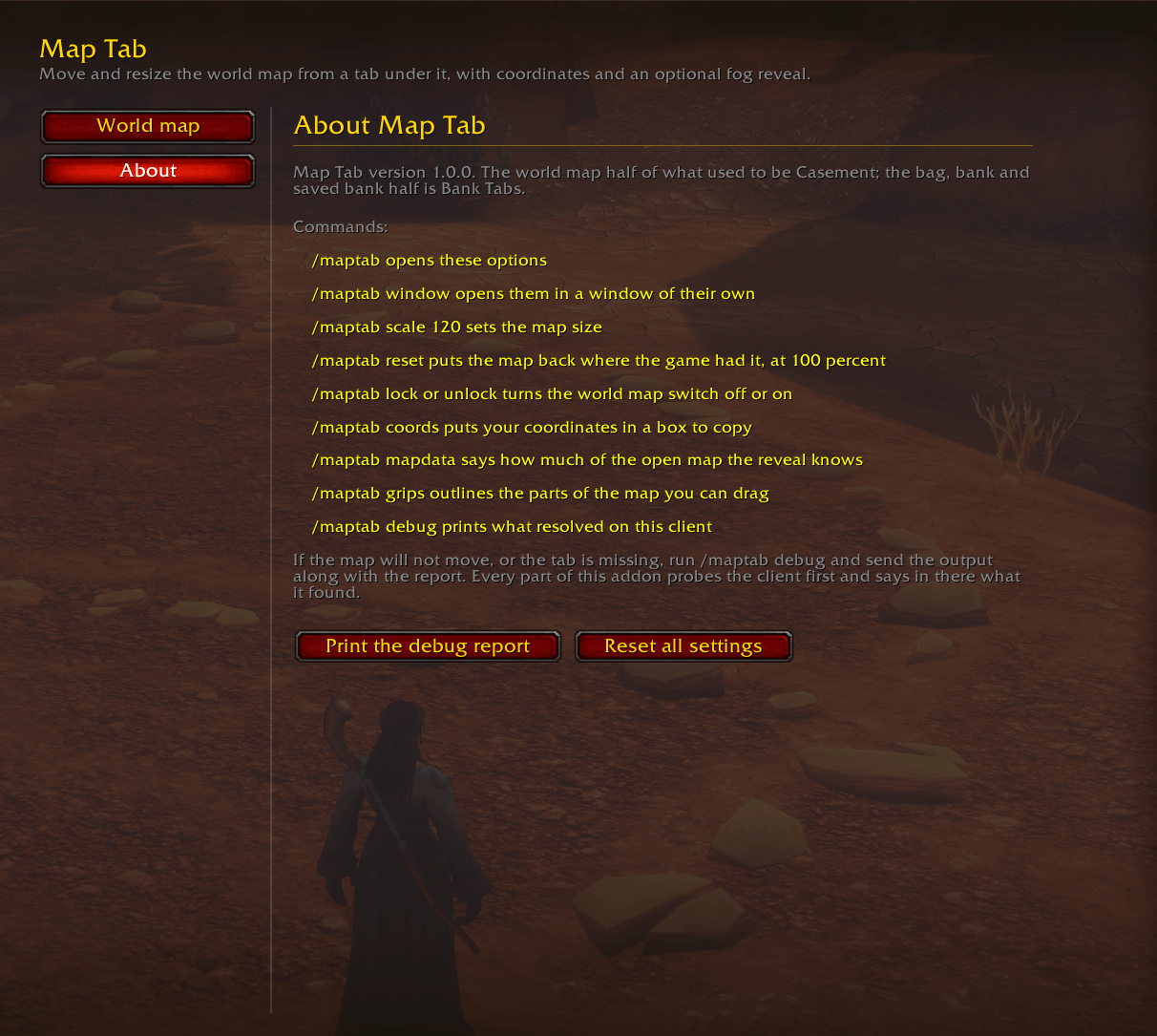
Esc > Options > AddOns > Map Tab, or /maptab (/maptab window opens them in a window of their own). Two pages:
- World map: the world map switch (Map Tab's one on and off switch) with its Reset, dragging by the top bar, the corner handle, the drag anywhere key, the drag area outlines, the percentage buttons, the resize grip, the map size slider, the step size, the coordinates, the cursor coordinates, the zone level ranges, and the unexplored areas with their tint.
- About: the commands, a button that prints the debug report, and a button that resets every setting (the map areas the reveal has learned are kept).
There is no minimap button.
Commands
| Command | What it does |
|---|---|
| /maptab | Opens the options |
| /maptab window | Opens the options in a window of their own |
| /maptab scale 120 | Sets the world map size, 50 to 200 percent |
| /maptab reset | Puts the map back where the game had it, at 100 percent |
| /maptab lock / unlock | Turns the world map switch off or on, as the options switch does; locked, the map is the game's again, and its saved place and size wait for the unlock |
| /maptab coords | Puts your coordinates in a box to copy |
| /maptab mapdata | Reports how much of the shown map the reveal knows; dump opens every area learned on this account, to copy out |
| /maptab grips | Outlines the parts of the map you can drag (again to stop) |
| /maptab debug | Prints what resolved on this client |
Coming from Casement
Casement is now two addons: Bank Tabs for the bags, the bank, the guild bank and every character's saved bank, and Map Tab for the world map. Update Casement in the CurseForge app (it becomes Bank Tabs) and install Map Tab next to it.
There is nothing to set up again. At your first login, Map Tab copies over the map's size, position and switches (for each character, the first time that character logs in) and every map area Casement's reveal had learned. Anything you have already set in Map Tab is kept, Casement's own saved data is left as it was, and one chat line says what came over.
- If the old Casement is still running, it is switched off from your next login, with one line in chat. It keeps the map until then; type /reload to finish the switch at once. What you change on the map in it meanwhile still comes over.
- If the old Casement is installed but switched off, one chat line says how to let Map Tab read it.
<details> <summary>The details</summary>
At your first login with Map Tab, the world map's share of Casement's saved data is copied across once: the map's size, position and switches for each character (from that character's own Casement settings, the first time it logs in), and the map areas the reveal had learned for the account. Anything you have already changed in Map Tab is kept, and Casement's own saved data is left as it was. One chat line says what came over, or that nothing needed to.
The data is read from the old Casement if it is still installed and running, or from the small "Casement (old data)" folder that Bank Tabs leaves in Casement's place. That folder is switched back on first if it is switched off while the account's share has not come over yet, or while it is still off from when the old Casement was switched off (below). Otherwise, once the account's share has come over, a folder you switch off stays off, without a word, and that character's map settings wait until it is switched on again. A Casement setting that was only ever its default never undoes a choice you made in Map Tab on another character. With no Casement anywhere, Map Tab starts from its defaults and looks again at each login, so the settings of a Casement that turns up later (Bank Tabs installed afterwards, say) still come over.
If the old Casement is installed but switched off, its settings come over at the first login it can be read, and one chat line, once per account, says how: update Casement in the CurseForge app, where it is now Bank Tabs, or switch the old Casement on for one login. Once the account's share has come over, a later character says nothing more about it.
If the old, whole Casement is still running, it is switched off from your next login and one line in chat says so (Bank Tabs does the same, and only one of the two says it). For that session the old Casement keeps the world map and Map Tab leaves the map alone, so there are never two tabs under it; type /reload to finish the switch at once. Whatever you do to the map in the old Casement that session comes over when you log out or /reload, unless you changed the same setting in Map Tab meanwhile. If Bank Tabs is not installed yet, the same line says to update Casement in the CurseForge app, so the bags, bank and saved banks carry on.
Map Tab works on its own, and beside Bank Tabs: both follow the game's panel positioning, and each only ever puts back its own windows.
</details>
Known limits
- Made for WoW: Forever (build 1.60.1). The shipped map areas are for this build.
- While the map is maximized, sizing and the tab are paused. Moving still works.
- At sizes where the map is taller than your screen, the tab can end up above the top of the screen. /maptab reset, /maptab scale 100 or the size slider in the options brings it back.
- Locking the map (/maptab lock or the options switch) turns the tab, the coordinates, the zone level ranges and the reveal off with it until you unlock.
- Where the game does not give your position, your line shows two dashes instead of numbers.
If something does not work
Open an issue at https://github.com/jonlipin/map-tab/issues and paste the output of /maptab debug. Every part of the addon probes the client before it uses it, and the report says what it found: whether the map was found, how many draggable stretches its top bar gave up, what layer the tab reached, how many times the resize grip has been pressed, which templates resolved, what the reveal knows, and whether any Casement data was brought over.
Development and tests
The addon files sit at the top of the repository: MapTab.toc, Core.lua (saved variables, the Casement carry-over, slash commands), Windows.lua (the move engine), Map.lua (the tab, the scaling, the top bar, the coordinates), Reveal.lua (the unexplored areas), Levels.lua (the zone level ranges), Options.lua and Data/MapOverlays.lua. tests and tools are left out of the CurseForge package (.pkgmeta).
tests/maptabtest.js is an offline harness. It stubs the game API in fengari, including a small layout engine for points, anchors and scales, and walks the addon's main paths: clamping, dragging, scaling, snapping, the tab, the coordinates, the reveal, the zone level ranges and the options. It builds a stand in for the quest panel, so the layering the resize grip needs is asserted rather than assumed, and runs a second move engine on the same panel hooks to prove the two leave each other's windows alone. Each way Casement's data can be waiting at the first login runs in a fresh Lua state of its own. tests/README.md lists every scenario.
node tests/maptabtest.js              # 498 checks
node tests/maptabtest.js --bare       # every UI template missing (498 checks)
node tests/maptabtest.js --noenum     # proves Map Tab never reads the bag enums (498 checks)
node tests/maptabtest.js --verbose    # also prints the addon's chat output
It needs fengari on the module path.
Data/MapOverlays.lua is generated from the client's own WorldMapOverlay and WorldMapOverlayTile tables (wago.tools exports them per build as CSV):
node tools/overlays-from-csv.js WorldMapOverlay.csv WorldMapOverlayTile.csv [UiMap.csv UiMapXMapArt.csv] [--dump harvest.lua]--dump cross-checks a harvest pasted out of /maptab mapdata dump in game against the table.
License
MIT.
See also
Bank Tabs: moving the bag, bank and guild bank windows, and every character's bank, bags and guild bank saved and shown from anywhere.
Discord
Join my Discord for Feedback, Development Updates, Addon Ideas, Feature Requests, and Bug Reports.
You must be logged in to leave a comment.