

FrameUnlocker
Unlocks chat frame for moving and resizing and allows for scaling and moving various frames not available with edit mode.
Details
Addon ID:
25001
Addon Version:
1.8.1
Expansion:
1.60
Upload date:
Oct 06, 2026
Last Updated:
Oct 06, 2026
Downloads:
Less than 100
Website:
Source Link
Expansion
 Forever
 Categories
Developers

KetchGG
Creator
Having issues?
FrameUnlocker
Unlock and customize your UI frames. Drag chat by its tab, resize it from the corner, and scale or reposition frames Blizzard normally locks down.
Features
Chat Frames
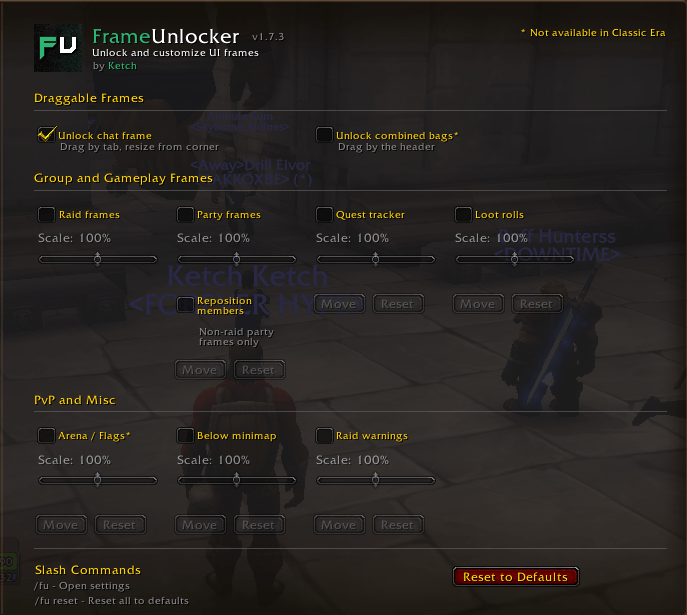
- Unlock chat to drag by tab and resize from the corner
- Stays clamped to screen so it can't be lost off-edge
- Automatically re-unlocks after exiting Edit Mode
- Toggle on/off in settings, or straight from the Edit Mode chat dialog
Frame Scaling & Positioning
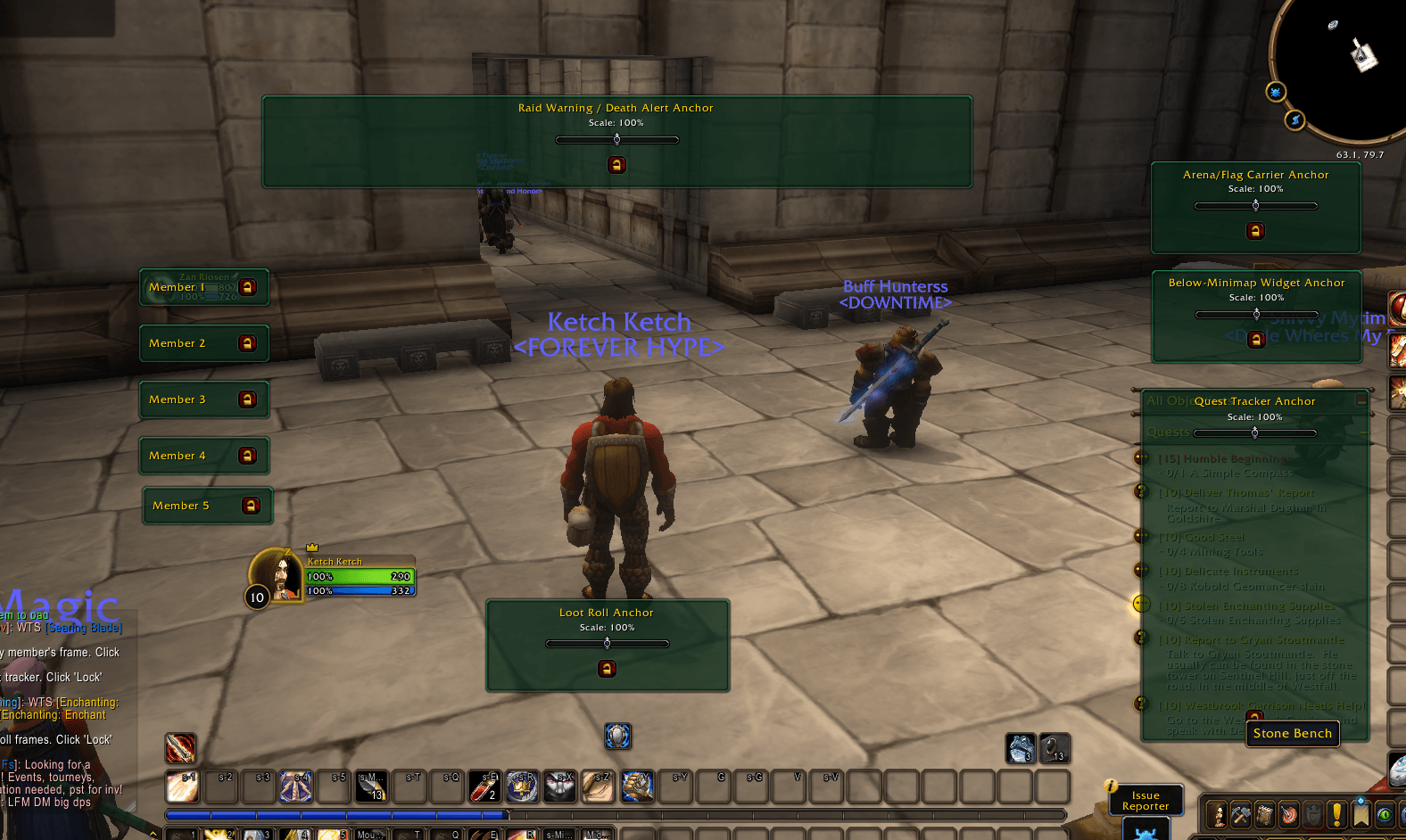
Each of these can be scaled from 50% to 150%; the repositionable ones also get a draggable on-screen anchor with its own scale slider, plus Move and Reset buttons in settings.
| Frame | Scale | Reposition |
|---|---|---|
| Raid Frames | ✔ | — |
| Party Frames | ✔ | ✔* |
| Arena / Flag Carriers | ✔ | ✔ |
| Loot Roll Frames | ✔ | ✔ |
| Quest Tracker | ✔ | ✔ |
| Raid Warnings / Hardcore death alerts | ✔ | ✔ |
| Below-Minimap Widgets | ✔ | ✔ |
- Arena / Flag Carriers also covers WSG/BG flag carrier frames. On Retail and WoW Forever it moves the battleground flag carrier frames; arena enemy frames there are moved with Blizzard's Edit Mode instead.
- Quest Tracker and Below-Minimap Widgets are removed from Blizzard's managed layout while repositioned to prevent flickering.
- Repositioning stays aligned to your anchor at any scale, and adjusting the scale keeps the frame put.
- *Party Frames reposition works differently from the rest: instead of one anchor for the whole group, each party member gets its own draggable box, so you can arrange members independently rather than as a fixed stack. Enable "Reposition members" under Party frames in the settings. Retail and WoW Forever only — Classic Era and TBC Anniversary aren't covered yet.
Blizzard Panels
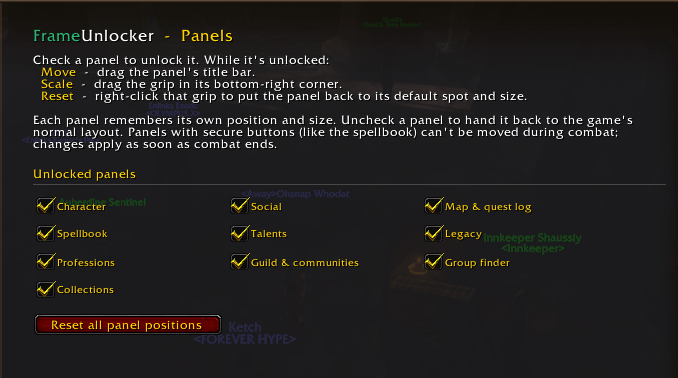
- Unlock Character, Social, Map & quest log, Spellbook, Talents, Legacy, Professions, Guild & communities, Group finder, and Collections (plus a separate Quest log on Classic clients)
- Drag a panel by its title bar to move it; drag the grip in its bottom-right corner to resize it live; right-click the grip to reset it
- Each panel keeps its own saved position and size; uncheck it to return it to the game's normal layout
- Turn panels on individually from the Panels page under FrameUnlocker in the game's settings (on-screen elements like chat and unit frames are on the Frames page)
- Panels with secure buttons (like the spellbook) can't be moved during combat; changes apply once combat ends
Combined Bag Frame (Retail)
- Unlocked by default — drag the combined bags anywhere, the same way as the chat frame
- Position is remembered between sessions
- Retail only — other clients use individual bag frames
Edit Mode Integration
When you select a frame in Blizzard's Edit Mode, a matching FrameUnlocker control appears beneath its dialog:
- Raid Frames / Party Frames → a scale slider
- Chat Frame → an unlock checkbox
So our settings sit right alongside Edit Mode's own, no need to leave Edit Mode.
Move Anchors
- Clicking Move closes the settings panel so the on-screen anchor is unobstructed
- Each anchor carries its own scale slider — position and scale together (party member anchors are position-only, since party scale is set once for the whole group)
- Clicking Lock saves the position and reopens the Frames settings page
Settings Panel
- Full options UI in the game's AddOns settings: a main FrameUnlocker page (overview, slash commands, Reset to Defaults) with two sub-pages — Frames for on-screen elements and Panels for Blizzard windows
- All preferences persist between sessions
- Reset buttons restore both position and scale
Commands
| Command | Description |
|---|---|
/fu | Open the settings panel |
/fu reset | Reset all settings to defaults |
Per-frame moving is done from the Move buttons in the settings panel.
Supported Versions
- Retail (Midnight)
- TBC Anniversary
- Classic Era (Hardcore / Season of Discovery)
- WoW Forever
You must be logged in to leave a comment.