

FallenBags
All your bags, bank and alts in one window – smart categories, item level, auto-sell junk, powerful search and custom categories. 6 languages.
Details
Expansion
 Forever
 Categories
Developers

Having issues?
FallenBags
One clean window for your bags, your bank and every character on your realm.
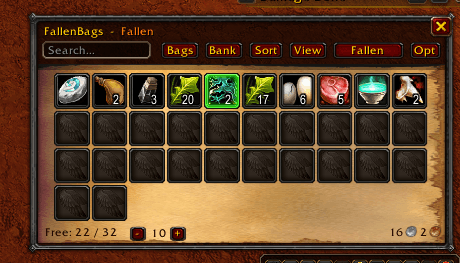
FallenBags replaces the default bag frames with a single, fast, fully sorted inventory for World of Warcraft: Forever. Items file themselves into categories, junk sells itself, and you always know which character is holding what.
✨ Highlights
- All bags in one window – plus a matching bank window
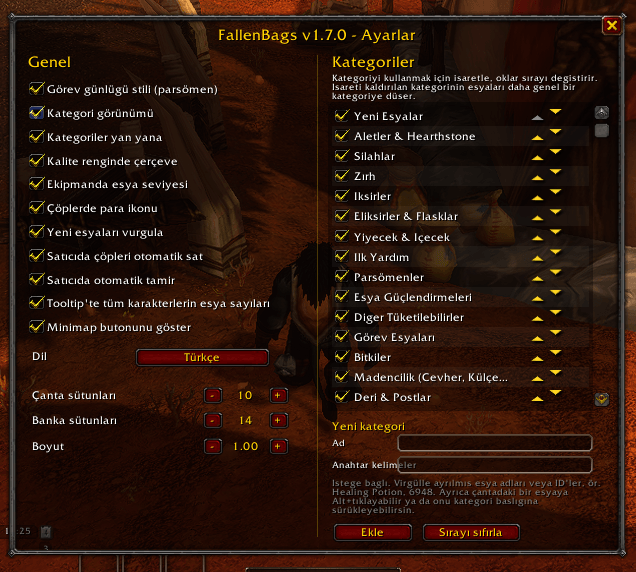
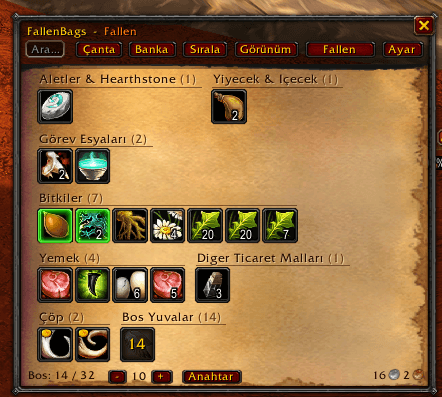
- Smart categories – 31 built-in categories that sit side by side and take only the space they need
- Your own categories – create "Healing Items", "Raid Consumables" or anything you like, then fill them with Alt+Click or drag & drop
- Item level & quality borders on gear at a glance
- Auto-sell junk & auto-repair every time you visit a merchant
- Every character's inventory – browse your alts' bags and bank from anywhere, with counts in tooltips
- Powerful search –
gear boe green,ilvl>60,#herb,-cloth… - Quest log parchment style or a clean dark theme
- 6 languages – English, Deutsch, Français, Español, Русский, Türkçe
🎒 Bags & Bank
- Single window for all bags, single window for the bank
- List view or category view – switch with one click
- Change how many boxes fit in a row right from the bag window
- Bag slot bar to swap bags, bank slot purchase button
- Keyring shown inside the bag window
- Sort button – also moves freshly looted items into their categories
- Free slots and gold always visible
🗂️ Categories
Gear – Weapons, Armor Consumables – Potions, Elixirs & Flasks, Food & Drink, First Aid, Scrolls, Item Enhancements Professions – Herbs, Mining, Leather & Skins, Cloth, Elemental, Enchanting, Engineering, Gems & Jewelcrafting, Cooking, Fishing And more – Tools & Hearthstone, Quest Items, Recipes, Reagents, Ammo & Quivers, Keys, Junk, New Items, Empty Slots
Make it yours
- Create custom categories – fill them by keyword, item ID, Alt+Click or drag & drop
- An item you place once stays there – on every character
- Left-click a header to collapse it, right-click to rename, move or hide it
- Turn categories on or off and reorder them in the options
🔍 Search
| Type | Finds |
|---|---|
potion | name or category |
ilvl>60 · lvl<=20 | item level · required level |
epic · rare · green | quality |
boe · bop | binding |
gear · new | equippable · newly looted |
#herb | category |
-cloth | exclude |
Combine them freely: gear boe green shows every sellable green item. Matches on your other characters appear under the bag window.
👥 All Your Characters
- Pick any character on your realm and see their bags or bank
- Bank contents are remembered – check them without visiting a banker
- Tooltips show how many of an item each character owns
💰 Merchants
- Junk is sold automatically, with a summary in chat
- Gear is repaired automatically
- Both can be turned off in the options
⌨️ Commands
| Command | Action |
|---|---|
/fbags | toggle bags |
/fbags bank | toggle bank |
/fbags search <name> | find an item on all characters |
/fbags sell | sell junk now |
/fbags delete <character> | remove a character's saved data |
/fbags minimap | minimap button on/off |
/fbags config | options |
Minimap button – left-click: bags · Shift+click: bank · right-click: options · drag: move
🌍 Languages
English · Deutsch · Français · Español · Русский · Türkçe
The game language is used automatically – you can pick a different one in the options.
❓ FAQ
How do I put an item into my own category? Alt+Left-Click the item and choose the category, or drag the item onto the category header.
My new items stay in "New Items". Press Sort or close the bags – they move into their real categories.
Can I get the default bags back? Disable FallenBags in the AddOns list.
🐞 Bugs & Ideas
Found a bug or have an idea? Please leave a comment or open a ticket with:
- what you did
- the Lua error text (if any)
- a screenshot
Made with care by FallenSkullCorp.
You must be logged in to leave a comment.