

Embolsao!!
Merge all your bags into one clean, searchable window with custom category tabs, an offline bank, Gearset tabs and alt-aware item tooltips. Retail, TBC, Classic Era and Forever.
Details
Expansion
 Forever
 Categories
Developers

Having issues?
Embolsao!!
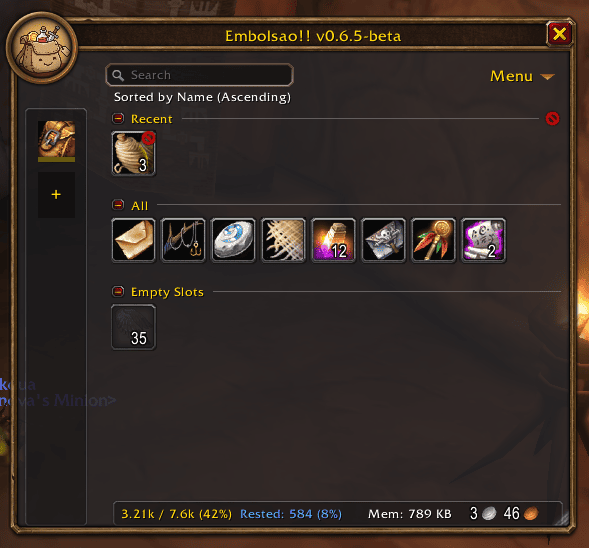
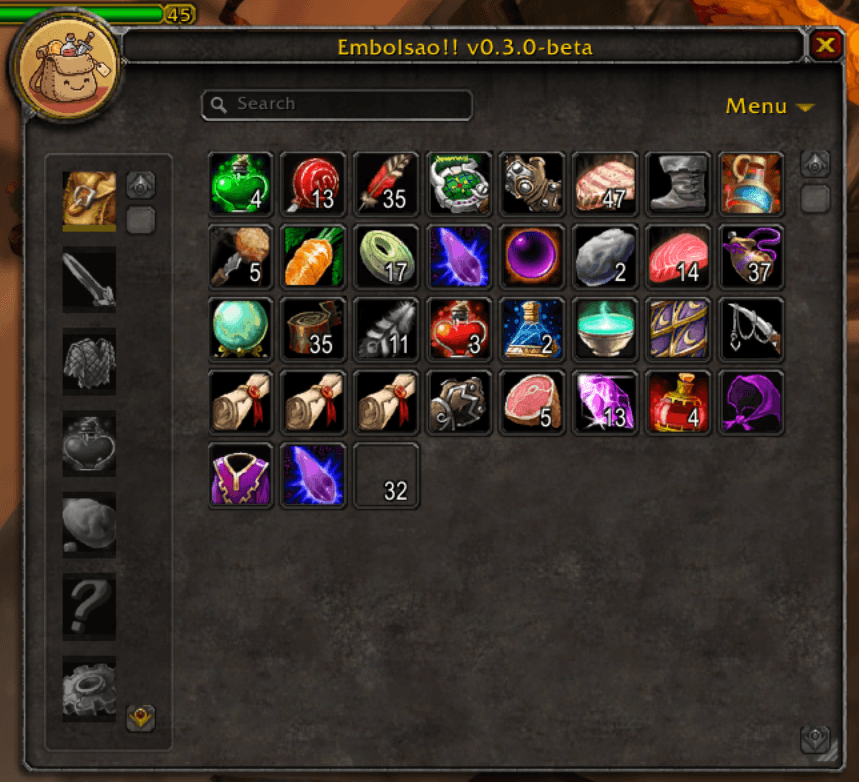
One bag to rule them all. Embolsao merges every bag you carry — backpack, regular bags, and the reagent bag — into a single, clean window with identical items stacked together, smart category tabs, and full control over what shows up where. Visit a banker and your bank joins the same window, side by side with your bags.
Features
A merged, searchable inventory
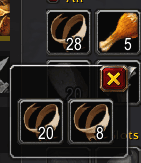
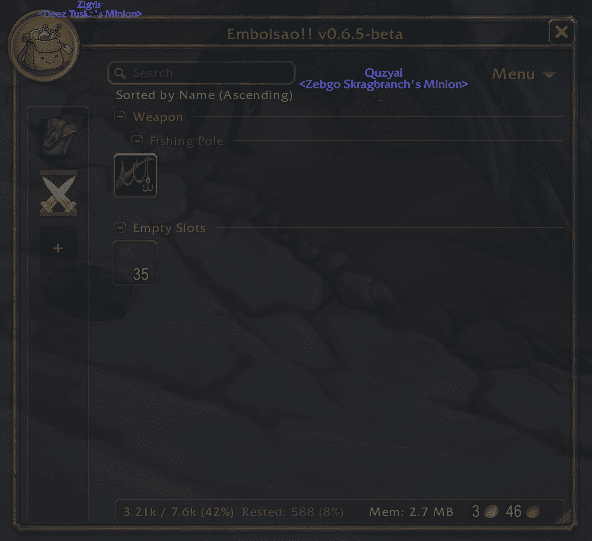
No more hunting across six different bags for the same reagent. Embolsao combines every stack of the same item into one, with a live search box and sortable listing (name, quantity, quality, or type). A merged stack still knows what it's made of — hold the modifier key to see (and act on) the real stacks behind the number.
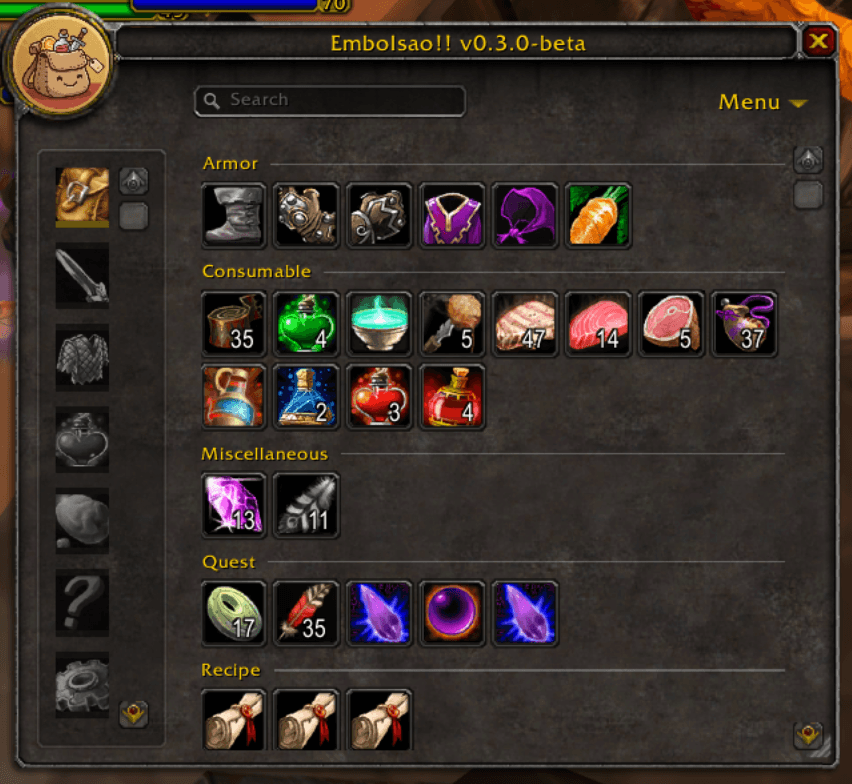
Sort and group by category
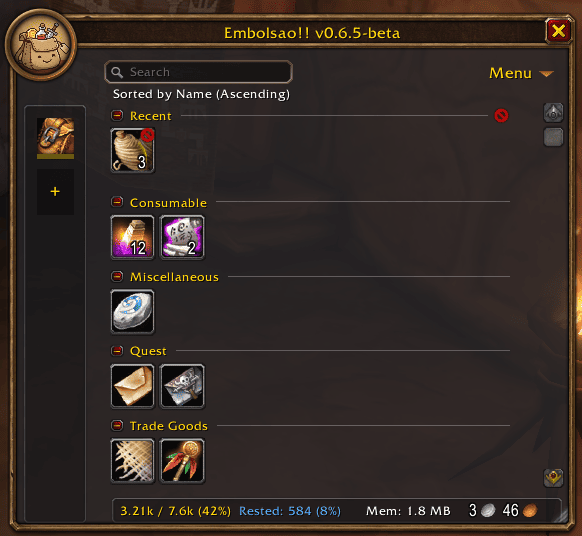
Switch to Type and items line up by category, with a header before each class (and, optionally, each subclass) — collapse any header you don't need to see right now. Sort mode, direction and grouping are all remembered, and can be set per tab.
Category tabs that actually adapt to you
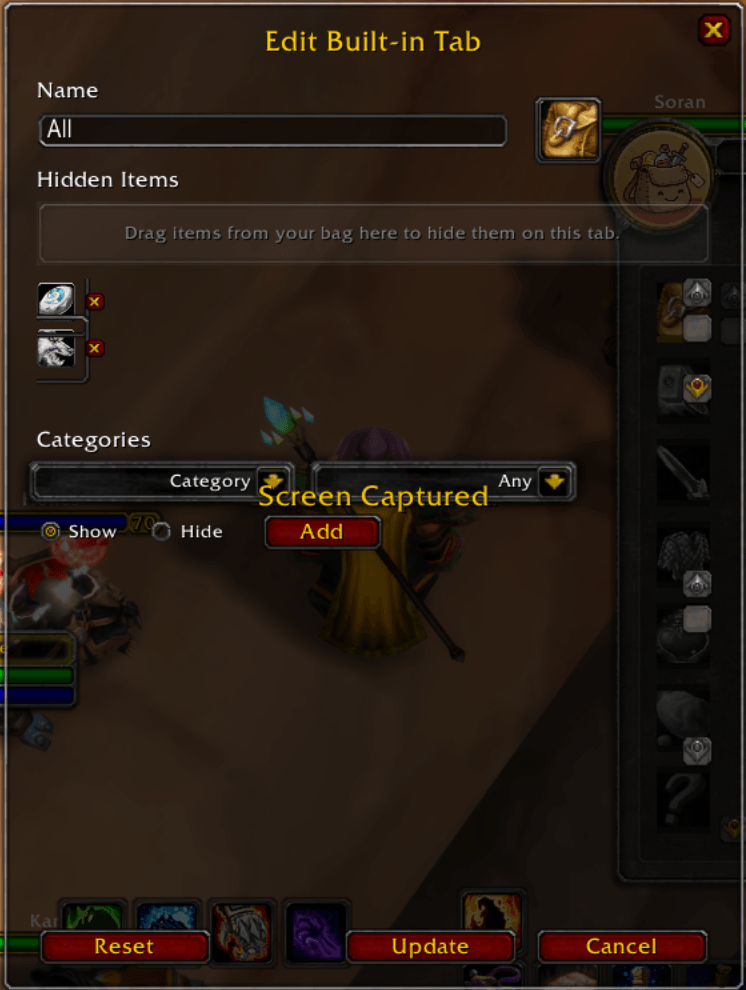
Start from All and build the tabs you actually want. Hide specific items you never want to see, or add category/subcategory rules on top. Even "All" can be customized, and one click resets it back to factory defaults.
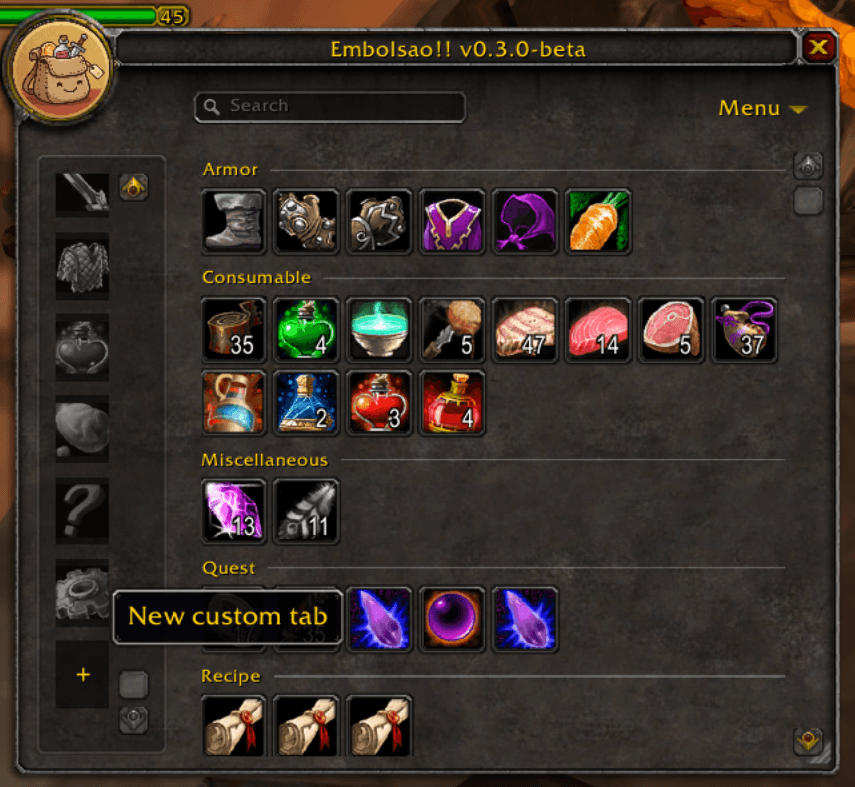
Build your own tabs
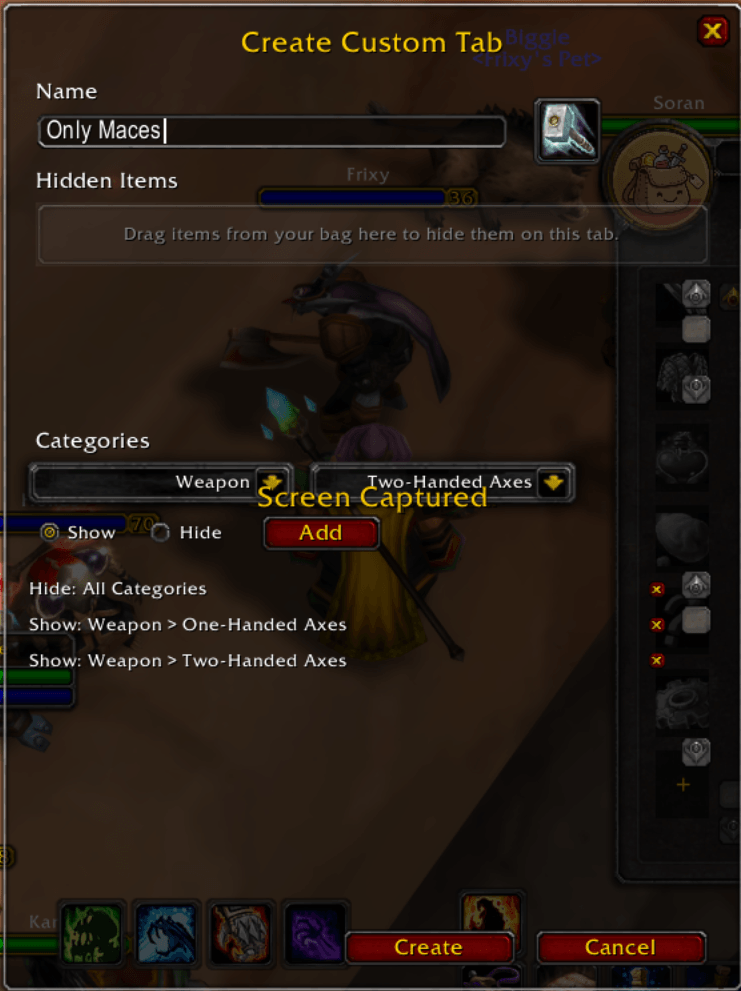
Hit the + button to create a tab from scratch: pick a name and icon, drag items straight from your bags to hide them, and stack up category rules (down to the subcategory level) to define exactly what shows.
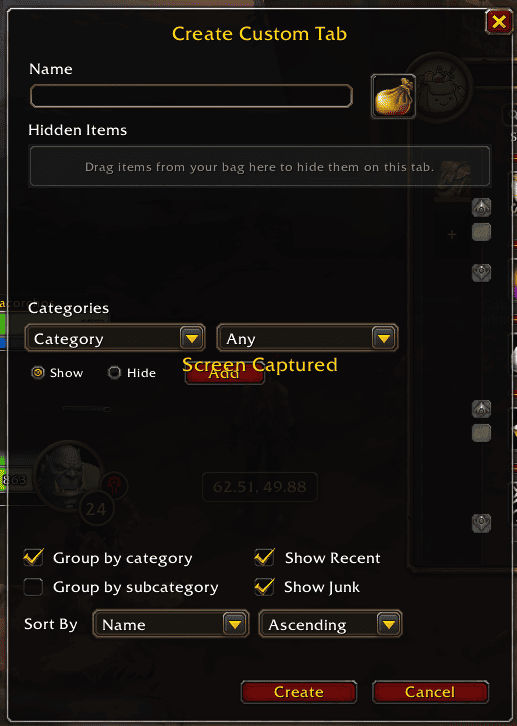
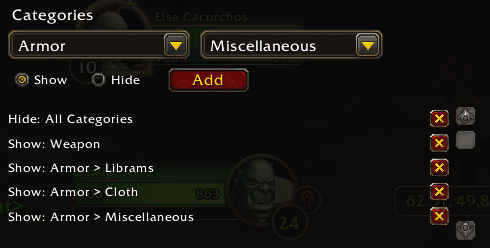
Rules stack in order — hide everything, then show back just what you want, category by category, subcategory by subcategory — so a tab can be as broad or as surgical as you need.
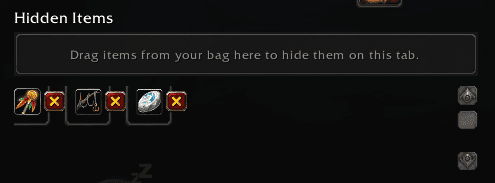
Items hidden on a tab list right there in its editor, one click away from coming back.
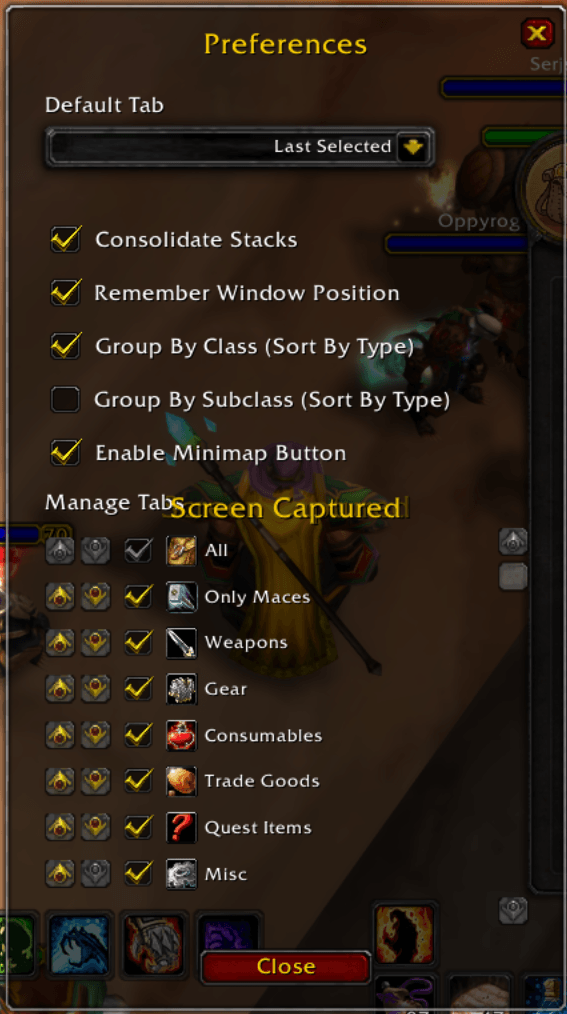
Tabs can be reordered by dragging them right in the sidebar, hidden without being deleted, and renamed or edited any time via right-click.
New: Gearset tabs
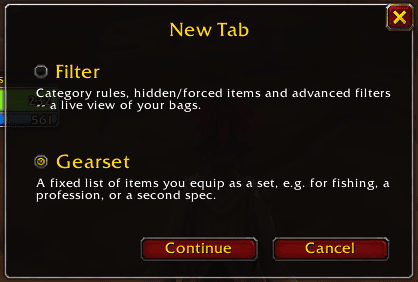
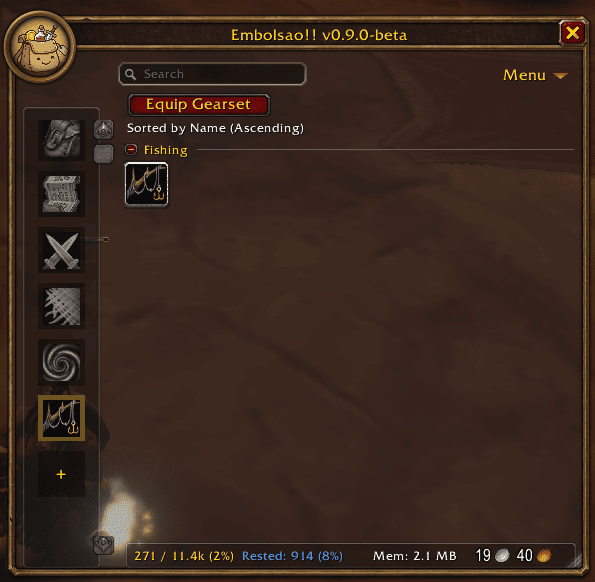
Some things you wear in sets — a fishing pole and lure, a profession's tools, a second spec's gear. Press + and Embolsao asks what kind of tab you want: a Filter (everything above) or a Gearset.
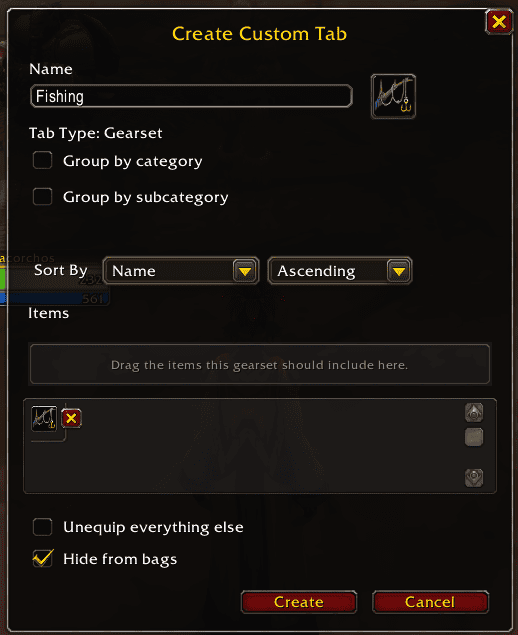
A Gearset is a fixed list of items: name it, pick an icon, and drag in what belongs to the set. It never holds more than you could actually wear at once — two rings, two trinkets, two hands' worth of weapons and shield. Two options sit at the bottom: Unequip everything else takes off whatever you're wearing outside the set when you equip it (and checks first that your bags can hold it all — if not, it does nothing and tells you, never a half-done swap), and Hide from bags makes the set's items show only on Gearset tabs, never on your regular ones, whatever their filters say.
Select the tab and one button does the work: Equip Gearset, then Unequip Gearset once it's on. What the set replaced is remembered slot by slot — a rogue's two daggers go back to the right hands — and shown in a dismissible Previously Equipped group. Items you're wearing carry a green check, ones you left elsewhere are dimmed with a red mark, and the tab of the set you have on gets a green outline. At a banker you also get Move to Bank and Get from Bank to stash or fetch a whole set. Right-click the tab for the same actions.
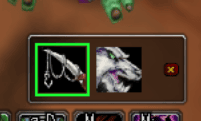
Prefer not to open the bags at all? Turn on Show Gearset Bar in Preferences for a small floating bar with one button per Gearset, draggable anywhere. Click to equip, click again to take it off, click another set while one is on and it swaps. The set you're wearing keeps its green border.
Bank and bags in one window
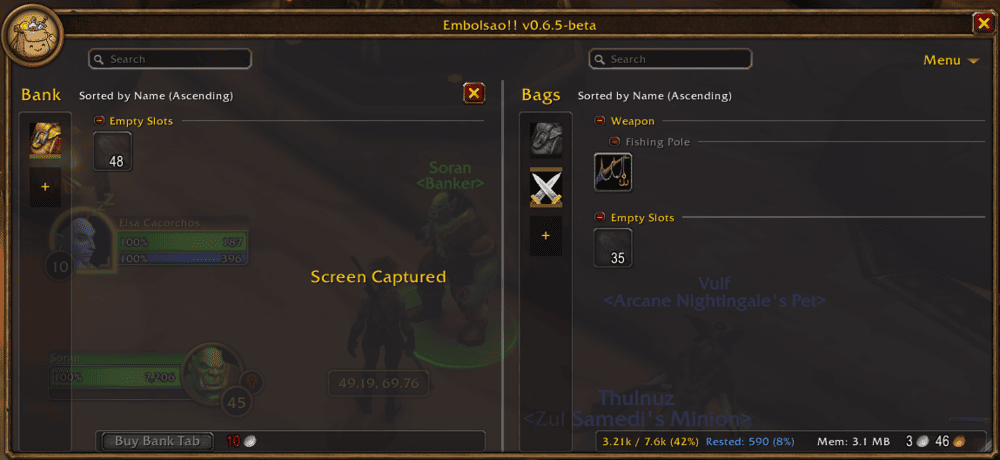
At a banker the window doubles: bank on the left, bags on the right, each with its own tabs, search box and footer. Right-click an item to move it across — a merged stack moves all its real stacks. Buy more bank tabs or bag slots right from the bank's footer, switch to the Warband Bank on Retail and Forever, and close just the bank part with its own X. The bank can keep its own set of tabs, separate from the bags'.
Offline Bank
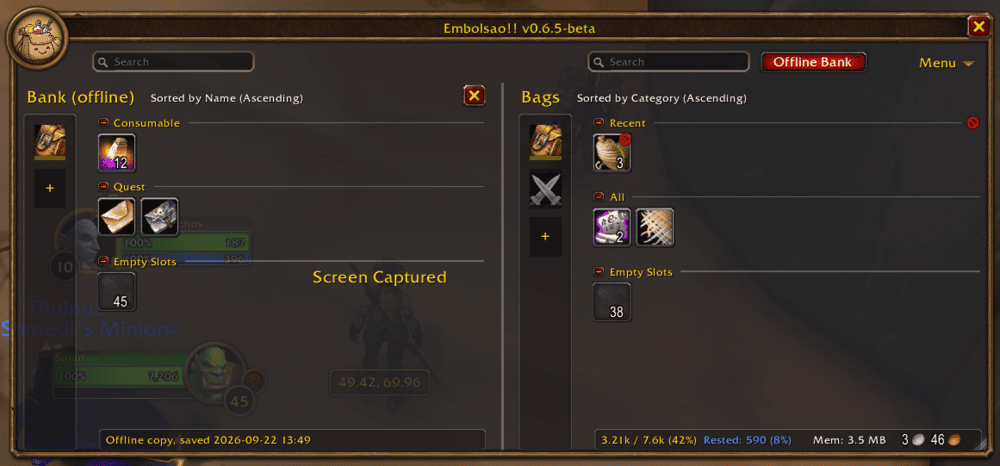
Every visit to a banker saves what your bank holds. Away from one, the Offline Bank button next to the bags' search box opens that saved copy in the bank part of the window — tabs, search and sorting included, strictly read only, with the date it was saved. The Warband bank is remembered too. Turn it off in Preferences if you'd rather not keep it.
Bank and alts in every tooltip
Hover any item -- a crafting reagent in a recipe, a link in chat, something at a vendor -- and its tooltip says how many you have in your bank and in the Warband bank, from the offline copy, so you know before you go shopping. It also lists your other characters that have it: Pepito: 5 in bags, 10 in bank, in their class colour. Each character saves its counts as it plays, so an alt shows up once it has been in the game with this version. Lines only appear when there is something to show, and it follows the Offline Bank switch in Preferences.
Recent, Junk and empty slots
- Recent pins what you just picked up at the top until you dismiss it.
- Junk gathers your grey items (and anything you mark as junk) with a one-click sell button at vendors, and an optional auto-sell.
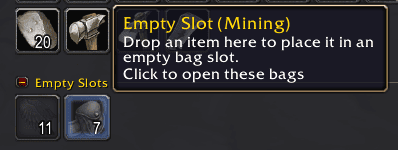
- Empty Slots is always its own category, with one counter per kind of special bag, labelled by profession — drop an item on one to place it there, or click it to open that bag directly.
Bindings and the item menu
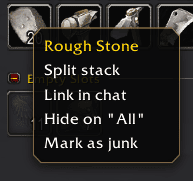
Choose which modifier does what when clicking an item: show a merged stack's real stacks, split it, or open an item actions menu — split, link in chat, hide on this tab, mark as junk, sell. Tooltips show the shortcuts that apply to each item, and the items a held key can't act on fade out.
Quality-of-life details
- Drag an item onto a tab to hide it there instantly, with a confirmation prompt — or onto a tab's icon button to use its icon.
- Window position and size are remembered across reloads.
- Fades while you walk, like the world map — with a slider for how much — so it never hides what's ahead; hover it to bring it back.
- Gold and XP (with rested XP) in the window's footer.
- Fully in-game preferences panel — no config files to hand-edit.
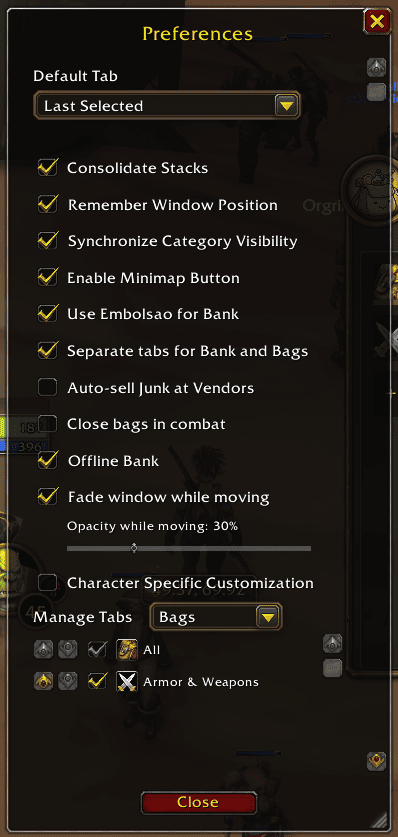
Everything above is a toggle away, in a single Preferences panel: default tab, stack consolidation, remembered position, category-visibility sync, the minimap button, bank behavior, auto-sell, closing in combat, the offline bank, the walking fade, and per-tab management — nothing needs a config file.
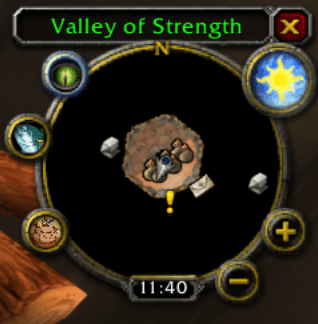
Minimap button
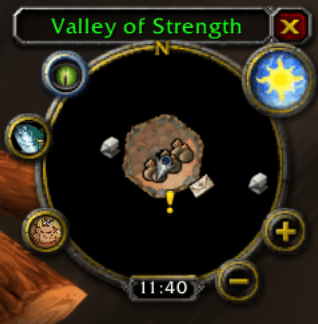
Left-click to open Embolsao, right-click for a quick menu: open, preferences, a one-off peek at Blizzard's native bags, and a full disable toggle. Optional — turn it off in Preferences if you'd rather use the keybind.
Supported game versions
- Retail
- TBC Classic (Anniversary)
- Classic Era
- Classic "Forever" (beta)
One codebase, same feature set, everywhere. The Forever beta client currently fails to hand saved settings back to addons on load, which affects every addon, not just this one; Embolsao works around it as best it can.
Localization
English and Spanish out of the box. Missing a translation for your locale? Open an issue or a PR on GitHub.
Feedback & Issues
Found a bug or have an idea? Open an issue on GitHub.
You must be logged in to leave a comment.