
Burn-in Prevention! (OLED Monitor)
Burn-In Prevention reduces OLED burn-in risk by applying a fullscreen effect during inactivity and periodically shifting the UI. Customize shift amount, frequency, and effect settings. Follow monitor guidelines for best results.
Details
Expansion
 Forever
 Categories
Developers

Having issues?
Burn-In Prevention:
An addon designed to help protect OLED screens by dynamically shifting the user interface and applying a fullscreen effect when your character is stationary or AFK. The addon offers several customizable settings that allow users to fine-tune how the UI elements shift and how the fullscreen effect behaves to reduce the risk of static image retention on OLED displays.
Key Features:
- Fullscreen Effect: Apply a customizable fullscreen effect when AFK or idle to reduce static elements on your screen.
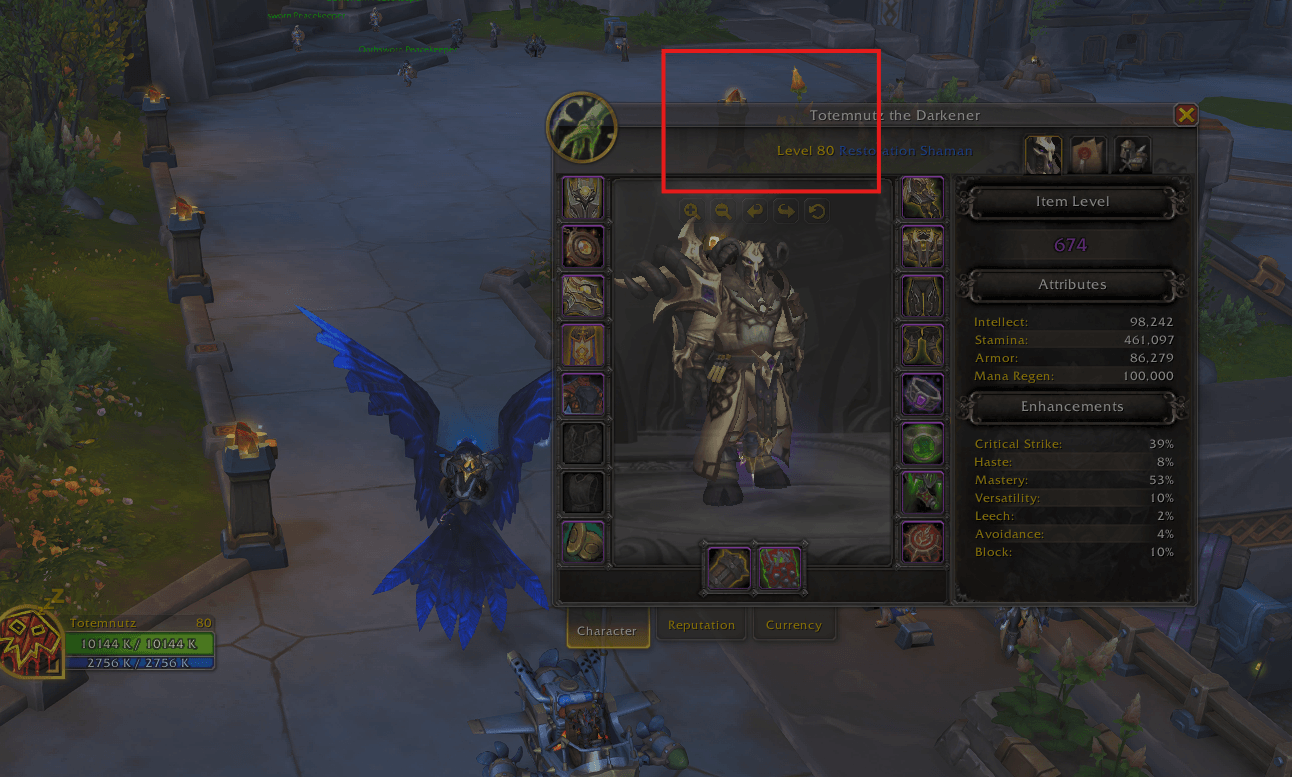
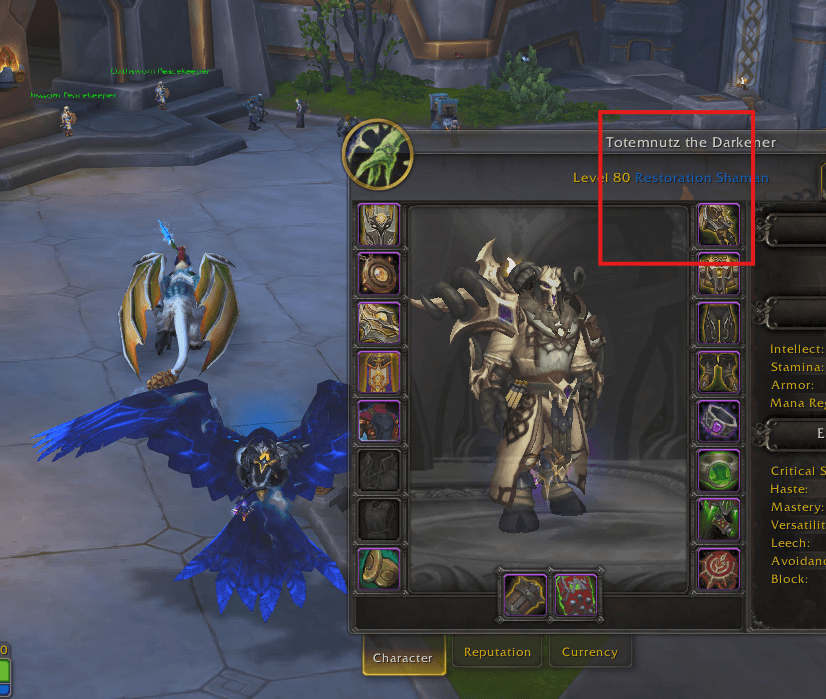
- User Interface Shifting: Periodically shifts the entire UI by a configurable pixel amount to prevent burn-in from static UI components.
- In-Combat Handling: Automatically disables UI shifting and fullscreen effects during combat, ensuring uninterrupted gameplay.
- Camera Zoom Adjustments: Toggles camera zoom in/out while AFK for additional screen activity.
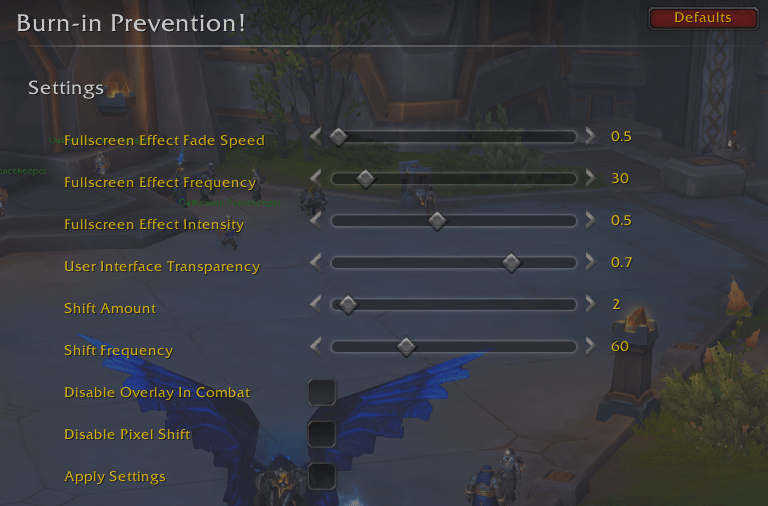
- Customizable Sliders: Adjust the frequency and intensity of the fullscreen effect, UI shift amount, and shift frequency through intuitive sliders.
- Slash Commands: Use
/bipto access settings or/bip defaultsto reset everything to default values.
Settings:
- Fullscreen Effect Fade Speed: Controls how quickly the fullscreen effect fades in and out.
- Fullscreen Effect Frequency: Defines how often the fullscreen effect is displayed.
- Fullscreen Effect Intensity: Adjusts the strength of the effect based on UI transparency.
- User Interface Transparency: Modifies the overall transparency of the UI.
- Shift Amount & Frequency: Customize how far and how often the UI shifts on the screen.
Discord:
Disclaimer:
Changes require a reload of the user interface. This addon will not eliminate screen burn-in. To reduce the risk, it is recommended to manually hide the UI periodically, use loading screens (e.g., by taking portals), minimize the application, and follow your monitor's burn-in prevention guidelines.
You must be logged in to leave a comment.