
A Lua error is the message World of Warcraft shows when an addon runs code that fails. It usually appears as a popup with a long block of text, and it can break action bars, chat frames, tooltips, or whatever else the addon controls. The fixes below work on every client version covered by private servers, from Vanilla 1.12.1 through Legion 7.3.5, and they are ordered from the quickest check to the most involved.
What a Lua error is
Addons are written in Lua, a scripting language the game runs while you play. When one line of an addon’s script fails, the game stops running that piece of the addon and reports the failure. The game itself keeps running, but the part of the addon that failed stops working until the problem is fixed or you reload the interface.
Almost every Lua error comes from an addon, not from the server or the game client. That means the fix is nearly always something you can do on your own computer.
Turn on error display and install an error catcher
The game can hide errors depending on your settings. To make sure they show, type /console scriptErrors 1 in chat and press Enter. Errors will then appear as popups.
Popups can interrupt you during a fight, and they are hard to copy text from. A better option is BugSack together with !BugGrabber. !BugGrabber catches errors as they happen and BugSack gives you a window where you can read them, count how many times each one fired, and copy the full text. Both folders need to be in your AddOns folder for it to work.
Read the error to find the addon
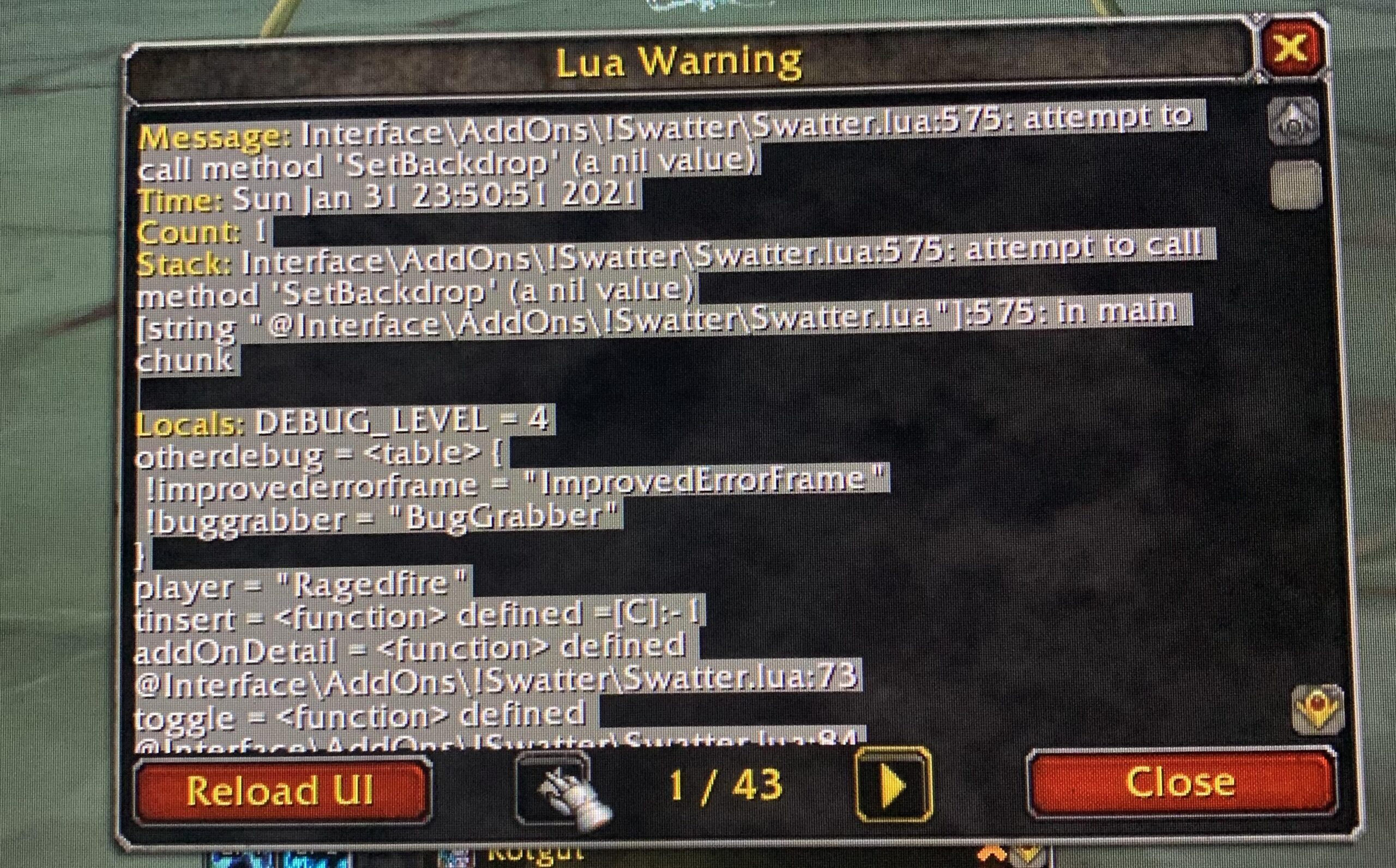
Most errors start with a file path, like this:
Interface\AddOns\SomeAddon\Core.lua:214: attempt to index local 'frame' (a nil value)
The folder name right after AddOns is the addon that failed, in this case SomeAddon. The file name and line number are useful to the addon’s author, and the last part describes what went wrong. If several errors name the same addon, that addon is the one to deal with first.
Some errors point to a shared library instead, such as LibStub or an Ace3 library. Those libraries are bundled inside other addons, so look at the lines below the first one. The stack trace lists the addons that called the library, and the first addon name you see there is the one to check.
Check that the addon matches your client
An addon built for a different client version is the most common cause of Lua errors on private servers. Every addon has a .toc file that lists the interface version it was written for. You can open it in any text editor and look for the line that starts with ## Interface:. The number should match your client:
- Vanilla 1.12.1: 11200
- The Burning Crusade 2.4.3: 20400
- Wrath of the Lich King 3.3.5a: 30300
- Cataclysm 4.3.4: 40300
- Mists of Pandaria 5.4.8: 50400
- Legion 7.3.5: 70300
The “Load out of date AddOns” checkbox on the character selection screen lets addons with a mismatched number load anyway. It does not make them compatible, so an addon that loads that way can still throw errors. If the number is wrong, find a version built for your client. The addon lists on Warperia are separated by client for this reason, for example the WoW 3.3.5 addons page.
Reinstall the addon cleanly
A broken or incomplete install causes errors that look like code problems. Close the game, delete the addon’s folder from Interface\AddOns, download a fresh copy, and extract it again. Two mistakes come up often:
- The extracted folder is nested inside another folder, such as AddonName-master\AddonName. The folder that contains the .toc file has to sit directly inside AddOns.
- The folder name does not match the .toc file name. The game expects them to be identical.
Some downloads contain several folders, such as an addon and a separate options module. Copy all of them, since the addon can fail without the module.
Find the addon that is conflicting
If the error does not name one clear addon, or it only appears with a certain combination of addons, a conflict is likely. Two addons that do the same job, like two bag addons or two unit frame replacements, often interfere with each other.
At the character selection screen, click AddOns and use the option to disable all of them. Enable half, log in, and check whether the error returns. If it does, the cause is in that half. If it does not, it is in the other half. Repeat with the group that causes the error until one addon is left.
The same method works for the message “Interface action failed because of an AddOn.” That message means an addon interfered with an action the game protects, usually during combat, and it is not caused by one specific line of code you can see in an error popup.
Reset the addon’s saved settings
Addons store their settings in files called SavedVariables, and a corrupted file can cause errors that survive a reinstall. Close the game first. Then go to WTF\Account\YOUR ACCOUNT NAME\SavedVariables and look for files named after the addon, ending in .lua and .lua.bak. Move them somewhere else or rename them, then start the game again. The addon will create fresh settings, so you will need to configure it again.
Some addons also keep per-character settings in the character’s own folder inside WTF\Account\YOUR ACCOUNT NAME. Check there if the first location does not fix it. Deleting the Cache folder in your game directory is also safe and sometimes clears display problems.
When the error is specific to one server
Some private servers use custom spells, items, or systems, and an addon that reads that kind of data can fail on one server and work on another. Server-specific builds exist for this reason, and installing the generic version on a custom server is a common source of errors. Warperia lists these separately on pages like Warmane addons and OctoWoW addons, so check there for a build made for your server.
Report the error to the author
If none of the steps fix it, the addon itself may have a bug. When you contact the author, include your client version, your server, the addon’s version number from its .toc file, and the full error text with the stack trace copied from BugSack. A cropped screenshot or a note saying the addon is broken gives the author nothing to work from. A list of the other addons you run helps if the cause is a conflict.
Frequently asked questions
Why did Lua errors start after a server update?
A server update can change spells, items, or interface behavior that an addon depends on. Check whether the addon has a newer version, and use the clean reinstall steps above if it does not fix itself.
Do I need to keep error display turned on?
No. Once your addons run without errors, you can turn the popups off with /console scriptErrors 0. Keeping BugSack installed lets you check the error list later without popups appearing during play.
Can I update addons automatically?
Yes. The Warperia desktop app installs addons into your AddOns folder and checks for updates, which removes the incomplete installs and outdated versions that cause many of these errors.