

SyntaxError UI
Profile Details
Profile ID:
29568
Uploaded:
Nov 16, 2026
Updated:
Nov 16, 2026
Installs:
18,446
Website:
Source Link
Theme & Expansion
Roles
Resolution
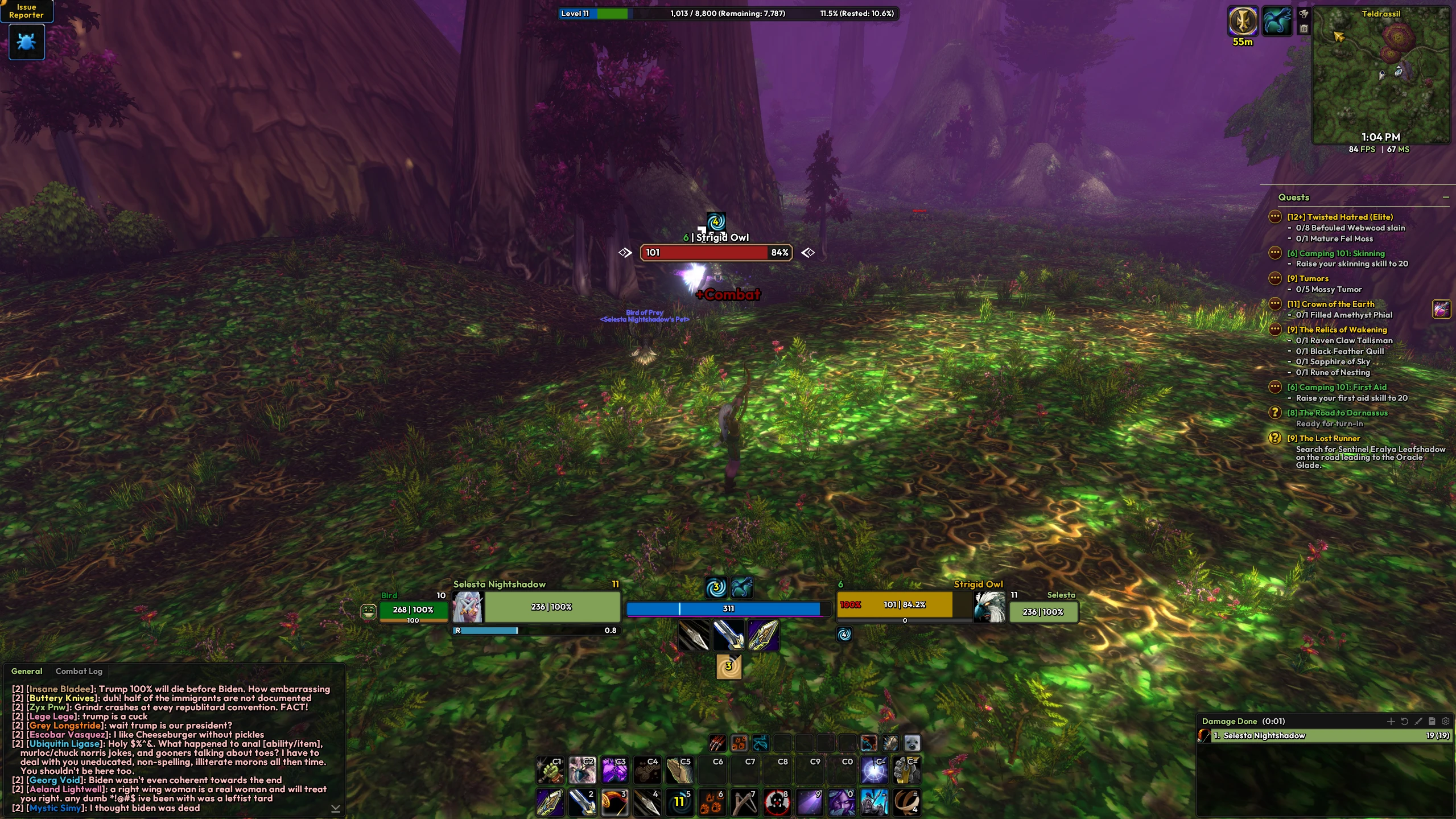
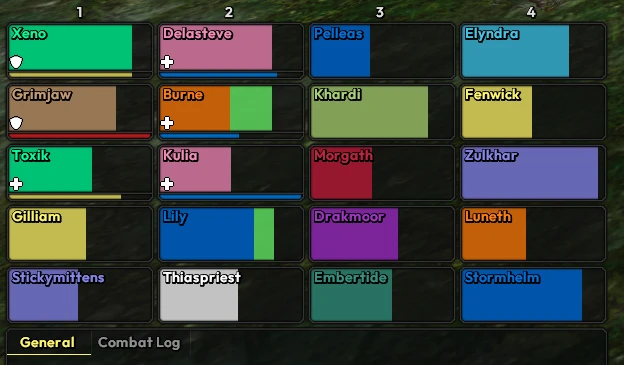
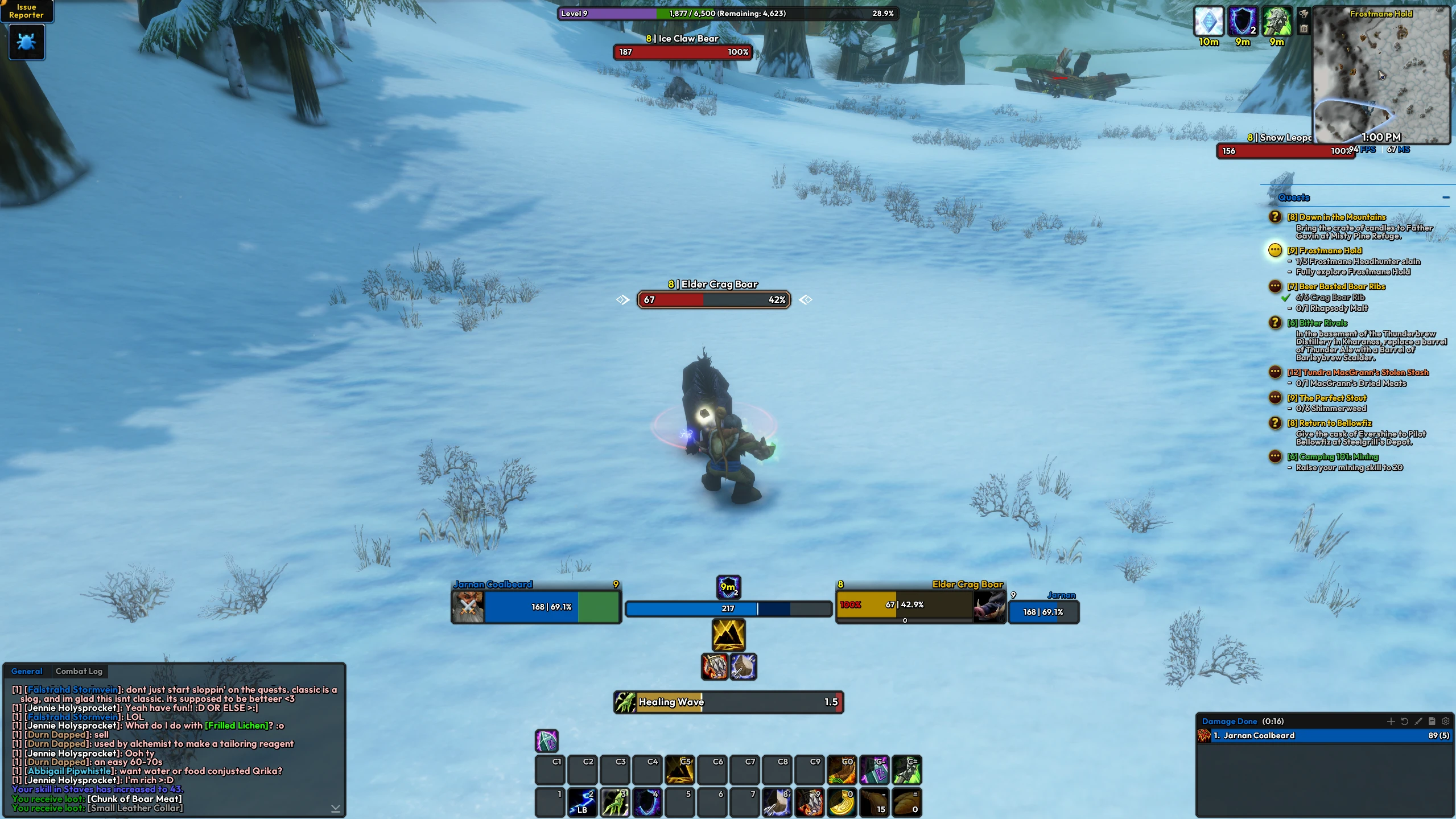
This preset is now fully launch ready (Also works on Retail!), with all features implemented. Leave a comment or drop by the EUI Discord if you have any issues or requests.Uggrukor has released a healer version of this preset and is available here on the website, just search for "SyntaxError UI" and you'll see it.Databars need to be enabled for this layout as I used some of them in creative ways to dress up the player/target frames.Font addon has been released (Wago + Curseforge link below) and the preset is now defaulting to the font shown in previews. If you don't like the font, you can always change back to "Expressway" under "Global Settings -> Fonts".Updated 11/14:
-Nameplates have been updated to show classic tank threat. Mobs will still show their colored bars out of combat for marking, etc. but will swap to threat colored bars for tanks
-Nameplate look has been slightly tweaked. Target arrow indicators have been removed and bar texture/bg color updated for target. Indicators can be enabled in the options if you wish to have them back
-Uniframe background textures have been updated so they no longer extend beyond the health bars if you wish to disable portraits. Point anchoring is now used to ensure they stay positioned correctly. You will have to manually adjust them if you wish to change the size of the unitframe itself (/eui -> Databars -> Player/Target Health BG)
-Initial totem update is in. Size/position/spacing slightly adjusted to avoid overlap with the player castbar. Point anchoring now used on unitframe so they are correctly positioned if the portrait is disabled
-New databar above the damage meter with durability, bag space, and gold info
-Misc. changes and adjustments
Code
How to install
1 Copy the entire code string shown above.
2 Open World of Warcraft and open the EllesmereUI settings in the chat to open the EllesmereUI settings.
3 In the EllesmereUI window, go to Profiles → Import Profile.
4 Paste the code string into the box.
5 Click Import to apply the profile.