

KrizerionUI – Blizzlike WoW Forever Preset, working for all classes and roles
Profile Details
Profile ID:
29467
Uploaded:
Nov 16, 2026
Updated:
Nov 16, 2026
Installs:
3,589
Website:
Source Link
Theme & Expansion
Roles
Resolution
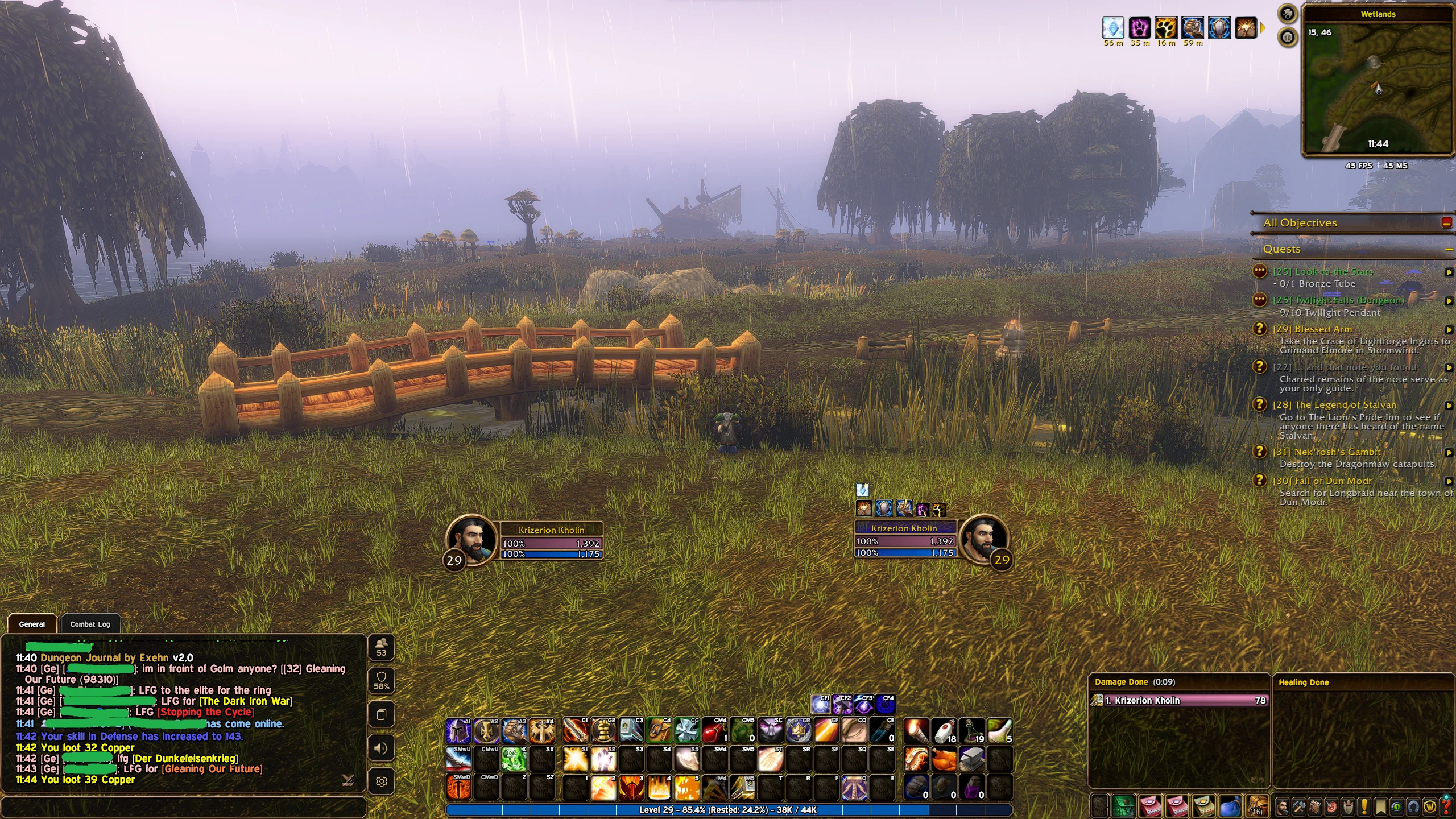
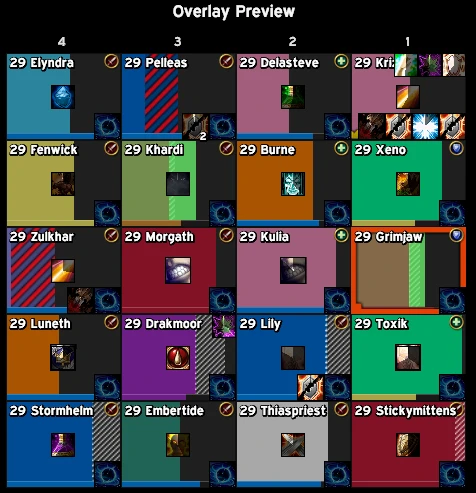
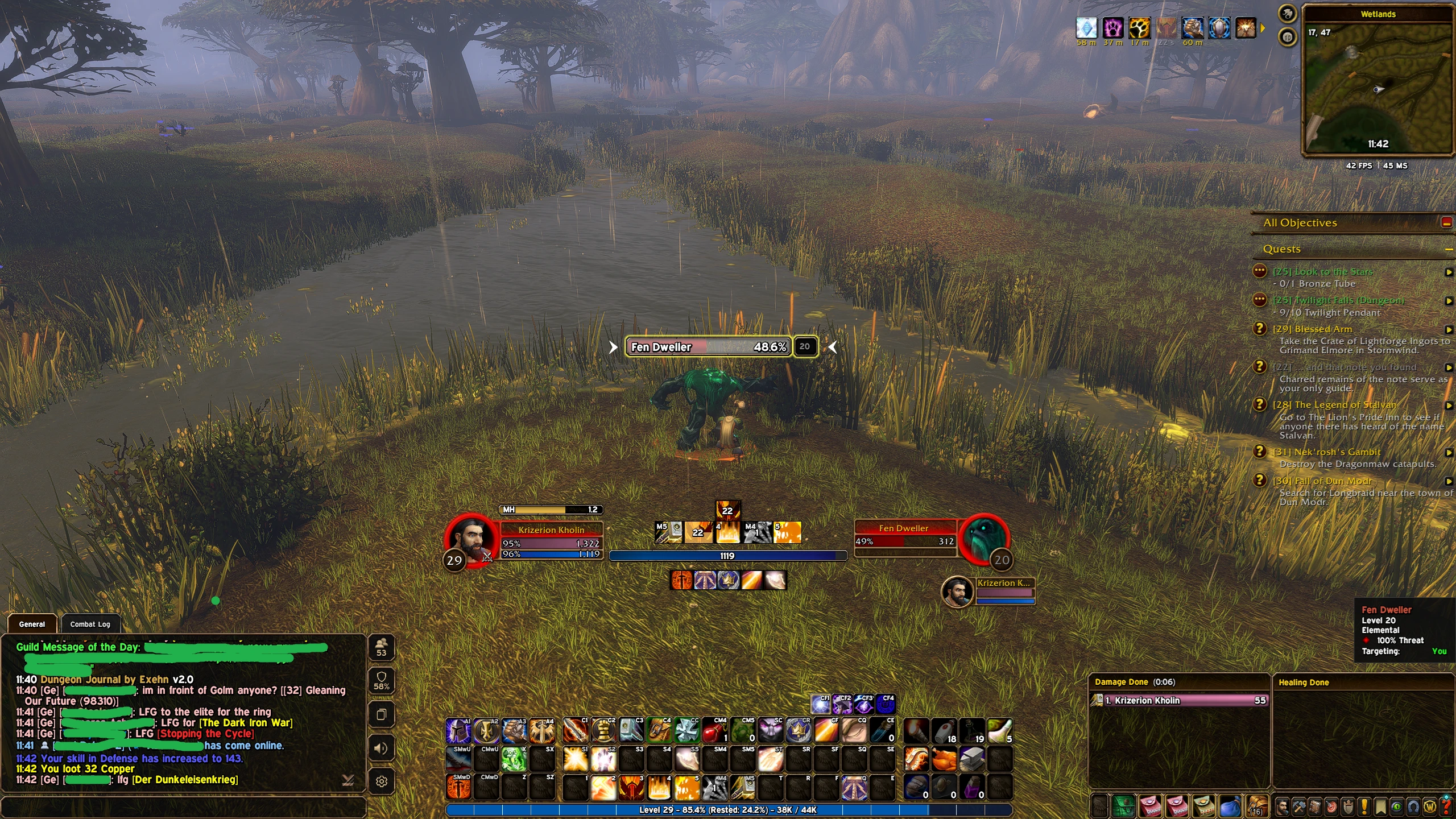
Ellesmere UI ProfileMy personal profile for Ellesmere UI, together with the matching Blizzard Edit Mode layout. It should also work on 1080p resolutionAbout this profileThe idea behind this profile is simple: get all the nice and cool features Ellesmere UI has to offer, while keeping the default Blizzlike look and feel of the UI. If you enjoy the stock Blizzard interface but want it cleaner and more polished, this one is for you. Keep in mind that I didn't level past 10 in the beta, and there might be some issues or edges to polish, but I will update the profile as time goes byResolution and UI scaleImportant: this profile was built for the resolution and UI scale below. With different values, the frames will not line up as intended.- Resolution - 2560x1440
- Use UI Scale - ON, set to 65%You can find both under Options > Graphics.Recommended addon:
- HealthBarColor (optional) - colors your player and target frames by class. This profile was built to go hand in hand with it, so grab it if you like the look.
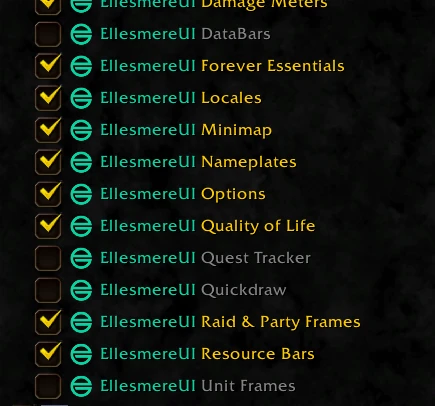
- Another option is to use Ellesmere's Unit Frames, but personally for me I just wanted the default Blizz Unit Frames colored and didn't spend time setting up the Ellesmere onesSetup:1. Disable Ellesmere UI modules
- Disable the modules Unit Frames, Quickdraw, DataBars and Quest Tracker. If you wish, you can enable them and set them up manually; my preset doesn't have any settings for them since I don't like and don't use them2. Blizzard UI settings
- Personal Resource Display - OFF
- Cooldown Manager - ON
- Swing Timer - OFF
- Damage Meter - OFF3. Additional notes:
- CD Manager is visible in combat onlyOptional: graphics settingsFor better in-game visuals (beyond maxing out the sliders) I recommend the values below. Feel free to ignore them or adjust to your own taste.Render Scale - 98%
Resample Sharpness - 0.1
Contrast - 53%
Brightness - 47%
Gamma - 1.1The settings below will make the game look even better, but they might reduce your FPS a little bit:
/console groundEffectDensity 256
/console groundEffectDist 500
/console detailDoodadAlpha 100
/console WeatherDensity 3
Code
How to install
1 Copy the entire code string shown above.
2 Open World of Warcraft and open the EllesmereUI settings in the chat to open the EllesmereUI settings.
3 In the EllesmereUI window, go to Profiles → Import Profile.
4 Paste the code string into the box.
5 Click Import to apply the profile.