
Emi UI – Clean Mage UI – Forever
Profile Details
Profile ID:
29442
Uploaded:
Nov 16, 2026
Updated:
Nov 16, 2026
Installs:
872
Website:
Source Link
Theme & Expansion
Roles
Content
Resolution
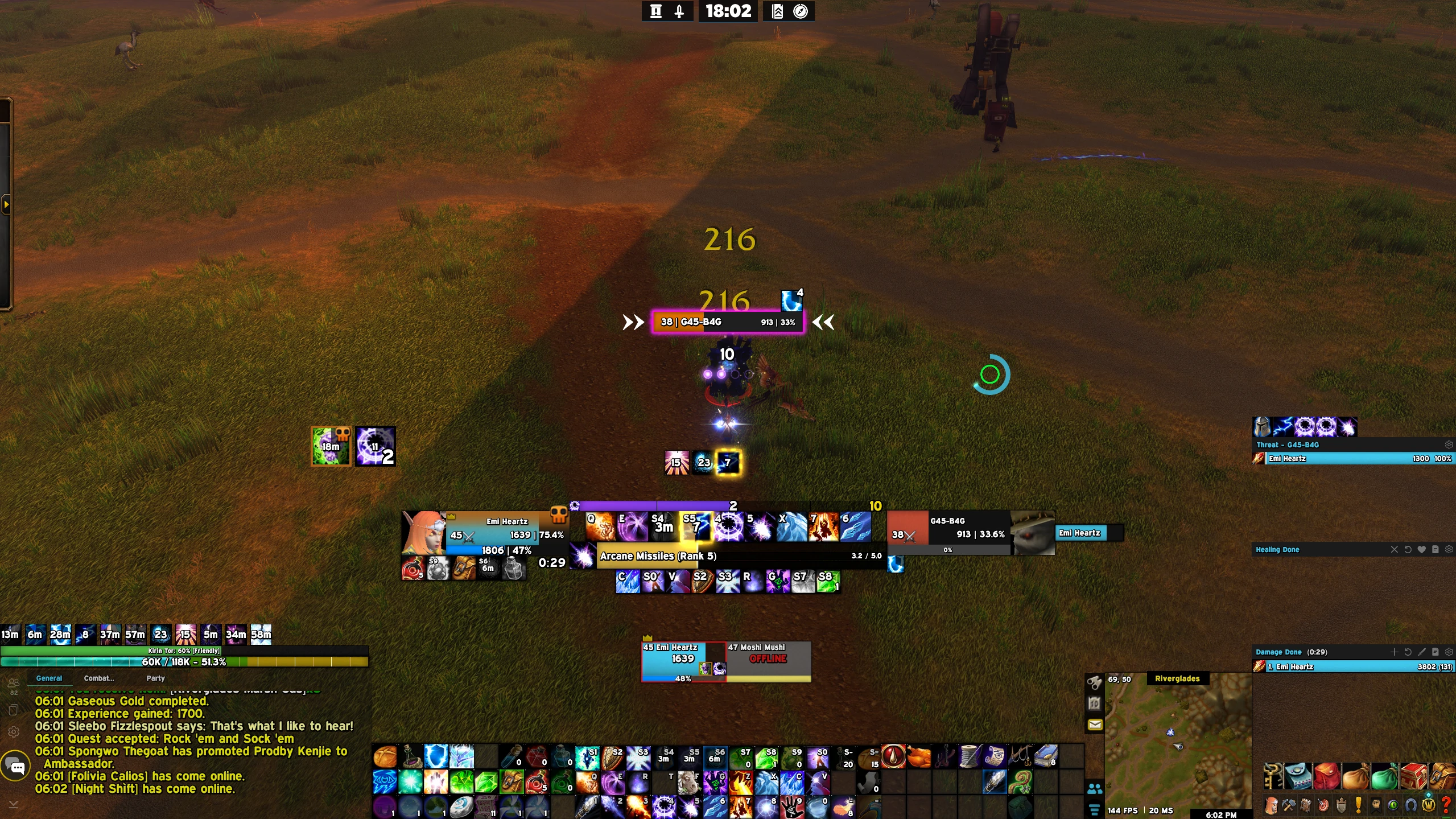
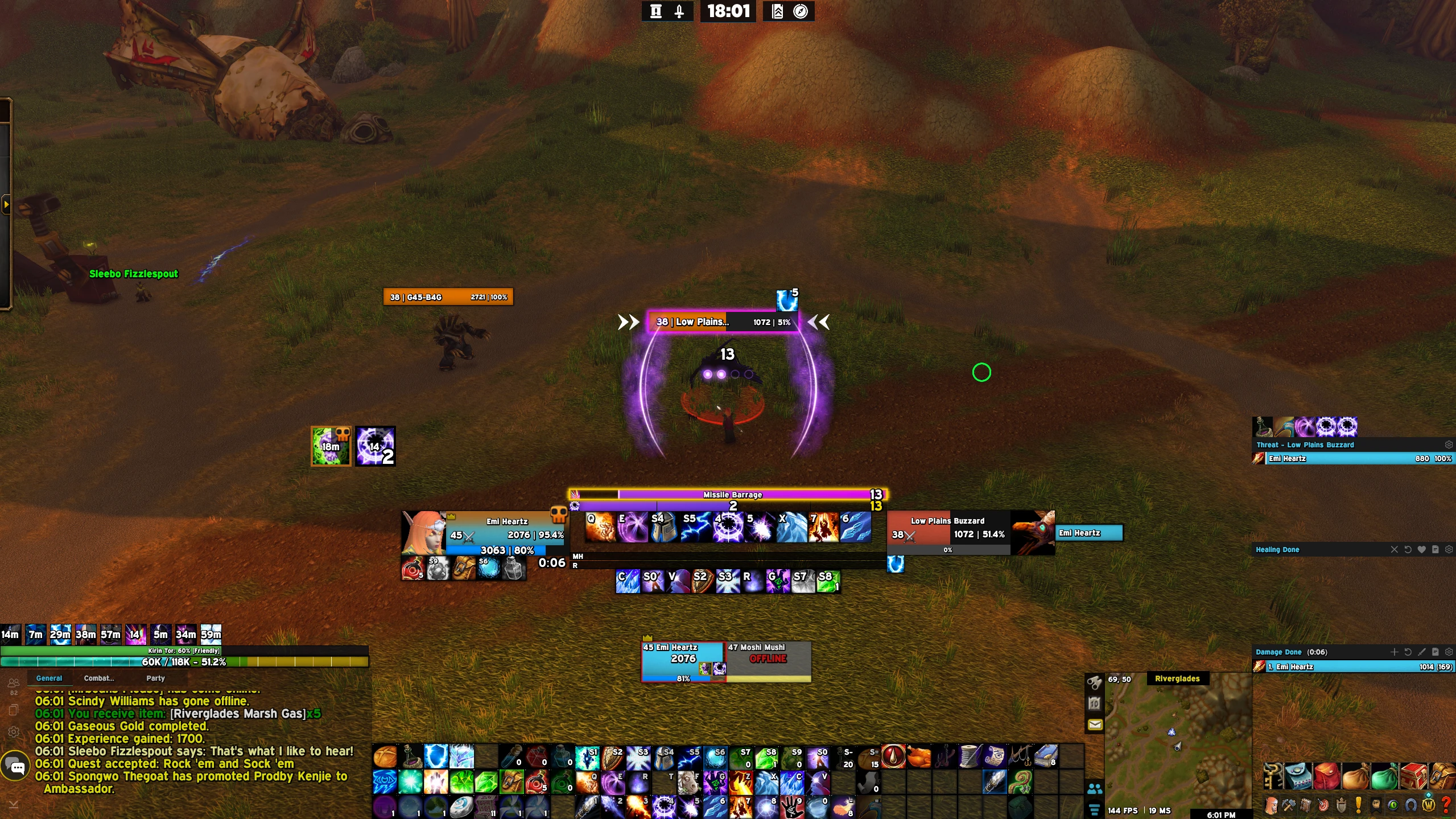
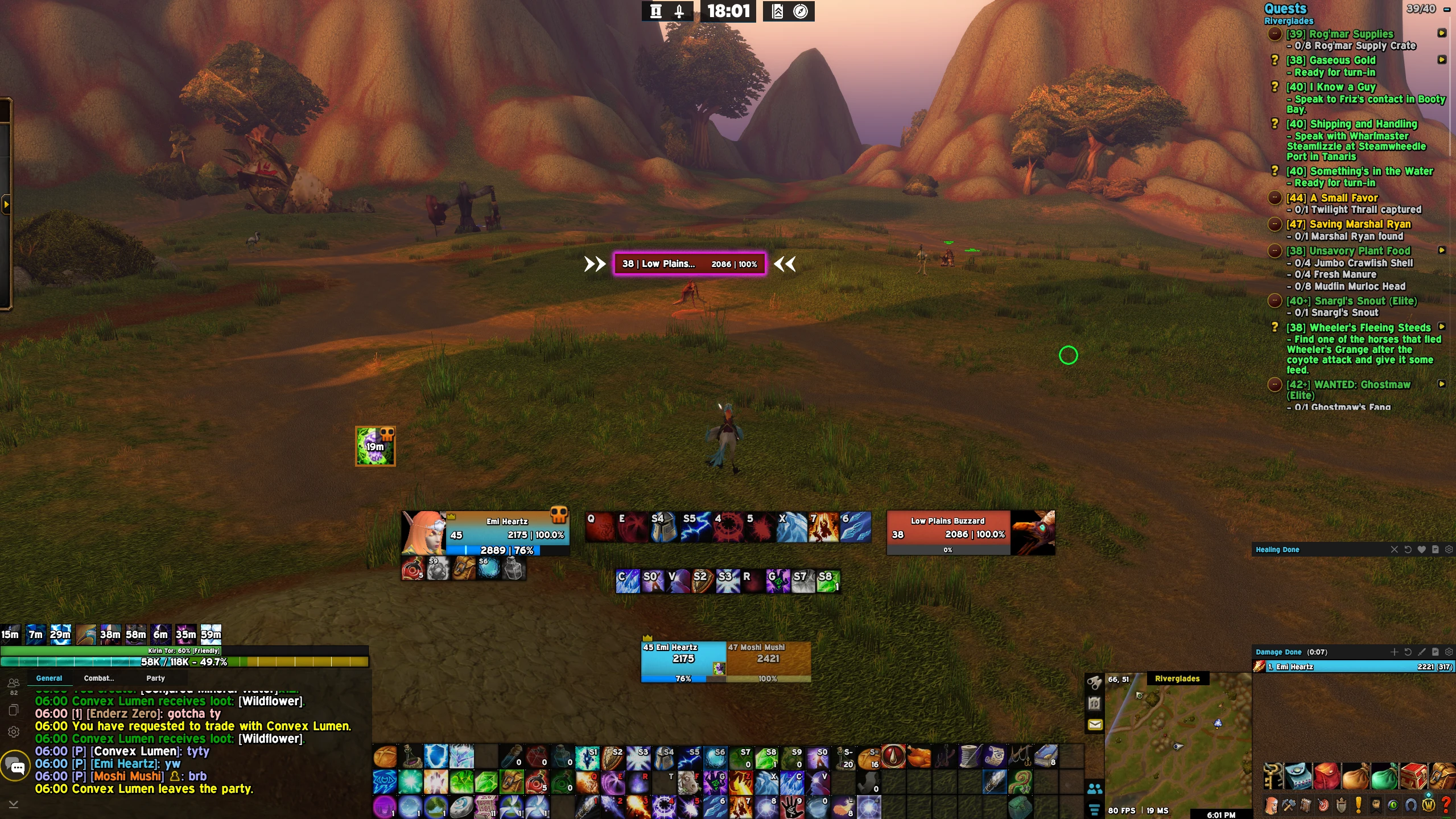
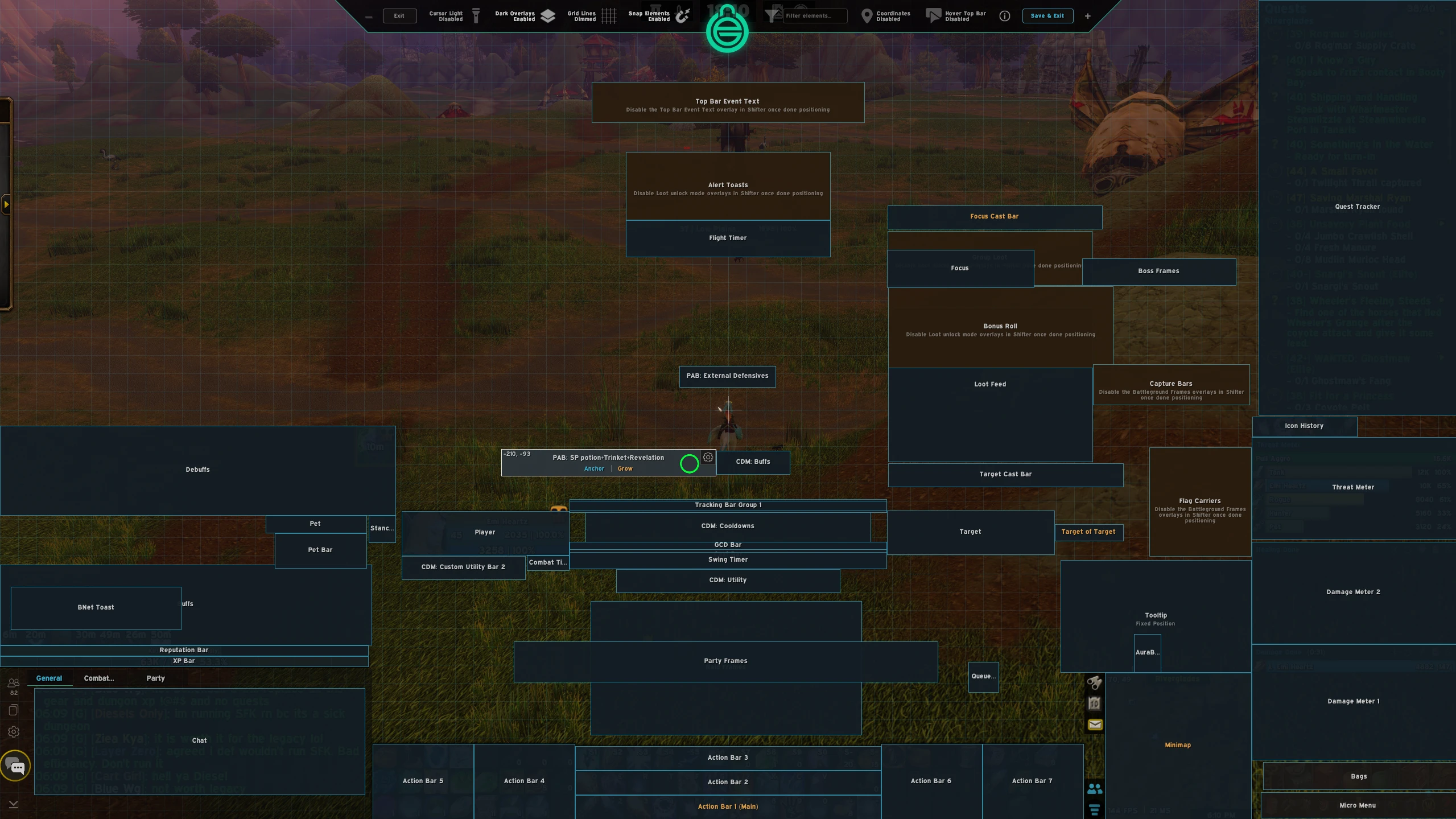
This is my mage ui for WoW Forever. It organizes information that displays on the bottom of the screen allowing you to see everything else above without clutter.Updates:
November 14, 2026
added in debuff nameplate colors, ignite=orange, frost nova/frostbite=teal = improved scorch=red, able to see debuffs you apply even easier
November 12, 2026
- Added arcane power and eureka tracking bars on top of unit player names, please make sure to add them via /cdm into blizzard default tracking bars to see them properly.
- adjusted debuff bar positioning slightly
November 10, 2026
- updated ui slightly with a custom aura buff tracker frame: **now tracking spell power potions, revelation enchant proc, and trinkets.** (PLEASE NOTE: You must manually add in the buff id # into the player aura bars frame if you want to track any new trinket, potion or enchant proc for example. Open ellesmere < unlock mode < right click edit element options on the aura buff tracker highlighted in image 2 cdm > right click the spell icon you want to remove. OR if you want to add spells, click on the plus + sign and type in the spell id. DUE NOTE, THAT YOU WILL NEED TO UPDATE THIS INFO WHENEVER YOU UPGRADE YOU SPELLS BECAUSE IT HAS A SEPERATE SPELL ID PER RANK.
---------------------------------------ADDONS-----------------------------------------------
The Following are quality of life addons I also utilize EllesmereUI with:
- Naowh UI Forever (highly recommend pairing this with EllesmereUI, it adds several QOL features in one addon)
- Shadowflare (tracks procs such as clearcast, arcane blasts, etc and displays a better visual) This shows the arcs around your character when you get a proc.
- Waypoint UI (adds a beam of light to map pins, easier to see)
Code
How to install
1 Copy the entire code string shown above.
2 Open World of Warcraft and open the EllesmereUI settings in the chat to open the EllesmereUI settings.
3 In the EllesmereUI window, go to Profiles → Import Profile.
4 Paste the code string into the box.
5 Click Import to apply the profile.