
MillButton
MillButton is a bare-bones, mini-addon that simplifies the macro you use to mill herbs in your bags.

Details
Expansion
 Mists of Pandaria
 Categories
Developers

Having issues?
Description
MillButton is a addon that greatly simplifies the macro a scribe uses to mill semi-large quantities of herbs. Instead of being limited by the macro's resources - character limit, what functions can be called - the new macro (instructions are further down) calls MillButton, which executes from the Addons.
Important:
- The herbs must be: in stacks of 5, multiples of 5 or at least greater than or equal to 5. The addon will not and cannot compact disparate same-type stacks.
- Make certain that only the herbs you want to mill are marked in the addon options (/millbutton or /mbtn)
- If you are a scribe that does a super load of milling on a constant basis, i.e.: to create and sell lots of glyphs on the Auction House, you may be more satisfied with using a different addon. MillButton is geared for scribes that perform milling in spurts.
- Added locale support for deDE, esES/esMX, frFR, itIT, and ptBR! Added locale support for ruRU! Thank you to Black_Mokona.
Instructions
Download the addon and place it in your AddOns folder. The AddOns folder is located within the Interface folder of your World of Warcraft folder. To give you an idea: C:Program FilesWorld of WarcraftInterfaceAddOns. If you are using the Curse client, then don't worry about this step.
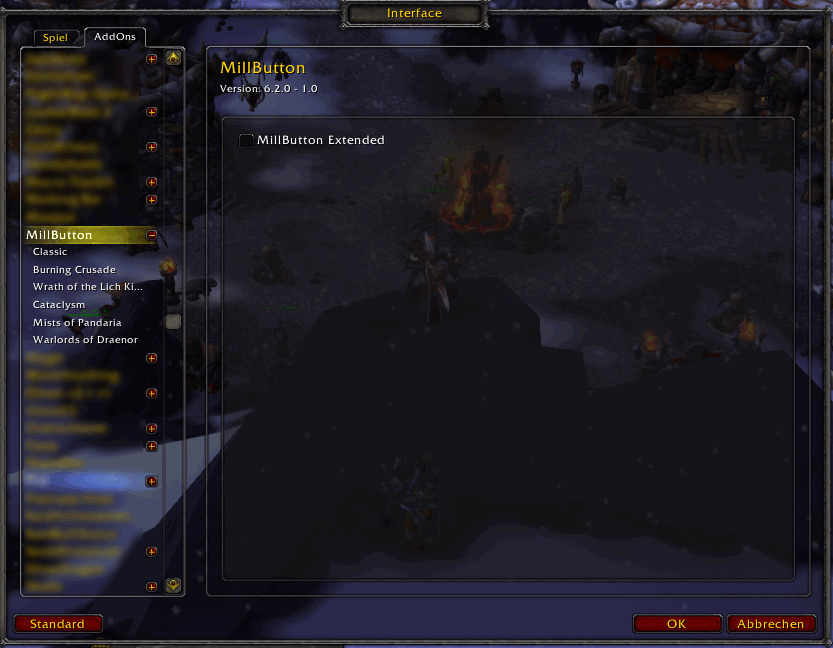
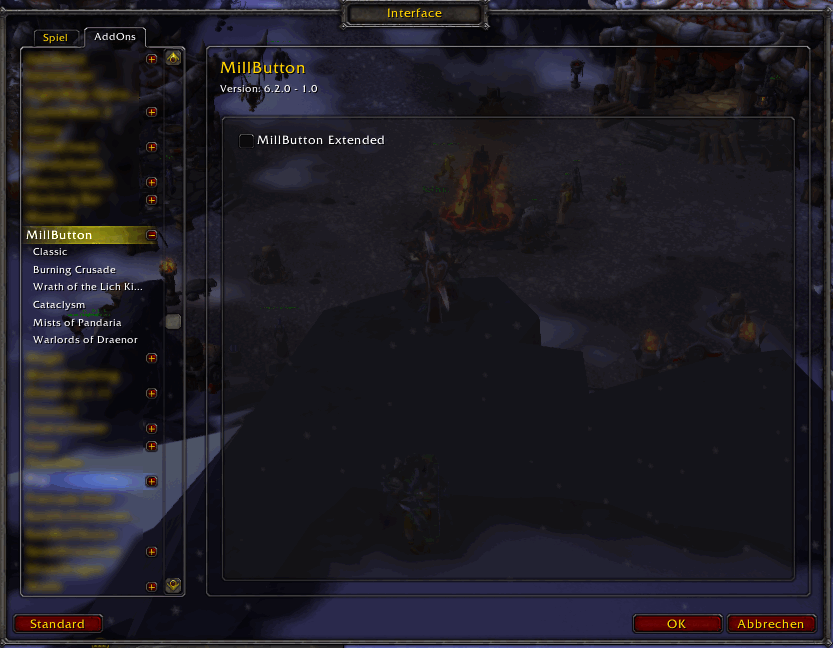
Next, make certain you have MillButton enabled in the Addons list. Launch World of Warcraft. At the character selection screen, look at the bottom left for the AddOns button. Click the button. Scroll, if necessary, down the list until you see "MillButton". Click next to it to place a check mark (click again to remove the check mark, disabling MillButton, if you want to turn the addon off). Click "Okay".
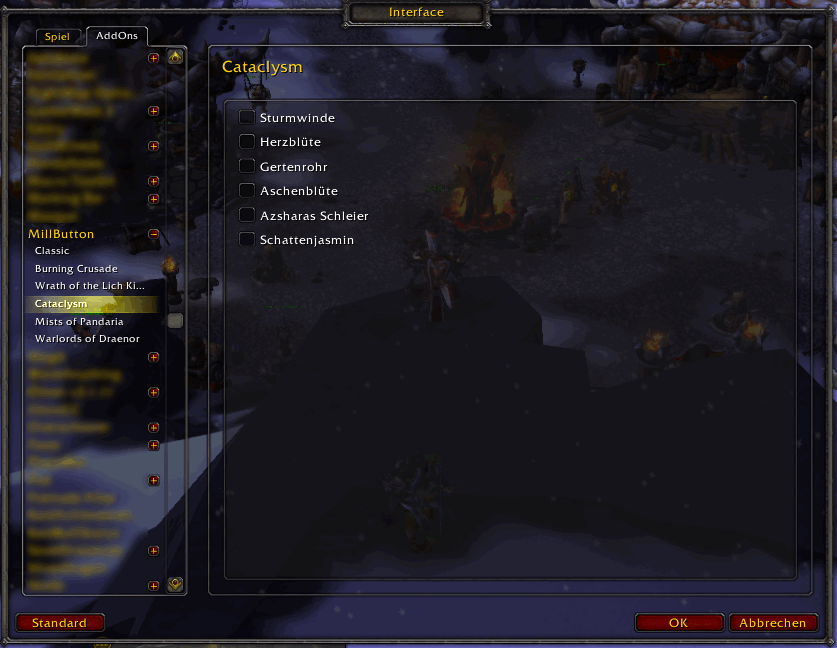
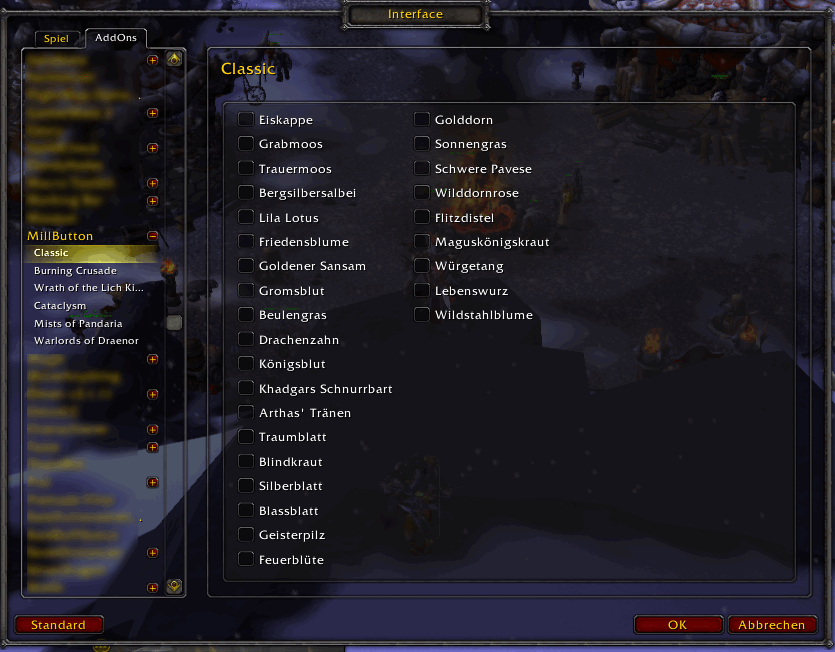
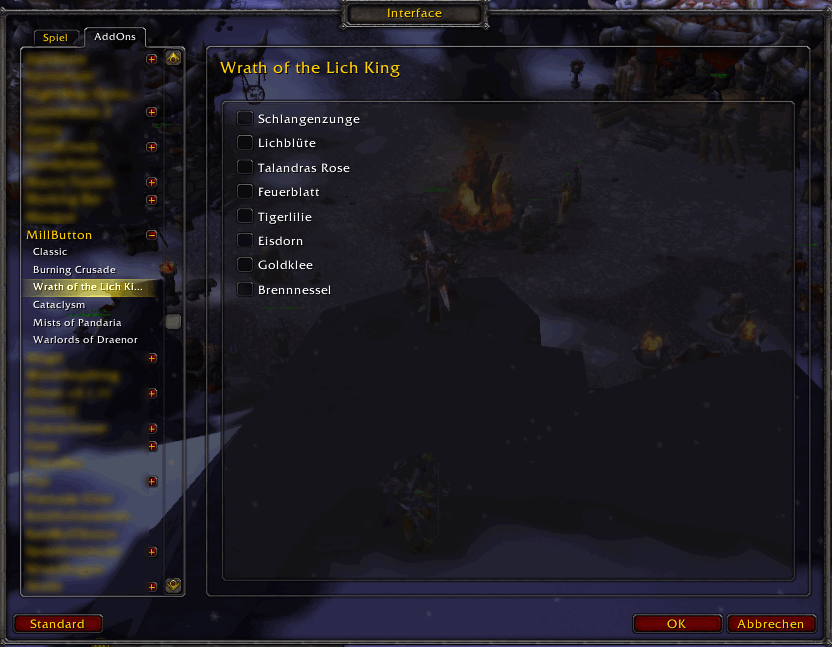
Now log in to the character you mill with. Once in the game, type /millbutton or /mbtn. This command opens the addon optionsmenu. Here you are ablo to check or uncheck for each WoW expansion the herbs that you want to mill or don't want to mill. Note: Only the checked herbs will be milled
If you select on the left side MillButton, you are able to click on the create macro button. If you click this button the addon will create the required addon by itself and pick it up to your mouse cursor. Now to can drag the created addon to your desired actionbar slot. If you dont wat to place it in the actionbars just drag it away like junk items in WoW.
Now if you want, you can "Put it on mousewheel and spin ahoy." I myself prefer to click.
I hope this is useful! If I wasn't clear on something, please let me know in the Comments section on Curse.com.
Credit
Last but never least - credit and thank you to Ro of Hyjal for creating and sharing this in the WoW Professions forum (link). (Plus, I'm really sorry that I missed giving you credit for so long, I honestly thought I'd written it in here!) It is being maintained on Curse so more people are aware of it and can benefit from it. Ro, you are awesome. <3
You must be logged in to leave a comment.