
UI Snapshot
Save your chat windows, game settings, Edit Mode layouts and addon list under a name, then restore or export them on a fresh install.
Details
Expansion
 Forever
 Categories
Developers

Having issues?
UI Snapshot saves your whole configured UI under a name and puts it back on a fresh install or another character.
You spend hours tuning chat windows, game settings, key bindings and Edit Mode layouts. UI Snapshot records them in one click, and restores them in one click.
What it saves
- Chat windows: names, positions, sizes, docking, message groups and channels
- Game settings (CVars) that differ from the defaults, including which Action Bars 2-8 are switched on
- Your key bindings (every command the game lists, including keys you removed)
- Your Edit Mode layouts, saved as text strings
- The list of enabled addons
What it does not save
What is on your action bars, keys bound directly to spells or macros (not confirmed), raid frame profiles, and other addons' own settings. Edit Mode layouts are saved but not applied automatically; you paste them into Edit Mode's own Import box (see "Moving your UI" below).
Open it
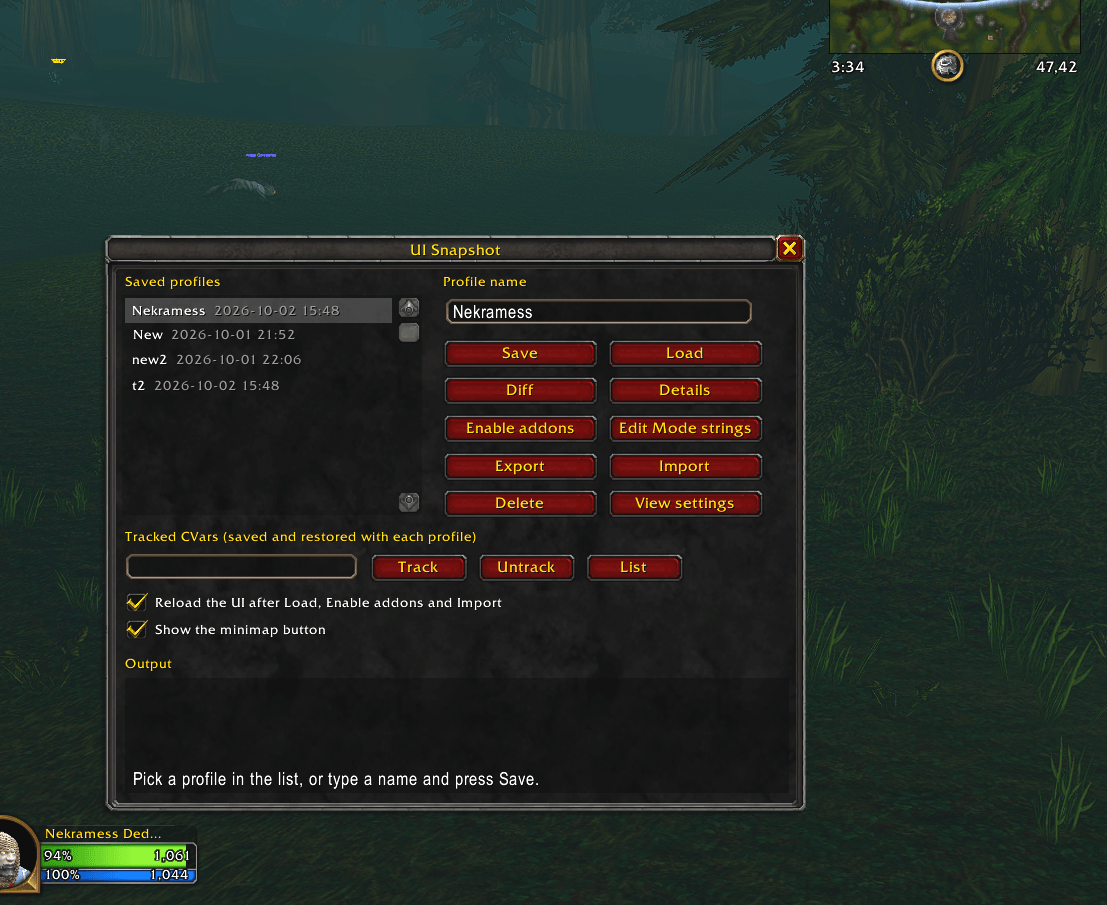
Type /uisnap, or click the gear button on the minimap (drag it to move it; it can be turned off in the window).
Save and load on the same install
- Open the window, type a name, press Save.
- On another character, select the profile and press Load. The UI reloads by itself and prints a report of what changed.
Moving your UI to a new install (Export, Import, Load, Edit Mode, reload)
Profiles live in your WTF folder, which a fresh install does not have, so move them as text. Import only stores the profile; Load is what applies it. Edit Mode layouts are the one part you paste in by hand.
On the old install
- Open
/uisnap, select the profile, press Export. - Press Ctrl+C in the box that opens (click in it first if the text is not highlighted).
- Paste it into a text file and keep it (tens of thousands of characters for a full UI, so use a text file, not a chat message).
- Press Edit Mode strings, and copy each layout string you want into the same text file (the box shows the layout name above each string).
On the new install (UI Snapshot installed and enabled)
- Open
/uisnapand press Import. Paste the export text, optionally type a name in "Save as" (blank keeps the exported name), press Import. This only saves the profile in the addon; nothing in your game has changed yet. The UI reloads and prints what was imported. - Open
/uisnapagain, select the imported profile, press Load. This applies your chat windows, game settings and key bindings. The UI reloads by itself and prints a report of what changed. - Open Edit Mode and use its own Import option to paste your layout string. UI Snapshot cannot apply Edit Mode layouts for you.
- Type
/reloadonce more so everything settles.
A cut-off or altered export is rejected with a message instead of half-importing. If you switch off "Reload the UI after Load…" in the window, type /reload yourself after steps 1 and 2.
To copy a profile between characters on the same install, skip Export and Import: just select the profile and press Load.
Safety
- Imports are read as data only; pasted text is never run as code.
- Every imported field is type- and size-checked.
- Key bindings can only be set on commands the game lists; an import cannot bind a key to a macro or script.
- Settings tied to your computer (graphics device, resolution, sound output, locale, account and realm) are never saved or applied.
- Only import text you made or trust: loading a profile sets the game settings it lists, and the import message names them.
Commands
/uisnap open or close the window, save <name>, load <name>, diff <name> (what differs from now), export <name>, import, list, show <name>, delete <name>, cvars <name>, keys <name>, editmode <name>, addons <name>, minimap on|off.
Status (Forever beta, interface 16001)
Every feature has been tested in the Forever beta by the author: save, load, diff, chat windows and channels, game settings, Action Bar toggles, key bindings, Export/Import, the automatic reload, the window and the minimap button. Keys bound directly to spells or macros may not be included in key binding capture. Please report problems on GitHub.
Free and open source (MIT): https://github.com/Nekramess/UISnapshot
You must be logged in to leave a comment.