

Swypy’s Leveling Suite
A full suite of tools to help you level, find and track buffs, potions, and elixirs, craft what you need, and make questing easier.
Details
Expansion
 Forever
 Developers

Having issues?
Swypy's Leveling Suite
Spend less time managing your bags, buffs and targets, and more time leveling.
Swypy's Leveling Suite is a set of small addons each one taking a chore off your hands: eating the right food, emptying your bags, keeping your XP buffs up, finding the mobs your quests ask for. Use all of them, or only the ones you want.
- Camping, class, racial, food, scroll elixir, XP buff reminders
- Profession buff finder
- Easy mob targetting
- Quest arrow
- Junk management
- Controller support
Consumables
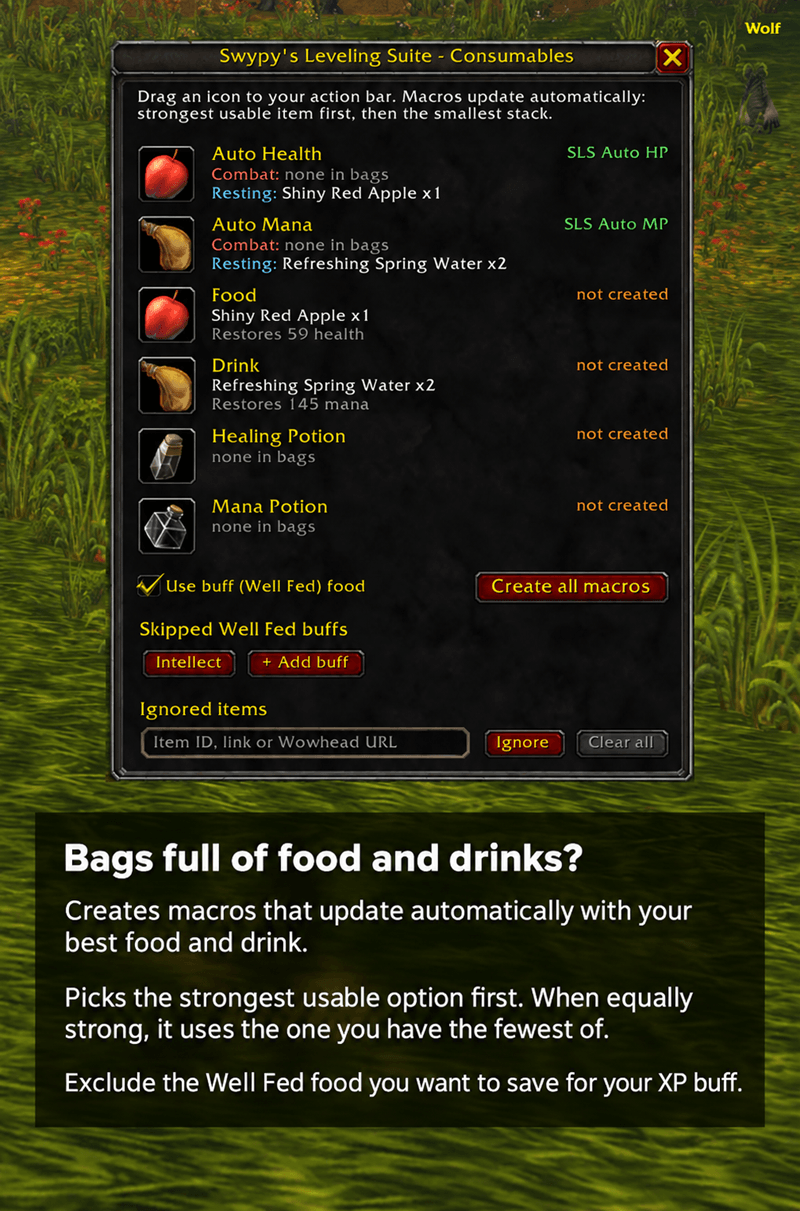
Macros that always eat, drink and drink potions with the best item you have.
Put a macro on your bar once and forget about it. When you level up or loot better food, the macro updates by itself.
The macros
| Macro | What it does |
|---|---|
| SLS Food | Eats your best food for your level |
| SLS Drink | Drinks your best drink for your level |
| SLS Heal Pot | Drinks your best healing potion |
| SLS Mana Pot | Drinks your best mana potion |
| SLS Auto HP | One button: a healing potion in combat, food out of combat |
| SLS Auto MP | One button: a mana potion in combat, a drink out of combat |
Features
- Picks the item that restores the most, among those you can use at your level.
- The macro icon shows the item it will use, so you can see at a glance what you're about to eat. When you run out, it shows an empty bowl, waterskin or vial.
- Well Fed food: allow or skip buff food, or skip only certain kinds (stamina, fishing and so on) so your good buff food isn't eaten for health.
- Ignore list: never use a given item. Add it by item ID, shift-click link or Wowhead URL.
Commands: /slsc opens the macro window, /slsc create creates every macro, and /slsc status shows the current picks.
Junk
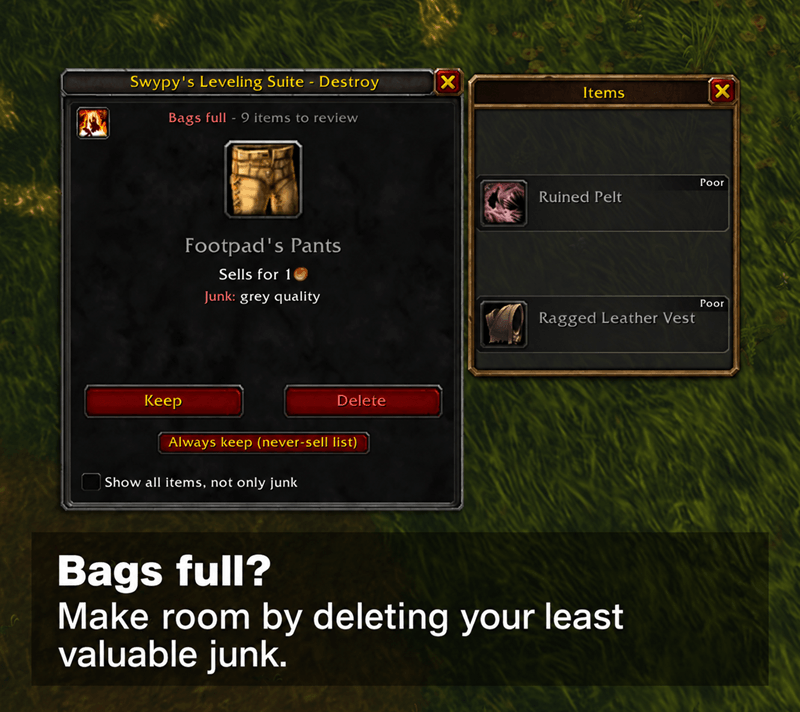
Sell junk, repair and clear full bags without thinking about it.
At the merchant
- A Sell Junk button on the merchant window, or turn on auto-sell.
- Auto-repair, on by default.
- Safe sell, on by default: sells at most 12 items at a time, which is all the merchant's buyback tab holds, so you can always buy back a mistake.
- You choose what counts as junk:
- grey items (on by default)
- gear your class can't use
- gear well below your level (you set the gap)
- items you've outleveled
- Protected, never sold: quest items (including items named in your quest log text), unbound Bind on Equip greens and better (optional), and consumables (optional).
- Always-sell and never-sell lists. Add items by ID, link or Wowhead URL.
- Tooltips tell you why an item will or won't be sold, and bag icons mark your junk.
Full bags? Swipe through them.
- The destroy window shows your junk one item at a time: Keep or Delete, like swiping cards.
- It opens by itself when loot or a quest reward doesn't fit in your bags, and closes when you close the loot window.
- After each delete, it loots the item that didn't fit, so you never lose the drop you wanted.
- Mark items as "always keep" from the window so they stop coming up.
- Full controller support: X Keep, Y Delete, RB Always keep, LB Show all, B Close.
Commands: /slsj sells at a merchant and opens the Junk window anywhere else. /slsj destroy opens the destroy window. Key bindings are included for Sell, Destroy and the Junk window.
Buffs
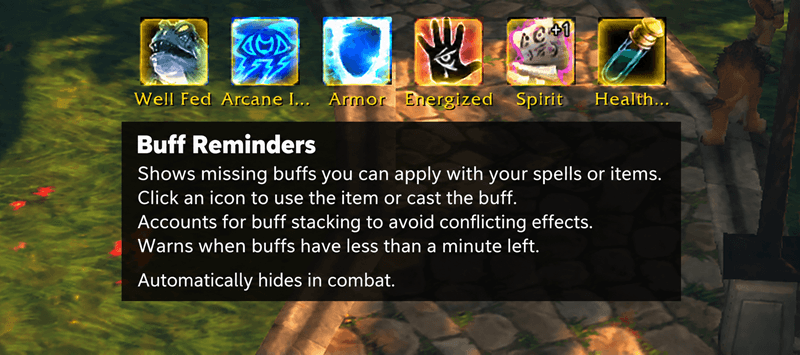
Never level without your XP buffs again.
A row of clickable icons appears whenever a buff you care about is missing or has less than a minute left. Click an icon to use the item or cast the spell. The row hides in combat and when you're dead.
What it watches
- Well Fed food, including Forever's XP food
- Camp benefits: off, when you're near your camp, when you carry a camp kit, or always
- Skyborne racial buff
- Scrolls and elixirs
- Class buffs for your class: aspects, blessings, armors, fortitude and so on. It remembers which one you prefer.
- Weapon buffs: rogue poisons, and shaman and warlock weapon imbues
- Pets: reminds hunters and warlocks when their pet is missing
Smart about stacking
- Buffs that give the same stat are merged into one icon (with "+N" for the other options), so you don't get told to use two elixirs that don't stack.
- Right-click a merged icon to choose which one to use. Your choice becomes the default for that stat.
- Mages: a one-click Decipher button casts Comprehend Scroll on untranslated scrolls in your bags.
Buff Finder
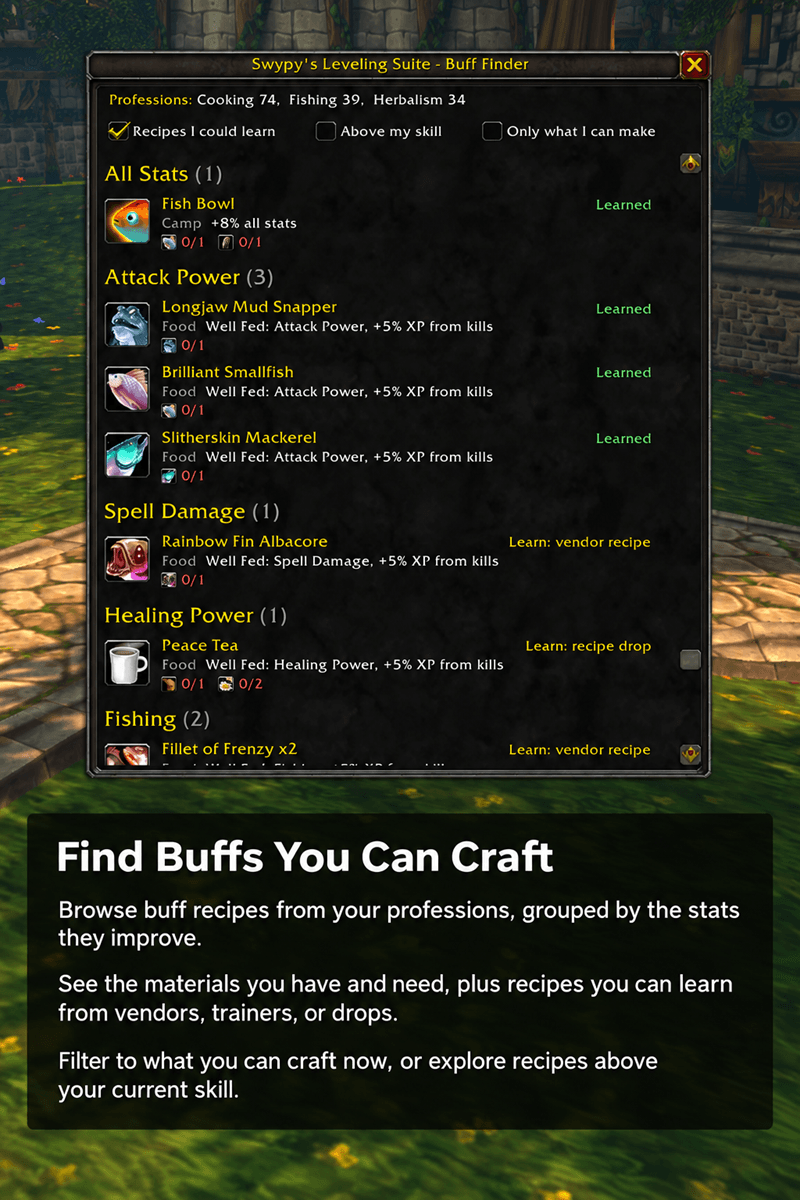
/slsb finder opens a list of every buff your professions can make, grouped by stat (Strength, Agility, Intellect, …):
- Food, elixirs, flasks, sharpening stones and oils, armor kits and camp upgrades.
- Shows the reagents you have and the ones you still need, with an "only what I can make right now" filter.
- Optionally includes recipes you could learn now, and recipes above your skill (greyed out).
- Marks crafts that wouldn't stack with buffs you already have.
Commands: /slsb opens the options, /slsb status lists missing buffs, /slsb unlock lets you move the icons, and /slsb ignore <item> stops reminders for an item.
Quests
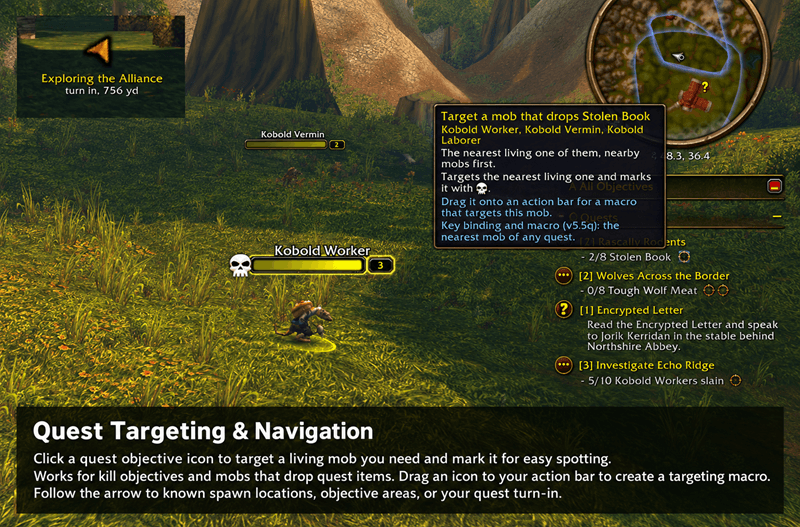
Find, target and mark the mobs your quests need.
One-click quest targeting
- A crosshair button appears after each kill objective in the quest tracker. Click it to target that quest's mob.
- Item objectives ("Huge Gnoll Claw") get buttons too, for the mobs that drop the item.
- A key binding ("Target nearest quest mob") and a macro (SLS Quest Target) target any mob from any quest in your log. Mobs you can see on screen come first.
- The target gets a raid marker (skull by default, solo only by default). You pick the marker in the options.
- Drag a crosshair to your action bar to get a macro for that mob. The suite deletes these macros by itself once no quest in your log needs the mob anymore.
Quest arrow
- An arrow points to the nearest spawn point of the mobs your selected quest needs.
- For objective areas, it points to the nearest edge and hides once you're inside.
- For loot and other objectives, it falls back to the game's own quest marker.
Covers Forever's quests
The suite ships data for vanilla and Forever quests so it still knows who to target. It also learns as you play: when a nameplate belongs to one of your quests, the suite remembers the mob for that quest.
Commands: /slsq opens the options, /slsq macro puts the targeting macro on your cursor, /slsq arrow turns the arrow on or off, and /slsq list shows which mob each objective targets.
You must be logged in to leave a comment.