
SNRN Backhand – Controller Paddles
Extra action slots for controller back paddles (Xbox Elite, DualSense Edge, Steam Input back buttons), built into WoW: Forever's native gamepad crossbar with BASE, LT, RT and LT + RT layers.
Details
Expansion
 Forever
 Categories
Developers

Having issues?
SNRN Backhand
Four extra action slots for your controller's rear paddles, built into WoW: Forever's native gamepad crossbar.
Forever's crossbar gives you the d-pad and the face buttons on four layers (no trigger, LT, RT, LT + RT). Backhand adds a fifth group to each of those layers: a 2 x 2 grid for the P1 to P4 paddles of an Xbox Elite Series 2, the back buttons of a PlayStation DualSense Edge, or any other controller whose extra buttons can be mapped to keys on PC. That is 16 more actions, all reachable without taking your thumbs off the sticks.
What's new
- 0.8.2: Paddle slots show the same proc glow as the native crossbar when a proc lights up their spell. Like the native buttons, reactive abilities such as Mongoose Bite do not glow.
- 0.8.1: The paddle panels collapse while a menu, your bags or the settings have controller focus, like the native crossbar, and expand again when you return to the game.
- 0.8.0: PaddleSlots is now SNRN Backhand, part of the SNRN addon family. Settings and paddle actions start fresh after the update: assign the paddle keys again (
/backhand assign) and drag your actions back. If an oldPaddleSlotsfolder is left inInterfaceAddOns, delete it. - 0.7.9: Paddles now switch layers in combat. Before, they could stay on whichever layer was active when combat started.
Full history on the Changelog tab of each file.
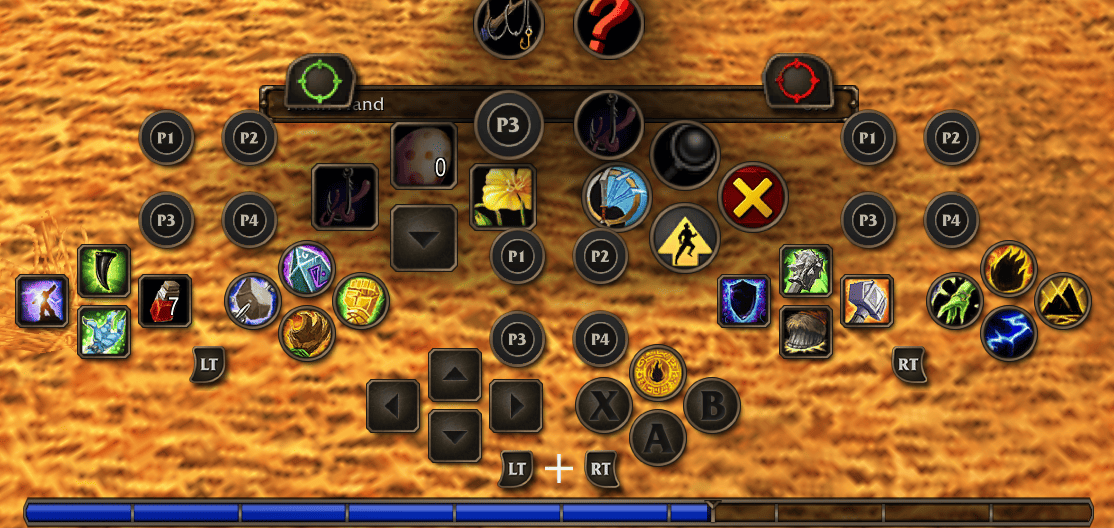
Looks and behaves like the native crossbar
- Uses Blizzard's own crossbar art: circle slots, drop shadows, cooldown swipes, pressed state and the focus highlight.
- The panel for the trigger combination you are holding expands and lights up exactly like the native bar does. The other three stay collapsed. Nothing is dimmed unless you want it to be.
- Panels sit inside the crossbar next to the bar that uses the same triggers, and follow the crossbar if you move or scale it.
- Respects the game's own gamepad settings for slot scaling, focus highlight and button prompts.
- Paddle actions fire on press, like every other gamepad button.
- Out-of-range and unusable feedback with the same colours as the native slots.
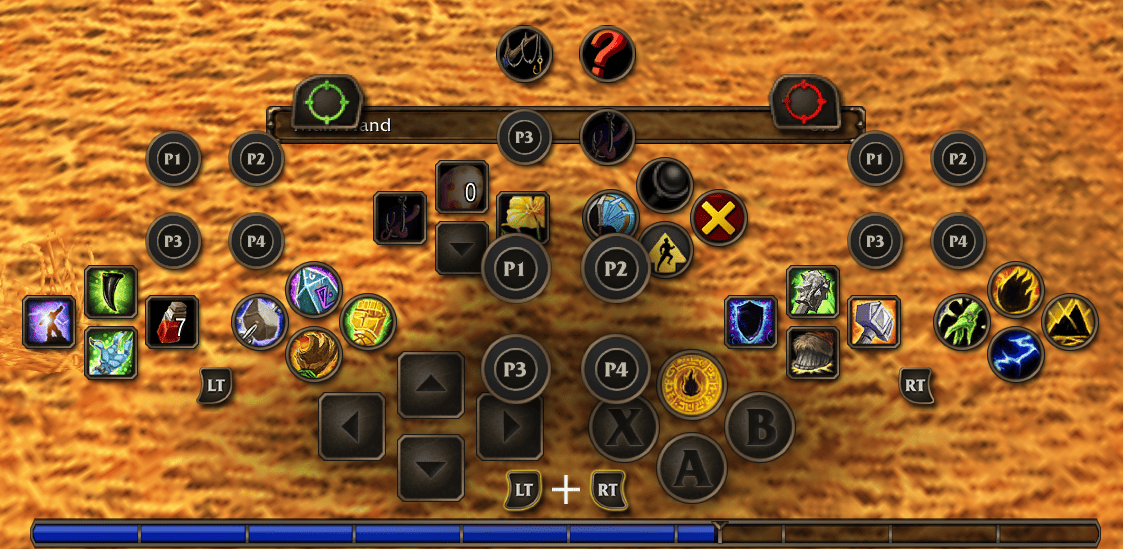
Works with what your controller actually sends
On Windows the Xbox Elite Series 2 does not report its paddles to games, and the DualSense Edge's back buttons arrive as copies of the face buttons. WoW only sees whatever the Xbox Accessories app, Steam Input or reWASD maps a paddle to. Backhand handles that instead of pretending the paddles exist:
- Assign by pressing: open the settings, click a paddle row, press the paddle. Whatever the controller sends is assigned.
- It refuses inputs the native gamepad UI already uses (A, B, X, Y, d-pad, bumpers, triggers, stick clicks, View, Menu), so a paddle can never steal a button. If your profile mirrors a paddle to A, the prompt tells you and keeps waiting.
- Accepts unbound keyboard keys (F9 to F12, F13 to F24, Page Up / Down, Numpad and so on), the Share button, or real PADPADDLE keys on controllers that report them.
- An in-game Setup guide walks through both routes (Xbox Accessories keyboard mapping, or Steam Input / reWASD with F13 to F16) and shows a live "last input detected" line.
- DualSense Edge: Steam Input or reWASD see its back buttons as separate inputs, so bind them to F13 to F16 there and use the Steam route. No PS5 is needed.
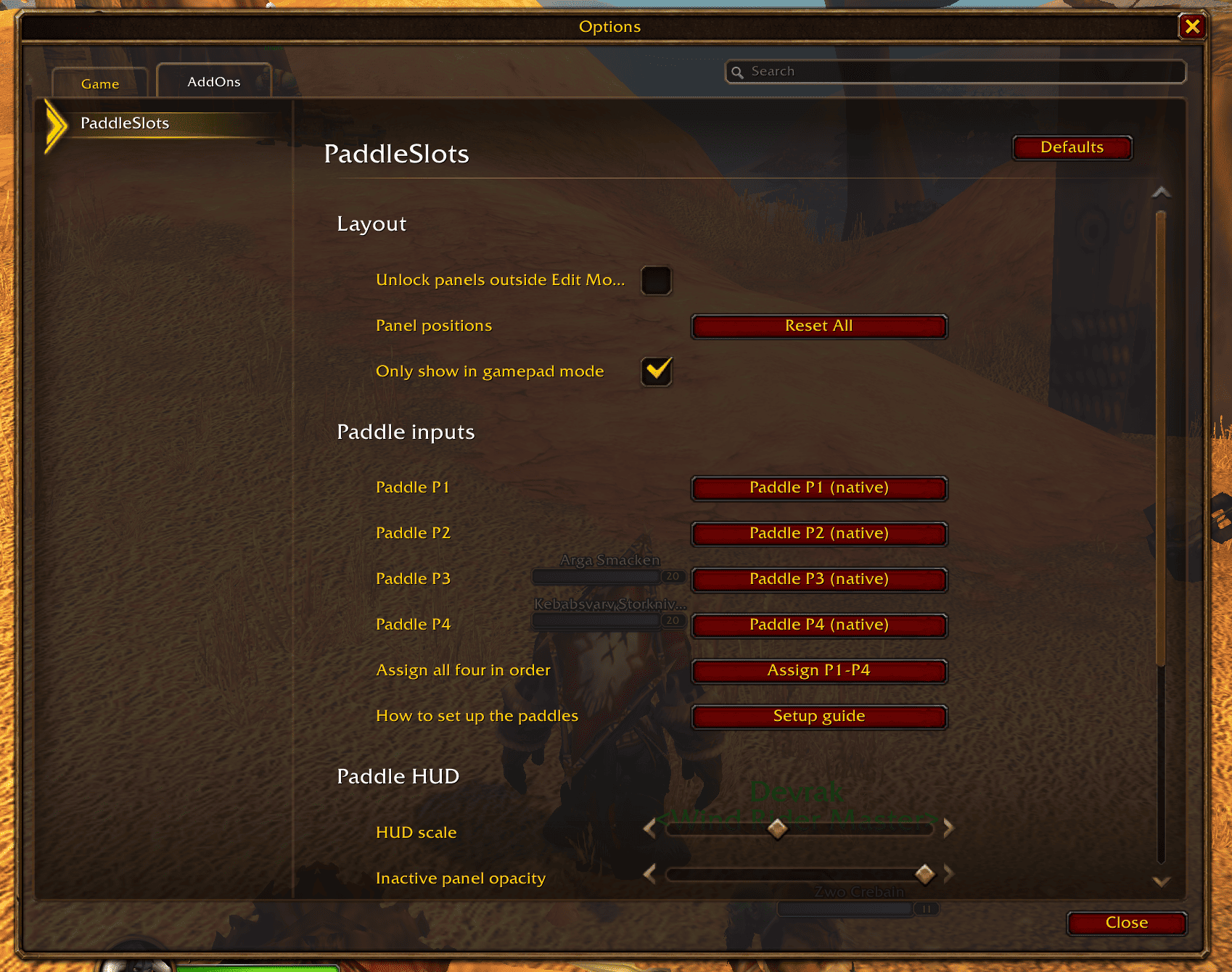
Setup in three steps
- Map each paddle to a key WoW does not use. Xbox Elite with Xbox Accessories: paddle to F9, F10, F11, F12. Steam Input or reWASD (Xbox Elite, DualSense Edge, others): paddle to F13, F14, F15, F16.
- In game, open Settings > AddOns > Backhand (or type
/backhand) and click Assign P1-P4, then press each paddle in turn. - Drag spells, items or macros onto the paddle slots. Hold LT, RT or both to fill the other layers.
Moving the panels
Open WoW's normal Edit Mode and the four panels become draggable, or tick Unlock panels outside Edit Mode in the settings. /backhand reset puts them back into the crossbar.
Options
- Only show in gamepad mode
- HUD scale
- Inactive panel opacity
- Focus highlight and its strength
- LT / RT modifier prompts under the panels (off by default, the crossbar already shows them)
- Paddle prompts on the focused panel
- View Diagnostics, for bug reports
Slash commands
/backhand              open settings
/backhand assign [1-4] assign one paddle, or all four in order
/backhand keys F13 F14 F15 F16
/backhand reset        reset panel positions
/backhand guide        open the setup guide
/backhand test         print raw controller input for 30 seconds
/backhand diag         print gamepad integration diagnostics
/backhand diag copy    open the diagnostics as copyable text
Notes
- Built for World of Warcraft: Forever only. It uses Forever's native crossbar and gamepad API and does nothing on other clients.
- Actions are saved per character. They are stored in the client's spare gamepad action storage when a safe block is free, so they survive like any other action bar. Otherwise they are kept in the addon's saved variables.
- Layers switch in combat too. The paddles follow whichever crossbar bar has focus, or use a secure modifier driver if LT and RT are set up as Shift, Ctrl or Alt.
/backhand diagreports which mode is active. - Not affiliated with ConsolePort. Backhand does not replace the gamepad UI, it extends the one Forever ships.
Part of the SNRN family
- SNRN Rummage: one action slot per item type that always uses the best food, drink, potion, bandage or quest item in your bags. Put its macros on your paddles and never swap consumables by hand again.
- SNRN Tally: free bag slots and ammo on Forever's gamepad HUD, which shows neither.
- SNRN Valet: sells greys and repairs at merchants, collects your mail, and declines duels, guild invites and charters, so there are fewer popups to chase with the gamepad cursor.
- SNRN Grimoire: one command lays out an Affliction Warlock on Forever's crossbar and fills all sixteen paddle slots.
Reporting problems
Open View Diagnostics in the settings (or run /backhand diag copy), copy the report, and post it with a description of your controller and mapping software. If the game crashed, attach the error file from the Errors folder next to the game executable.
You must be logged in to leave a comment.