
![Simple Threat Meter [WoW Forever]](https://media.forgecdn.net/avatars/2088/506/639266242265275401.jpg)
Simple Threat Meter [WoW Forever]
Threat meter for WoW Forever with Blizzard UI style
Details
Expansion
 Forever
 Categories
Developers

Having issues?
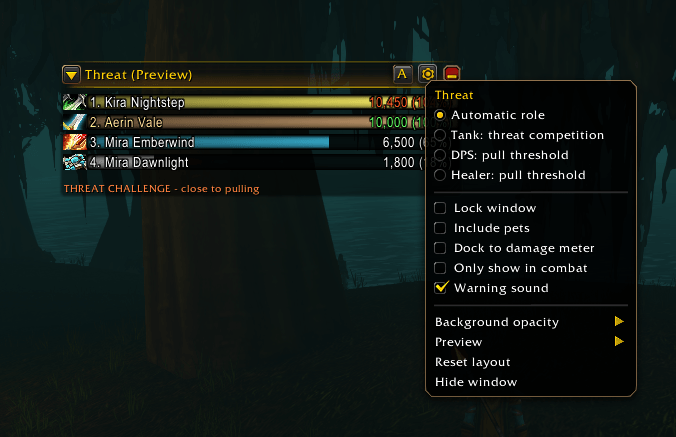
Simple Threat Forever
A lightweight threat meter for World of Warcraft: Forever, with a Blizzard-style window and dedicated views for tanks, DPS, and healers.
See who is holding aggro, how close you are to pulling, and who is challenging your threat lead. Track your party or raid against your selected enemy, with full character names and Forever surnames.
Features
- Tank, DPS, Healer, and Auto modes. Choose the information most useful to your role.
- Raw threat and percentages together. Read values such as 11,700 (90%) at a glance.
- Healing threat included. Every view uses total threat reported by the game, including threat from healing.
- Party, raid, and pet support. Pets appear as separate rows and can be hidden in settings. Solo play includes you and your pet.
- Aggro warnings. Visual alerts for high threat, gaining aggro, tank threat pressure, and observed aggro loss. Optional warning sounds are off by default.
- A familiar look. Class-colored bars, class icons, full character names, and Blizzard-style controls.
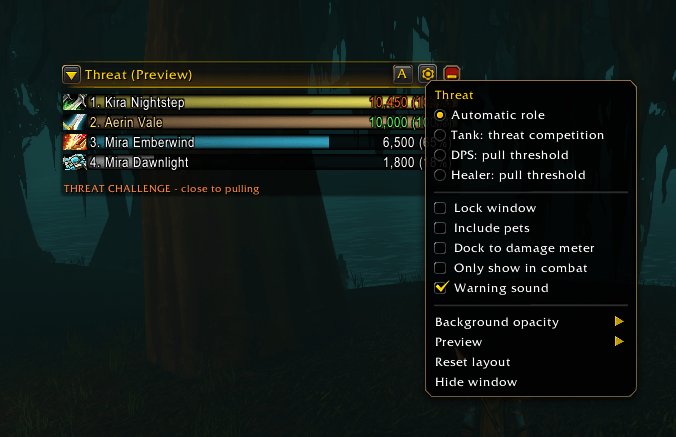
- Flexible positioning. Move and resize the standalone window, or dock it beneath Blizzard's built-in damage meter.
- Readable larger groups. Scroll through participants while your own row stays visible and ranks remain in threat order.
- Preview every role. Try Tank, DPS, and Healer scenarios without entering combat.
No additional addons are required. Ongoing threat polling stops when the window is hidden, minimized, or has no living hostile target.
Getting started
- Install the addon for WoW Forever and enable Simple Threat Forever in your addon list. For manual installation, place the
SimpleThreatForeverfolder inside your client'sInterface/AddOnsfolder. Restart the client if the addon was installed while the game was running. - Select a living hostile target. Rows appear when the game provides threat data for that enemy.
- Use the left arrow or the A/T/D/H button to choose a role. Auto is selected by default. Open the gear menu for settings and previews.
The window starts locked. To move or resize it, open the gear menu and uncheck Lock window. Drag the header to move it, or drag the bottom-right corner to resize. Movement and resizing are available outside combat while undocked. Lock the window again when you are happy with its position.
The rightmost header button minimizes the window. Hover a row for the full character name and additional threat details. Settings are shared across your characters.
With Only show in combat enabled, you can still open the meter outside combat using /st or /st show. Commands that adjust the window or its settings also reveal it. It stays open while you configure it, then resumes automatic hiding after your next combat. /st hide closes it immediately; changing the combat-only setting or reloading also ends the temporary override.
Reading the meter
Each row shows raw threat (percentage). Large amounts may be abbreviated when the window is narrow.
| Mode | What the percentage means |
|---|---|
| DPS / Healer | Each participant's progress toward pulling aggro. 100% is the pull threshold, accounting for the game's range adjustment. |
| Tank | Each participant's raw threat compared with yours. Your threat is 100%. The summary shows your lead or deficit against the strongest observed challenger. |
| Auto | Uses your assigned group role. Without an assigned role, it infers Tank or DPS from the observed aggro holder. Choose Healer manually if your group has not assigned that role. |
Rows rank by comparable raw threat when available. Someone can have more raw threat than the tank without having pulled aggro yet. Bars stop at 100%, while the text can show higher percentages. Your row has a gold name; in Tank view, your numbers are green while you hold aggro.
The meter tracks your selected enemy, so changing targets changes the threat table. Healing threat is included for that enemy; it is not a separate healing total or an alert for every mob in the pull. If the game withholds numbers, the meter shows available status information or an unavailable marker instead of guessing.
Alongside Blizzard's damage meter
Enable Blizzard's built-in damage meter, then select Dock to damage meter in the gear menu. The threat window attaches below its primary window and follows its movement, width, scale, and visibility. Turn docking off to return to your standalone position.
When the built-in meter is available, Simple Threat Forever also follows its row height and spacing, including when the two windows are placed side by side. Threat remains in its own companion window.
Useful commands
/st, /stf, and /simplethreat all work with the same commands.
| Command | Action |
|---|---|
/st | Show or hide the window. |
/st show | Open and expand the window, even outside combat. Use /st hide to hide it explicitly. |
/st mode auto | Choose a role. Replace auto with tank, dps, or healer to select it yourself. |
/st test healer | Preview a role. Also accepts tank or dps. |
/st test off | End the preview. Entering combat also ends it automatically. |
/st dock on | Dock beneath Blizzard's damage meter. Use off to undock. |
/st sound on | Enable warning sounds. Use off to disable them. |
/st reset | Restore the window position, show it, and turn docking off. |
/st help | List all commands, including size, opacity, and warning settings. |
Developed by m1kas.
You must be logged in to leave a comment.