
SelfGlow
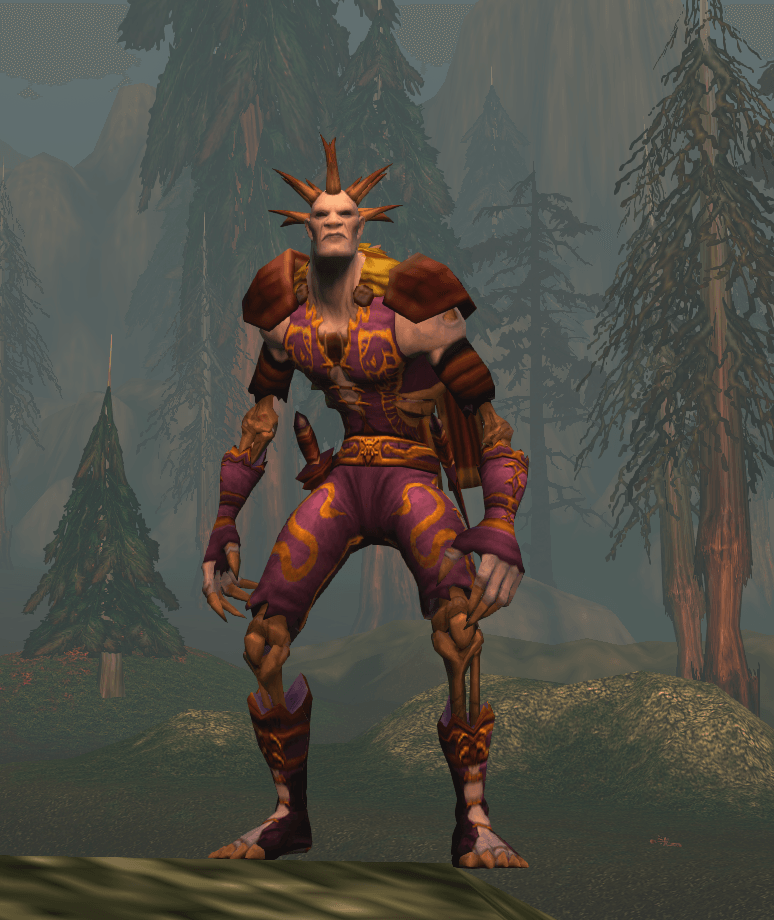
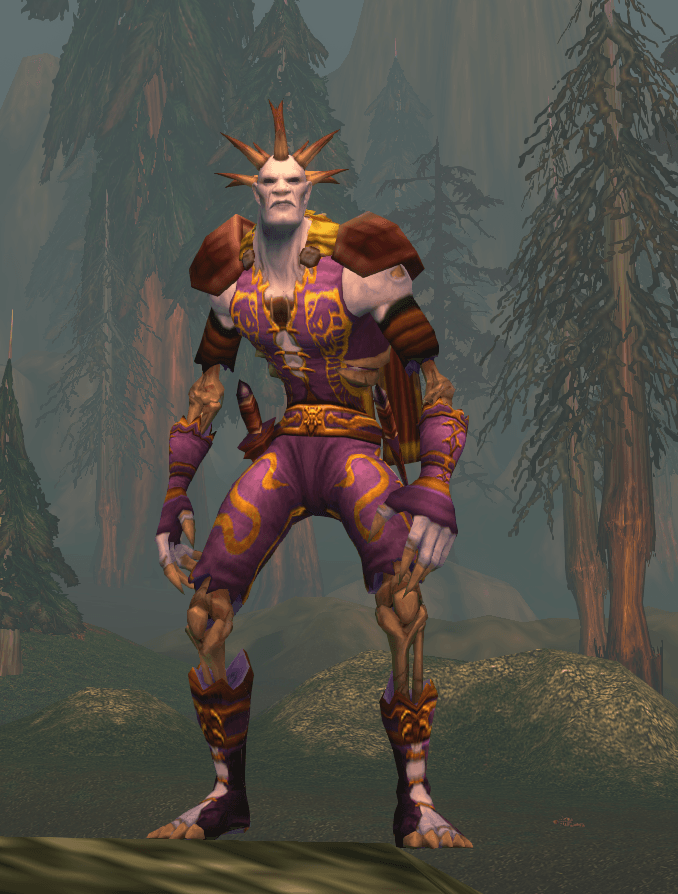
Persistent self-highlight in game so you can see your character in greater detail no matter the lighting.
Details
Expansion
 Forever
 Categories
Developers

Having issues?
SelfGlow
Keeps the mouseover glow on your character at all times, the same highlight you get when you hover over your own portrait.
How it works
SelfGlow places an invisible full-screen frame behind your UI that counts as hovering over you, so the glow stays on while you play. Clicks pass straight through it to the world.
Camera mode (default Alt+F11)
The game switches the glow off the moment you press a mouse button on the world. Press Alt+F11 to switch on camera mode, and Left drag keeps the glow instead: SelfGlow turns the camera itself, so you stay lit. The pointer is hidden while you drag, and the turn keeps going if the pointer reaches the edge of the screen. After you let go, the camera swings back behind you the way it does after a normal drag, following your Camera Following Style setting (Options > Controls).
While camera mode is on, left clicks on the world don't target or interact. Press Alt+F11 again to switch it off. It works in combat.
Right click is always the game's own, so right drag steers your character as usual. The glow drops while you hold it and comes back when you let go.
Tooltips (default =)
Because the glow is the game's mouseover, things you point at don't show their tooltips or cursor icons. Hold = to see them: SelfGlow steps aside, and whatever is under the pointer shows its tooltip, cursor icon and highlight as usual. Your glow comes back when you let go.
Hide UI (default Alt+Z)
The game's own Hide UI switches the glow off. SelfGlow's Hide UI hides your interface and the pointer while keeping you lit. Press it again to bring both back.
Keys
All three keys can be changed under Options > Key Bindings > SelfGlow. SelfGlow only sets a default key if it's free (Alt+Z may also replace the game's own Hide UI).
Commands
/selfglow turns the glow on or off (out of combat).
/selfglow hideui does the same as the Hide UI key.
/selfglow speed 1.5 sets the camera mode turn speed to 1.5 (default is 1).
/selfglow flipx and /selfglow flipy reverse the left/right or up/down direction of the camera mode turn.
Notes
While the UI is hidden it can still be clicked, and moving the pointer over an invisible bar briefly drops the glow.
On Mac keyboards, F11 may be a volume or Show Desktop key. If Alt+F11 does nothing, pick another key in Key Bindings.
Tested on Mac. Windows should work the same but hasn't been tested yet, so feedback is welcome.
You must be logged in to leave a comment.