


Details
Expansion
Developers

Having issues?
QuestTogether
Quest progress, party quest comparisons, sharing shortcuts, and nearby players. All in one addon.
QuestTogether helps you keep track of what your friends are doing while you quest. See objective progress above nearby players, find out who still needs a quest, share eligible quests with your party, and spot other QuestTogether users on your maps and friendly nameplates.
Use it with a regular questing group, a friend leveling an alt, or other QuestTogether players you meet along the way. Choose which updates matter to you and where they appear.
Join the QuestTogether Discord for feedback and support
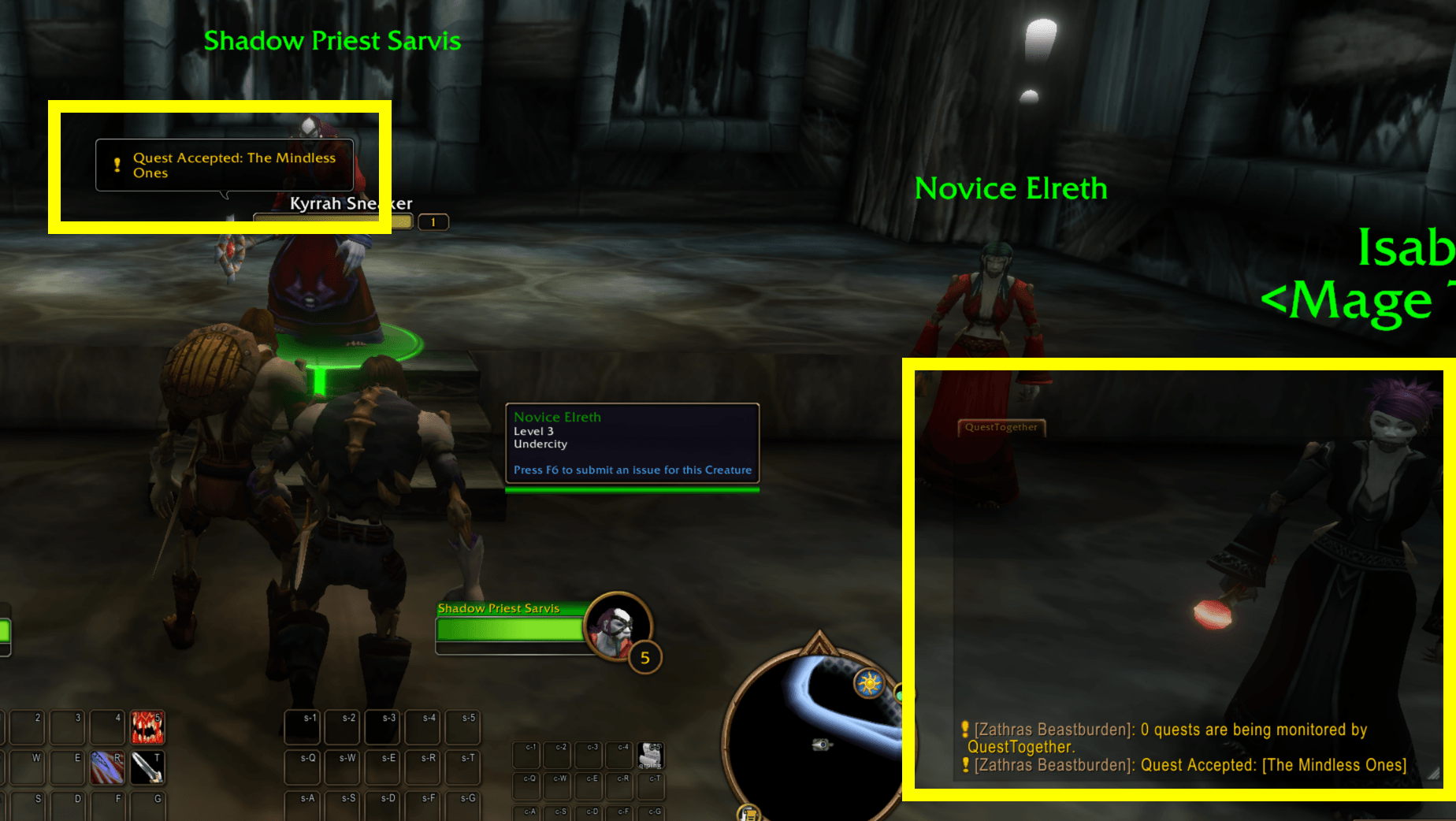
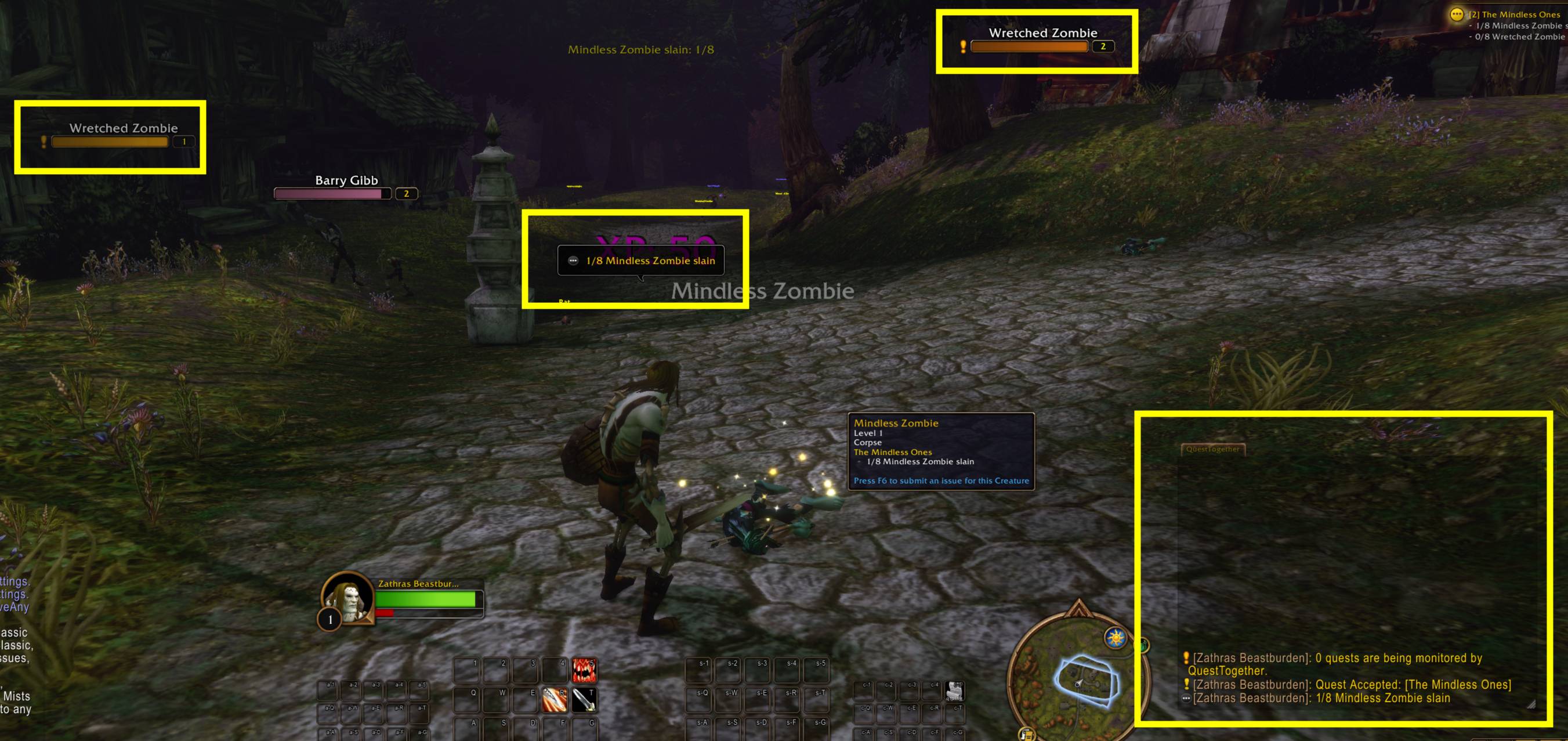
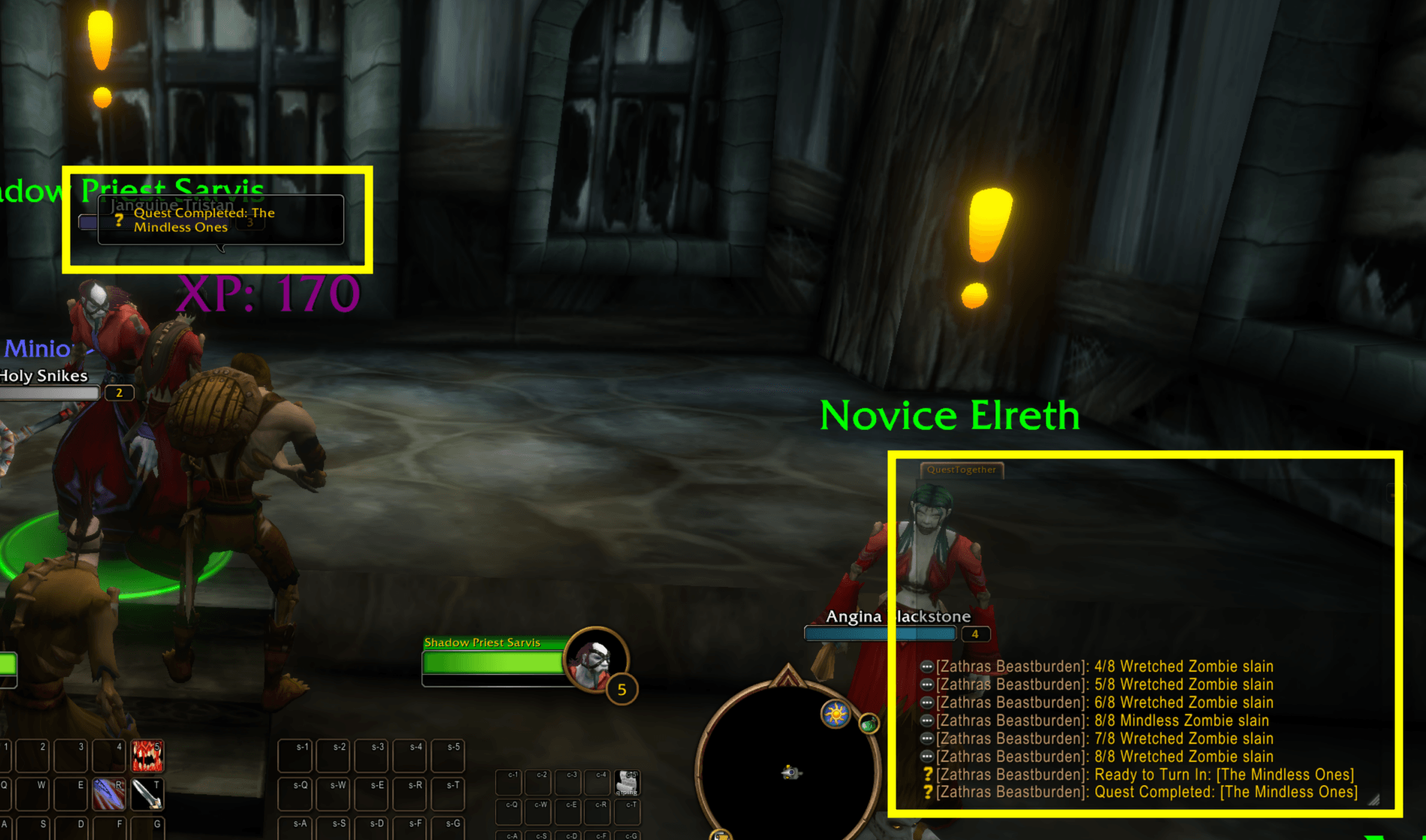
Follow quest progress as it happens
QuestTogether exchanges quest updates with other users of the addon and displays them on your own client. Keep track of the full questing cycle:
| Quest activity | Updates |
|---|---|
| Regular quests | Acceptance, objective progress, ready to turn in, completion, and removal |
| World quests | Entering or leaving an objective area, progress, and completion |
| Bonus objectives | Entering or leaving an objective area, progress, and completion |
Turn individual event types on or off under What To Announce. Those choices control the corresponding updates you send and display.
Choose Party Only or Party & Nearby Players to control whose progress you see. You can keep things focused on your group or enjoy updates from other QuestTogether players nearby.
Put updates where you want them
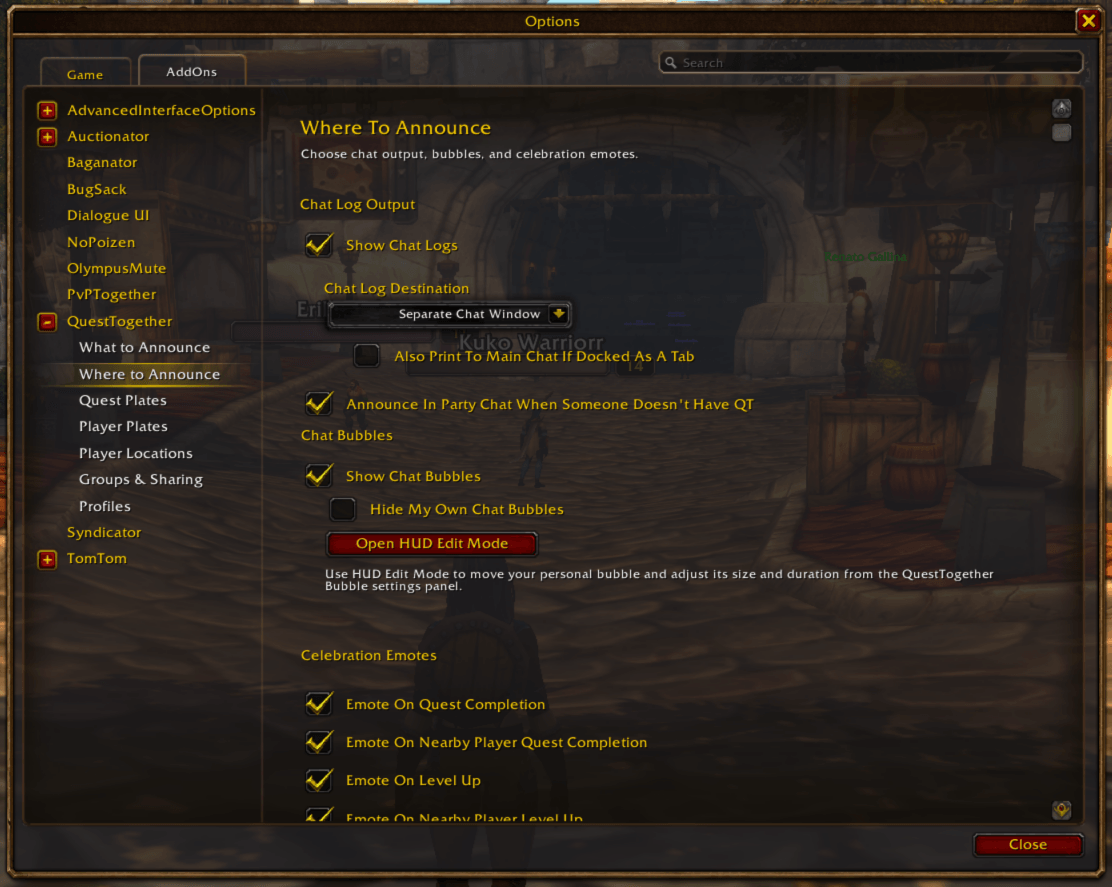
Use chat bubbles, chat logs, or both.
Chat bubbles show updates above nearby players when their nameplates are available. Your own updates appear at a personal bubble anchor that you can position through HUD Edit Mode. The QuestTogether Bubble settings let you adjust bubble size and display duration.
You can hide your own bubbles while continuing to send your progress to other players.
Chat logs can go to the main chat window or a separate QuestTogether window. Keep that window docked as a tab or float it beside your other UI. If it is docked, an optional setting also prints updates to main chat; floating windows keep their output separate.
Switch the log destination from settings or directly from QuestTogether's player, quest, and minimap menus.
Compare your party's quests
Open Party Quest Compare with /qt compare, or choose Compare Party Quests from the minimap or quest-name menu.
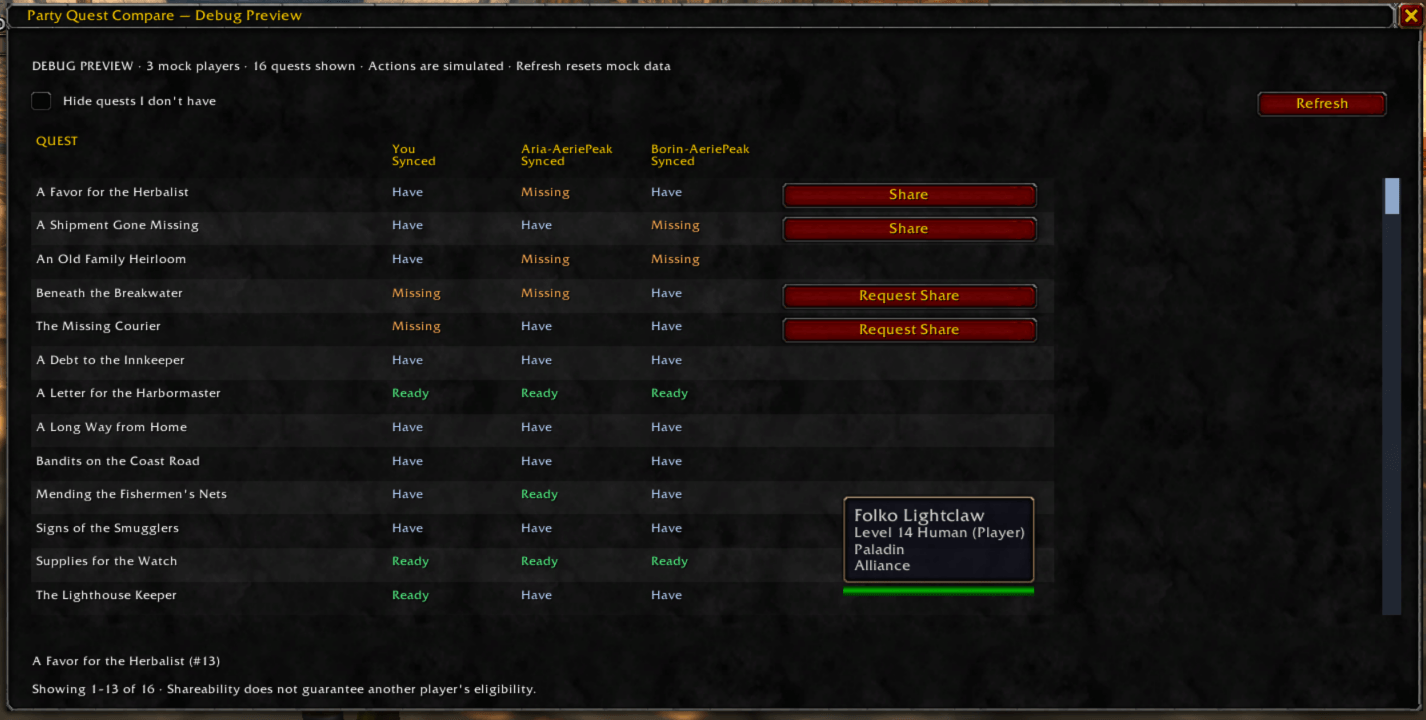
The movable comparison window uses familiar WoW styling, with each quest on one row and each group member in a column. Text and color show whether a player has the quest, is ready to turn it in, or is missing it. Loading and Unknown distinguish an unanswered request from a confirmed missing quest.
- See the combined quest lists by default, including quests you do not have.
- Check Hide quests I don't have to focus on your own quests. The choice is saved in your profile.
- Use Refresh to request updated quest lists from other players. Your own list updates as your quest log changes.
- Hover quest rows for the full title, quest ID, and the selected owner for a share request when applicable.
You can also compare with one person. Choose Compare Quests from a player's name or map-dot menu to open a comparison between just you and that player. This includes reachable QuestTogether users outside your party, making it easier to decide whether you should quest together.
Share quests with fewer steps
The comparison window puts sharing actions beside the quests that need them:
- Share appears beside an eligible quest you own when another member is known to be missing it.
- Request Share lets you ask an eligible party member for a shareable quest you do not have.
- You can also share an eligible quest directly from its name menu in a QuestTogether chat entry.
Incoming requests ask for confirmation by default. The owner sees who is asking and which quest they want, then chooses Share or Decline.
For regular questing partners, check Always allow party share requests before confirming. You can change that preference at any time under Miscellaneous in settings. This automatically approves eligible requests from any current party member; the recipient still handles WoW's normal quest-acceptance prompt.
Sharing is per quest and requires a party together. WoW's normal shareability and recipient eligibility rules still apply. A share attempt does not guarantee that another player can receive or accept the quest, and unavailable actions explain why they cannot be used.
Find QuestTogether players on your maps
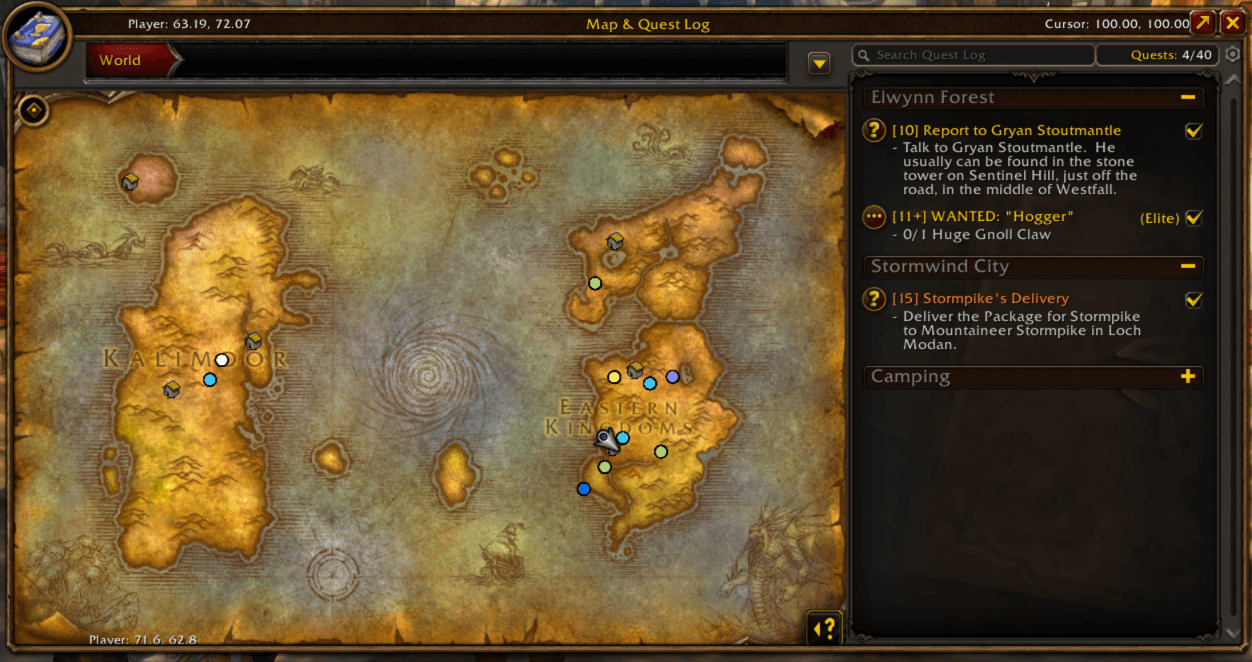
Other QuestTogether users appear as small class-colored dots on the world map and minimap when location sharing and viewing are enabled.
Hover a dot to see the player's name, faction, race, class, and level, when available. Click it to open the player context menu to whisper, invite, add friend, or ignore them.
The Player Locations settings give you four independent switches:
| Setting | World map | Minimap |
|---|---|---|
| Share my location | On/off | On/off |
| Show other players | On/off | On/off |
All four switches start enabled. You can share on one map, both, or neither, and control what you see independently. Both sharing switches off also removes location details from your quest announcements and ping replies.
Locations update periodically, and stale reports expire. Both players need a version that supports location sharing. A dot represents a recently reported location; it does not guarantee that the player is in your phase or layer.
Spot quest objectives on nameplates
Quest Plates adds an optional quest icon to relevant Blizzard nameplates and an optional health-bar tint for quest objectives.
Choose Left, Right, Top, or Prefix placement. Prefix places the icon before the unit's name; Left is the default. Choose your preferred quest health color, reset it to the default, or turn the tint off while keeping icons.
The settings preview shows your choices using the current WoW nameplate style. Decorations follow available quest-objective information, including unfinished party objectives exposed by the game, and update as that information changes.
Recognize nearby QuestTogether users
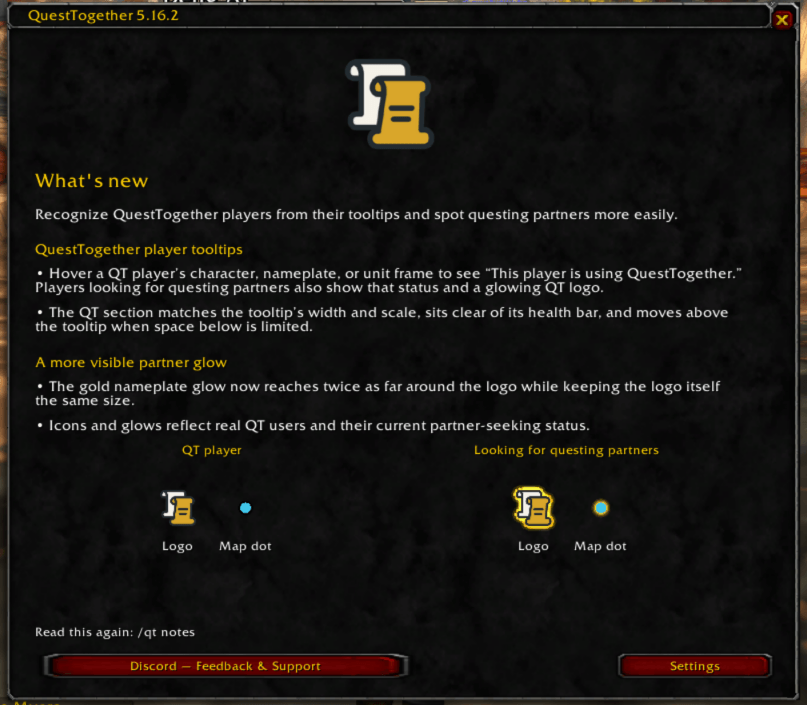
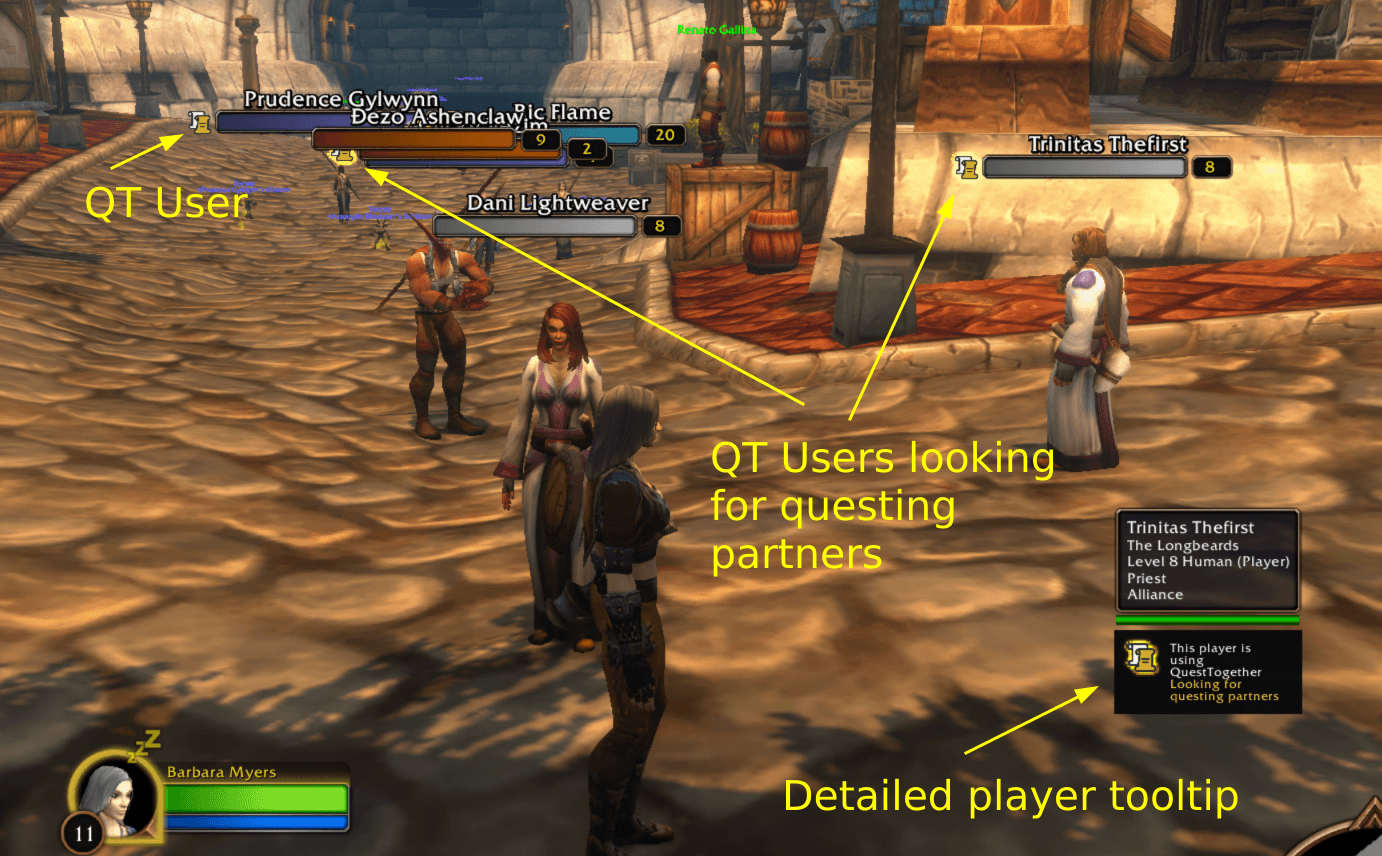
Player Plates displays the QuestTogether scroll logo beside friendly players who are using the addon.
Enable friendly nameplates in WoW, then choose Left, Right, Top, or Prefix placement in QuestTogether's Player Plates settings. Player icons start enabled with Left placement, and have their own preview and visibility toggle.
Player icons leave health-bar colors alone. Inactive and ignored players are hidden.
Quest and player decorations follow the addon's open-world nameplate policy. Instances, unavailable nameplates, and game restrictions can limit their display.
Act directly from chat
Left-click or right-click linked names in QuestTogether's log to open their menus.
Player-name menus provide Invite, Whisper, Add Friend, Ignore/Unignore, and Compare Quests, plus the shortcut to move QuestTogether logs between main and separate chat windows.
Quest-name menus provide:
- Status — print the quest's local status and shareability when available.
- Share — share an eligible quest you currently own with your party.
- Open in Quest Journal — open that quest's journal entry when it is in your log.
- Compare Party Quests — open the whole-party comparison.
- The same shortcut to move QuestTogether's logs.
Celebrate together
QuestTogether can play celebration emotes when you complete quests or gain a level, and respond to nearby QuestTogether players' celebrations.
There are four separate toggles under Miscellaneous: your quest completions, nearby players' quest completions, your level-ups, and nearby players' level-ups. Nearby reactions respect your player-scope setting. World quest and bonus-objective completions participate in quest-completion celebrations.
Keep familiar controls close by
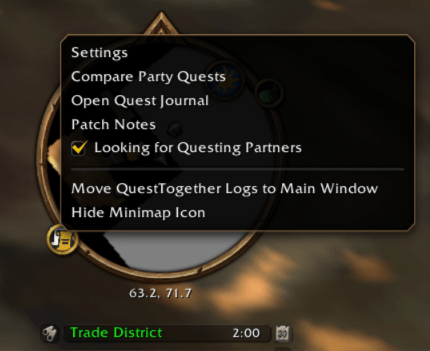
The draggable QuestTogether minimap button opens a menu with:
- Settings
- Compare Party Quests
- Open Quest Journal
- Patch Notes
- Move QuestTogether Logs to Separate Window, or back to Main Window
- Hide Minimap Icon
You can drag the button around the minimap or hide it. Hiding it prints a reminder that it can be restored through Miscellaneous → Show minimap icon in /qt options.
Make each character feel right
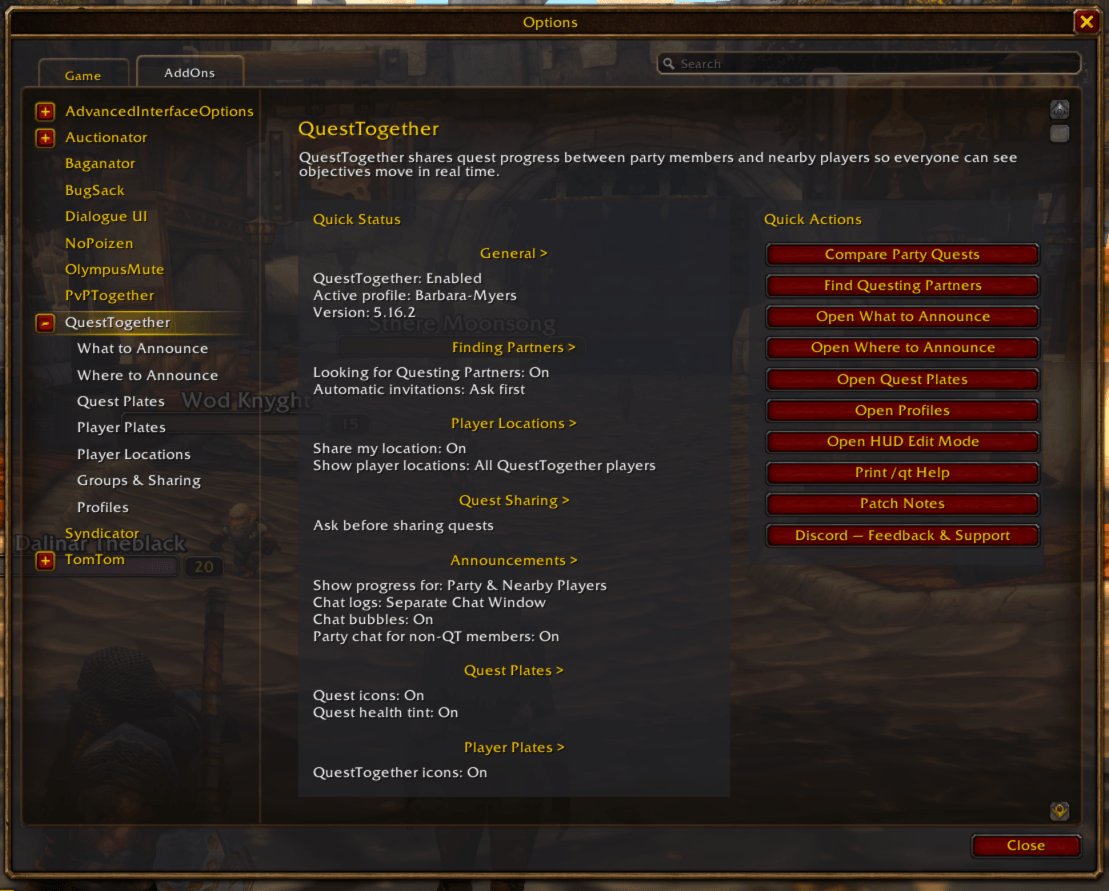
QuestTogether's settings are organized into What To Announce, Where To Announce, Quest Plates, Player Plates, Player Locations, Miscellaneous, and Profiles.
Each character starts with its own profile assignment. Switch profiles, create a new one, copy settings from another profile, reset the active profile, or delete a profile that is not active. Use different setups for different characters, or assign a shared profile where you want the same preferences.
The main settings page includes a quick status overview and shortcuts to common settings, HUD Edit Mode, rescanning the quest log, help, patch notes, and Discord support.
WoW's ignore list is respected across new quest logs, bubbles, player dots, and player icons. Ignoring someone also clears their active visuals and cancels pending comparisons and share requests involving them. Previously printed chat history remains in your chat window.
See what's new in-game
A welcome and patch notes window introduces QuestTogether and highlights the latest changes. It opens on first use and after a major or minor version upgrade. Patch releases do not automatically reopen it.
Revisit the notes from the minimap menu, main settings page, or /qt notes. The window includes shortcuts to settings and our Discord for feedback and support tickets.
Getting started
- Install QuestTogether and have your questing partners install it too.
- Click the minimap scroll icon or type
/qtto open settings. - Choose the announcements and display options you want. Review Player Locations if you want to change the default sharing and viewing settings.
- Enable the appropriate WoW nameplates for quest and player icons. Use HUD Edit Mode if you want to reposition your personal bubble.
- Start questing. Open
/qt comparewhenever you want to check everyone's quest lists.
QuestTogether exchanges its updates through addon communication. Other players need QuestTogether to receive those updates, and comparison data depends on a responding peer. The Party Only progress filter controls displayed announcements; location sharing and viewing have their own independent settings.
The addon bundles its required library, so no separate library download is needed. The package includes client adapters for Retail, Forever, Era/Hardcore/Season of Discovery, Anniversary/Burning Crusade, Mists Classic, and Titan Reforged; individual features depend on the APIs available in your client. Nameplate enhancements are built around Blizzard nameplates, so replacement nameplate addons may affect their appearance or availability.
Useful commands
| Command | Action |
|---|---|
/qt or /qt options | Open settings |
/qt compare | Open Party Quest Compare |
/qt notes, /qt changelog, or /qt patchnotes | Open welcome and latest patch notes |
/qt enable / /qt disable | Enable or disable addon runtime behavior |
/qt scan | Rescan your quest log |
/qt get <option> | Read an option value |
/qt set <option> <value> | Change a boolean option using on/off or true/false |
/qt help | Show normal command help |
/qt help debug | Show diagnostics, tests, and preview commands |
For troubleshooting, QuestTogether includes a searchable, filterable debug window (/qt debug or /qtd), copyable diagnostics (/qt diagnostics [questID]), and an in-game test suite (/qt test). /qt ping requests metadata from other reachable QuestTogether clients. Local bubble previews and /qt compare debug let you preview UI with test data; comparison previews do not share quests.
Feedback and support
Join the QuestTogether Discord to suggest features, share feedback, or open a support ticket. You can also find a copyable invite through Discord — Feedback & Support in the welcome window and main settings page.
When reporting a problem, include your game client, QuestTogether version, what happened, and how to reproduce it. Screenshots and copied diagnostics are helpful. To copy debug output, open /qt debug, choose Select All, and press Ctrl+C.
Please also note that I personally have toons on Retail and Forever but don't have the space to install all Classic clients. While QT should in theory work in Classic, it has not been properly tested by me with regular gameplay. If you are a Classic player and encountering issues, please follow the reporting steps above so I can properly debug any issues you encounter 💚
You must be logged in to leave a comment.