
QuestKing2 = Reborn
Replacement for default Quest frame
Details
Expansion
 Forever
 Categories
Developers

Having issues?
QuestKing
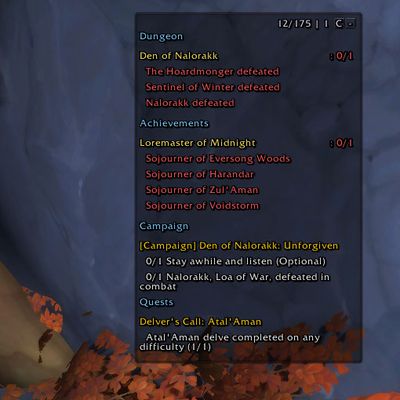
QuestKing is a lightweight, customizable objective-tracking addon for World of Warcraft. It replaces the standard Blizzard Objective Tracker with an independent, movable tracker that gives players greater control over how quests, achievements, objectives, and notifications appear on screen.
The tracker includes saved character settings, multiple viewing modes, customizable styling, adjustable scale and transparency, collapsible sections, and flexible positioning. Its appearance and behavior can be configured through the in-game options or supported slash commands.
Features
QuestKing supports a broad range of tracked content, including:
- Standard and campaign quests
- World quests and watched world quests
- Task and bonus objectives
- Special assignments and prey quests
- Tracked achievements
- Scenario and dungeon objectives
- Raid-style objective blocks
- Challenge objectives and timed content
- Super-tracked quests and navigation updates
- Special quest-item buttons
- Quest timers and progress bars
- Quest reward information
- Automatic quest offers and completion prompts
- Notifications for looted quest-starting items
QuestKing can display quests, achievements, or both within the same tracker. Separate headers and collapsible sections help keep tracked content organized and readable.
The addon uses compatibility-focused API handling and conservative integration methods to support multiple World of Warcraft clients while minimizing resource usage and reducing the risk of secure-interface taint.
In-Game Tracker Controls
View Mode Button — Q/A/C
- Left-click: Switch between Quest (Q) and Achievement (A) views.
- Right-click: Switch to Combined (C) view, which displays quests and achievements together under separate headers.
Collapse Button — +/−/×
Left-click: Expand or collapse the main tracker content.
When collapsed, regular tracked quests and achievements are hidden. Important contextual content—including dungeon objectives, quest notifications, and bonus objectives—can still appear.
Right-click: Fully hide all tracker content (× mode).
Shift + Left-click: Cycle through alternate tracker positions when position presets are enabled.
Mouse wheel: Adjust the tracker backdrop visibility to improve readability.
Notifications
Notifications include automatic quest offers and looted items that begin quests.
- Left-click: Open or accept the notification.
- Right-click: Dismiss the notification.
Section Headers
- Left-click: Expand or collapse the selected section.
Quests and Achievements
- Left-click: Open the selected quest or achievement.
- Right-click: Set the selected quest as the actively super-tracked quest.
- Shift + Left-click with the chat input open: Insert a link to the selected quest or achievement into chat.
- Shift + Left-click with the chat input closed: Open the quest in Classic Quest Log when that addon is installed.
- Alt + Left-click: Show or hide the selected quest’s objectives.
- Alt + Right-click: Stop tracking the selected quest or achievement.
You must be logged in to leave a comment.