

Offset
Customizable camera presets for TBC Anniversary, with adjustable shoulder positioning, in-game previews, and normal mouse control.
Details
Expansion
 Forever
 Categories
Developers

Having issues?
YOUR CAMERA. YOUR VIEW.
Find the view that suits you. Choose from nine camera presets, adjust your shoulder position, or create a setup of your own.
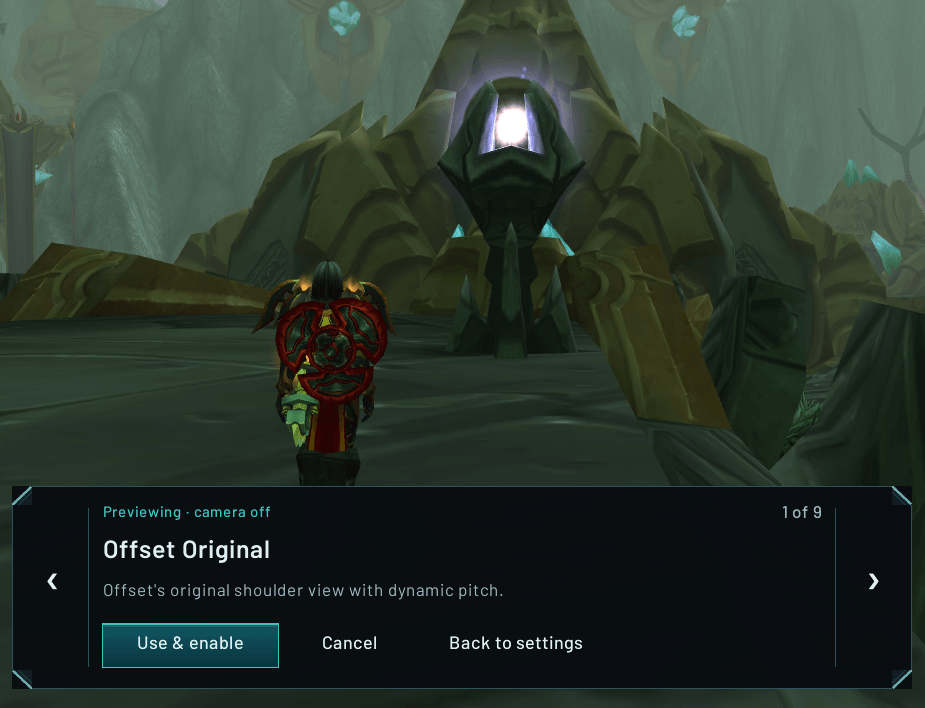
Compare views directly in the game world with Preview presets—even before turning Offset’s camera on. Browse at your own pace, keep the view you like, or return to your previous camera.
Your cursor stays free, and ordinary right-button camera movement remains under your control.
Made for TBC Anniversary.

Try before you choose
Open Preview presets and use the left and right arrows to compare views. The controller shows the current preset’s name and position in the collection.
No countdown. No need to enable your saved camera first.
- Camera currently off? Choose Use & enable to save the previewed preset and turn it on.
- Camera already on? Choose Use preset to keep the view you are previewing.
- Just looking around? Choose Cancel to restore your pre-preview camera where possible, without saving the preview choice.
Back to settings keeps the preview running with its controls inside the settings page. Return to preview brings you back to the game world.
Make it yours
- Nine built-in presets: original and mirrored shoulder views, subtle and wider offsets, centered options, and views with or without dynamic pitch.
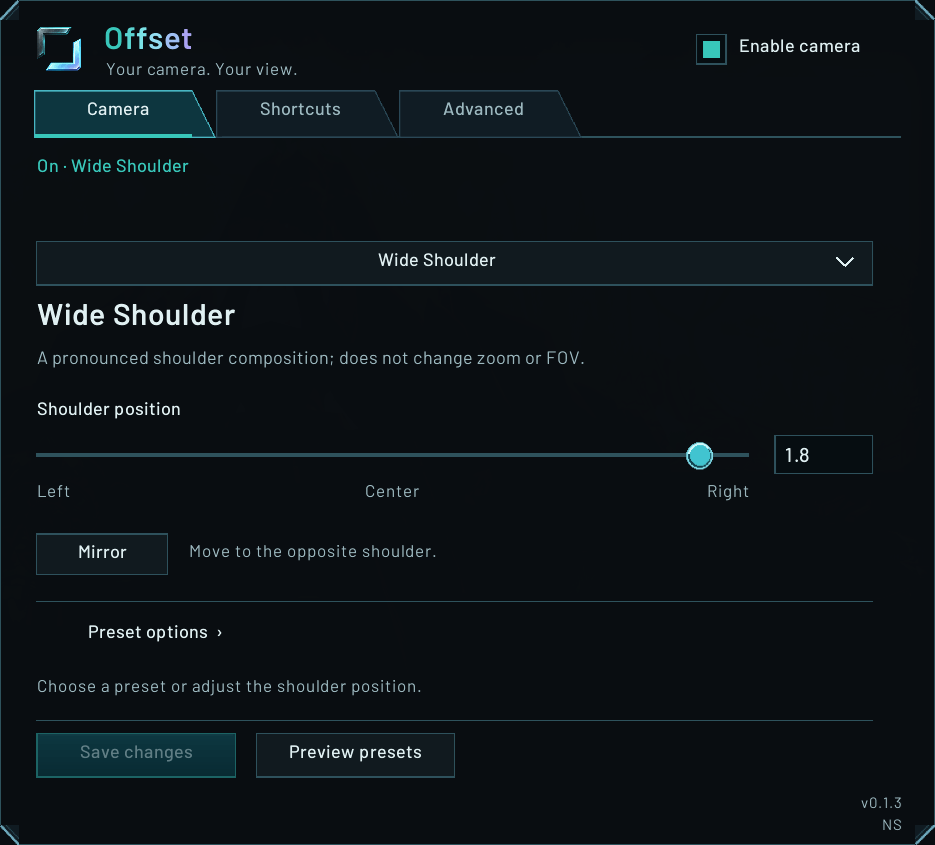
- Shoulder position: adjust the slider or enter a precise value. Use Mirror to move the view to the opposite shoulder.
- Custom presets: save your own configurations, rename them, and remove ones you no longer need.
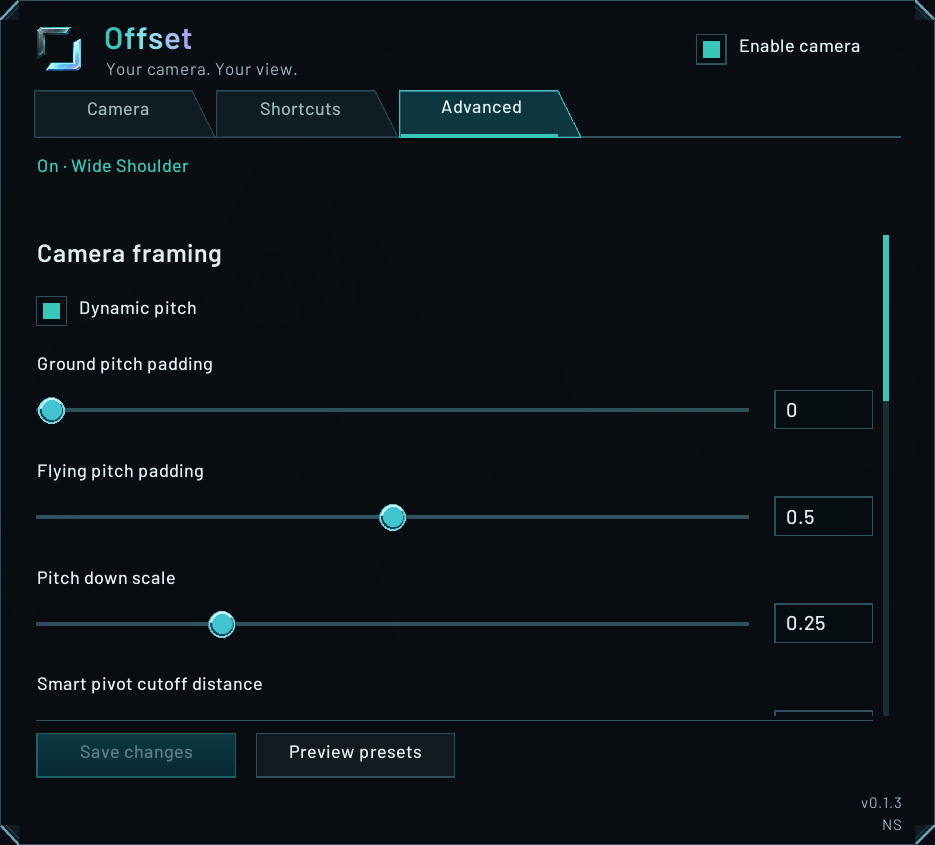
- Camera framing: fine-tune dynamic pitch, ground and flying pitch padding, character centering, and other advanced settings.
- Optional turning speeds: adjust horizontal and vertical rotation speeds independently. Leave speed management off to keep your current speeds.
Your saved view and camera on/off state are remembered per character, including after reloads and logins.
Your shortcuts
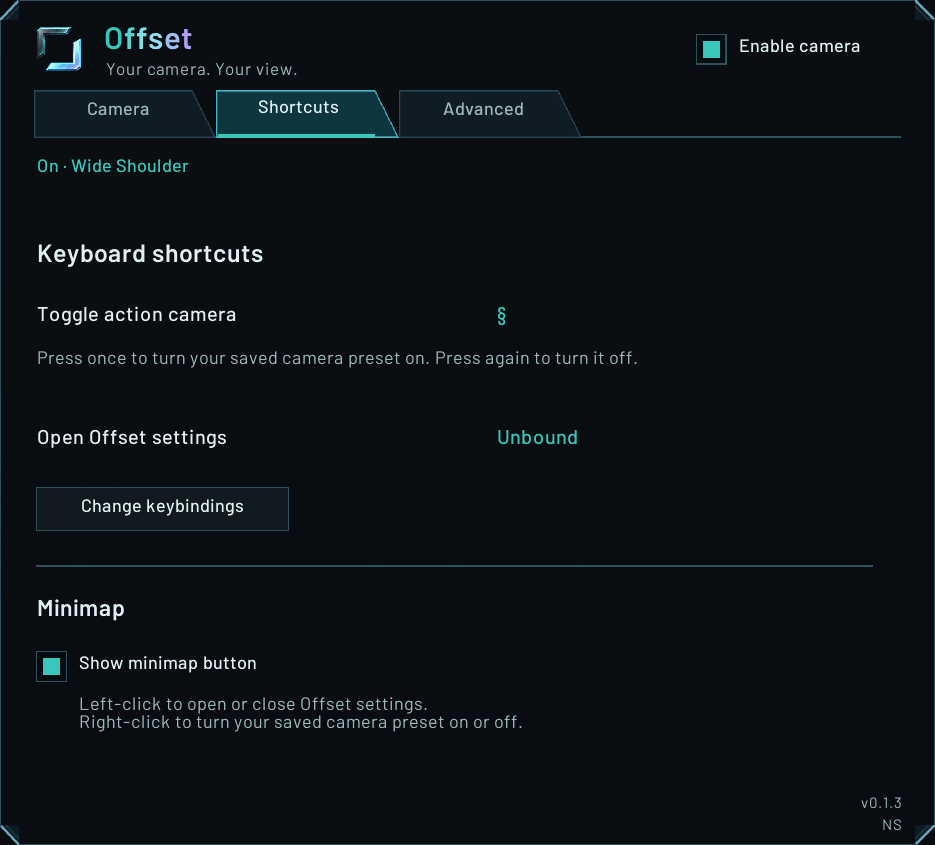
Go to Shortcuts → Change keybindings, then find Offset.
- Toggle action camera: turn your saved view on or off.
- Open Offset settings: open the settings page.
- Adjust shoulder offset left / right: change your saved shoulder offset in 0.1 steps.
All four bindings are optional and start unbound on a fresh setup. Updates preserve existing assignments.
Shoulder adjustments require the camera to be on and work outside combat and preview. Holding a key does not repeat. Adjustments save automatically; unsaved settings edits remain separate.
Minimap: left-click opens or closes settings; right-click toggles the camera. Hide or restore the icon through Shortcuts.
Ready in three steps
Complete your initial setup outside combat.
- Open Offset. Left-click its minimap button, or go to Esc → Options → AddOns → Offset.
- Try the views. Click Preview presets and browse with the left and right arrows—even while Offset’s camera is off.
- Keep your favourite. Choose Use & enable if the camera is off, or Use preset if it is already on.
To make further adjustments, use the Camera and Advanced tabs, then choose Save changes. Use Preset options → Save as new preset to keep a separate custom configuration.
A few things to know
- Unsaved edits stay separate. Switching tabs, reopening settings or toggling the camera does not save your edits. Saving while the camera is off does not turn it on.
- Configure and preview outside combat. Camera toggles take effect after combat ends. Preview browsing, acceptance and shoulder-adjustment shortcuts are unavailable during combat. Blocked shoulder presses are not queued.
- Other camera addons can conflict. Offset blocks camera application and preview while CombatMode or DynamicCam is loaded. Disable the conflicting addon and reload; turning off only its camera module is not sufficient.
- Restoration respects later changes where possible. Offset restores values it changed when they still match its last applied values, preserving detectable changes made elsewhere. Your previous camera may already include an action-camera effect.
- Restore before removing Offset. Use Advanced → Restore previous camera while the addon is still loaded. If restoration remains incomplete, check the diagnostics before disabling or removing it.
No forced mouselook, cursor capture, automatic zoom changes or automatic combat/travel preset switching.
Created by NS.
You must be logged in to leave a comment.