
Malitor’s Magical Bags
A customizable all-in-one bag, bank, and guild bank organizer with powerful rulesets, search, bag management, and shareable layouts.
Details
Expansion
 Forever
 Categories
Developers

Having issues?
Malitor's Magical Bags
Currently supporting WoW Forever! (Mainline version coming soon)
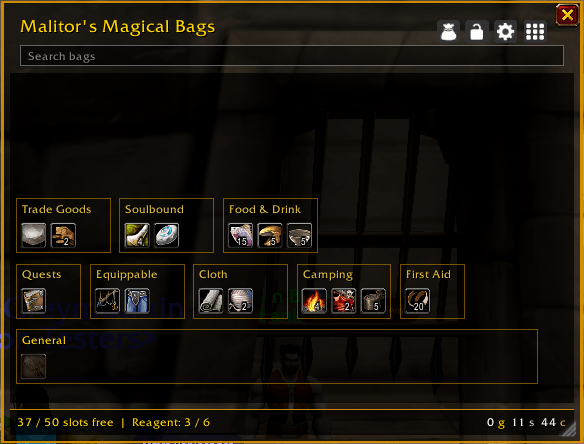
Malitor's Magical Bags replaces the default bag view with one clean, customizable inventory window. It sorts your items into rulesets, keeps empty slots under control, and gives you direct access to your equipped bags.
Your inventory stays useful instead of becoming a long row of mixed items.
Features
Combined Inventory Window
All equipped bags appear in one organized window.
Items are grouped into rulesets instead of being separated by their physical bag. Empty slots appear in the General section, and you can collapse them into a single slot when you do not need to see every empty space.
The window includes:
* Search across all carried items
* Current free-slot count
* Currency display
* Adjustable size and position
* Custom window, content, border, and ruleset colors
* Configurable slot size, padding, borders, and ruleset spacing
Press the backpack key or use the default bag buttons to open Malitor's Magical Bags.
Rulesets and Filters
Rulesets let you decide where items belong.
The included filters cover common inventory categories such as:
* Gathering materials, including Cloth, Herbs, Leather, and Mining materials
* Crafting materials for Tailoring, Blacksmithing, Engineering, Alchemy, Cooking, Leatherworking, and more
* Equipment, including Soulbound items, Bind on Equip items, Bind on Account items, Ammo, and equippable gear
* Consumables such as Potions, Scrolls, Explosives, Bandages, Recipes, Food & Drink, and First Aid supplies
* Miscellaneous items including Reagents, Elementals, Trade Goods, Bags, Quest Items, and Junk
* Camping supplies used by WoW Forever's camping system
Each ruleset can use either match mode:
Any places an item in the ruleset when it matches at least one selected filter.
All places an item in the ruleset only when it matches every selected filter.
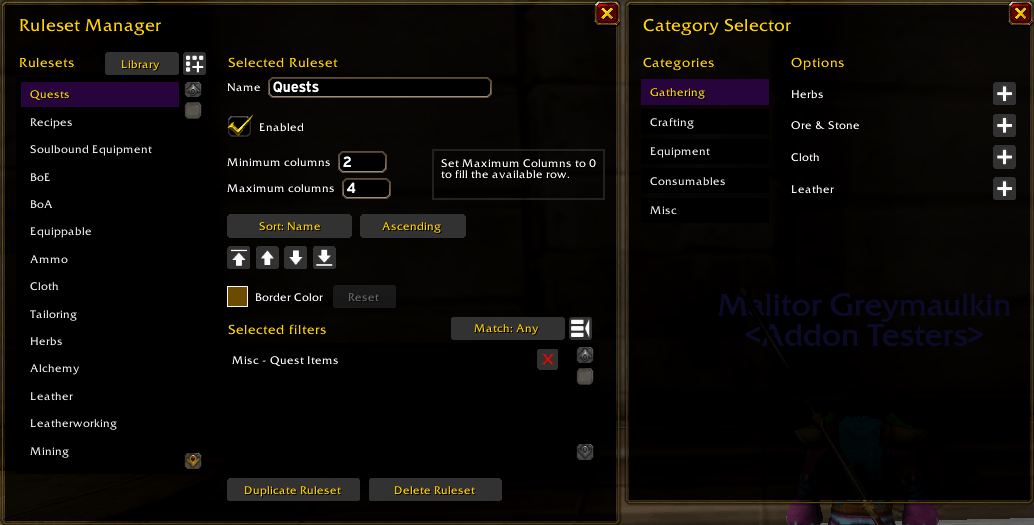
You can also set each ruleset's minimum and maximum columns, sort order, border color, enabled state, and display priority.
Ruleset Manager
The Ruleset Manager gives you full control over your bag layout.
You can:
* Create, duplicate, rename, and delete rulesets
* Move rulesets up, down, to the top, or to the bottom
* Add and remove filters
* Change sort methods and sort direction
* Choose Any or All matching
* Set individual ruleset border colors
* Open the Category Selector without leaving the manager
Tooltips explain what each control does.
Ruleset Library and Share Codes
You can share your rulesets with other players.
The Ruleset Library creates compact share codes that contain ruleset names, filters, layout settings, sort settings, colors, and match modes. Window positions and appearance settings remain local.
Available options include:
* Use Default Rulesets
* Export the selected ruleset
* Export all rulesets
* Copy the generated share code
* Import rulesets without changing current ones
* Replace matching rulesets by name
* Replace every current ruleset
* Remove all rulesets
This makes it easy to save a layout before experimenting, move rulesets between characters, or share a setup with friends.
Bag Changer
The Bag Changer appears below the main bag window.
It shows your currently equipped bags, including your reagent bag. Hover over a bag to highlight every slot from that bag, including empty slots. This helps you see where items are stored before replacing a bag.
The reagent bag is separated from normal bag slots with a small divider.
Bag replacement follows Blizzard's normal bag rules. A bag must be empty before it can be removed.
Bank Support
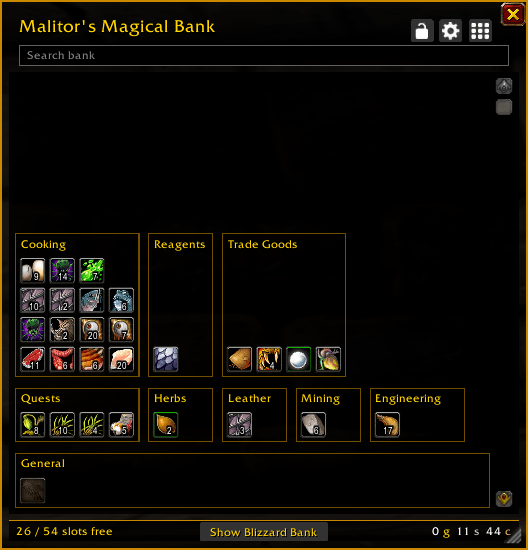
Malitor's Magical Bags also provides custom bank windows.
Character and Account Bank
Visit a bank to open Malitor's Magical Bank.
The bank uses the same rulesets, filters, search field, appearance settings, and layout settings as your main bags. Items refresh after transfers, and right-click transfers, drag and drop, and normal item tooltips continue to work.
When available, you can switch between Character and Account Bank views.
A footer button can temporarily show the Blizzard Bank window for protected actions such as tab purchases or configuration.
Guild Bank
The custom Guild Bank window opens when you access a guild bank.
It supports visible guild bank tabs, item tooltips, permissions information, custom ruleset display, and the same settings and ruleset controls used by the main inventory. A Blizzard Guild Bank button remains available for money, tab purchases, permissions, and other protected actions.
Guild bank features depend on your guild permissions and the tabs available to you.
Appearance and Layout Settings
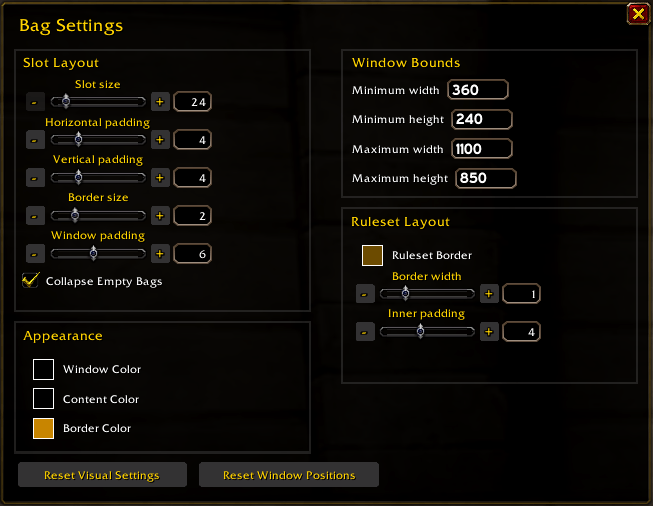
Bag Settings uses Greymaulkin Suite controls for a consistent interface.
You can adjust:
* Slot size
* Horizontal and vertical padding
* Window padding
* Window border size
* Ruleset border width
* Ruleset inner padding
* Empty bag collapse behavior
* Window color
* Content color
* Global border color
* Global ruleset border color
Color swatches use the Suite color picker and include a reset option where appropriate.
Commands
Type the following command to open the bags window:
/malbags
You must be logged in to leave a comment.