

Lumen Forever
Never lose your cursor again: a customizable glowing ring and trail that follow your mouse.
Details
Expansion
 Forever
 Categories
Developers

Having issues?
Lumen
Never lose your cursor again.
Lumen puts a soft ring around your mouse cursor and leaves a fading trail behind it, so you can always find it in a crowded fight, on a big monitor, or against a bright spell effect. It's all yours to style: colour, shape, glow, trail, motion.
There are no bars, buttons or icons on your screen, just the effect. Type /lumen to open the settings.
Built for World of Warcraft: Forever, and the TOC also lists current retail and the Classic flavours.
The ring
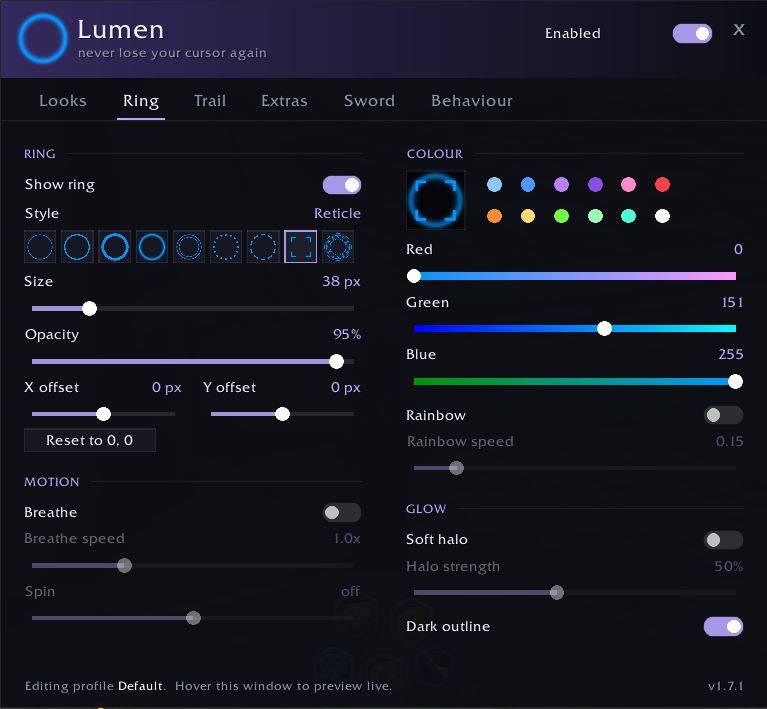
Seven styles: Hairline, Classic, Bold, Soft Glow, Double, Dotted and Dashed, chosen from a row of live previews.
Any colour you like. Drag the red, green and blue sliders, tap one of twelve swatches, or switch on Rainbow and it drifts slowly through every hue.
Make it breathe with a gentle pulse, or set it spinning (Dotted and Dashed look great turning slowly). A soft halo gives it a glow, and a faint dark outline keeps it readable over snow, fire and bright spell effects.
X and Y offset sliders let you move it off the click point, for example over the body of the gauntlet instead of its fingertip.
The trail
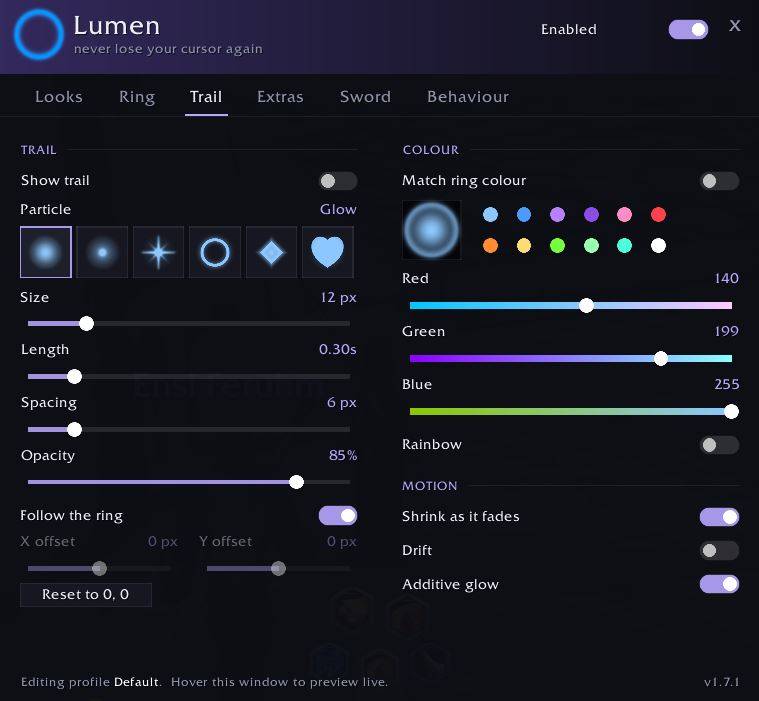
Six particle types: Glow, Spark, Star, Bubble, Diamond and Heart.
Tune how long particles linger, how far apart they sit (a smooth ribbon or a dotted path), their size and opacity. The trail can match the ring's colour, use its own, or turn into a rainbow ribbon where every particle takes the next hue. Particles can shrink as they fade, or drift away like embers. The trail has its own X and Y offset too.
Extras
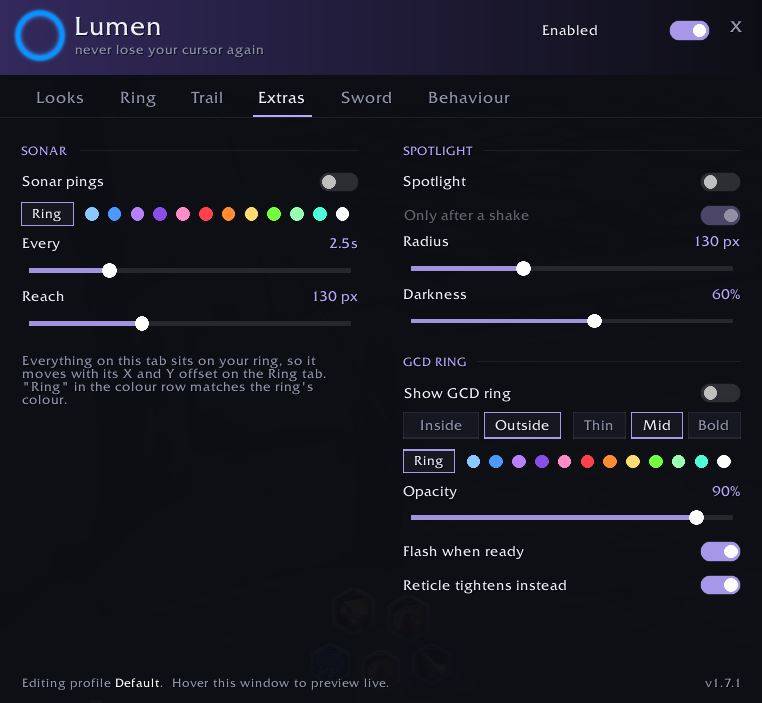
Four more effects, each usable alone or alongside the ring and trail:
- Reticle: corner brackets frame the cursor like a target lock
- Rune Circle: a slowly turning ring of runes
- Sonar: rings ripple outward every few seconds or when you shake the mouse
- Spotlight: dims the game world around your cursor while your UI stays bright, either all the time or just for a moment after a shake
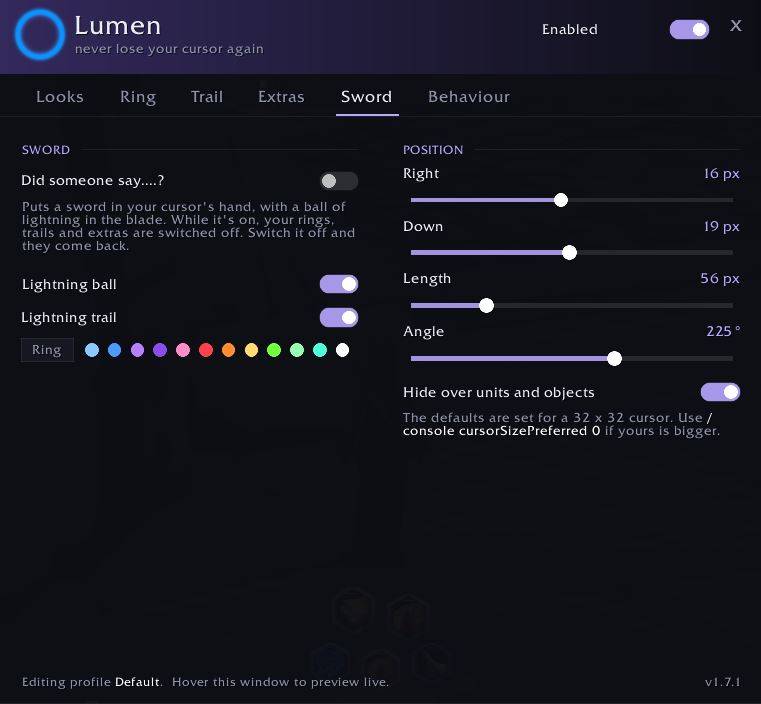
Did someone say….?
Flip one switch on the Sword tab and your cursor's gauntlet is holding a sword, with a crackling ball of lightning in the blade and a jagged lightning bolt trailing behind it as you move. Your rings, trails and extras step aside while it's out and come straight back when you put it away.
The lightning ball and trail can each be switched off, the lightning can take any colour, and the sword's position, length and angle are all adjustable. The defaults are set for a 32 x 32 cursor.
Shake to flare
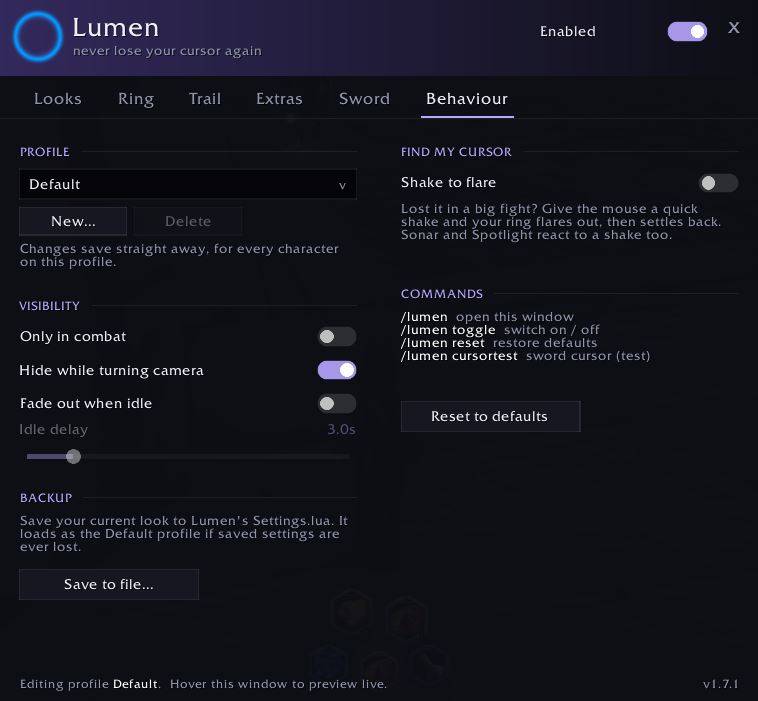
Lost it anyway? Give the mouse a quick wiggle and the ring swells up so you spot it instantly, then settles back. The reticle flies out and snaps back in, and Sonar and Spotlight react too.
Ready-made looks
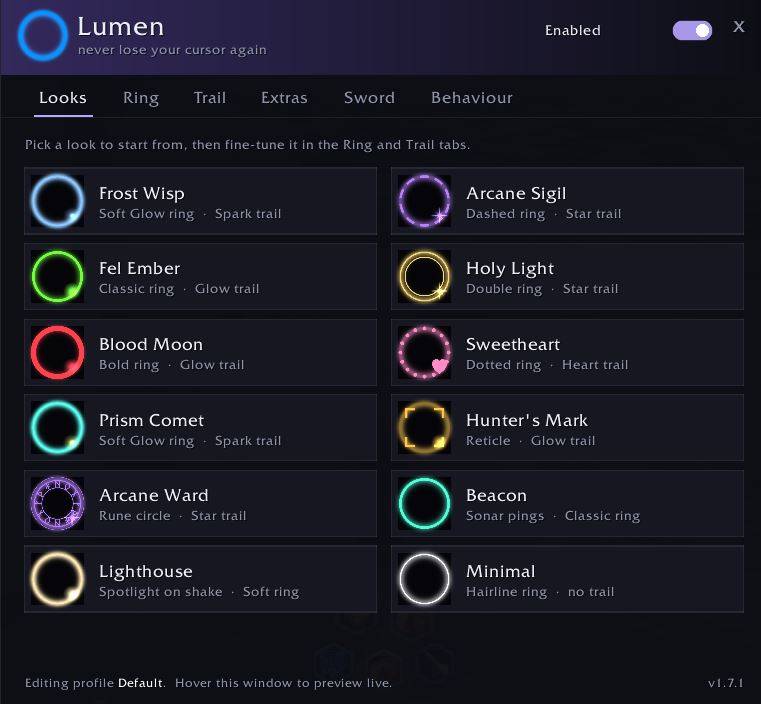
Not sure where to start? Pick one of twelve looks and fine-tune from there:
Frost Wisp · Arcane Sigil · Fel Ember · Holy Light · Blood Moon · Sweetheart · Prism Comet · Hunter's Mark · Arcane Ward · Beacon · Lighthouse · Minimal
Stays out of your way
- Hides while you hold a mouse button to steer the camera, when the real cursor is hidden too
- Can show only in combat
- Can fade out when the mouse sits still, and comes back the moment you move it
Account-wide or per character
By default every character shares one look. Switch on This character only on the Behaviour tab and that character gets its own. It starts from a copy of your current look, and the rest of your characters keep theirs. Copy account look here resets a character back to the shared one.
Commands
| Command | What it does |
|---|---|
/lumen | open the settings window |
/lumen toggle | switch Lumen on or off |
/lumen reset | restore the default look (this character's, if it has its own) |
/lumen cursortest | a small window for lining up the sword with your cursor |
/lumen help | list the commands |
/cursorfx works too.
Backup
Lumen remembers your settings on its own. If you want a backup, press Save to file on the Behaviour tab and paste the text into InterfaceAddOnsLumenSettings.lua. That file is used as your account look if your saved settings are ever lost.
After updating Lumen, fully restart the client rather than using /reload.
Installing
Drop the Lumen folder into InterfaceAddOns.
If you've put a backup in Settings.lua, keep a copy before updating, because the new version comes with a blank one. Your normal saved settings aren't affected.
Bug reports and ideas for new ring or trail styles are very welcome.
You must be logged in to leave a comment.