

Looti – Scrolling Loot Notifications
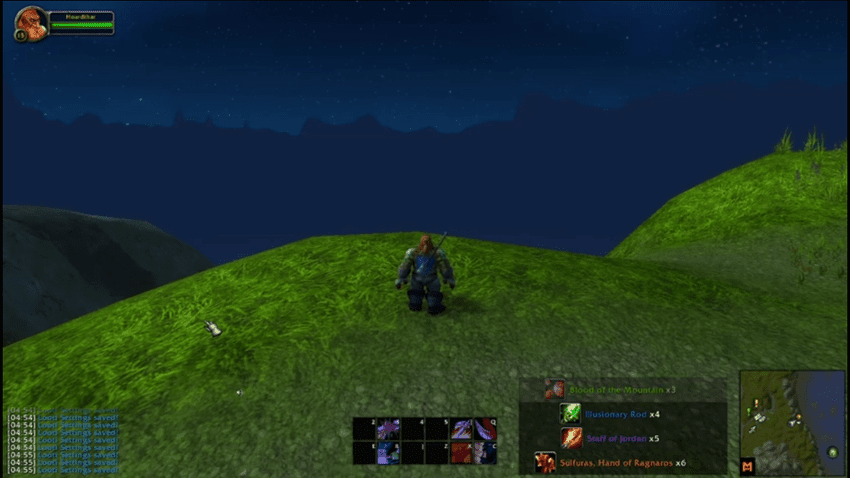
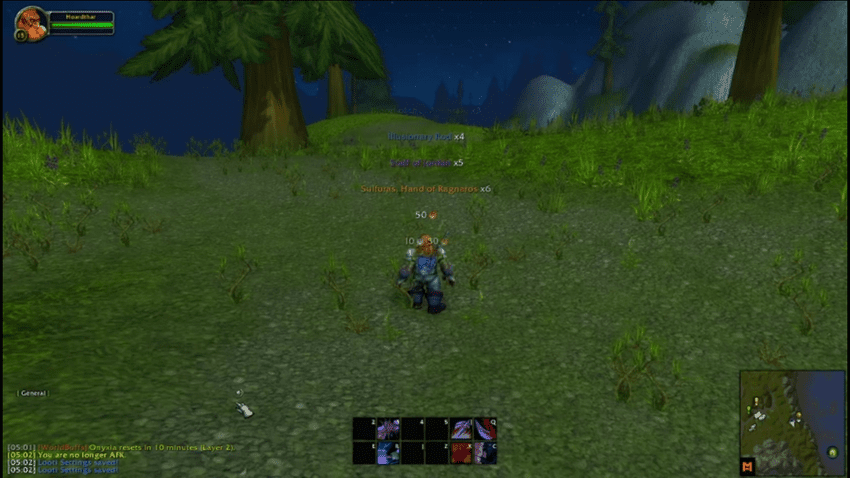
The Looti addon is a customisable scrolling loot notification tool for items and money.
Details
Addon ID:
25107
Addon Version:
4.1.1
Expansion:
1.60
Upload date:
Oct 06, 2026
Last Updated:
Oct 06, 2026
Downloads:
Less than 100
Website:
Source Link
Expansion
 Forever
 Categories
Developers

FinLaFin
Creator
Having issues?
Looti - Loot Notification System
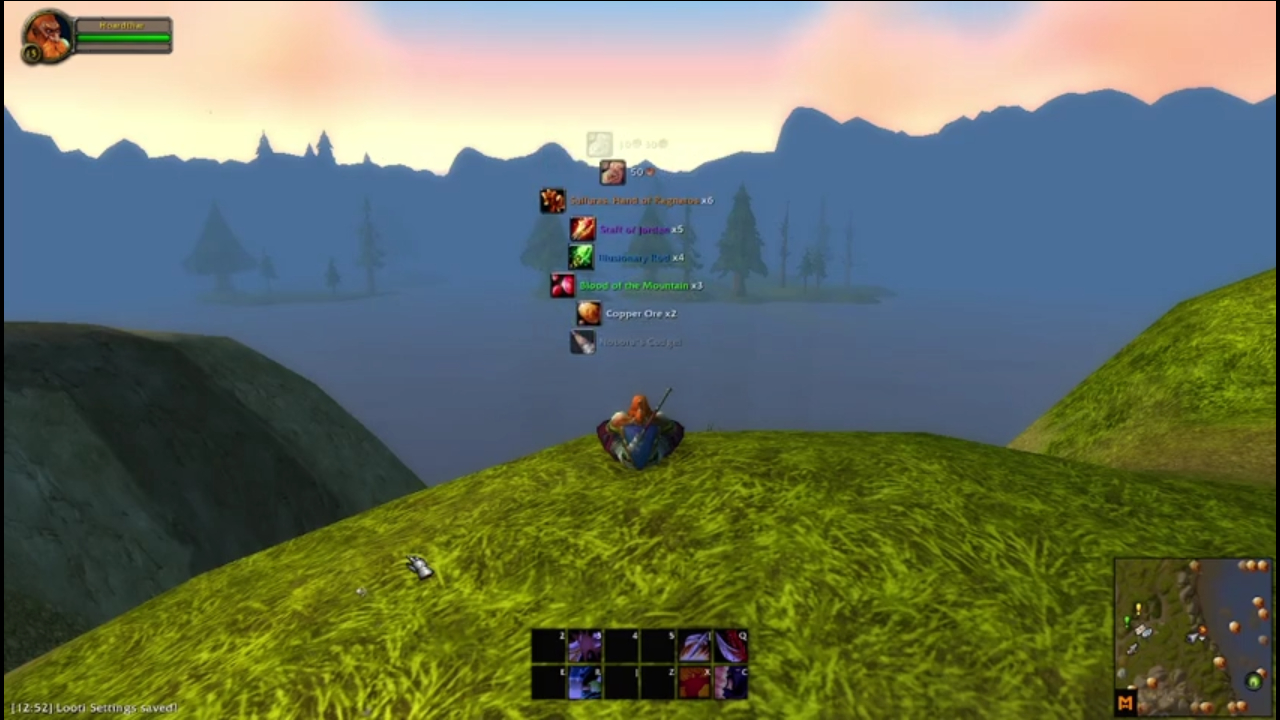
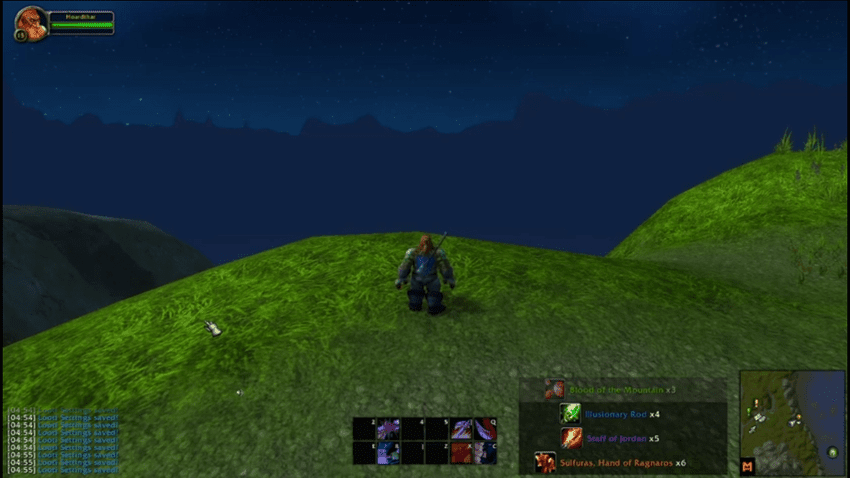
Looti is a small, highly customisable loot notification addon for World of Warcraft. It shows scrolling on-screen loot alerts for every item, currency and coin you loot, so you can see your drops without reading chat. Use the minimum rarity slider to hide junk, whitelist and blacklist items or whole categories, and put the drops you're farming on the watchlist to get a sound, a star and a highlight when they drop. It works on Retail, Classic Era, Hardcore, Mists of Pandaria Classic, Anniversary and WoW Forever, in every client language. It uses the game's own API plus one small library for the settings window, so it costs very little performance and there's not much that can break between patches. I want this project to be as community involved as possible, so please feel free to comment or message me ideas!Happy Looting!
Key Features at a Glance
Moveable & Customisable: Position notifications anywhere with full control over size, transparency, layout, and timingsWatchlist: Add the items you're farming and get a sound, a star and a highlight when they drop
Filtering: Whitelist/blacklist items by ID, link, name or category (gear, consumables, crafting mats, BoE/BoP, and more)
Rarity Control: Set a minimum item quality so junk stays hidden
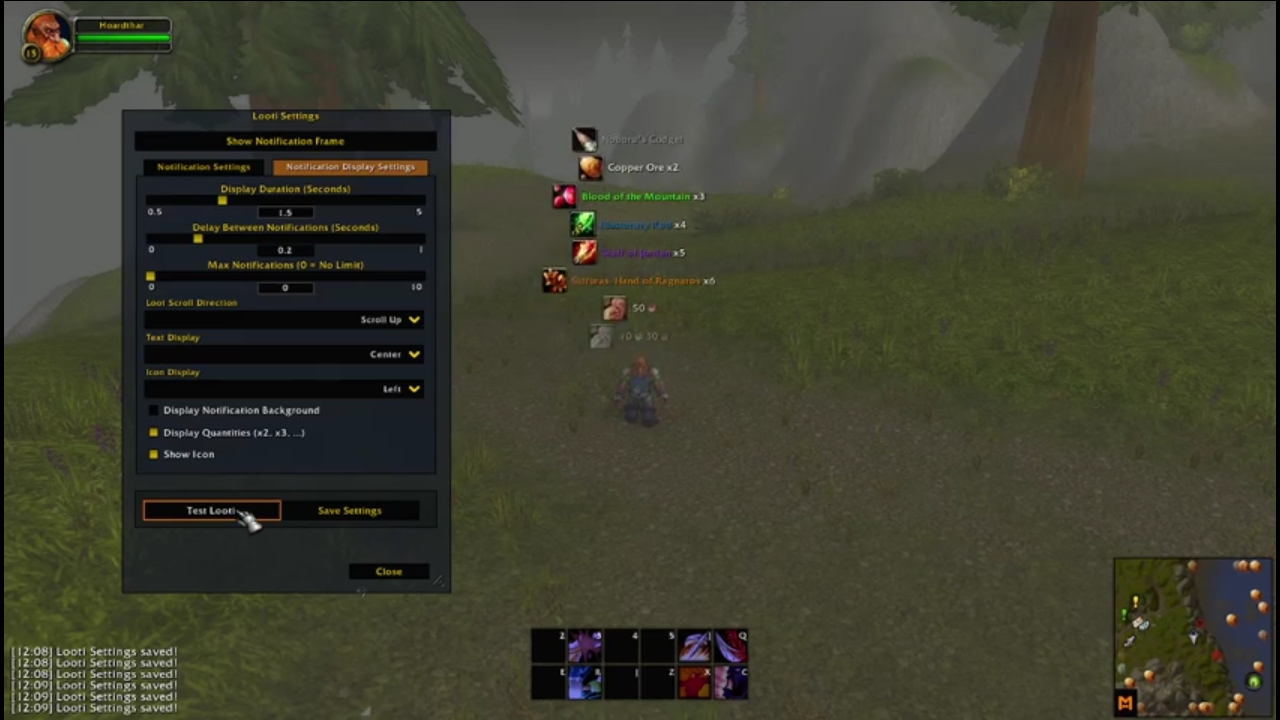
Display: Toggle icons, quantities, bag totals, item level, rarity colours, text outlines, scroll direction, and background visibility
Every Version: Retail, Classic Era & Hardcore, Mists of Pandaria Classic, Anniversary and WoW Forever, in every client language
Installation
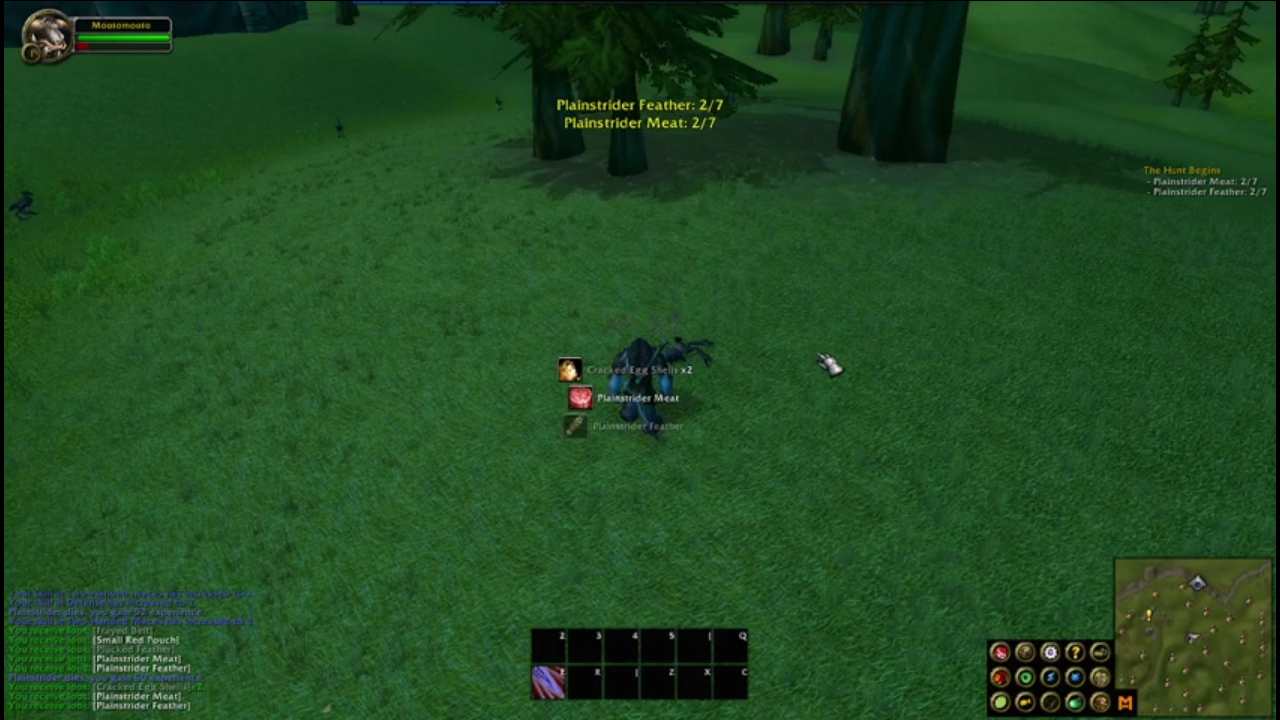
Download: CurseForge | GitHub releases To install Looti, download Looti.zip then place it into your Addons folder for your World of Warcraft installation, regularly atC:Program Files (x86)World of Warcraft#GAMEVERSION#InterfaceAddOns where GAMEVERSION represents your Game Version of World of Warcraft.📺 See Looti in action!
Features & Customisation
Getting Started
Type this command in the chat window to open the settings: /lootiLoot Notifications Your Way
- Enable/Disable Loot Alerts: Toggle notifications for item drops, money (gold, silver, copper) and currencies.
- Bought, Rewarded & Crafted Items: Choose whether vendor purchases, quest rewards and crafted items show, since "You receive" isn't always loot.
- Rarity Threshold: Set a minimum item rarity to filter what appears in notifications.
Display Settings
- Moveable Notification Frame: Drag and position notifications anywhere on your screen, or reset them back to the default spot.
- Scroll Direction: Choose whether notifications scroll up or down.
- Background Transparency: Leave it off, or add a backdrop so the text is easier to read.
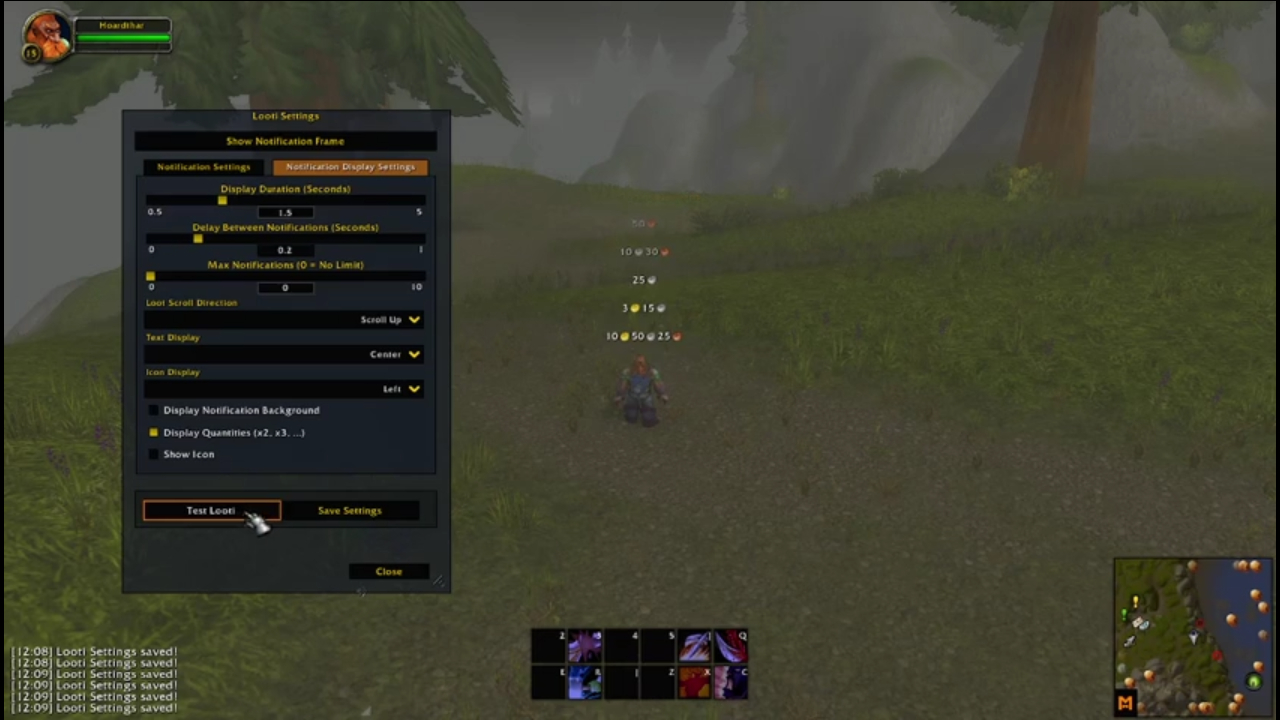
- Toggle Quantities: Display item counts for multi-stack loot.
- Bag Totals: See how many you now have in your bags next to what you looted, like Copper Ore x3 (27).
- Toggle Icons: Remove item icons for a minimalist look, or change their size.
- Hide Icon Borders: Zoom icons past the default Blizzard border, with a thin black border in its place.
- Text Outline: Add a normal or thick outline so the text stands out against busy backgrounds.
- Item Level & Upgrades: Show the item level on gear, with a green arrow when it's better than what you have equipped.
- Rarity Colours: Show item names in their rarity colour, or plain white.
- Crafting Quality (Retail): Reagents and crafted items show their quality icon next to the name.
- Transparency: Fade the notifications so you can still see your loot without it getting in the way.
- Scale: Make your loot notifications as big or small as you need.
Timing and Layout
- Notification Duration: Control how long notifications remain on screen.
- Delay Between Notifications: Adjust the timing between each alert.
- Max Notifications on Screen: Prevent clutter by limiting the number of visible alerts.
- Notification Layout: Set where the icon and text sit, to fit the rest of your UI.
- Mouseover Tooltips: Hover a notification to see the item tooltip, and optionally freeze every notification while you read it.
Filters Whitelist & Blacklist Support: Create custom filters using item IDs, item links (shift-click several at once), item names or categories to control exactly what you see. Watchlist: Items on your watchlist always show, whatever your rarity filter, and play a sound, get a star and a highlight when they drop. Each of the three can be turned off. Filter whole groups of items at once:
- Quest Items & Keys
- Consumables (Potions, Food, Bandages)
- Gear & Equipment
- Crafting Materials (Trade Goods, Gems, Recipes, …)
- Miscellaneous (Mounts, Toys, Pet Items)
- Bind on Equip (BoE) & Bind on Pickup (BoP)
Test Your Setup
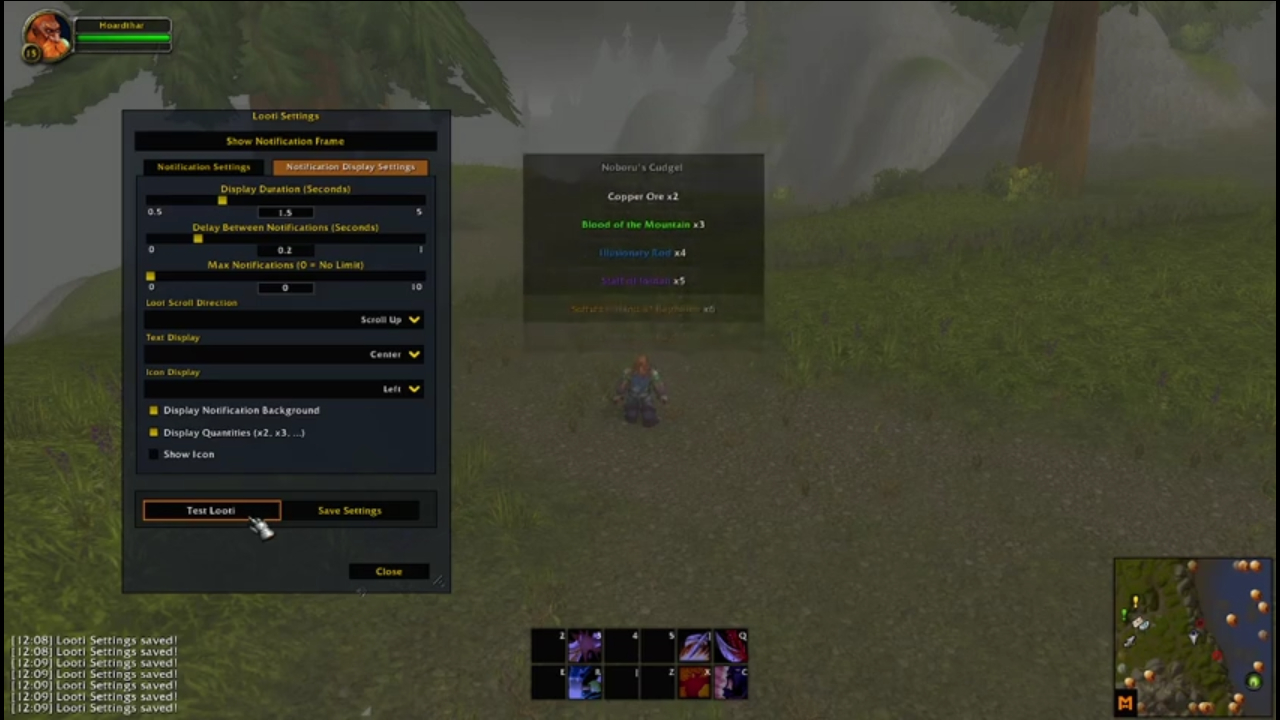
Once you've set Looti up to your liking, use the "Test Looti" button or type /lootitest to preview how notifications will appear, including a watchlist item.📺 Watch the video demonstration here!
Licence
Looti is released under the MIT License. Copyright (c) 2025-2026 Finlay McKinnon. See LICENSE.
You must be logged in to leave a comment.