

Gold Compass
Tells you what to craft, flip and level for the most gold: live AH sniping, deals, vendor flips, crafting profits, profession levelling and fast buying.
Details
Expansion
 Forever
 Categories
Developers

Having issues?
Gold Compass
Tells you what to craft, flip and level for the most gold in World of Warcraft: Forever.
Most auction addons give you prices and leave the thinking to you. Gold Compass gives you answers: which auctions are cheaper than a vendor pays, which are well under what the item usually sells for, what to craft to level your professions (and what it costs), which crafts make gold right now, and what in your bags is worth more on the AH. Every profit is marked as guaranteed (vendor prices) or not guaranteed (AH prices can change), so you always know the risk.
Features
- Full AH scan as soon as you open the AH, with a progress bar and no freezing. Blizzard allows one full scan every 15 minutes; Gold Compass keeps the items that matter to you fresh in between with a quick refresh.
- Live sniping: while the AH is open, Gold Compass keeps checking it for new bargains between full scans, with nothing to press. Good finds pop up with a sound, saying how far under its normal price it is, the profit, and where to sell it (AH or vendor); the alert is the Buy button. You choose what pops up (which kinds, how far under, how much profit); everything else goes quietly on its list.
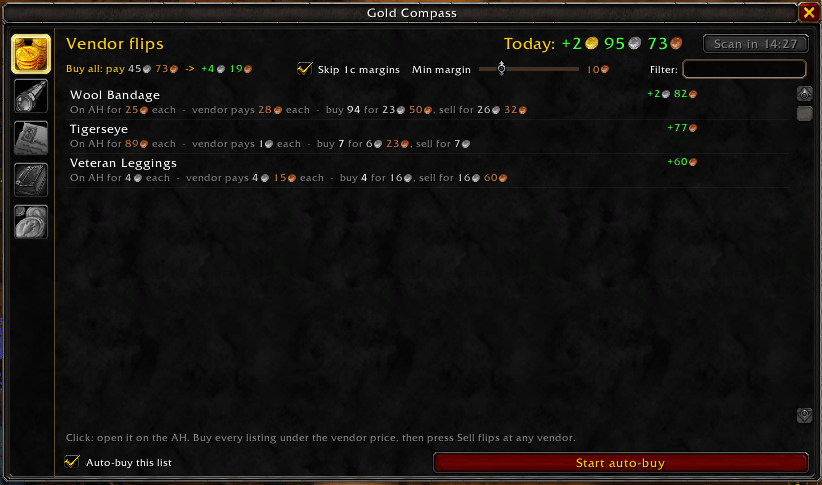
- Vendor flips: auctions listed below what a vendor pays. Buy them, then open any vendor: they sell by themselves, and nothing else in your bags is touched.
- Snipe: a live list of bargains to resell on the AH, with speed bars for how fast each one sells, sortable by speed, profit or how far under. The Sells button filters it: fast shows only items that sell 8+ a day, daily+ anything seen selling about once a day, any everything. The profit counts the other sellers you'd be up against, buying is capped at about three days' sales so you don't get stuck with stock, and anything a vendor sells is left out (resellers' prices for it aren't real value). Click one to see it on the AH, with a Buy button.
- Market: every item's market value and a 1-to-5 sale rating for how well it sells. The better it sells, the smaller the discount it needs to be listed (10% under at 5/5, up to 60% at 1/5).
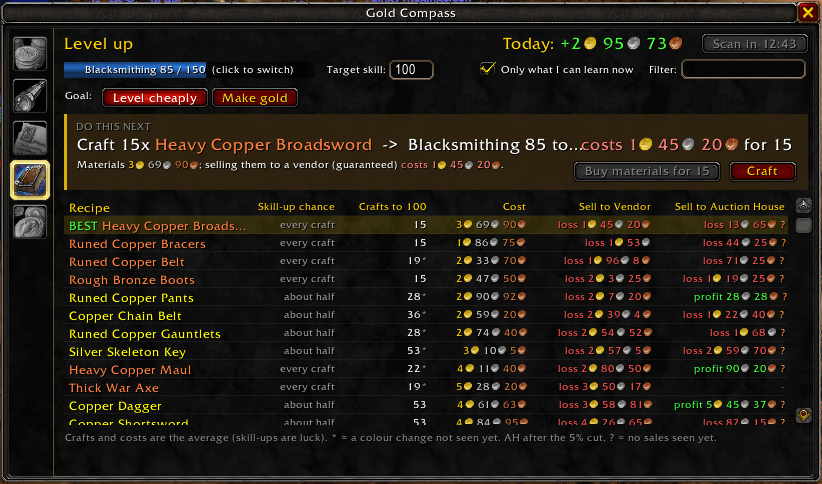
- Level up: set a target skill and see, for every recipe, how many crafts it takes, what the materials cost, and the profit or loss of selling the results to a vendor or on the AH, side by side. The best option is at the top, marked BEST, with a Buy button for its materials. Works for every crafting profession, Enchanting included, and each character sees only its own professions.
- Real skill-up odds: uses Classic's rule (orange always gives a point, then the chance slides down to nothing as a recipe turns grey) and learns where each recipe changes colour as you level. Buy materials gets enough for 9 times in 10.
- Make gold: the crafts that are profitable right now, and the materials for every profitable one in one go.
- True material costs: vendor materials (thread, dyes, vials, flux and more) count at a vendor's price, never resellers' AH prices, even before you've visited that vendor. With Make materials yourself when cheaper (on by default), a material you can craft for less than it costs to buy is counted that way, a few levels down; Buy mats then buys what it's made from and tells you what to craft first.
- Auto-buy: works through a list one purchase per click, key press or mouse-wheel notch, checking the live price every time and skipping anything that sold out or went up. It never spends more than a set share of your gold on one item bought to resell (20% to start).
- Watch list: pick items and the price you'd pay. When one's on the AH at or under it, a pop-up says so, with the purchase lined up.
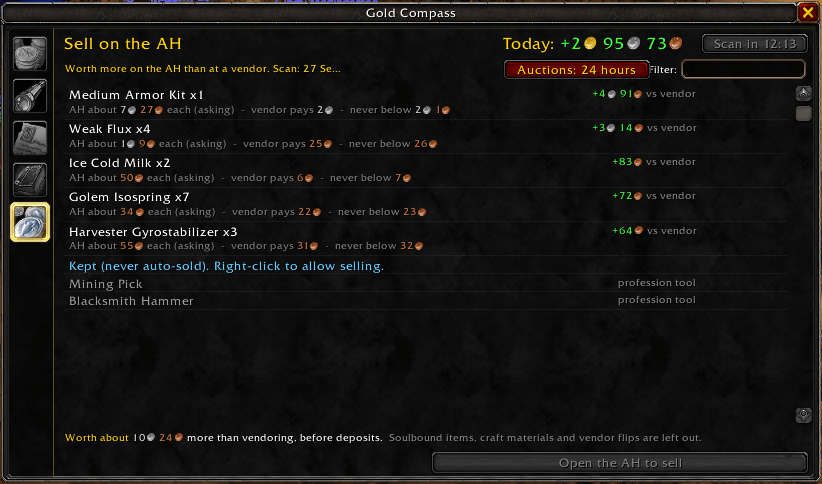
- Selling made easy: a Sell button right under the AH window posts what you bought to resell, one click per auction, just under the cheapest other seller and never below breaking even. The Sell tab also lists anything else in your bags worth more on the AH than at a vendor.
- Settings: every option in one place, with a button for every command.
- Craft panel: after buying materials, a small panel shows what to craft, your materials and a Craft button.
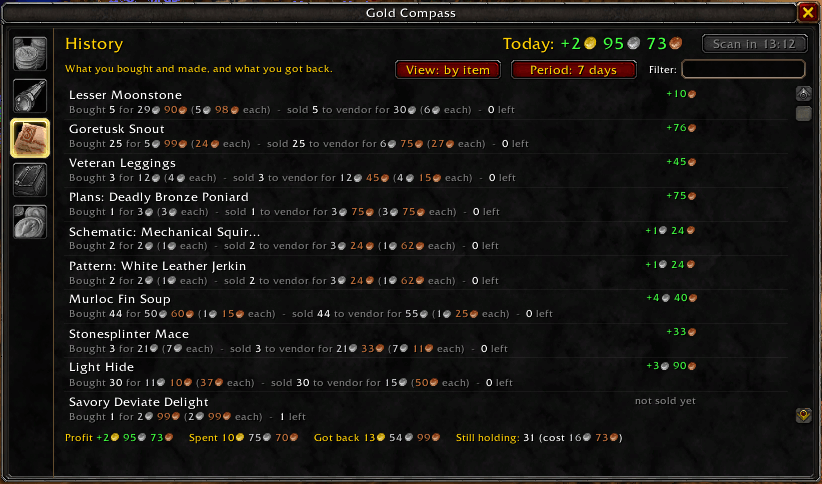
- History and profit today: what Gold Compass made you today, always on screen, and a day-by-day history. Selling your own things (ore you mined, loot) is shown separately, so the profit is only what the addon earned you.
- Sold prices: learns what items actually sell for, not just what sellers ask, by comparing scans.
- Mail: collects your AH purchases from the mailbox automatically (hold Shift to skip).
Getting started
- Open the Auction House. Gold Compass scans it automatically (Blizzard allows one full scan every 15 minutes).
- Open each profession window once.
- Type /gc or click the minimap coin, and pick a tab on the left.
Type /gc help in game for the full guide.
Share prices with other players (optional)
On its own, Gold Compass only knows the auctions you scan. The free Gold Compass uploader shares your scans and brings back prices and sales from every Gold Compass player in your realm and region, so Market and Snipe know what things are really worth.
Add-ons can't go online, so the uploader is a small separate Windows app: https://goldcompass.pages.dev (or type /gc share in game for the link). Open it once: it finds World of Warcraft by itself and keeps sharing quietly in the background after each /reload or logout. Only market data is sent (prices, sales, recipe colours), never character names, gold, bags or trades. Gold Compass works fine without it.
Commands
| Command | What it does |
|---|---|
/gc | Open or close the window |
/gc scan | Scan the AH (at the auctioneer) |
/gc help | Getting-started guide |
/gc share | Share prices with other players: the link to the free uploader app, and whether sharing is on |
/gc autoscan | Scan automatically whenever you open the AH, and every 15 minutes while it's open (on by default) |
/gc refresh | Quick refresh of your items while the AH is open (on by default) |
/gc snipe | Live sniping while the AH is open (on by default) |
/gc sound | Sound when the sniper finds something (on by default) |
/gc testalert | Show what a sniper alert looks like |
/gc movealert | Move the sniper alert: drag it, then click to lock (/gc movealert reset for the default). Shift-drag also moves it |
/gc autovendor | Sell your vendor flips as soon as you open any vendor (on by default; hold Shift to skip once) |
/gc mail | Collect AH purchases from the mailbox (on by default) |
/gc craftmats | Count materials you can craft for less than buying them at their crafting cost (on by default) |
/gc minimap | Show or hide the minimap button |
/gc layout | Check every tab for text or buttons that overlap (handy if you use a different font or UI scale) |
/gc status | How many items are priced, and when you last scanned |
FAQ
Are auto-buy and auto-sell allowed? Yes. World of Warcraft requires a click, key press or mouse-wheel scroll for every purchase and every auction posted, and Gold Compass never buys or posts without one. It only removes the busywork around each one: finding the listing, checking the price and moving on to the next item.
Does the sniper buy things on its own? No. It only looks and gets the purchase ready. You still click (or press your key) once per purchase, exactly as the game requires. It also steps aside whenever you're using the AH's own search.
How does Snipe know what an item "usually" sells for? From what it has actually sold for between your scans (sales show up after a few hours of scanning), never capped above its typical price over the last two weeks. Items that haven't been seen selling yet aren't listed: an asking price alone isn't proof of anything.
Why do some AH prices have a ? after them? They're what sellers are asking, not what anyone has paid. Once Gold Compass has seen an item actually selling between your scans, it switches to the real sale price.
Are the profits guaranteed? Vendor profits are. AH profits depend on someone buying at that price, so Gold Compass only counts on the AH once it has seen the item selling there; until then it goes by the vendor.
How sure are the "crafts to reach" numbers? Skill-ups are luck, so the table shows the average and the Buy button gets enough for 9 times in 10. A * means a recipe's colour change hasn't been seen yet, so that part is an estimate; it sharpens every time you level.
Feedback
Found a bug or have an idea? Leave a comment on the addon page.
You must be logged in to leave a comment.