

ForeverPlusPlus
A World of Warcraft addon for WoW: Forever that adds to and changes the default UI in small, separate modules. It doesn't replace the UI: every change is meant to look like Blizzard shipped it, needs no setup, and can be turned off on its own.
Details
Expansion
 Forever
 Categories
Developers

Having issues?
Forever++
Small, native-looking improvements to the default UI for WoW: Forever.
Forever++ adds to and changes Blizzard's interface in small, separate modules. It is not a UI replacement: there are no new unit frames, action bars, or skins. Every change is built from Blizzard's own fonts, icons, templates, and colors, so it looks like it shipped with the game.
- No setup. Install it and play. Sensible defaults, no popups at login.
- Every module stands alone. Turn any of them off in Settings and it's gone at once, no
/reloadneeded. A module that's off costs nothing. - Built for Forever. Forever runs the modern client, not Classic Era, and Forever++ is written and tested against it.
- Works with Edit Mode. The few things Forever++ puts on screen (Combat Alert, Currency Bar, Flight Timer) are moved and sized in Edit Mode, like Blizzard's own frames.
Modules
Automation
Auto Decline (off by default) Turns down duel requests and closes the popup.
- Also turns down party invites, without the invite sound. Duels and party invites each have their own checkbox.
- Optionally let friends and guildmates through.
- Says in chat who was declined.
Auto Dismount Gets you off your mount or stands you up when a spell, flight, loot, or attack fails because you're mounted or sitting.
- Dismount and Stand Up are separate options.
- Optionally leave shapeshift forms too (off by default).
Auto Gossip When an NPC has only one thing to say and no quests, Auto Gossip picks it for you, so the bank, shop, trainer, flight map, or stable opens straight away.
- Choose which NPCs it handles: bankers, vendors, trainers, flight masters, stable masters, and everyone else.
- Hold Shift while talking to an NPC to pick for yourself.
Auto Release (off by default) Releases your spirit when you die in a battleground.
- Set the delay with a slider.
- Stays put when a soulstone, reincarnation, or someone else can resurrect you.
Auto Repair Repairs all your gear when you visit a merchant who repairs, and says in chat what it cost. Hold Shift to skip it (an option, on by default).
- Pay with the guild bank first, the guild bank only, or your own money only.
- Set a minimum cost so a quick stop at a vendor doesn't spend a few copper every time.
Auto Sell Junk (off by default) Sells the gray items in your bags when a merchant opens, and says in chat what they sold for. Hold Shift to skip it (an option, on by default).
- Optionally stop at 12 items so everything can still be bought back.
Auto Stow Puts your weapons away a few seconds after combat ends, unless you draw or stow them yourself first.
- Set the delay with a slider.
- Optionally leave your weapons out in dungeons, raids, and battlegrounds.
Fast Loot With auto loot on, takes everything at once instead of waiting for the loot window. It follows the game's own auto loot setting and modifier key, so looting by hand works as before.
Fishing Cast (off by default) Double right-click in the world with a fishing pole equipped to cast Fishing. The click after that loots as usual. Never while in combat.
Gathering Tracking Keeps Find Minerals or Find Herbs on. It turns tracking back on after you log in, zone, or come back to life.
- Track minerals, herbs, or both.
- With both, optionally swap between them every few seconds, set with a slider. Swapping waits during combat, casting, and flights.
Skip Cinematics (off by default) Skips the game's cinematics and movies.
- Skip only the ones you've already seen on any character, or every one.
- Hold Shift to watch. A Forget button clears the seen list, after asking you to confirm.
Items
Already Known Puts a green check (or a tint) on the icon of recipes, mounts, pets, toys, and other items you already know or have.
- Shows on merchants, the auction house, your bags, mail, and the loot window, each with its own checkbox.
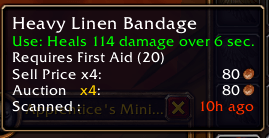
Auction Prices Scans the auction house when you open it and shows the lowest buyout in item tooltips, right under the sell price.
- Scans at most every 15 minutes, and also learns prices from your own searches.
- A "Scanned" line shows how old the prices are, colored from green to red as they age, with a slider for how old counts as red.
- Prices are saved per realm and faction.
/fpp scanscans now;/fpp resetpricesforgets them.
Bag Slot Counter Shows how many bag slots are free, right on the bag buttons.
- The total for every bag on the backpack button (the default), or each bag's own count on its button.
- The reagent bag on its own button, added to the backpack, or hidden.
- Optionally count special bags such as quivers and herb bags, and choose the text's size and position.
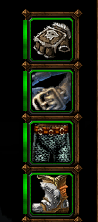
Durability Bars Shows a small bar beside each item on the character window with how worn it is, from green to red. Show bars always, only on worn items, or only below 50% or 25%.
Profession Tooltips Shows the skill a herb, ore, skinnable beast, or locked lockbox or chest needs, in its tooltip in the world or on the minimap. It's colored red, orange, yellow, green, or gray against your skill, just like trainer recipes.
- Herb, ore, and stone items say which skill gathers them.
- Gathering shows for the professions you have, or always.
- Lockpicking shows only for characters who can pick locks, and blacksmiths can see which skeleton key opens a lock.
- Blizzard's own "Requires Mining (1)" line is recolored against your skill instead of getting a second line, and the game's bare "Mining" line under a vein is replaced by "Requires Mining (1)" in the difficulty color.
- When Blizzard already says "Requires Mining (1)", a bare name line below it shows your skill ("Your Mining skill: 150").
Sell Price Shows the vendor price of the whole stack in item tooltips. Hold Shift to see the price of one item.
Both price lines can show the whole stack or one item, line their coins up at the tooltip's edge or after the label, and color the quantity.
Interface
AddOns List Shows the AddOns list without category headers, enabled addons first, each in name order.
- Optionally ungroup disabled addons, and search addon notes too.
Auto Screenshot (off by default) Takes a screenshot a moment after you level up, earn an achievement, or defeat a boss, so Blizzard's toast is in the shot.
- Optional checkboxes for loot of a chosen quality, reputation standings, PvP ranks, new titles, battleground ends, and deaths.
- Optionally hide the interface for the shot, and say in chat why it was taken.
Combat Alert (off by default) Floats a red "Entering Combat" or green "Leaving Combat" line up and away from the middle of the screen.
- Each has its own checkbox, with a slider for how long it stays.
- Move and resize it in Edit Mode.
Currency Bar (off by default) A small, tooltip-styled box showing your gold, and optionally the currencies you tick Show on Backpack.
- Hover it to see your gold and currencies with what this session gained or spent.
- Options for the tooltip, the session figures, and a column layout.
- Move and resize it in Edit Mode.
Character Frame Enhancements Tidies Blizzard's Character window.
- Moves the Equipment and Pet tabs to the side with the Reputation and Skills tabs.
- Removes the portrait and level line above the stats, so they start at the top.
- Shows your level and name in your class color as the title.
- Each is its own option.
Error Catcher Catches Lua errors, blocked actions, and Lua warnings quietly, instead of in Blizzard's error window and popup.
- Keeps them per session with how often each happened, its stack, and its locals.
- A window (
/fpp errors, or the minimap button, which shows this session's count) lists them as text you can copy: one at a time, this session's, the last one, or all. - Ctrl-right-click the minimap button to clear this session's errors.
- Options for the minimap button, the clear key, and a chat message for each new error (off by default).
Forever Quest Icons Marks quests that are new to Forever (not in original Classic) with an infinity sign, or the Forever logo, after their name.
- Shows in the quest log on the world map, the objective tracker, and a quest giver's list of quests.
- Each has its own checkbox, with a slider for the icon size.
Hide Beta Feedback (beta and PTR clients only, off by default) Hides the "Press F6 to submit an issue" tooltip line, the floating bug report button, and the feedback buttons on quest, gossip, and quest log windows, each with its own checkbox. F6 still reports an issue.
Quest Tracker Restyles Blizzard's quest tracker rather than replacing it, so Edit Mode, its menus, and quest items work as before.
- Choose the font, font size, and outline.
- A dark box behind it that fits your quests, with opacity, border, and padding options.
- Optionally fade it in combat.
Recipe Colors Colors recipes in the professions window by your chance of a skill-up, like the old trade skill window: orange, yellow, green, or gray, with the row's highlight to match.
Spell Ranks
Marks the spells on your action bars that have a higher rank you already know, with a warning badge or a red tint over the button, and names the best rank in the spell's tooltip. /fpp ranks lists them.
Tooltips Colors unit and item tooltips and adds useful lines:
- Borders and names colored by class or by reaction (hostile, neutral, friendly).
- Item tooltip borders colored by quality.
- Your guild in green and other guilds in gray, levels colored by difficulty, and class names in their class color.
- The Horde or Alliance line on a unit in red or blue.
- Player titles, and a Target line showing who a unit is targeting ("You" in red when it's you).
- Optional: anchor tooltips to your cursor, or hide unit tooltips in combat.
Chat
Chat Copy Adds a button beside the chat window that opens the chat as text, already selected, so you can copy it with Ctrl+C. A slider sets how many lines.
Chat Font Draws the chat windows in another of the game's fonts (Friz Quadrata, Arial Narrow, Skurri, or Morpheus), keeping their size, and optionally the chat input box too. Not available on Korean, Chinese, and Russian clients, whose chat font needs fallbacks.
Chat History Keeps each chat window's latest lines when you log out or reload, and shows them again at login. A slider sets how many lines, and an option (off by default) adds an "Earlier chat" line between old and new chat.
Persistent Chat Keeps chat text on screen instead of fading it out after a while.
Short Channel Names (off by default) Shows chat channels as [1], [G], or [1. G] instead of [1. General]. Number and letter ([3. T]) by default.
Social Button Moves the social (Quick Join) button down beside the chat window's other buttons.
Map
Coordinates Your coordinates on the left of the world map's title bar, and the cursor's on the right.
- Each has its own checkbox, with optional tenths and coordinates on the minimap.
- Uses the game's own coordinates, so it matches Settings > Gameplay > Interface.
Flight Timer Times every flight you take, then counts the next one down in a bar and shows the flight time on the flight map's tooltip. Move and scale the bar in Edit Mode.
Hide Filter Reset Hides the reset button on the world map's filter dropdown, which otherwise shows whenever a filter is off.
Points of Interest Puts dungeons, raids, capital cities, flight masters, boats, zeppelins, and spirit healers on the world map.
- Each kind has its own checkbox, icon size, and whether it also shows on continent maps.
- Flight masters you've learned show in the minimap's white. Visit a flight master once to pick yours up.
Unexplored Areas Shows the parts of zone maps you haven't explored yet, on the world map and zone map.
- Tint them in a color and strength you choose, or show them just like explored areas.
Zone Info A panel on the world map with what you need to know about the zone.
- Its level range, colored against your level, and who holds it.
- Its dungeons and the fishing skill it needs.
- The herbs, ore, and skinning in it: off, only for professions you have, or always.
- A Detail Key (Shift, Alt, or Ctrl) can show fishing, dungeons, herbs, ore, and skinning only while you hold it.
- On a continent map, it shows the zone under your cursor. Put it in a bottom or top corner, and set its size with a slider.
Map tooltips from Zone Info and Points of Interest look the same: white title, gold kind of place, Horde red and Alliance blue, and each dungeon or raid on one row with its icon.
Unit Frames
Class Colors Shows players' health bars in their class color on Blizzard's player, target, focus, party, and target-of-target frames.
- Hostile NPCs' health bars in red, neutral ones in yellow, and tagged ones in gray.
- Name Color: Default, White, or Class Color.
- Name Backgrounds (on by default) tint the bar behind a player's name on the target and focus frames in their class color.
- A checkbox for each frame.
Nameplates
NPC Nameplates
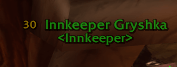
Always shows friendly NPCs' names with their title, like <Innkeeper>. The health bar appears only when they're hurt or in combat.
- Names in the world's friendly green or white, with the level before or after the name, or hidden.
- Titles always, only without the health bar, or never, in the name's color, gray, or green.
- A Name Size slider, at 80% by default.
- A Buffs setting: centered above the name by default, or before or after the name, or back in Blizzard's spot.
Player Nameplates Always shows friendly players' names with their guild, in a clean name-only style. The health bar appears only when they're hurt or in combat.
- Names in class color or white, with the level before or after the name, or hidden.
- A Name Size slider, at 80% by default.
- A Buffs setting: centered above the name by default, or before or after the name, or back in Blizzard's spot.
- Guild names always, only without the health bar, or never, with your own guild highlighted.
- Role icons for your group members, a Battle.net icon for your friends, and an icon for recent allies (or a light blue name, or off). Icons go before or after the name.
Quest Nameplates Shows an icon and your progress (3/8, or how many are left) beside the health bar of creatures you need for a quest.
- The icon matches the objective: Blizzard's attack, pickup, or interact icon for kill, item, or object objectives, and the quest icon for the rest.
- A creature whose objective is done shows a green check and its final count (8/8). Turn off Show Completed to hide those, or turn off the count to leave just the check.
- In a party, Party Progress counts everyone's progress added up (the default), only yours, or the party member furthest from done. Creatures only a party member needs show too.
Names in Chinese, Korean, and Cyrillic show correctly. When a nameplate module is turned off, the game's nameplate settings go back to what you had before.
Tools
Console Variables A page in Settings to browse and change the game's console variables (CVars).
- Search by name or description, or show only the ones you've changed.
- See each one's value and default, and put any back to its default with one click.
- Changes to protected CVars wait until combat ends.
Settings
Open Game Menu > Options > AddOns > Forever++, or type /fpp.
Forever++ opens on a welcome page with the version, links, and commands, and two buttons, each asking before it does anything:
- Defaults puts every module's settings back to how they start.
- Clutch's Default does that and also turns on Fishing Cast, Skip Cinematics, Auto Screenshot, Currency Bar, Hide Beta Feedback, and Short Channel Names, and sets Zone Info's Dungeons and Fishing to Hold Detail Key.
The Defaults button on the Modules and Debug pages offers Clutch's Defaults or Recommended Defaults and resets only Forever++. Blizzard's own All Settings reset doesn't touch Forever++.
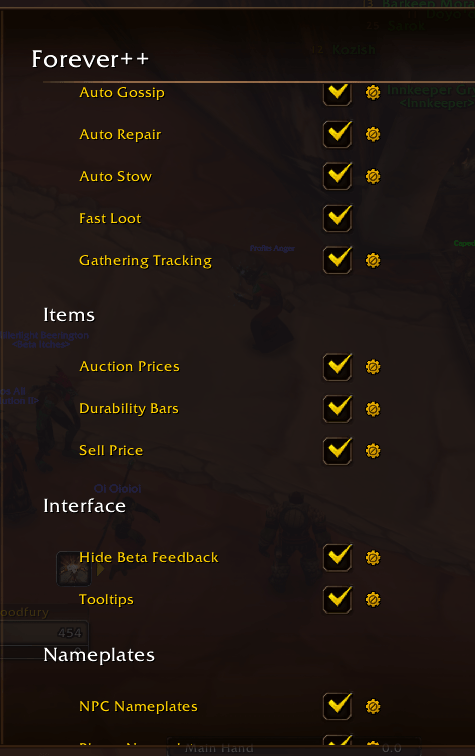
The Modules page has a checkbox for every module, grouped by category, and the gear beside a module shows its options right under it. Modules that talk in chat have a Chat Messages checkbox to silence them. The Changelog page lists what changed in each release.
Commands
| Command | What it does |
|---|---|
/fpp or /forever++ | Opens the Forever++ settings |
/fpp list | Lists the modules and whether each is on |
/fpp toggle <module> [option] | Turns a module on or off, or flips one of its checkboxes |
/fpp options <module> | Lists a module's options and their values |
/fpp set <module> <option> [value] | Changes an option: on/off, a choice, or a number for sliders. Leave out the value to see the choices |
/fpp reset | Puts every setting back to its default and reloads |
/fpp cvar [search] | Opens Console Variables |
/fpp errors | Shows the errors Error Catcher caught |
/fpp ranks | Lists the spells that have a higher rank you already know |
/fpp scan | Scans the open auction house now |
/fpp resetprices | Forgets the saved auction prices |
Settings are saved per account.
Feedback
Forever is still in beta and the client changes between patches. If something breaks, or you'd like a change or a new feature, leave a comment on this page.
You must be logged in to leave a comment.