

Everbind
Bind keys to spells, macros and items without action bars. A BindPad-style keybinding grid for WoW Forever.
Details
Addon ID:
27878
Addon Version:
0.2.0
Expansion:
1.60
Upload date:
Oct 06, 2026
Last Updated:
Oct 06, 2026
Downloads:
Less than 100
Website:
Source Link
Expansion
 Forever
 Categories
Developers

rafaistos
Creator
Having issues?
Everbind
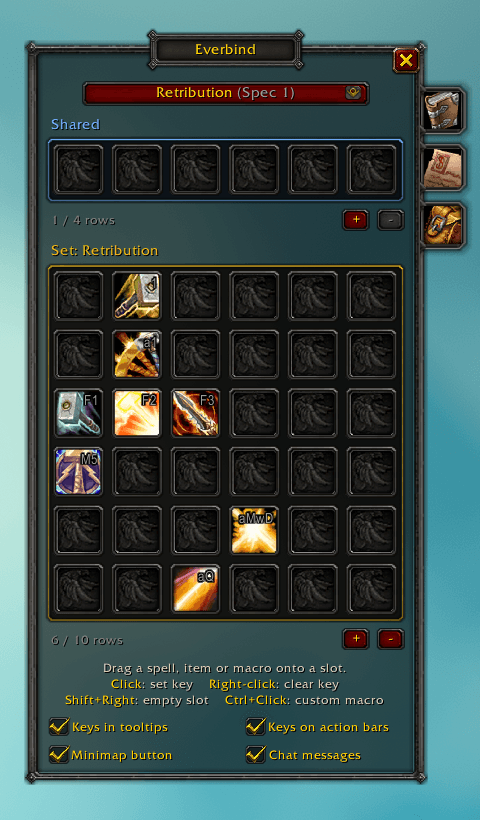
Bind spells, items and macros to keys without putting them on an action bar. Built for World of Warcraft: Forever.
Features
- Binding pad. Drag a spell, item or macro onto a slot, click the slot and press a key.
- Binding sets. Keep separate layouts (for example for PvE and PvP) and switch between them from the window or with
/eb set <name>. - Follows your spec. Assign a set to spec 1 or spec 2 and Everbind switches to it when you change spec. This turns on by itself as soon as the game supports dual spec.
- Shared section. Slots that work in every set, such as your mount or Hearthstone.
- Keys stay with their spells. Drag an entry to another slot and its key goes with it. Drop something on a full slot and the old entry goes onto your cursor, still holding its key.
- Cooldowns and item counts are shown on the slots.
- Custom macros (Ctrl+Click a slot) that don't use up any of the game's macro slots.
- Quick access. Tabs on the side of the window open the spellbook, macros and bags. When the spellbook or macros open, the window moves next to them, and it moves back when they close.
- Keys in tooltips. Spell and item tooltips (spellbook, action bars, bags) show which Everbind key they are on. You can turn this off at the bottom of the window.
- Keys on action bars. If a spell, item or macro from Everbind also sits on an action bar button without a key of its own, the button shows the Everbind key. Works with the default Blizzard bars; you can turn it off at the bottom of the window.
- Minimap button. Left-click opens the window, right-click opens the set menu, and you can drag it around the minimap. You can hide it at the bottom of the window.
- Quiet mode. Turn off Chat messages at the bottom of the window to hide status messages like the active set. Warnings and errors still show.
- Safe bindings. Keys are applied as override bindings, so your normal key bindings are never changed. If you switch sets in combat, the switch happens when combat ends.
Installation
Install with the CurseForge app, or manually:
- Download the addon and put the
Everbindfolder inWorld of Warcraft_classic_InterfaceAddOns. - Restart the game or type
/reload. - Type
/everbindor/ebto open the window. You can also bind a key to it in the game's Key Bindings menu.
Usage
| Action | Result |
|---|---|
| Drag onto a slot | Place a spell, item or macro |
| Drag from a slot | Move it, together with its key |
| Click | Set a key (keyboard, mouse buttons and wheel work) |
| Right-click | Clear the key |
| Shift+Right-click | Empty the slot |
| Ctrl+Click | Write or edit a custom macro |
+ / - under a grid | Add a row, or remove the last row if it is empty |
Commands:
/ebopens or closes the window./eb setlists your sets./eb set <name>switches to a set. Case doesn't matter./eb minimapshows or hides the minimap button.
ESC closes the window, except in combat, where you use the close button.
If another addon already uses /eb, Everbind leaves it alone. Use /everbind or /evb instead.
Feedback
Found a bug or have an idea? Leave a comment or open an issue on GitHub.
Credits
Inspired by BindPad by Tageshi. Everbind is written from scratch and contains no BindPad code.
You must be logged in to leave a comment.