
Easy Controller – Forever
Gamepad essentials for WoW Forever: Ultra lightweight addon. Rebind ABXY button, add back paddle buttons, a predictive chat keyboard, customizables wheels, quest item warnings and much more QoL settings.
Details
Expansion
 Forever
 Categories
Developers

Having issues?
Easy Controller - Forever
Built to be as light as possible, for handhelds and the Steam Deck: about 0.1 % CPU and 5 MB of memory. Every feature you don't need can be turned off to save even more resources.
To open the settings: hold RB and press D-pad down (or type
/ec configin the chat).For the best results, set the game's gamepad action bar to compact (the game's gamepad options): the game then shows one bar, which "Triggers: press to switch" and the extra buttons are made for.
To set the stance bar (stealth, a form, a stance), be in that stance first: the Gamepad tab shows the stance bar's slots only while you are in it.
WoW Forever's gamepad play, made easy. No keyboard needed.
What's new in 1.12
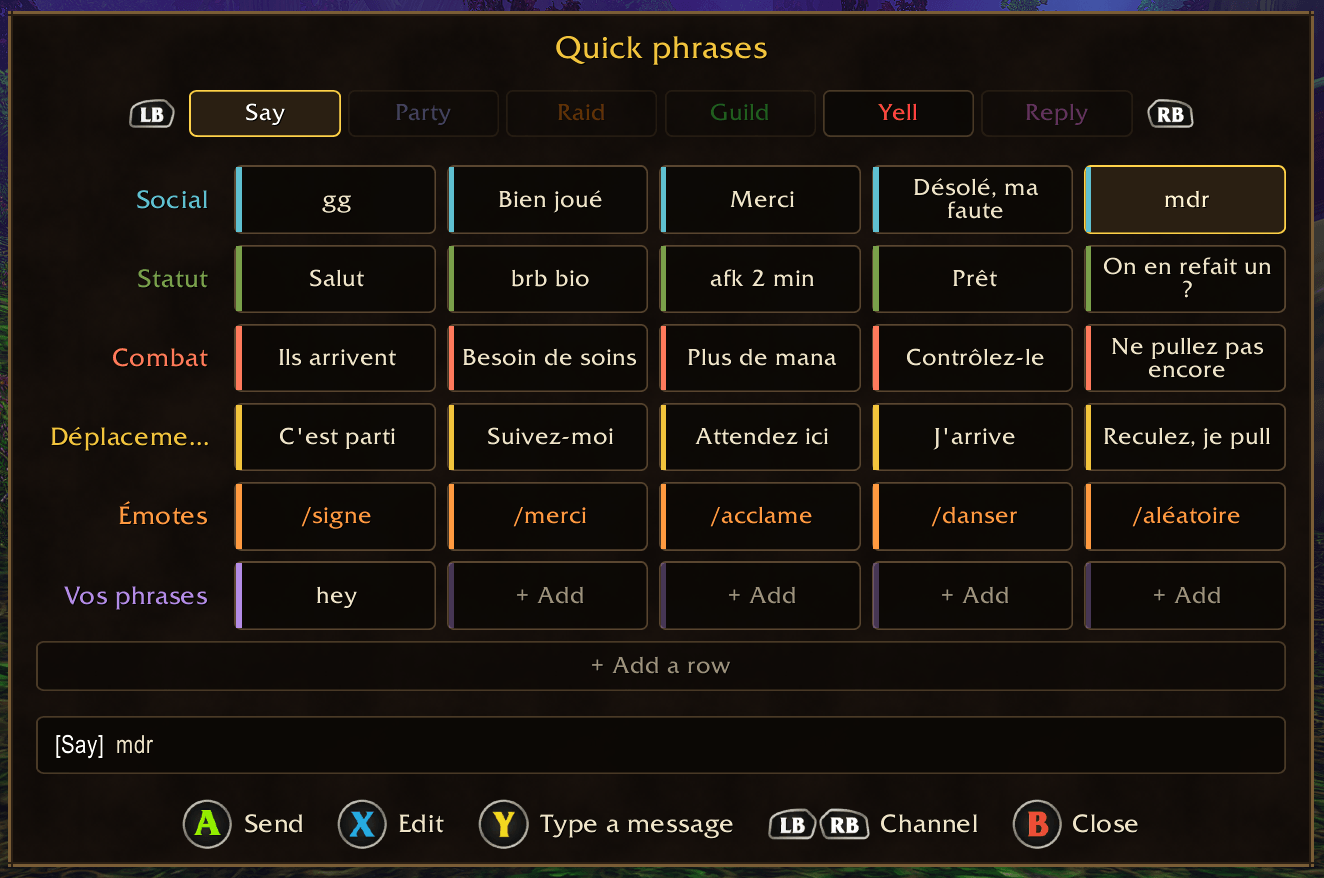
- Quick phrases: ready-made phrases sent in one press, five a row by theme (social, status, combat, moving, emotes, your own). LB / RB picks the channel, A sends, X rewrites any phrase (with the controller or a physical keyboard), Y opens the keyboard with it. Open them from the bubble at the end of the keyboard's suggestions, or put them on any button.
- Gamepad tab: the consumables wheel, the quick phrases and your wheels are now at the top of the Macros list.
Features
- Gamepad mapping (ABXY) and back paddles (Steam Deck, Xbox Elite, DualSense Edge…), every trigger layer explained
- Every free combination usable: L3 / R3, LT + RB / RT + LB, unused trigger layers, the game's own buttons replaced if you want
- Extra buttons: up to 8 more, for controllers with more buttons or touchpads (Steam Deck, Steam Controller)
- Triggers: press to switch instead of holding them (option), every press shown on the bar
- Stealth, forms and stances: your buttons and paddles follow the stance bar
- Profiles: each character its own buttons, wheels and supplies, automatically
- Chat keyboard with smartphone-style word prediction, also in the game's fields (Auction House search…)
- Quick phrases: ready-made phrases sent in one press, on the channel you pick, all editable
- Red when out of range: the whole spell, in the button's own shape, not just a dot
- Your own wheels of spells, items and macros
- Consumables wheel, usable in combat
- Hold to show a wheel, let go to use (option)
- Wheels that fit: as many sections as items
- Stay seated while eating or bandaging: a nudged stick no longer wastes the meal, the camera still turns
- Quest items marked in your bags, quest links in the chat
- Vibrations on the events you pick
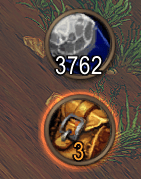
- Supplies tracker (arrows, soul shards, reagents, bag space…) that glows when you run low
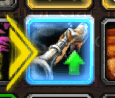
- Better items: highlights upgrade items in your bags
- At merchants: auto-sell junk and auto-repair
- OLED burn-in prevention for the centre dot
- Xbox / PlayStation (DualSense) / Nintendo Switch button icons
- Configuration panel driven entirely with the gamepad (RB + D-pad down)
Every function can be turned off, and the look matches WoW Forever's gamepad UI. The details of each part follow.
Chat keyboard
The keyboard opens as soon as you open the chat. Pick the input method that suits you, let the prediction finish your words and sentences, choose the channel, and send with A. Everything stays clickable with the mouse or the Steam Controller trackpad. It also opens in the game's own fields (the Auction House search, the bags' search, mail…): what you type goes into the field, A is Enter.
Two input methods
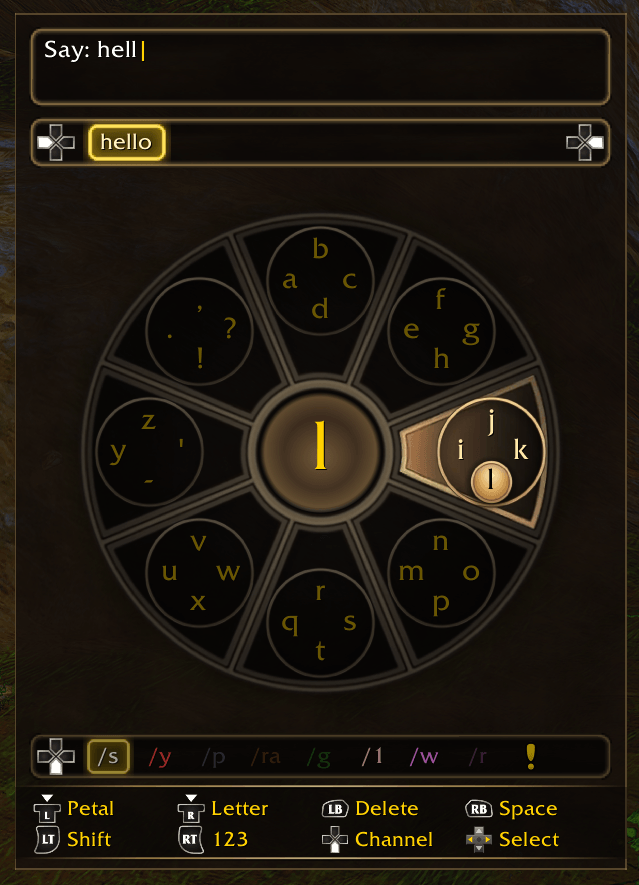
Daisywheel A wheel of 8 petals with 4 characters each, drawn like the game's radial menu. The left stick picks a petal (it lights up), the right stick flicks toward the letter. Two gestures per letter, thumbs never leave the sticks. Groups circled or characters only, as you like.
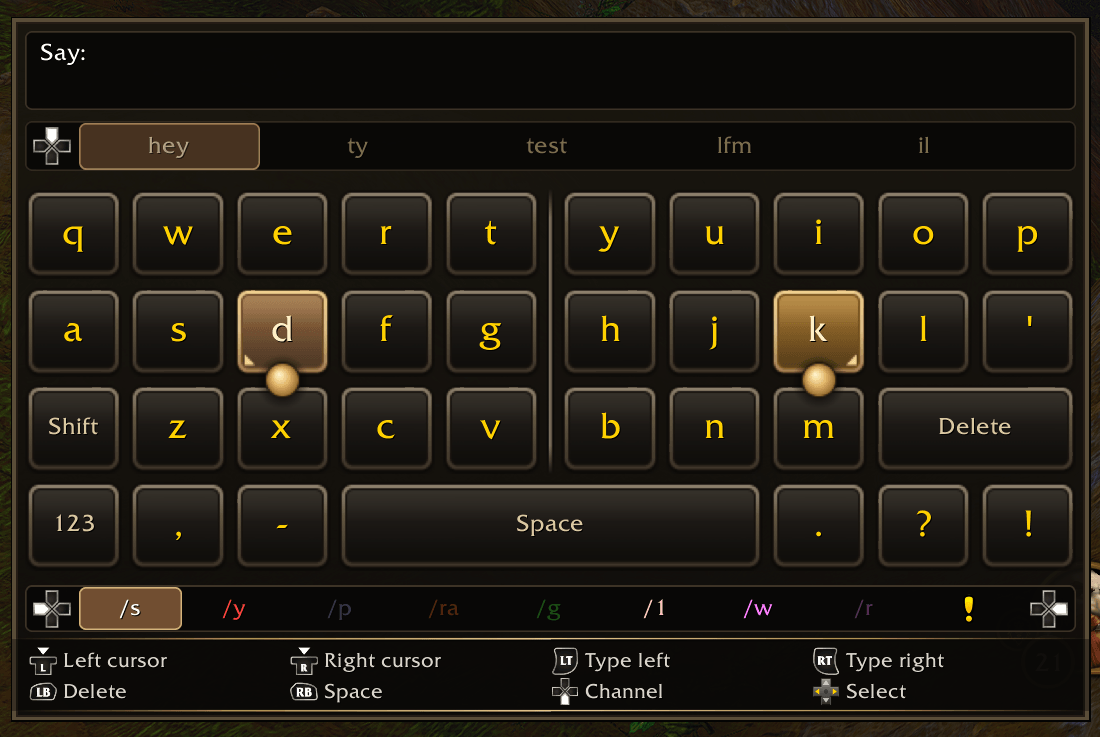
Split keyboard A full AZERTY, QWERTY, QWERTZ, Spanish or Italian keyboard cut in two halves. The left stick moves a cursor on the left half, the right stick on the right half: each stick's tilt is its cursor's position, released = center. LT types the left key, RT the right one. Large keys with aligned columns, a copper (left) and amber (right) target, a magnet so the highlight never flickers, and a linear stick response with an optional gentle or fast curve.
Both methods have a numbers / accents / symbols layer whose accents follow the language (é è à ç… / ä ö ü ß / á é í ó ú ñ ¿ ¡ / à è é ì ò ù), and can be switched at any time in the options.
Keyboard features
- Smartphone-style prediction
- word completion in English, French, German, Spanish and Italian (12,000 words each, client language by default) plus WoW slang: lfg, heal, dungeon…
- accents ignored while searching:
casuggests "ça"; - next word prediction from your own habits and common phrases;
- suggestions as soon as the chat opens, before you type anything.
- Learning: your words, message starters and word sequences are remembered, locally.
- Chat channel row:
/s,/y,/p,/ra,/g,/1,/w,/rin their channel colors, switched with the D-pad or by hovering with the mouse. Unavailable channels are greyed out. The chosen channel sticks for the whole chat, like typing/pin game, so a physical keyboard or a dictation tool writes there too. - Whispers: pick the recipient from suggested names (recent correspondents, group, friends, guild) or type any name, including names with a space, then write the message.
- Quick phrases: the bubble at the end of the suggestions opens rows of ready-made phrases (see below).
- Slash command autocomplete:
/suggests/reload,/p,/ra,/g,/w, then your most used commands. - Mouse and Steam Controller: every key is clickable; the message is kept even when the game closes the chat on a click.
- Safe with WoW Forever's gamepad UI: the addon never types text into the game's chat box and is disabled in combat, so it cannot cause blocked actions or freezes.
- Options panel: input method, keyboard layout, stick dead zone and response, magnet, 4 window sizes, Blizzard fonts, Xbox / PlayStation (DualSense) / Nintendo Switch button icons, suggestion language, and more.
Quick phrases
A window of ready-made phrases, sent in one press: five a row by theme (social, status, combat,
moving, emotes, and a row of your own), in the game's language. Open it with the bubble at the end of
the keyboard's suggestions, from any button or layer (Gamepad tab › Macros › Quick phrases), a key
binding or /ec phrases.
- LB / RB picks the channel (say, party, raid, guild, yell, reply; the ones you can't use are skipped), A sends and closes everything, the chat included.
- A phrase starting with
/is a command (an emote, a roll…): the emotes row uses the game's own. - Everything is yours to change: X rewrites any phrase, the default ones too, or a row's name, with the controller or a physical keyboard, the window showing what you type. Add rows (up to 8), delete one by emptying its name.
- Y opens the keyboard with the phrase, to add to it.
- The same phrases on every character; one option puts the default ones back. Not in combat.
Modules
Configuration panel
RB + D-pad down (or /ec config) opens the addon's own panel, driven with the gamepad or the mouse:
Home (every module and its state, the panel's shortcut, the look, the gamepad bar and extra buttons,
automation at merchants), Gamepad (your controller drawn button by button), Wheels, Keyboard and
Alerts (vibrations, supplies, quest items, better items). Sections on the left, settings in the
middle, what the selected one does on the right, and a help bar showing only the buttons that work
there.
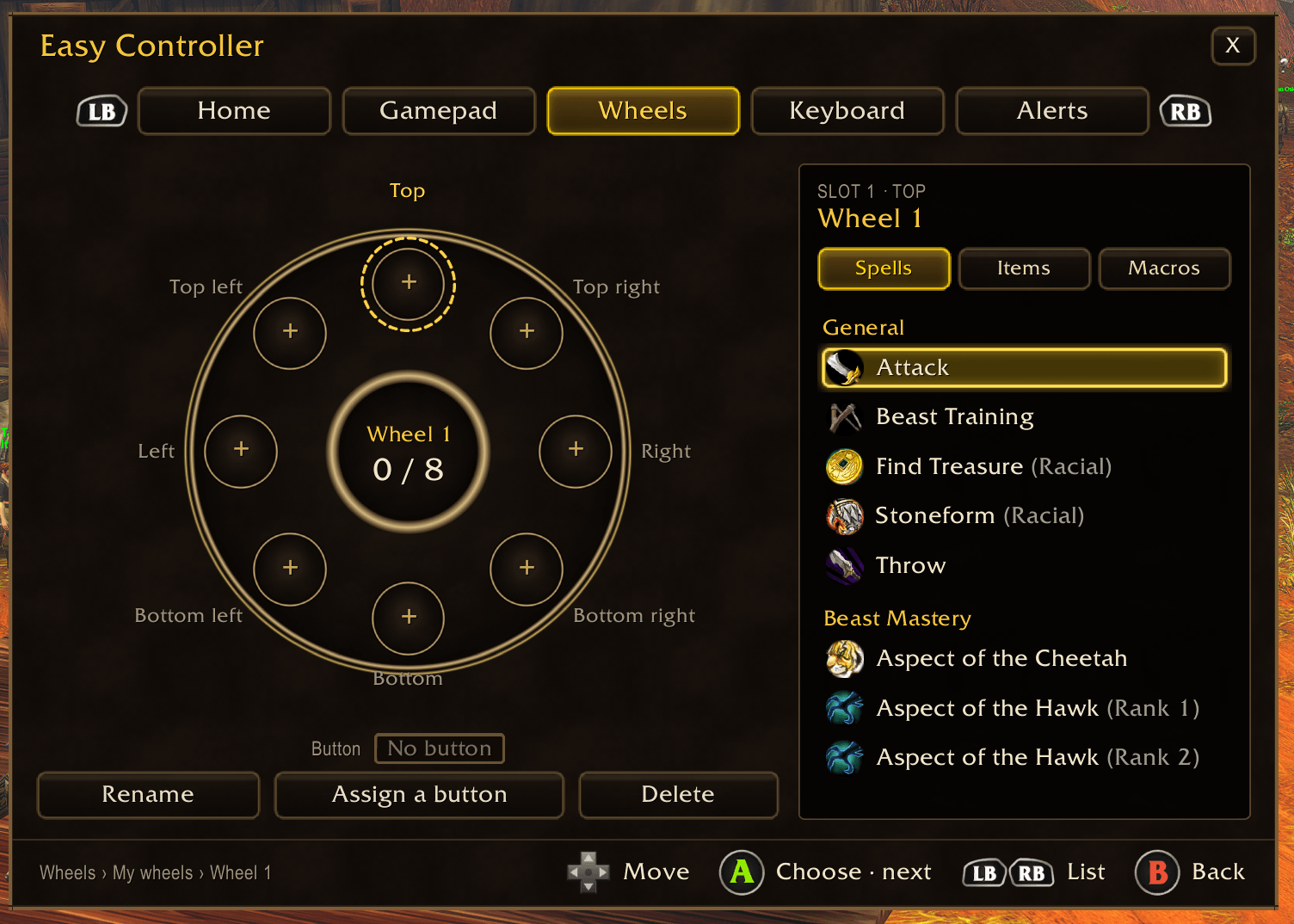
Your own wheels Up to 8 wheels of your own, shown as cards (their 8 slots, their name, the button they're on). Each opens an editor: the wheel with its slots around it and the lists beside it (spells, items, macros); a choice fills the slot and goes on to the next one. Name it with the gamepad keyboard, give it a button straight from the editor ("Assign a button") or from the Gamepad tab's Macros list. Each wheel shows its filled slots only, in as many sections, and works like the consumables wheel, in combat too.
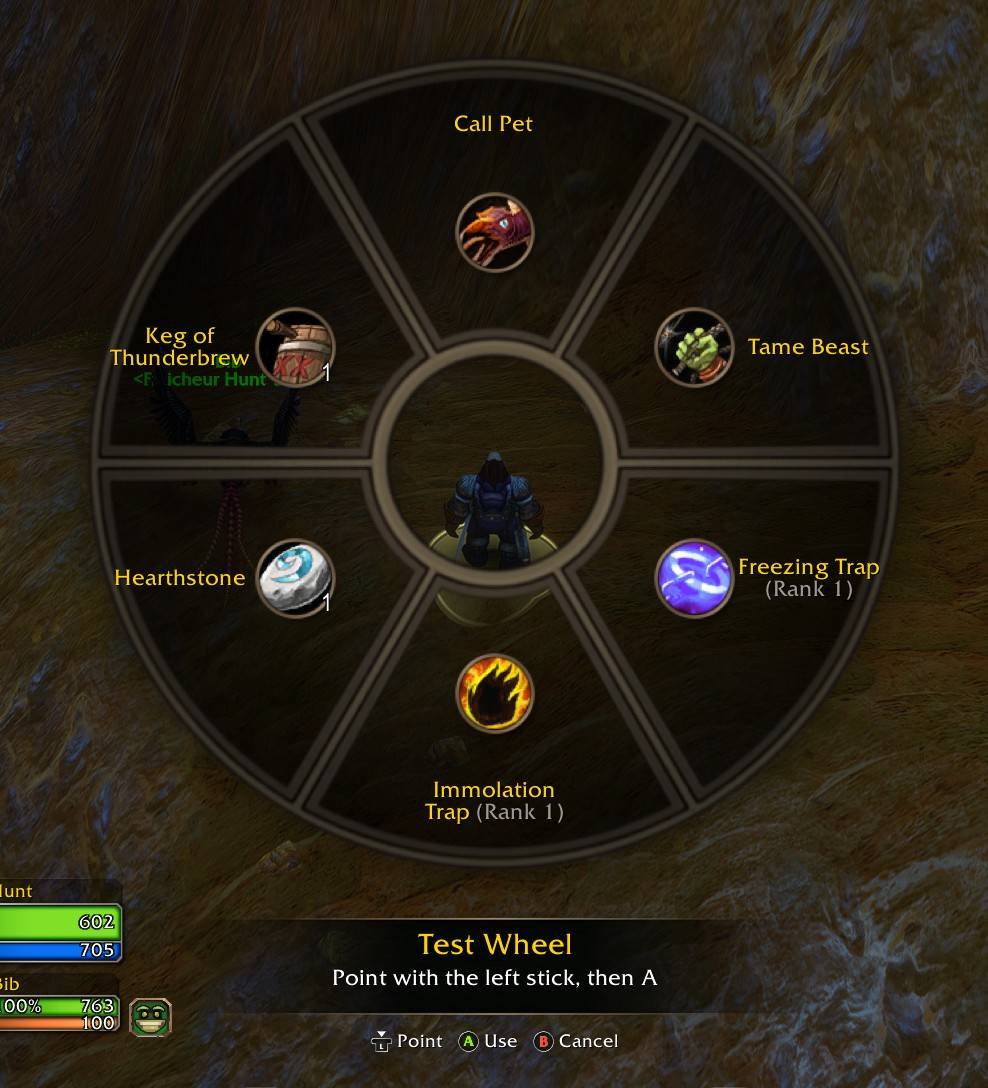
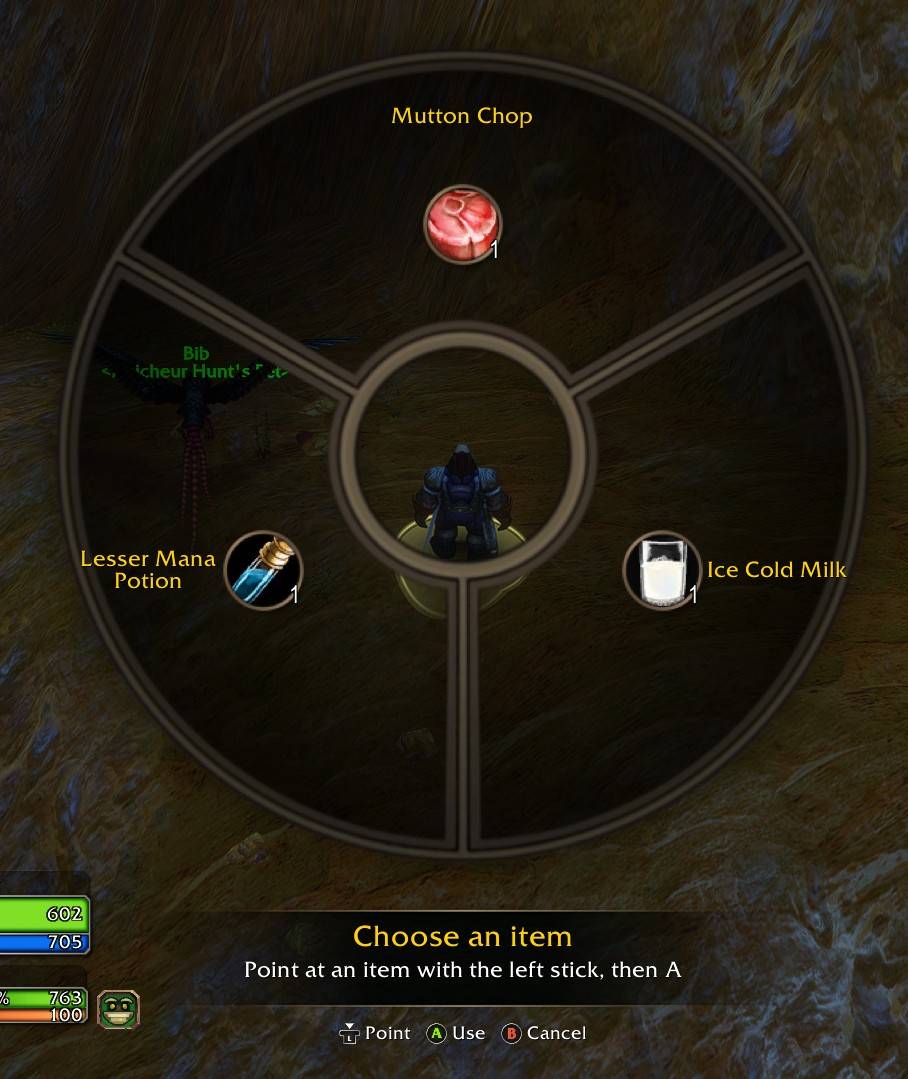
Consumables wheel A key of its own (any free button, or a back paddle in any trigger layer) opens a wheel drawn like the game's own radial menu, cut in as many sections as it holds (two items: two halves; five: five sections), up to 8 consumables a page (LB / RB for more), from your bags: food, drink, healing and mana potions, healthstone, mana gem, bandages, buff food, elixirs and flasks, scrolls, the best first. Point with the left stick and press A to use; B cancels; the mouse works too. Or hold its key, aim and let go to use (option). It works in combat (food and drink greyed there).
Stay seated while eating On by default: while you eat or drink (and bandage, an option), a stick still pushed from the wheel, or nudged, no longer stands you up and wastes the meal. Push the left stick all the way for a quarter of a second to get up. The right stick still turns the camera, and the game's radial menu, the map and the addon's windows get the sticks while they are open.
Supplies A round button per resource: free bag slots, your ammunition, your class reagents (soul shards, powders, candles, symbols, seeds, poisons…) and any item you add from your bags. Under its low threshold it glows, stronger and redder down to the critical one; thresholds are yours to set. Place the bar anywhere (mouse or D-pad), lock it; a click opens your bags.
Vibrations The controller vibrates on the game events you choose: combat (death, interrupted, loss of control, aggro gained or lost…), social (whisper, invite, ready check, resurrection…) and progress (level up, quest objective, rare loot, bags full…). Each event has its own switch and its own pattern (tick, double tick, pulse, heartbeat, crescendo…), with one intensity for all. Any controller the game drives vibrates.
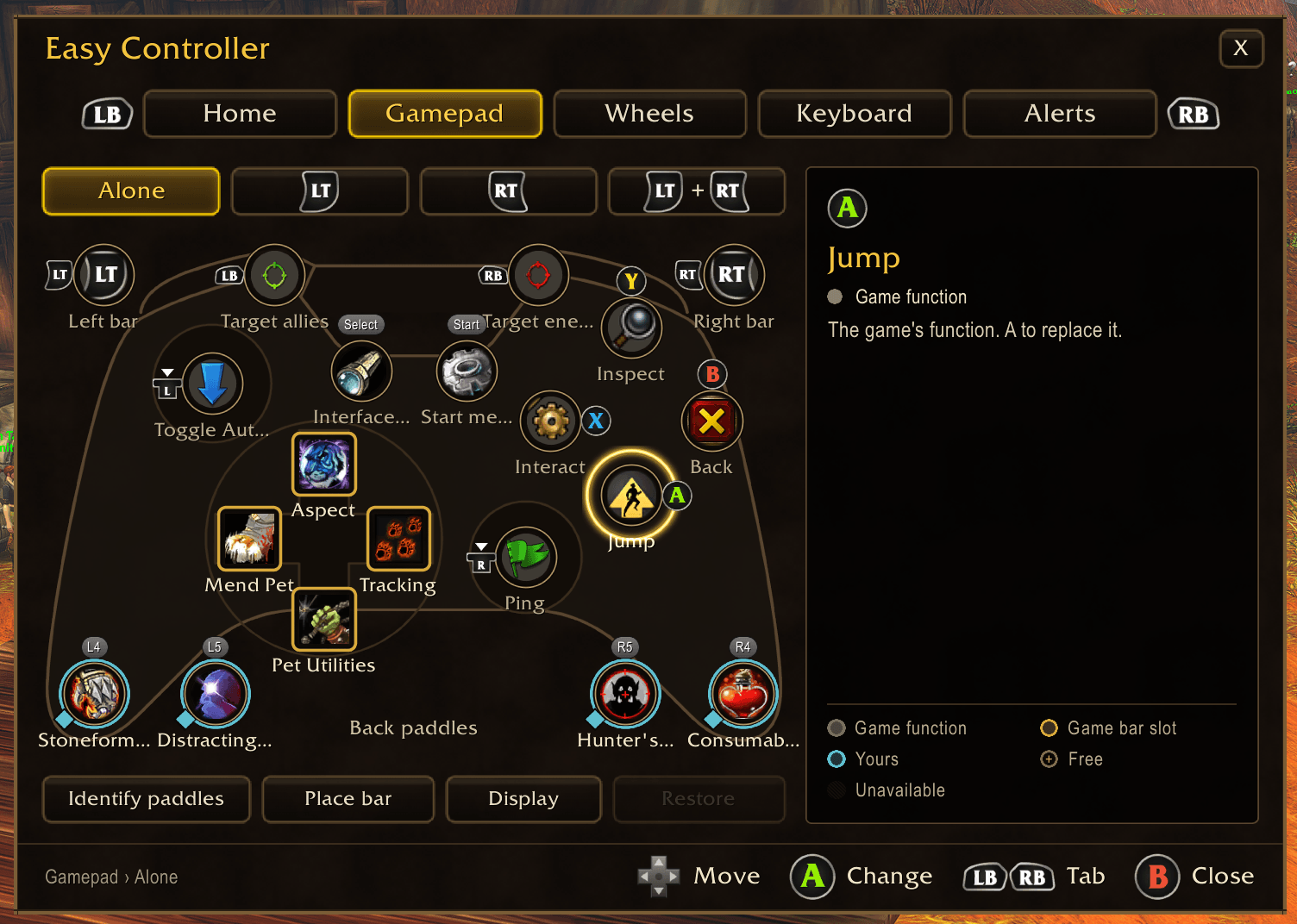
Gamepad mapping The Gamepad tab draws your whole controller over an Xbox controller, in its four trigger layers, each button with what it does and its state (the game's, a slot of its bar, yours, free, unavailable). The buttons WoW Forever uses stay exactly as they are; the free ones get the missing functions: L3 / R3, unused trigger combinations (LT + Start…) and the back paddles can run a game function (run / walk, autorun, game menu, map, bags, any key binding of the game), one of the game's own gamepad functions (jump, back, interact, inspect, Start menu, ping, targeting…), a spell, an item, a macro, or press a button of the gamepad action bar. The addon's own (the consumables wheel, the quick phrases, your wheels) head the Macros list. The game's own buttons (A, B, X, Y, D-pad, LB / RB) can be replaced too, its menus keeping their buttons; one button gives them all back, and LT + RB / RT + LB (which the game leaves to its targeting) can take an action too. Start and Select stay the game's. Each trigger layer keeps its own function: what you put on L3 alone stays on L3 alone.
A on a layer you can't use says why (a button whose function alone takes its trigger layers, like L3's autorun or a game function on X) and frees it on the spot: another action for the button alone, or Nothing.
Stealth, forms and stances In stealth, a form or a stance, the game shows the stance bar in place of a gamepad bar: set it from the Gamepad tab, and your replaced buttons, paddles and trigger layers press its spells (macros included) while you are in the stance. Enter the stance first: the Gamepad tab shows the stance bar's slots only while you are in it (stealth for a rogue's, cat form for a druid's…).
Profiles
Each character (by its full name, surname included) keeps its own buttons, paddles, wheels and
supplies, with nothing to set; nothing done on one changes another. A new character starts from your
setup, without the spells it doesn't have. /ec profile shows what each character holds.
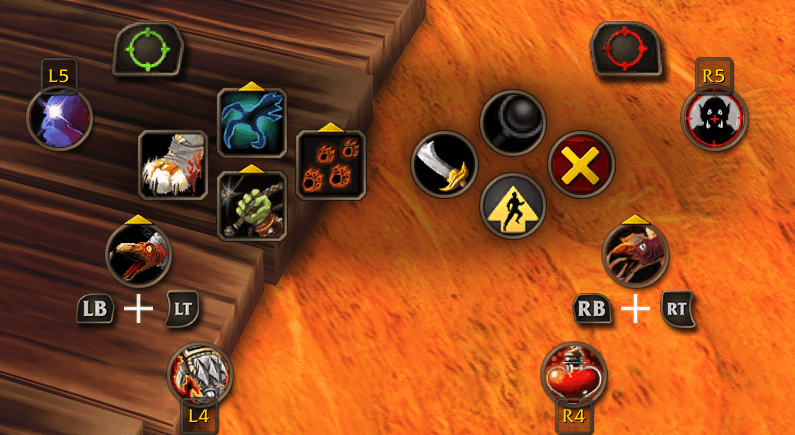
Back paddles (L4 / R4 / L5 / R5) Steam Deck and other controllers: set each paddle to a keyboard key in Steam Input (F13 to F16 for example), then "Identify paddles" asks for each one in turn. Each paddle has the four trigger layers (alone, LT, RT, LT + RT) for spells, items and macros, even when RT is no modifier or Steam Input sends the paddle without the trigger's modifier; game functions too once "RT as a modifier" is on (Home › Gamepad). The extra buttons (back paddles, L3, R3) are shown around the gamepad action bar, in its own round slot style, with the action's icon, count and cooldown, and press down like the game's buttons. Place each one where you want among fixed places around the bar's controls, with the D-pad or the mouse, mirrored left / right, or anywhere with Free placement.
Extra buttons For both controllers with more buttons (Vader Pro…) and touchpads set as buttons (Steam Deck, Steam Controller: 4 buttons a touchpad): make each button send a keyboard key in Steam Input (F17 to F24 for example), turn on the ones you use in Home › Gamepad, and "Identify paddles" learns them. Up to 8 more buttons, working like the back paddles: the four trigger layers, spells, items, macros, game functions, shown next to the gamepad bar.
Triggers: press to switch An option in Home › Gamepad: press LT alone (no other button while it is down) and the left bar stays on; press LT again to come back to the top bar. Same for RT (the right bar); LT then RT: the bottom bar. Holding a trigger and pressing a button still works as before. The back paddles, L3 / R3 and the extra buttons follow the bar on. Made for the game's compact action bar (one bar shown): the bar switched on shows in place of the top bar, its icons pressing in on each press, round where the game's buttons are round. Optionally back to the top bar after each fight.
Red when out of range Turn it on in Home › Gamepad: when the target is out of range (too far, or too close for a hunter's shots), the whole spell turns red, in the button's own shape, on the gamepad bar and on the extra buttons, instead of the game's small red dot only.
OLED burn-in prevention The gamepad UI's dot in the middle of the screen is always lit at the same place, which can burn into an OLED screen (Steam Deck OLED, handhelds). In Home › Look, give it a colour, let it change colour every 5 minutes, or hide it.
Quest items The items a quest asks to collect (cloth, ore, meat…), which the game does not mark, get the game's own quest item border in orange in your bags, and an orange "Quest item (quest name): do not sell" line in their tooltip. A warning with a Buyback reminder if you sell one anyway.
Better items A green arrow at the bottom right of an item in your bags that would be better than what you wear in its slot. Items are compared by their stats, weighed for your class: a weapon's damage per second first, then strength, agility, stamina, intellect, spirit, attack and spell power, armor (hybrids by their main talent tree: a holy paladin weighs intellect and healing). Only what you can use and your class's armor type; rings, trinkets and one-hand weapons against the weaker of the two you wear. The panel shows your weights.
At merchants Turn them on in Home › Automation: grey items sold by themselves (never a quest item), then everything repaired, with a line in the chat for each; the guild's money first if you want it.
Quest links and drafts A "Quests" chip in the channel row lists your quests and inserts their links. Links from Shift+click or from the game's own "Share in chat" go into the message. When the game closes the chat (a panel opens), your message is kept as a draft: type "LFM", share a quest from the quest log, and the keyboard holds "LFM [quest]".
Gamepad controls
Common to both methods
| Button | Action |
|---|---|
| A | send the message |
| B | clear the message (on an empty message: the game's back, closes the chat) |
| D-pad ↓ / ↑ | channel row / suggestions row |
| D-pad ← → | move in the active row |
| Right stick click | insert the suggestion (on the channel row: confirm the channel) |
X, Y, Start and Select stay with the game's gamepad UI.
Daisywheel
| Button | Action |
|---|---|
| Left stick | pick a petal |
| Right stick | type the aimed letter (with the left stick centered: move in the active row, ↑ insert, ↓ delete) |
| LB / RB | delete / space |
| LT | shift (double tap: caps lock) |
| RT or left stick click | numbers, accents, symbols |
Split keyboard
| Button | Action |
|---|---|
| Left stick / right stick | move the cursor on the left / right half |
| LT / RT | type the left / right cursor's key |
| LB / RB | delete / space |
| Left stick click | numbers, accents, symbols |
Quick phrases
| Button | Action |
|---|---|
| D-pad | pick a phrase (← on the first one: the row's name) |
| LB / RB | channel |
| A | send (on an empty one: write it) |
| X | rewrite the phrase or the row's name |
| Y | open the keyboard with the phrase |
| B | close (opened from the keyboard: back to it) |
Languages
Interface in English, French, German, Spanish and Italian. Suggestions and keyboard layout follow the game client's language by default.
Installation
Install with the CurseForge app, or extract the zip into
World of Warcraft/_classic_beta_/Interface/AddOns/.
Fully restart the game after installing or updating (a /reload does not load new files).
Commands
/ec: open the keyboard/ec mode wheel|stick: daisywheel or split keyboard/ec layout azerty|qwerty|qwertz|es|it: split keyboard layout/ec lang fr|en|de|es|it|both: suggestion and accent language/ec lock: lock / unlock the position (unlocking shows the keyboard to move it)/ec scale 1.2: any size (the options offer 4 presets)/ec config: configuration panel (also RB + D-pad down)/ec map: gamepad mapping (free buttons, back paddles, extra buttons)/ec keys: list the keys the game receives (to set up back paddles and extra buttons)/ec vibe [pattern]: test the controller vibration/ec wheel: what the consumables wheel holds, and why an item is not in it/ec phrases: the quick phrases window/ec profile: this character's settings, and what each character holds/ec help: all commands- Options: RB + D-pad down,
/ec config, or Escape > Options > AddOns > Easy Controller - Forever
Compatibility
Made for WoW Forever and its gamepad UI. The keyboard and the quick phrases are disabled in combat (the game blocks too many actions there); the keyboard comes back by itself after combat if the chat is still open.
Source code and issues: GitHub - Roadmap: ROADMAP.md
Dictionaries derived from FrequencyWords by Hermit Dave (CC-BY-SA-4.0). Code under the MIT license.
You must be logged in to leave a comment.