
ControllerForever
***Requires the Gamepad UI alpha*** Put your rotation on A/B/X/Y and every button, with LT/RT layers, tap-to-target triggers, healer targeting, wheels and Xbox, PlayStation or Nintendo symbols. Use "Compact Action Bar" for best results. Join our Discord!
Details
Expansion
 Forever
 Categories
Developers

Having issues?
**discord link**
Controller Forever
A full controller layer for WoW Forever's native gamepad UI. Put your own spells, macros, items and game actions on A/B/X/Y, the D-pad, LB/RB, L3/R3, Start, Select and back paddles, on every trigger layer, and set it all up with the controller alone. Tap a trigger to target, pick targets with the right stick, heal from the D-pad, and open wheels for windows, consumables, marks, emotes, quick chat and your class's own spells. There's a full settings menu and a controller-shaped keybind screen. Once it's installed, nothing needs a mouse or keyboard.
Controller Forever works with Forever's gamepad UI rather than replacing it. Forever still draws the bars and handles interaction, and the addon adds its own buttons where Forever's layout is locked. Every part can be switched off on its own, which hands that button straight back to Forever.
Requires the Gamepad UI alpha to be enabled. For the best results, use "Compact Action Bar" in WoW's gamepad settings.
What it adds
🎮 Your own A/B/X/Y actions
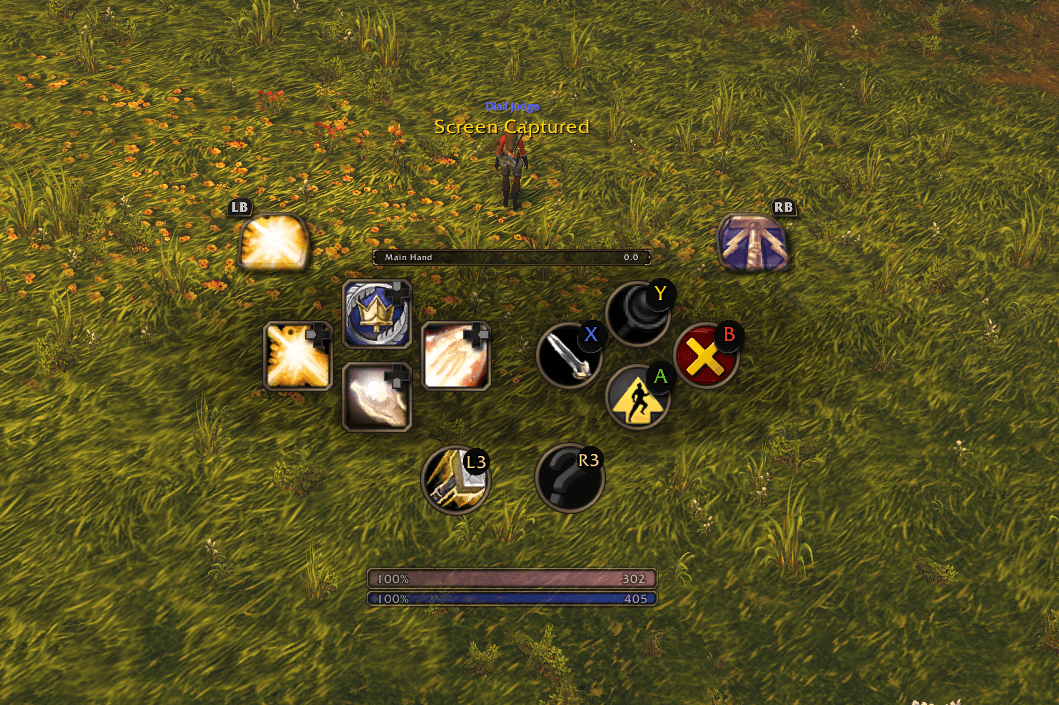
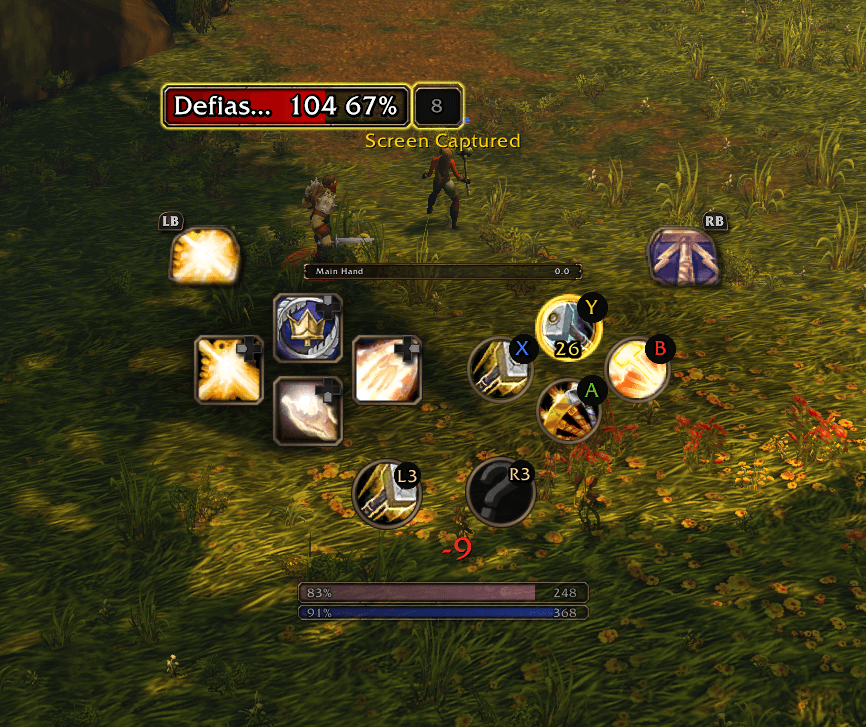
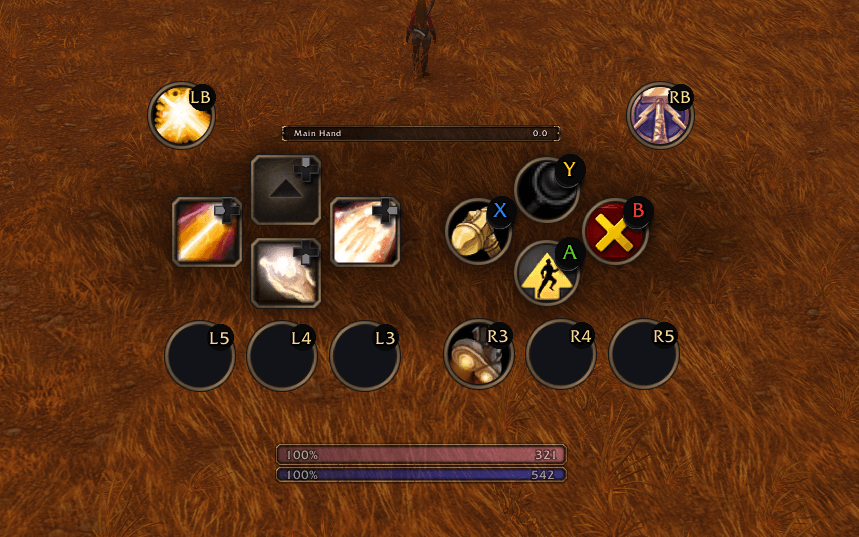
Put any spell, macro, item or game action on A, B, X and Y. The buttons sit right on top of Forever's face buttons: round, the same size, with colored symbols.
In combat only (default): your binds take over in combat. Out of combat, A/B/X/Y do Forever's usual Interact/Loot, Inspect, Back and Jump.
Hostile target: your binds take over whenever you have an enemy targeted.
Always: your binds stay on all the time, and LT + face button gives you Forever's own actions whenever you need them.
Druids: each form can have its own binds, and anything you leave empty in a form uses your caster bind. Binds that belong to a form get a ring in that form's color.
Warriors: each stance gets its own full set of every button on every layer, and it swaps automatically when you change stance.
🎯 Triggers: tap to target
Tap RT to target the nearest enemy, tap LT to target the nearest friend. Tap again for the next one. Hold them and they're still your modifiers, same as always.
Target Swinger: hold a trigger and push the right stick toward who you want. LT picks friends, RT picks enemies.
Facing Cone and Face Friends Too decide how wide "who you're facing" is.
Small LT / RT icons on screen show what a tap does. Move them, resize them or turn them off.
🔘 LB / RB action buttons
LB and RB are full action buttons with four actions each: alone, with LT, with RT, and with LT + RT. On by default.
Hold LB or RB and push the right stick up or down to zoom the camera.
LB + RB together can open Forever's own Shortcuts bar (try-out, off by default).
Four modes: On, On (hidden), Off, and Off (hidden).
🕹️ L3 / R3, Start, Select and back paddles
Stick clicks are buttons too, with the same four layers.
Start and Select can be bound on every layer. Put "Start menu" on Start alone and your own binds on LT / RT + Start.
L4/R4 and L5/R5 back buttons (Xbox Elite, DualSense Edge, Steam Deck grips…) work the same way, switched on per pair, plus four extra buttons (E1 - E4) for controllers that have them.
Set Up Back Buttons learns each paddle by pressing it. It also accepts keyboard keys, for controllers like the Xbox Elite whose paddles Windows doesn't pass through. For those, map the paddles to F13–F16 in Steam or F9–F12 in Xbox Accessories.
⚔️ Combat sets (experimental)
The D-pad, LB/RB, L3/R3, Start, Select and the back buttons can each swap to a second set of binds In Combat or with a Hostile Target, just like A/B/X/Y. Anything you leave empty keeps its normal bind.
🧩 All Keybinds: a controller on your screen
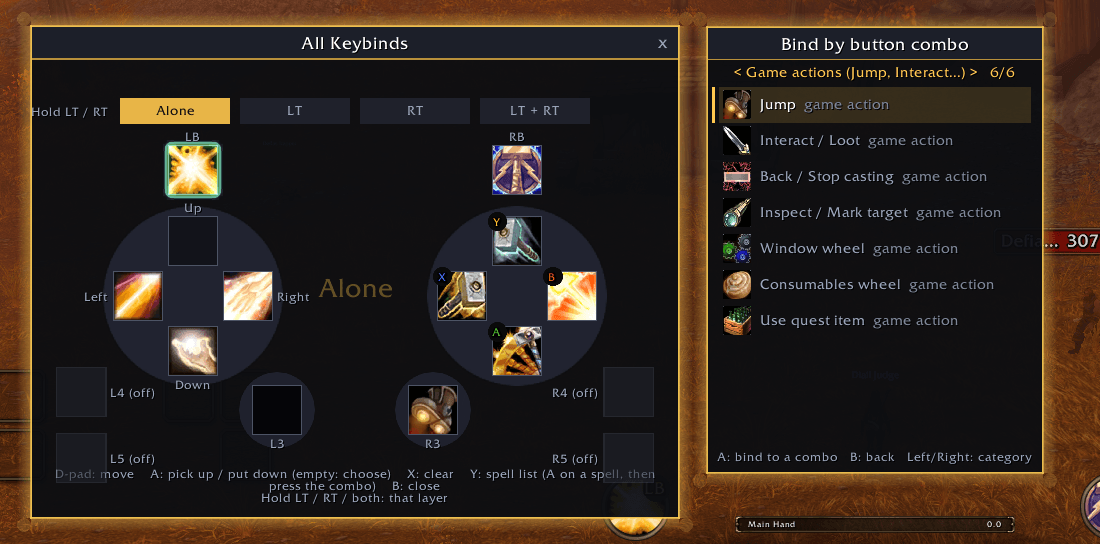
Your binds sit on a drawn controller: LB / RB on the shoulders, the D-pad and round A/B/X/Y in their wells, stick clicks below, back buttons at the sides.
LT and RT sit up top where the triggers are and work as the layer tabs. Hold a trigger, or pick a layer, to see what's on it.
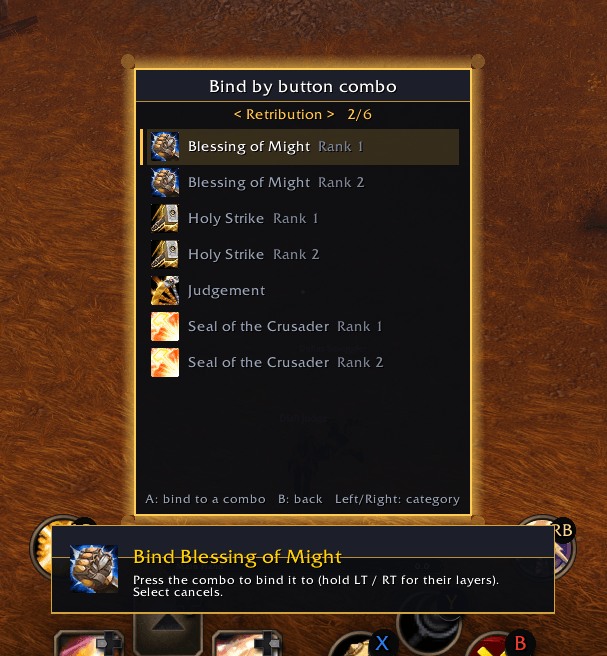
A picks an ability up and puts it down anywhere (swapping), or opens the bind list on an empty slot. X clears a slot. Y opens the list so you can bind by pressing the button combo you want.
R3 undoes your last change (up to 20). L3 flips between your normal binds and your combat sets.
It edits Forever's own D-pad and A/B/X/Y slots too, so everything is set up in one place.
The bind list is split into pages: Game Actions, Targeting, Marks, Pings, Windows, Professions, Emotes, Items, and macros (General and your character's own).
Make and edit macros right from the list: start attack, @cursor, trinket slots, racials and more.
🗂️ Layouts
Three separate sets of binds per character (tank / heal / dps, or whatever you like). Hold RB to switch.
Name them, give them an icon, copy one over another, or copy from another character. A layout can swap your gear too.
📋 What you can bind
Spells and macros, including macros on LT / RT layers.
Items from your bags, plus your trinkets.
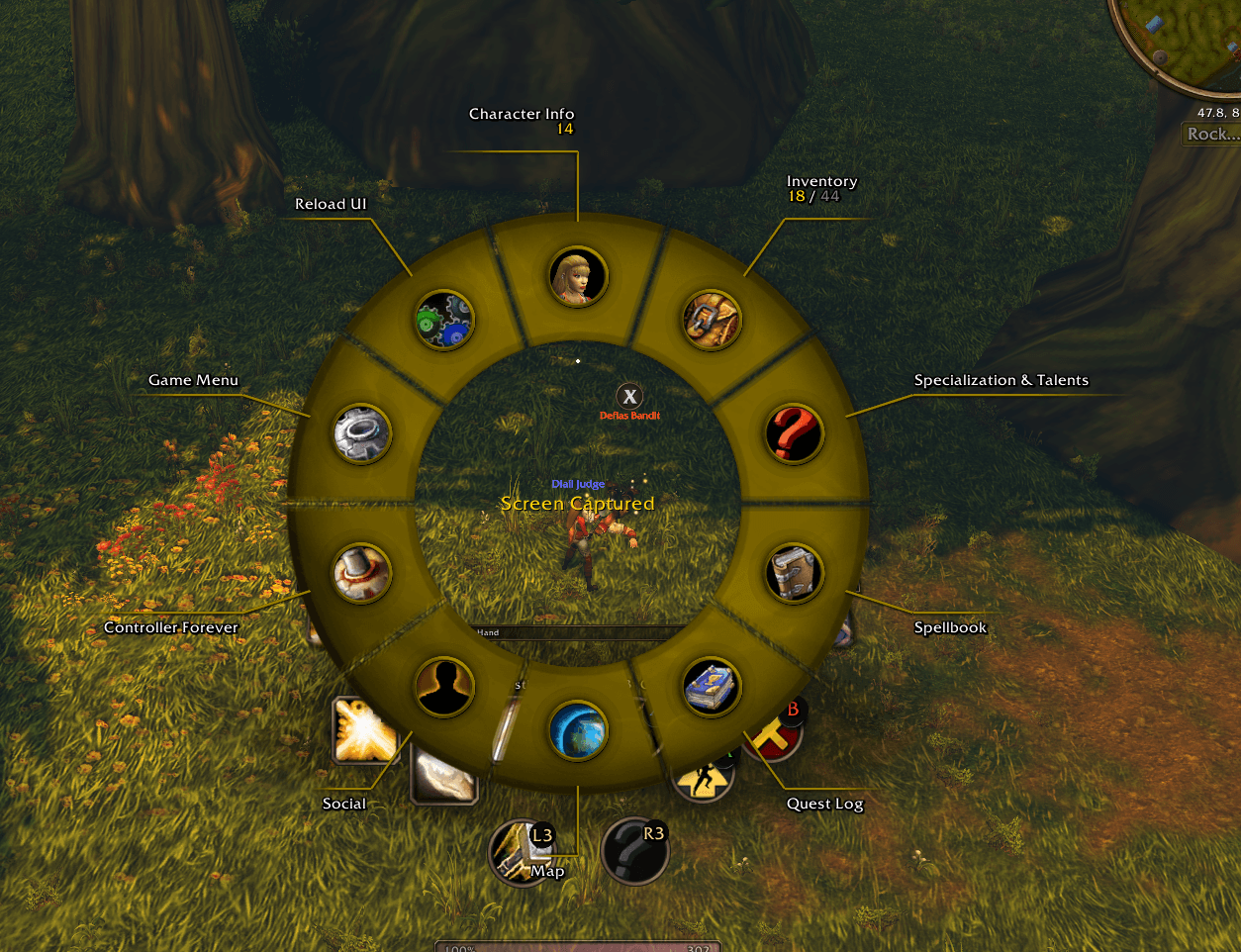
Game actions: Jump, Interact, Back, Inspect, Auto Run, Start menu, the Controller Forever menu, Quick Chat, Voice to Text, Mouse Pointer, Reload UI, Use Quest Item, and every wheel.
Windows: World Map, Bags, Character, Spellbook, Talents, Quest Log, Professions, Social, Guild, Group Finder, Collections, PvP and the Game Menu.
Professions: every profession you know, with its own icon.
Targeting: Set Focus, Clear Focus and the healer shortcuts.
Marks: every raid mark, plus Mark Next, which gives each new target the next mark in line.
Pings: Ping, the ping types, and the ping wheel.
Emotes: any single emote, the Emote Wheel, or My Emote Wheel.
💚 Healer Mode
One switch: Off, Healer D-pad, or Healer 5 Mans. There's a bind to cycle it too.
Healer D-pad: the D-pad alone picks a party or raid member. Helpful spells go to them; harmful spells still go to your target.
If your target is friendly, heals go to your target. Pick someone with the D-pad and that takes over again.
In a party only two D-pad directions are needed to move through the frames. The other two become shortcuts: to your focus target, to yourself, or to whoever the enemy is hitting.
Healer 5 Mans: in a party, every D-pad button is one party member and LT + D-pad Up is you. Each button shows class color and a live health bar, the one you picked glows green, and the bar turns gray when they're out of range.
🌀 Wheels
Point with either stick. Every wheel is a bind you can put on any button.
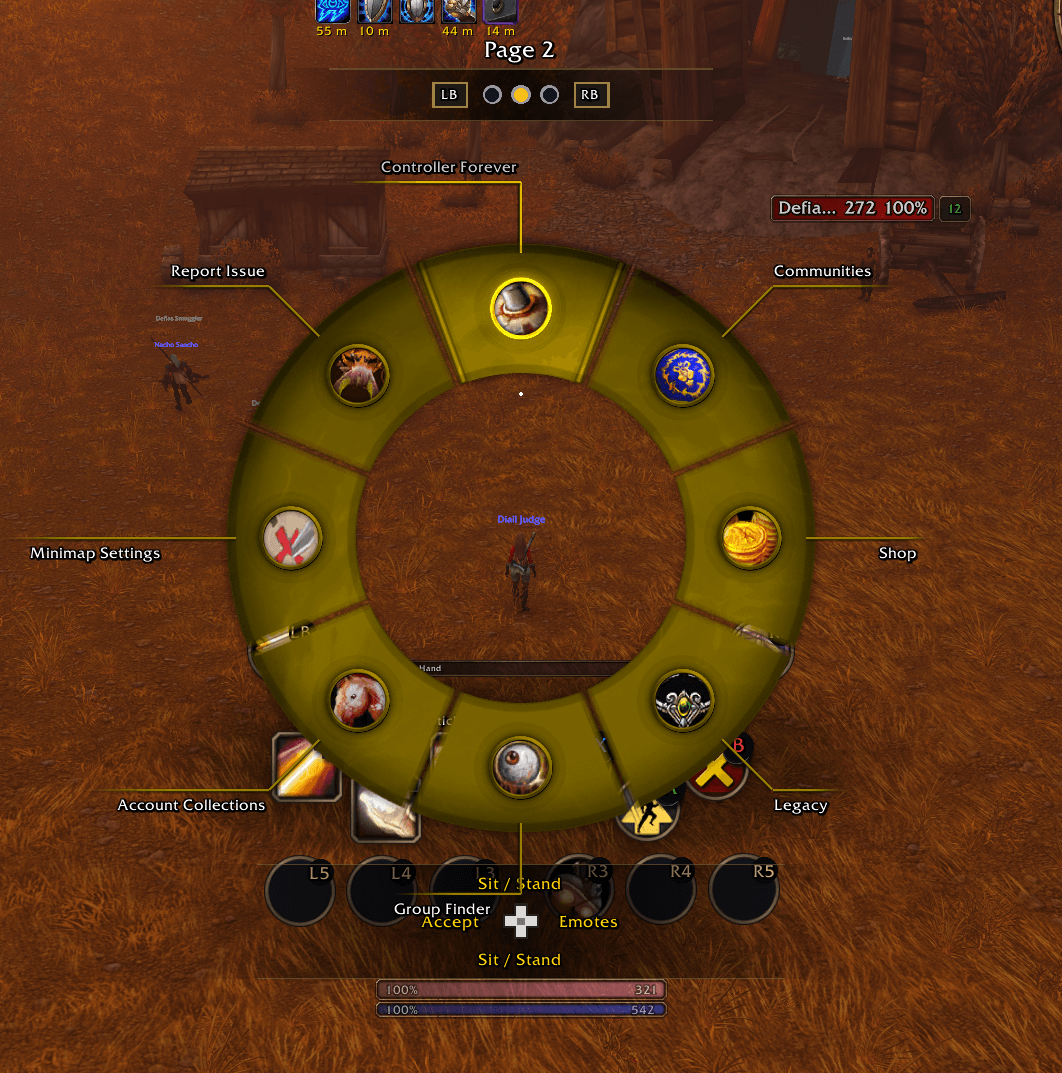
Window wheel: Character, Inventory, Talents, Spellbook, World Map, Social, Professions and the Game Menu, with more pages on LB/RB (the Controller Forever menu, Communities, Shop, Group Finder, Collections, Calendar, Clock, Chat, PvP, Reload UI).
Class wheels (experimental): they fill themselves with what your character knows and cast when you let go of the stick, in or out of combat. Paladin auras and blessings, warrior stances, druid forms, warlock pets, mage portals and teleports, hunter pet commands.
Mark wheel: put a raid mark on your target.
Custom Wheel 1, 2 and 3: wheels you fill with anything you can bind.
Emote Wheel and My Emote Wheel: common emotes, or ones you pick from the full list.
Quick Chat wheel: your quick chat phrases on a wheel.
Wheels tab: change the size, position, color, texture and shape of every wheel, all at once or one by one.
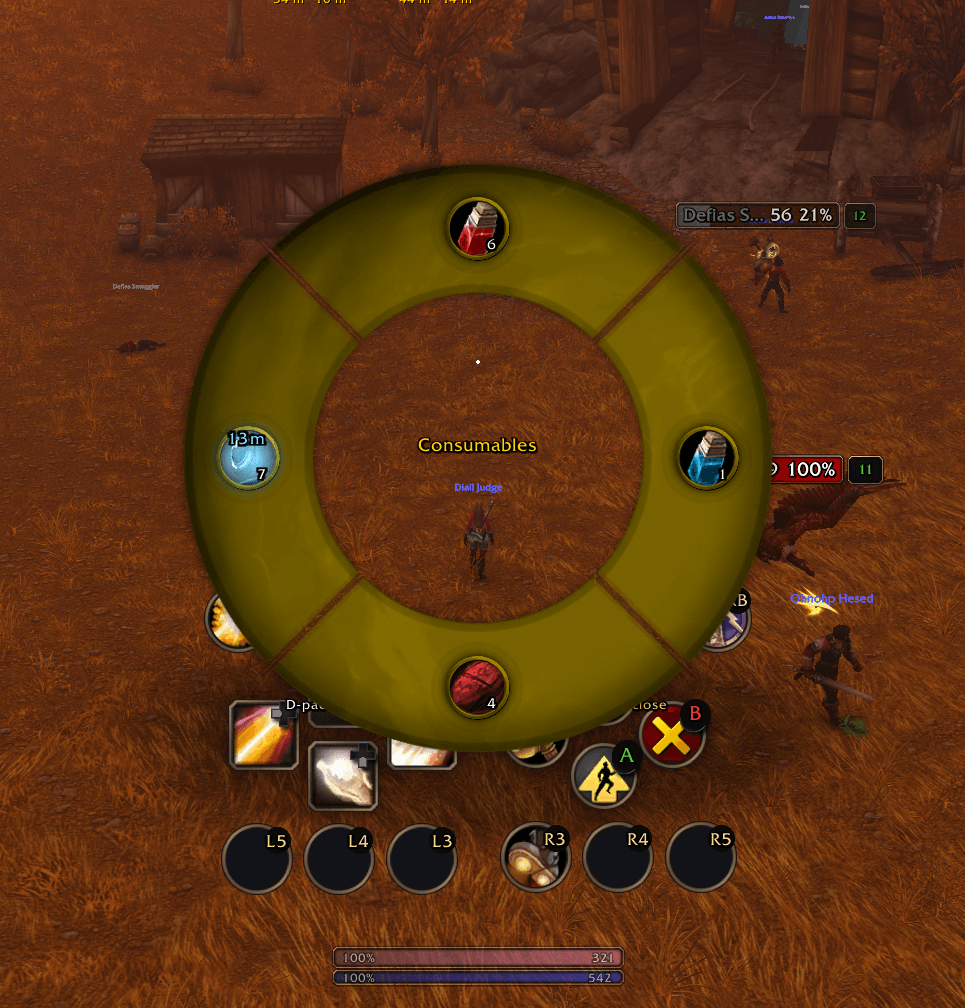
🍖 Consumables wheel
Food, drink, potions, bandages, healthstones, elixirs, flasks and scrolls from your bags, on a ring with their icons. Point at one and let the stick go to use it (or press A).
It shows how many of each you have and cooldown sweeps. Anything you can't use right now turns red. Bandages show the time left before you can bandage again.
Sharpening stones, weightstones, oils and poisons: A puts it on your main hand, X opens your bags to choose the weapon. They glow with the time left while active.
Quest items that start a quest show up here too.
Stay Seated While Eating: a nudge of the stick won't stand you up, and you can still look around.
📜 Quest items
One button uses the quest item in your bags ("use this on the corpse"), with its icon on the slot. It works in combat.
💬 Quick Chat
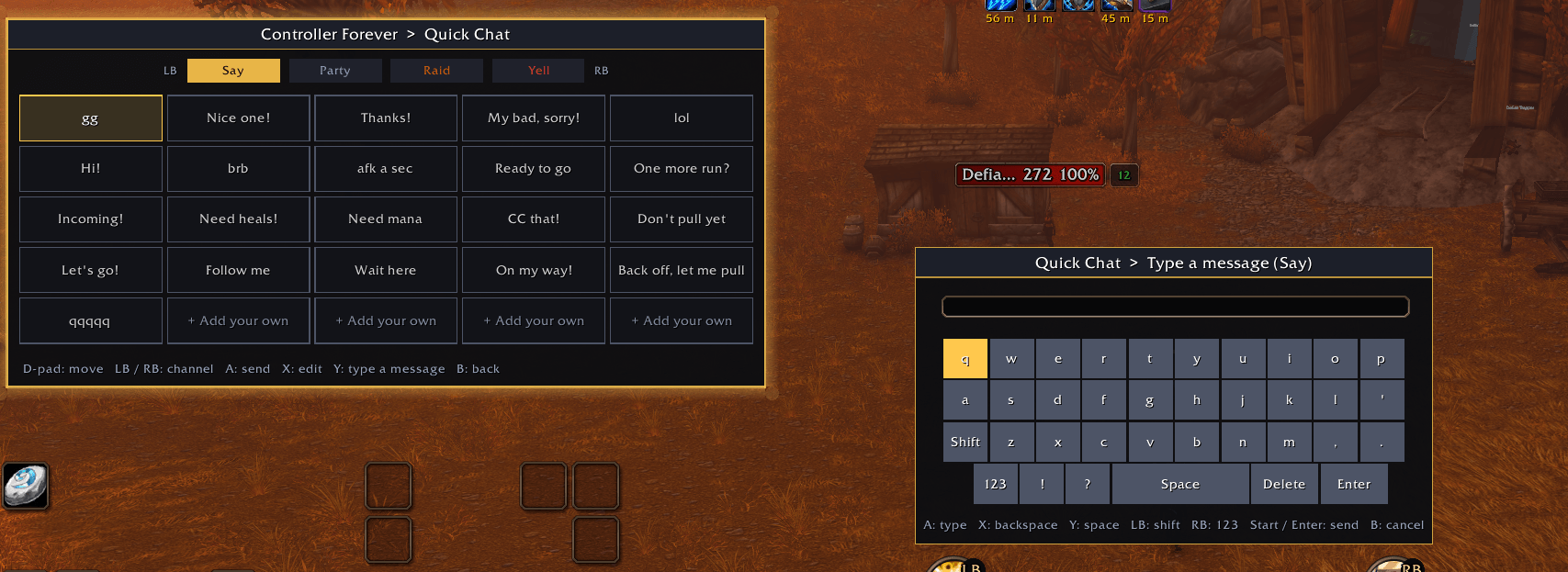
A grid of picture tiles with common phrases, picked with the D-pad and sent with A. LB/RB switch between Say, Party, Raid and Yell.
Edit any tile with the built-in on-screen keyboard, or type a one-off message. The keyboard suggests words as you type and has /1, /2 and the other channels built in.
Voice to Text: a bind that opens chat for a voice typing app. You need the app on your computer and Steam Input (or your controller's software) to put its shortcut on a button.
🏹 Smarter Interact
With a wand equipped, Interact on an enemy shoots your wand instead of swinging your melee weapon.
Hunters with a bow, gun or crossbow start Auto Shot, and still swing in melee range.
🧙 Easy Setup
New to controller? Easy Setup puts your class's most important spells on your buttons for you, and can fill empty buttons.
🪟 Game windows just work
While a game window is open, your binds step aside so the controller drives it, and come back when it closes.
Yes/No pop-ups like Delete Item and Logout answer to A and B, even over your bags.
If a fight starts with a window, a wheel or the menu open, it closes and your buttons cast right away.
Loot rolls (experimental): pick Need, Greed or Pass with the controller.
✨ Visual feedback
Range Indicator: out of range abilities get a color wash, a dot, or both, in the color you choose. Out of mana turns red-blue, and unusable turns grey.
Cooldown sweeps and timers, plus the pressed-button look.
Cooldowns from Other Layers: abilities cooling down on the layers you aren't holding show in a list or a row, soonest first, with the buttons they're on.
Seal and aura tracking: the button glows gold with a countdown while the seal is up, and seal-dependent abilities dim when no seal is active.
Cast bar: keep the game's, hide it, or use a Controller Forever cast bar with its own size, style, colors, spark, timer and channel ticks.
Target brackets (try-out): marks around whoever you have targeted, in four styles.
Crosshair: styles, colors and sizes, or hide it.
🎨 Controller layouts
Button symbols for Xbox, PlayStation and Nintendo, picked automatically from your controller or set by hand. You can also hide them completely.
🖱️ Mouse and trackpad
Mouse Pointer bind: the right stick moves the pointer and the triggers click, with a speed setting.
Choose what happens when you touch the mouse or trackpad while playing on the controller.
Steam Deck and Steam Controller: pick from the wheels with the trackpad (off by default).
📐 Gamepad UI layout
Scale and move Forever's whole gamepad UI, and center its Start (radial) menu.
Spread the left and right halves of the bar apart, and move each pair of buttons in or out.
Layout Opacity: fade the whole layout from 100 down to 0, with options to show it fully in combat or with a hostile target.
What it replaces (and what stays Forever's)
Controller Forever takes over… …only while this is on Turn it off and you get back…
A/B/X/Y (in combat, hostile target, or always) A/B/X/Y rules Forever's face buttons
A tap of LT / RT Tap RT / LT to Target Nothing (triggers stay modifiers either way)
LB / RB, including LT + LB and RT + RB LB/RB action buttons Forever's targeting on LB/RB and its stance/class slots
L3 / R3 clicks L3/R3 action buttons Whatever the sticks did before
L4/R4, L5/R5, E1 - E4 Back buttons (per pair) Nothing (unused by Forever)
Start Bind Start Forever's Start menu
Select Bind Select Select's normal Forever function
The D-pad alone Healer D-pad or Healer 5 Mans Your normal D-pad binds
The wheels and the quest item are binds like any other, so they only take the button you put them on. Forever always keeps its trigger layers and interaction in general.
Settings
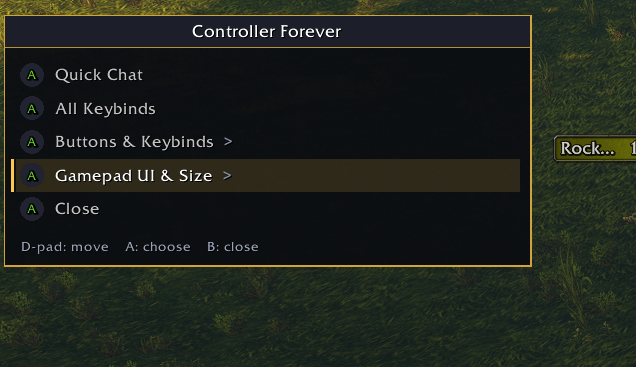
Open the Controller Forever menu from its bind, or from the window wheel. Lost it? Hold both sticks in (L3 + R3) for a second and it opens, whatever you have bound where. Everything is reachable from the controller:
Tabs across the top (LB / RB): Home, Buttons, Look, Wheels, Cast Bar, Healer, Settings.
Each tab's sections are listed down the left, with the options on the right and a description of whatever is highlighted.
Home: All Keybinds, Quick Chat, Easy Setup, Layouts.
Buttons: Face Buttons, Shoulder Buttons, Triggers, Stick Clicks, Start Button, Select Button, Back Buttons, Gamepad Bar.
Settings: save up to 10 sets of your settings, restore one, or reset everything to default.
What's New: a short list of what changed pops up the first time you open the menu after an update.
Settings are saved per account, and every character keeps its own binds. Both carry over when you update the addon.
Good to know
Built for WoW Forever's native gamepad UI, with gamepad mode turned on. Turning the controller off pauses the addon for keyboard and mouse play.
Binds and settings change out of combat. The game locks action bars in combat, so changes made mid-fight wait until it ends.
Keep "Start menu" bound to Start itself. On another button, LT / RT + that button opens the Start menu instead of your own binds.
Found a glitch? Settings > Help Me Fix a Bug has Run Test Recording, so you can capture it without typing anything.
Chat commands: /cr lists them all, and /cr menu opens the menu.
Comment with feedback and join our Discord!
The Controller Forever Team
You must be logged in to leave a comment.