
BetterBags
Automatically organize your WoW Forever bags with adjustable priorities, item overrides, and profiles. Keep essentials first, free space in the middle, and junk in the final slots.
Details
Expansion
 Forever
 Categories
Developers

Having issues?
BetterBags — Weighted Sorting
Your bags. Your priorities.
Keep the things you reach for at the front, give new loot room in the middle, and send junk to the final slots. BetterBags automatically arranges your inventory using priorities you can see, understand, and change.
Set category weights, make exceptions for individual items, and save profiles for different characters or routines—all through a simple settings window with a live sorting preview.
Built for WoW Forever Beta 1.60.1.69977 · Version 0.1.1 beta
Put your priorities in order
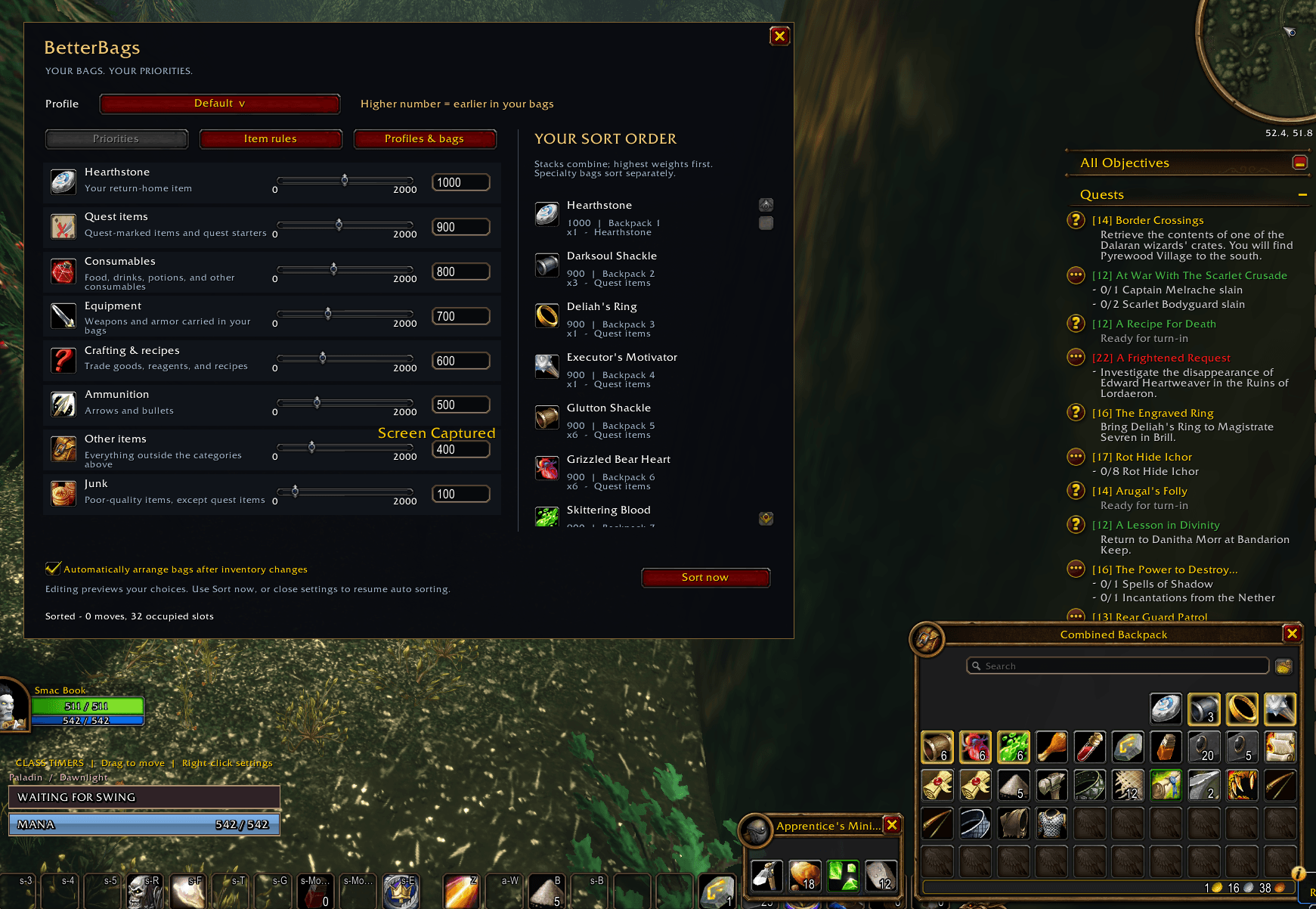
Give each category a weight from 0 to 2000. Higher numbers come first within their section. Use a slider for quick adjustments or type an exact value.
Start with these defaults and make them your own:
| Category | Weight | Placement |
|---|---|---|
| Hearthstone | 1000 | Front |
| Quest items | 900 | Front |
| Consumables | 800 | Front |
| Equipment | 700 | Front |
| Crafting materials, reagents, and recipes | 600 | Front |
| Ammunition | 500 | Front |
| Other items | 400 | Front |
| Junk | 100 | Keep at end |
Quest items take precedence over junk classification, while poor-quality weapons and armor belong to Junk. Equal weights use a consistent order based on item name, item ID, variant, and stack size.
Keep junk in the final slots
Enable Keep at end for any category to place it at the back of your inventory. Junk has this enabled by default.
Priority items → Empty slots → Junk
For example, with 20 available slots, four front items and two junk stacks, your front items occupy slots 1–4, slots 5–18 remain free, and junk fills slots 19–20.
Placement and weight work together: Keep at end chooses the section; weight controls the order inside it. Put both Consumables and Junk at the end, and consumables at 800 will appear before junk at 100 within that final block.
Prefer everything packed toward the front? Turn off Keep at end for every category.
Give individual items special treatment
Want one particular potion ahead of other consumables? Give it its own weight.
- Click an item in the sorting preview.
- Paste an item link or enter an item ID.
- Drag an item onto Drop an item here.
Set its weight and choose Save rule. Item rules apply to all copies of that item ID and can be edited or removed whenever you like. They override the category's weight while retaining its Keep at end placement.
See the result before you sort
The live preview shows your intended item order, destination bags and slots, and the result of combining matching stacks. End items are labeled, and an asterisk marks individual weight overrides.
Automatic movement pauses while settings are open, giving you time to adjust your layout. Choose Sort now to apply it immediately, or close settings to resume automatic sorting.
Profiles that fit how you play
Create a profile for everyday play, another for gathering, or a different arrangement for an alt.
- Copy your current setup into a new named profile.
- Switch profiles from the menu at the top of settings.
- Exclude individual bags to keep their contents in place.
- Choose automatic or manual sorting for each profile.
Profiles are shared across your account, and each character remembers its selected profile. Editing a shared profile updates it for every character using it; copy it first when you want a separate setup.
Automatic organization with room to work
BetterBags responds to inventory changes after a short quiet period, combines matching partial stacks, and arranges actual bag slots using your selected profile.
Sorting pauses during combat and interactions such as looting, trading, shopping, mail, banking, and auctions. It also waits while you're holding something on the cursor, targeting an item, or waiting for item locks to clear.
Ordinary bags sort together, starting with the backpack. Specialty bags such as quivers and herb bags sort within compatible groups. Keep at end uses the final slots of each included group, and Blizzard's Ignore this bag setting is respected.
This release manages carried inventory, using your existing bag display. Bank sorting and transfers between ordinary and specialty bag groups are outside its current scope.
Getting started
- Install the BetterBags folder in your Forever client's
Interface/AddOnsdirectory. - Restart WoW and enable BetterBags – Weighted Sorting.
- Enter
/bbto open settings. - Adjust your weights, choose any categories to keep at the end, and review the preview.
- Click Sort now, or close settings to let automatic sorting take over.
Automatic sorting is enabled by default. Use /bb stop to stop a pending sort and turn automatic sorting off for the current profile. After updating an existing installation, use /reload.
| Command | Action |
|---|---|
/bb or /betterbags | Open settings |
/bb sort | Apply your sorting profile now |
/bb stop | Stop sorting and disable automatic sorting |
/bb auto on | Enable automatic sorting |
/bb auto off | Disable automatic sorting |
/bb status | Show version, profile, and current sorting status |
/bb help | List commands |
Use Sort now or /bb sort for your custom priorities. The game's own Clean Up Bags button continues to use Blizzard's ordering.
Compatibility and feedback
This is a beta release targeting WoW Forever Beta 1.60.1.69977. If you encounter a problem, include the /bb status output, any Lua error, and the steps that caused it.
You must be logged in to leave a comment.