
Audio Book
Convert and listen to Audio books in game
Details
Expansion
 Forever
 Categories
Developers

Having issues?
AudioBooks: Quick Guide
Listen to your own audiobooks inside WoW Beta. You prepare a book on your PC with the Builder tool, then play it in game with the AudioBooks addon.
How it fits together
- On your PC: the Builder turns an audiobook (and a cover image, if you want one) into short clips the addon can play.
- Restart WoW so it sees the new files.
- In game: type
/abto open your library and press play.
Quick start
- Double-click
make_book_gui.pyw. - Check the addon folder box at the top. It must be the AudioBooks folder (the one containing
AudioBooks.toc). - Click File(s)... or Folder... and choose your audiobook.
- Optional: click Choose... next to Cover image.
- Click Convert and wait for it to finish.
- Fully restart WoW, then type
/ab.
Before you start
You need these on your PC:
- Python 3 (the standard Windows installer includes everything needed).
- ffmpeg, available on your PATH. It converts the audio and joins chapters.
- make_book.py, saved in the same folder as
make_book_gui.pyw. - Pillow (optional). Lets covers be JPG, WebP or BMP. Without it, covers must be PNG or GIF. Install it with
pip install pillow.
Adding a book
Choose the audiobook
<colgroup><col><col></colgroup>
Your audiobook is... | Click |
|---|---|
One file | File(s)... and pick it |
Several chapter files | File(s)... and select them all, or Folder... if they are in one folder |
Chapters are joined automatically in name order, so Chapter 2 comes before Chapter 10. The status line shows the first and last file so you can check the order before you convert.
Settings
<colgroup><col><col></colgroup>
Setting | What it does |
|---|---|
Title | The name shown in the library. Filled in for you. |
ID | The short name you type in game, as in |
Clip length | Seconds per clip. 20 works well. Allowed range is 5 to 120. |
Quality | Small is about 21 MB per hour. Better is about 29 MB per hour. Both are mono. |
Cover image | Optional. Tick Fit whole image to avoid cropping it to a square. Clear removes the chosen image. |
Click Convert to start. Cancel stops it. If the ID already exists, you are asked whether to replace that book.
Covers
A cover is a small 128x128 picture shown in the library and on the player. Books without one get a lettered placeholder.
The first time a cover is saved, the Builder offers to add Covers.lua to AudioBooks.toc. Say yes. After that it keeps Covers.lua up to date for you.
To change a cover later, select the book in the list at the bottom, choose a new image, and click Use chosen image as cover.
Managing installed books
The list at the bottom shows every book with its length, number of clips, and a tick if it has a cover. Select a book to see its cover in the preview.
<colgroup><col><col></colgroup>
Button | What it does |
|---|---|
Use chosen image as cover | Sets or swaps the cover on the selected book |
Remove cover | Deletes the selected book's cover |
Remove book | Deletes the book and its audio clips (asks first) |
Refresh | Reloads the list from disk |
Playing in WoW
Fully restart WoW after adding or removing books or covers. /reload is not enough.
The window
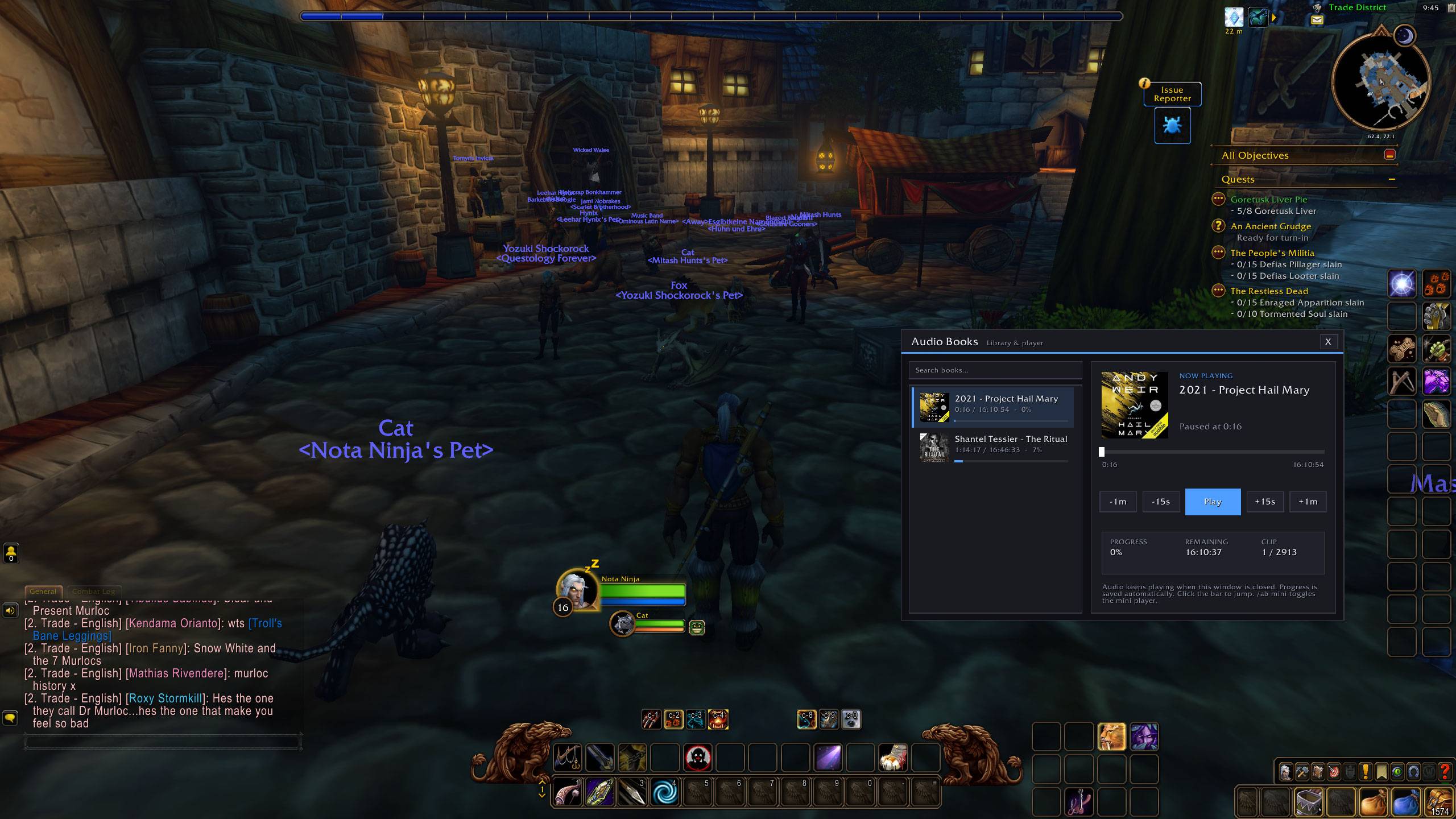
- A searchable library with cover thumbnails, saved time and percentage for each book.
- A player with a large cover, a clickable seek bar, and buttons for -1m, -15s, Play/Pause, +15s and +1m.
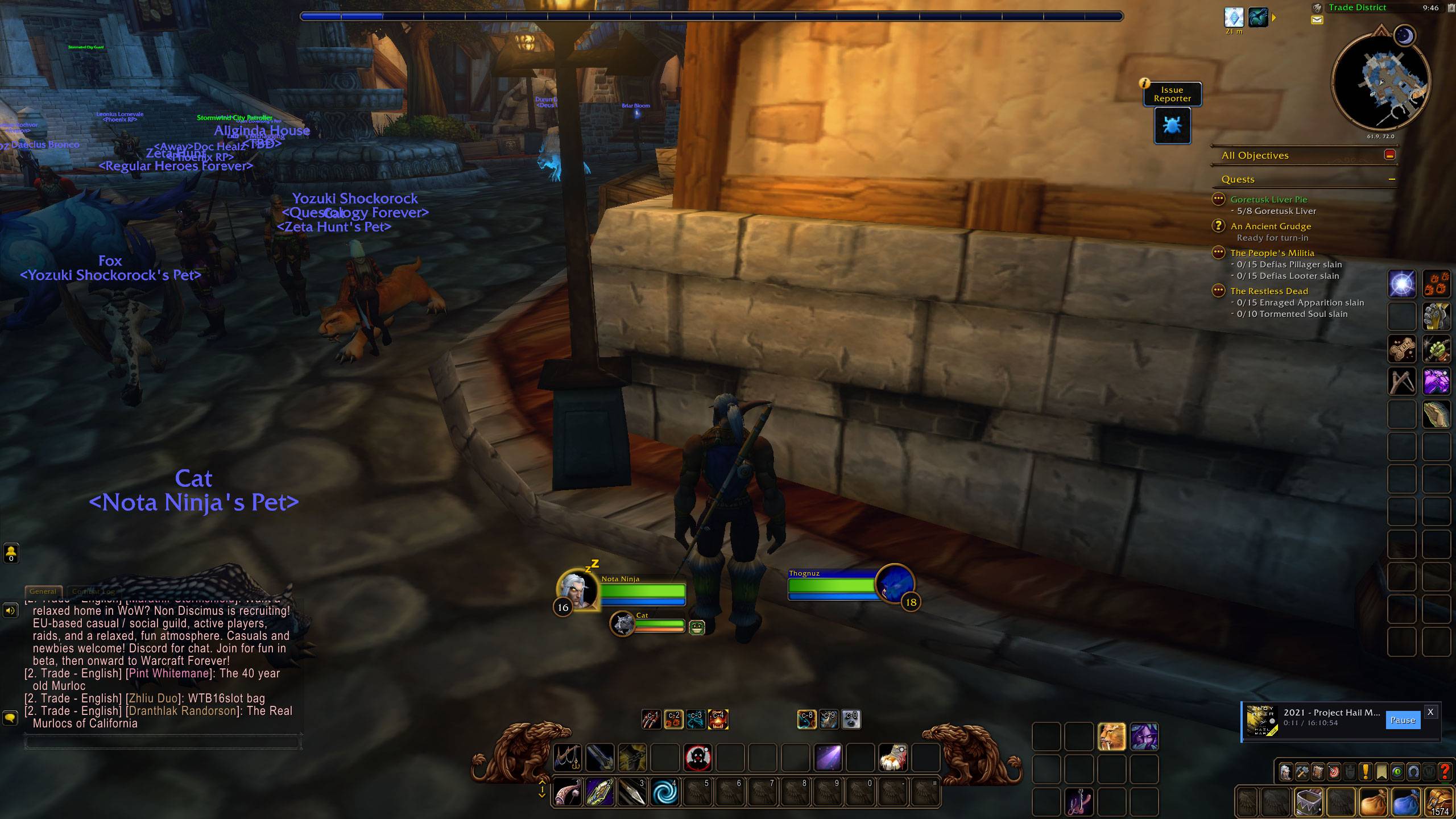
- Closing the window (X or Esc) does not stop the audio. A small mini player appears instead. Click its title to reopen the full window.
- Your exact position is saved for every book, and both windows remember where you put them.
Commands
/audiobooks works the same as /ab.
<colgroup><col><col></colgroup>
Command | What it does |
|---|---|
| Open or close the window |
| List books with length and progress |
| Play, optionally choosing a book first |
| Pause |
| Play or pause (handy for keybinds and macros) |
| Jump forward, or back with a negative number |
| Jump to an exact time |
| Open the window with a search applied |
| Turn the mini player on or off |
Troubleshooting
<colgroup><col><col></colgroup>
Problem | Fix |
|---|---|
"Choose the AudioBooks addon folder" | The top box must point at the folder containing |
"ffmpeg wasn't found" | Install ffmpeg, make sure it is on your PATH, then restart the Builder. |
"Couldn't join the chapter files" | A file may be damaged or not audio. Check the folder for stray files. |
Cover won't load | Without Pillow only PNG and GIF work. Run |
Book or cover missing in game | Do a full WoW restart, not |
Chapters in the wrong order | Rename the files so the numbers sort correctly, or pick them yourself with File(s).... |
Good to know
- Resume can step back. WoW addons can't seek inside an audio file, so each book is split into clips of about 20 seconds. Resuming or jumping starts at the beginning of the right clip, so you are never more than about one clip from where you meant to be.
- Chapters are not marked. The addon plays each book as one continuous recording.
- No downloading in game. Addons can't use the network or create files, so books are always added from outside the game.
- Use your own audio. The addon plays whatever you put in the folder, so use books you own or that are public domain.
- The Builder remembers only your addon folder, in
.audiobooks_builder.jsonin your home folder.
Where the files live
Interface/AddOns/AudioBooks/
  AudioBooks.toc      lists the files
  AudioBooks.lua      the addon itself
  Library.lua         generated: book titles and clip lengths
  Covers.lua          generated: which books have covers
  books/<book-id>/
    0001.mp3, 0002.mp3, ...
    cover.tga         optional, 128x128
Your saved positions, last book, mini player setting and window positions are stored in AudioBooksDB.
You must be logged in to leave a comment.