
EasyLoot
An automatic loot filter.


Details
Expansion
Categories
Developers

Having issues?
When enabled and automatic loot is disabled, it automatically loots using a user-defined filter so that only items with a quality/rarity above a certain level gets looted automatically.
The user can also define exceptions from the general quality rule.
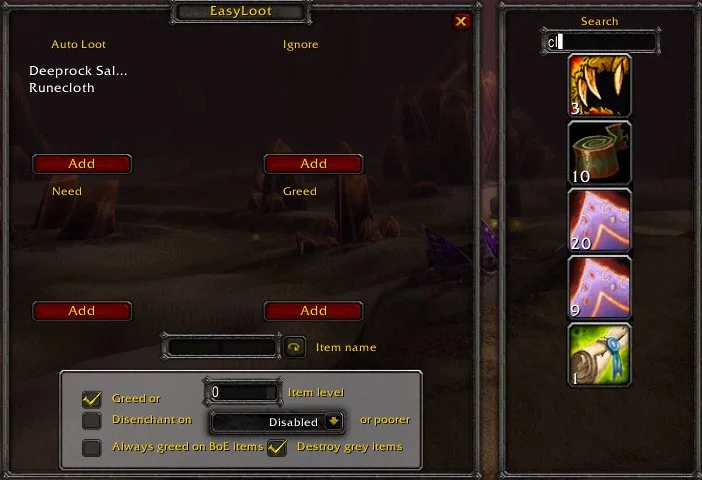
By typing “/el show” you can bring up the UI for adding:
“AutoLoot” (always loot)
“Ignore” (never loot)
“Destroy” (destroy the item once picked up)
“Need” (automatically roll need)
“Greed” (automatically roll greed)
Quality levels for each item class to be automatically looted
Enter the name of an item into the text box “Item name” in the middle of the window and press the add button under the column that you want to put your item into (regular expressions can be used to match item names).
Pattern matching instructions
You can also shift-click an item in your inventory or in AtlasLoot for example after you have activated the text box to copy the name of the item automatically.
If you don’t click in the text box before you shift-click the item the link will appear in the “default” window (usually chat).
An item can also be dragged from your inventory to the add button below the column you want to add the item name to (no wildcards can be used in this case).
Pressing the button next to the text field will bring up a tool where you can search your bags for items with names containing a specific text.
Items under “Need” or “Greed” will automatically be removed from the list if you loot an item with that name. To prevent this to happen click the padlock next to the item name so it locks. This will prevent the item from being removed from the list and you will keep rolling for it until you manually remove it from the list by clicking on the name or by clicking on the padlock again and then looting the item.
Automatic disenchant
there is a second check box in the greed list that indicates whether you want to automatically disenchant the item as it gets looted instead of the normal greed roll.
Destroy grey items
You can set the addon to delete grey items that are looted.
This is to help skinners to keep tidy bags and not flood them. When looting a grey
item it will destroy any items with the same itemID (same item) in the inventory.
You will not get a warning when the items are destroyed!
Greed or Disenchant
Using the “Greed on”/”Disenchant on” and the drop-down will give you the option to greed or disenchant (DE will trigger a greed roll if there is not enchanter in the group) on items of the specified quality or lower.
“Always greed on BoE items” will do just that if checked instead of disenchanting
items that will Bind on Equip.
Setting an item level in the text box marked “Item Level” will cause items that level or lower to be treated the same way as for matching quality (DE or Greed depending on your settings).
Other settings include:
Loot rules settings (when to use the addon depending on the loot rule).
Enabling/disabling the use of the addon in-game.
Quality/rarity threshold.
The settings can be found in the AddOn tab of the Blizzard Interface menu or by typing “/el options“
You must be logged in to leave a comment.