
McAwesome Unit Frames
Compact, customizable unit frames with animated portraits, clear health and resource bars, visible auras, class and role indicators, alignment snapping, and tank-focused target-of-target awareness.
Details
Expansion
 Forever
 Categories
Developers

Having issues?
McAwesome Unit Frames
McAwesome Unit Frames is a compact, combat-focused replacement for World of Warcraft's player, target, target-of-target, party, and raid frames.
It keeps the information you need visible at a glance without covering the center of your screen. The target-of-target display is designed especially for tanks who need to know immediately whether an enemy is attacking them, another tank, a healer, or another player.
Features
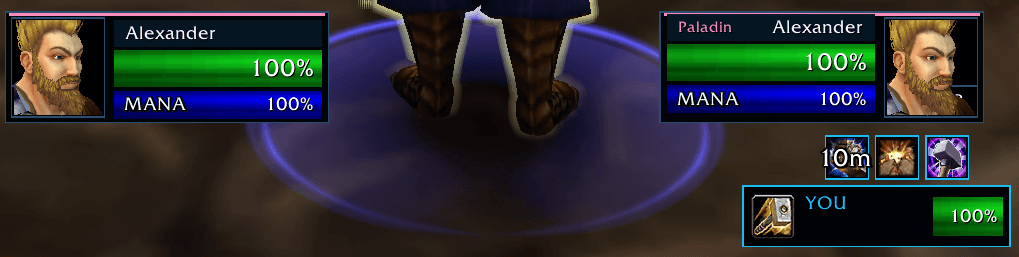
- Compact mirrored player and target frames.
- Movable party frames with vertical and horizontal layouts.
- Adaptive raid grids for 10-, 25-, and 40-player groups.
- Accurate health and resource percentages.
- Support for mana, rage, energy, focus, and other class resources.
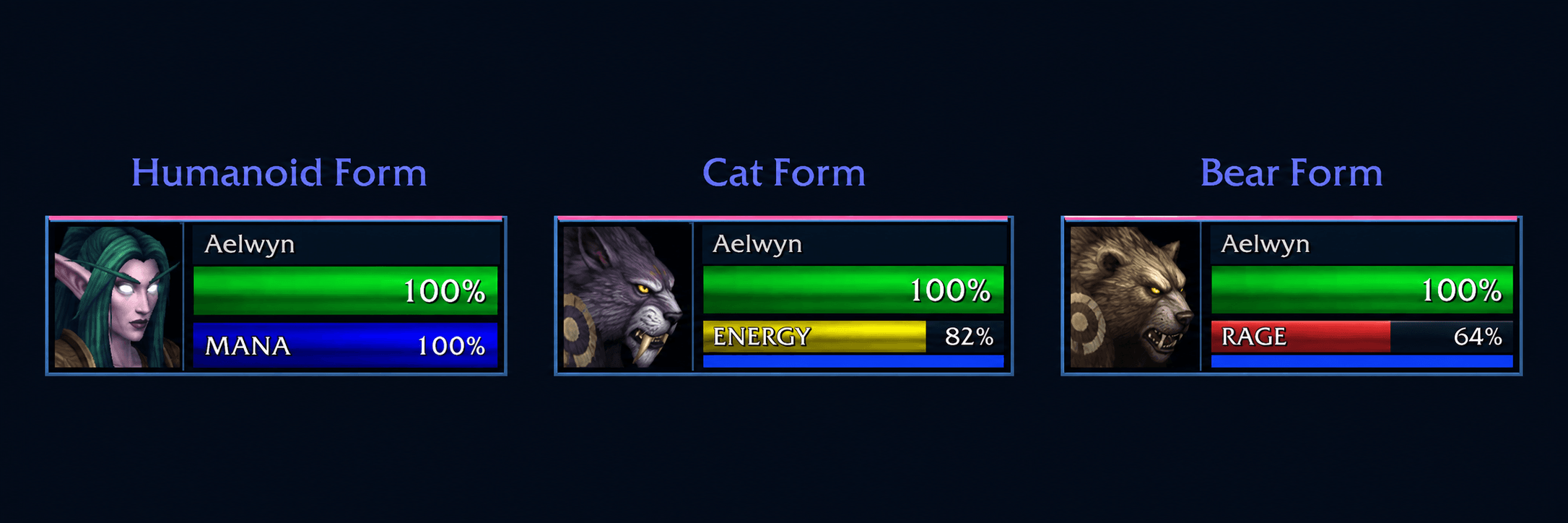
- Optional player-frame dual-resource druid display keeps mana visible beneath energy in cat form and rage in bear form without enlarging the frame.
- Full-width resource bars with clearly outlined resource labels.
- Animated 3D character portraits with static and hidden portrait options.
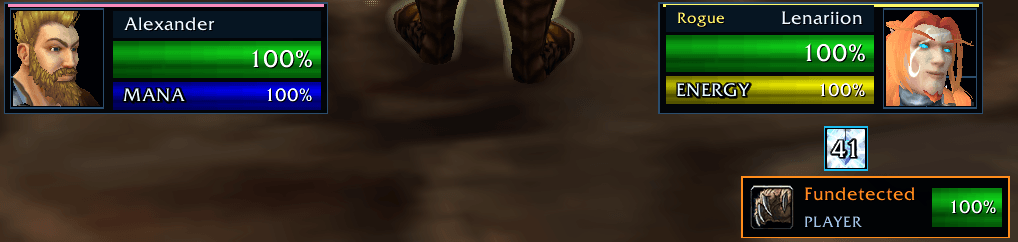
- Target class name and class-colored frame accent.
- Elite, rare, rare elite, and boss labels with distinct target health-bar accents.
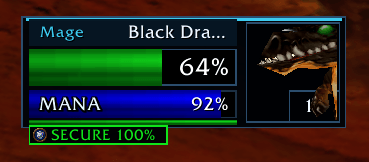
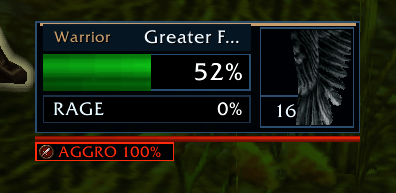
- A full-width threat rail and compact status badge beneath the target frame.
- A target aura shelf with protected in-combat debuff and buff rendering, visible stack counts, and remaining durations when available.
- Movable frames with saved per-character positions.
- Independent 50%–150% scale controls for solo, party, and raid frames.
- Independent opacity controls, allowing combinations such as fully bright solo frames and 50% raid frames.
- Optional replacement of the default Blizzard player, target, party, and raid frames.
- McAwesome-styled mouseover unit details with class-colored player names and green
< Guild Name >formatting. - Player tooltips can stay in the bottom-right corner or follow the cursor, with adjustable scale, opacity, specialization, and target details. NPCs retain Blizzard's native tooltip and quest-objective information.
- Optional Hide while in combat suppresses addon gameplay frames through secure visibility rules and restores normal visibility afterward.
- A cyan alignment guide and gentle snap when positioning both frames on the same horizontal level.
- A tabbed McAwesome options panel with familiar Blizzard-styled controls, available through
/mauf. - An account-wide Import from character companion panel for copying another character's complete unit-frame layout and preferences.
Party and Raid Frames
Party members use compact McAwesome cards with full names, health percentages, power rails, class accents, range fading, and clear dead or offline states. An assigned tank, healer, or damage role uses its role icon; characters without an assigned role use their class icon. Forever characters display both their first name and surname. Party frames stack vertically by default. Open /mauf to switch them to a horizontal row.
The party and raid containers have their own movable headers. Unlock frames to reveal both layout shells even while solo, drag either header where you want it, and lock the layout again when finished. Their positions are restored after /reload and when you log back in.
The Group and Raid configuration tabs include live test frames. Party preview shows a complete group layout, while raid preview can display the 10-, 25-, or 40-player grid. The previews use the saved position, scale, opacity, and party orientation, then disappear when the configuration panel closes. If the panel is closed during combat, the preview is safely removed when combat ends.
Raid frames use smaller portrait-free cards and organize players into five-player group blocks:
- 10-player — two columns of five.
- 25-player — five columns of five.
- 40-player — four group columns across two rows, keeping the grid substantially narrower.
Inside a raid instance, the addon uses the instance's reported maximum player count when available. Outside an instance, it chooses the layout from the current roster: up to 10, 11–25, or 26–40 players. This means a partially filled raid outside an instance may use a smaller layout until more players join or the group enters the raid.
Enemy Classification
Special enemies are identified directly on the target health bar so you can recognize their rank without relying on the portrait border:
- ELITE — gold.
- RARE — bright blue.
- RARE ELITE — violet.
- BOSS — red.
The label, health-bar border, and top frame accent use the same classification color. Regular, trivial, and minor enemies keep the standard blue-gray treatment.
Target Auras
On clients that protect aura data in combat, the target shelf uses Blizzard's secure aura container to show up to three player-applied debuffs and three target buffs without exposing their data to addon code. This keeps effects such as Rend visible during combat, with red borders for debuffs and blue borders for buffs. Older clients that still expose aura data retain the paged view of up to 40 harmful and 40 helpful effects.
Tank-Focused Target of Target
The target-of-target card is offset beneath the target frame and uses clear labels, icons, and colors to show who your enemy is attacking:
- YOU — cyan, showing that the target is attacking you.
- OTHER TANK — blue with the tank shield icon.
- HEALER — white outline and label with the healer icon, plus a brief red alert pulse when the target switches to a healer.
- DPS — amber with the damage-role icon.
- PLAYER — amber when the player does not have an assigned group role; their class icon is shown instead.
- NPC or unknown target — neutral coloring with a portrait or safe fallback.
Role information takes priority when the game provides it. If a player has no assigned group role, the addon displays that character's class icon instead, such as the Warrior sword or Warlock hand.
Left-click the target-of-target card to make that unit your current target. The card remains a secure unit button during combat.
Threat Meter
When your current target has a threat table, a thin rail spans the full width of the target frame, including beneath the portrait, with a compact status badge below it. The percentage is Blizzard's distance-adjusted threat value, where 100% represents the point at which you take aggro.
For tanks:
- SECURE — green; you are the primary target and your threat lead is secure.
- LOSING — amber; you still have aggro, but another unit has crossed the pull threshold.
- TAUNT — red; another unit currently has aggro. The percentage shows your progress toward taking it back.
For damage dealers and healers:
- SAFE — green; 0–79% threat.
- HIGH — amber; 80–99% threat.
- AGGRO — red; you are the target's primary threat target.
Aggro ownership always comes from the game's threat state rather than being inferred from the displayed percentage. If Forever temporarily restricts threat information, the meter displays THREAT ? in neutral gray instead of guessing.
Animated Portraits
Choose one of three portrait styles in the options panel:
- Animated 3D — live character models with idle movement.
- Static — traditional Blizzard portrait textures.
- Hidden — disables portrait rendering while keeping the frame layout available.
If the game temporarily prevents access to a live model, the addon safely falls back to a static portrait.
Druid Resources
The player frame can keep a druid's mana visible while shapeshifted. Cat form divides the existing resource area into an energy bar with a thin blue mana strip beneath it; bear form uses the same compact layout for rage and mana. Humanoid and other mana-based forms retain the normal full-height mana bar, so the frame's outer dimensions never change during shapeshifting.
This behavior is enabled by default and can be toggled with Show druid mana while shapeshifted on the Solo options tab. Target, party, and raid frames retain their single active-resource bar.
Mouseover Unit Details
Player mouseover tooltips use a two-pane McAwesome profile card with a cleanly cropped character portrait on an uninterrupted deep background in the left pane and two-tone identity details on the right. The portrait uses the same live 3D unit model as the main unit frames by default, briefly retries while mouseover model data becomes available, and falls back safely to a static image when necessary. The independent Use animated portrait option can disable the live model. Player details use a compact four-line hierarchy: class-colored name; green < Guild Name > - Guild Rank; Level - Race - Faction; and Class - Assigned Role. A party or raid-group label is added discreetly to the last line when available, using Your Group for the player's own subgroup. PvP faction badges sit over the portrait's lower-right corner, while raid target markers sit over its upper-left corner. The green health bar and health-value option are removed. Cursor-follow tooltips maintain the same tight pointer gap at every tooltip scale and disappear as soon as the pointer leaves the player. These changes apply only to player-character tooltips. If the client marks a player's identity as restricted, the addon leaves that mouseover entirely to Blizzard rather than inspecting the protected unit. NPCs—including enemies, quest objectives, vendors, and interactable units—retain Blizzard's native tooltip so objective progress and NPC-specific information remain available. Bags, spells, items, mail, minimap buttons, interaction prompts, and every other general interface tooltip also remain fully Blizzard-owned.
The Tooltips options tab can keep unit details at the default bottom-right position or move them beside the cursor. You can also choose a static or animated portrait, adjust tooltip scale and opacity, turn the restyle off, and optionally show the unit's current target. A target of <<YOU>> is highlighted in cyan. Player specialization is enabled by default when the game can resolve a real specialization through normal inspect data; a class-only result is rejected. Inspect requests are throttled, never sent during combat, and protected identifiers are passed through without reading them in Lua. The specialization line is omitted when no specialization is available.
Moving and Aligning Frames
Open /mauf and turn off Lock frames. Drag either main unit frame to reposition it.
When the player and target frames approach the same horizontal centerline, a cyan line and ALIGNED indicator appear between them. Releasing the frame inside that alignment range snaps both frames to the same level.
Lock the frames again when the layout is where you want it. Player and target positions are saved per character and restored after /reload and login.
Options
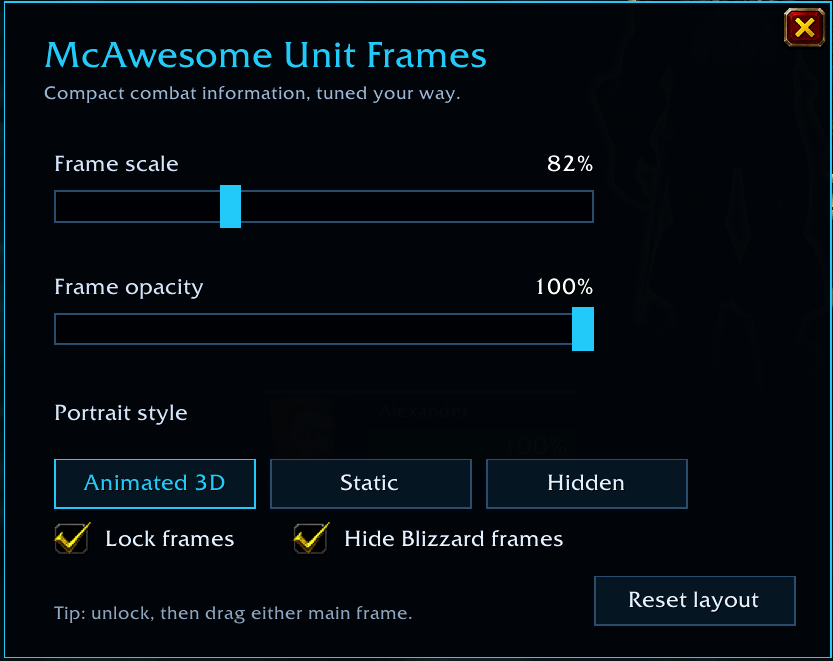
Type /mauf or /mauf options to open the tabbed options panel:
- Solo — player and target scale, opacity, animated/static/hidden portraits, and shapeshifted druid mana.
- Group — independent party scale and opacity, vertical or horizontal layout, visibility, and a live party preview.
- Raid — independent raid scale and opacity, visibility, and live 10-, 25-, and 40-player previews.
- Tooltips — unit-tooltip styling, static or animated portraits, bottom-right or cursor-follow positioning, scale, opacity, specialization, and target details.
Frame locking, Blizzard-frame replacement, and layout reset remain available from every tab. Buttons use Blizzard's familiar red-and-gold styling on Forever/Camelot and the native panel style provided by each supported client. Preview and protected layout changes wait until combat ends because WoW restricts unit-frame visibility and positioning during combat.
Hide while in combat is disabled by default. When enabled, it securely suppresses the addon-owned player, target, target-of-target, party, and raid displays during combat, then restores their normal visibility rules when combat ends. Changing this option during combat is deferred safely.
Choose Import from character at the bottom of Options to open a Questing-style companion panel. It docks to the right of Options, falls back to the left when space is limited, and presents every source in a scrollable list of full-width Blizzard buttons. Each source is labeled <Character Name> <Realm Name> - <Game Version>. Select a compatible row, then choose Import selected. The importer copies frame positions, solo/group/raid scale and opacity, lock state, portrait and party layouts, druid mana preference, visibility choices, unit-tooltip preferences, addon enabled state, and Blizzard-frame replacement. Imported geometry is clamped to the current screen, every visible option control updates immediately, and protected frame changes wait until combat ends when necessary.
Profiles are stored account-wide, but only transferable presentation settings are included. Character-specific gameplay data, caches, scans, progress, goals, and similar state are never copied. The current character is excluded, stale profiles are identified, and corrupt or incompatible profiles are ignored or disabled safely.
Press Escape to close addon configuration windows through WoW's normal window handling. When Options and its importer or a confirmation dialog are stacked, Escape closes the companion first; press Escape again to close Options. Gameplay keybinds are not replaced.
Slash Commands
| Command | Action |
|---|---|
/mauf or /mauf options | Open the options panel |
/mauf help | Display command help |
/mauf on | Enable McAwesome Unit Frames |
/mauf off | Disable McAwesome Unit Frames |
/mauf unlock | Unlock the frames for dragging |
/mauf lock | Lock the frames |
/mauf scale 50-150 | Set solo player and target frame scale |
/mauf alpha 20-100 | Set solo player and target frame opacity |
/mauf portraits animated | Use animated 3D portraits |
/mauf portraits static | Use static portraits |
/mauf portraits off | Hide portraits |
/mauf party vertical | Stack party frames vertically |
/mauf party horizontal | Arrange party frames horizontally |
/mauf blizzard | Toggle the default Blizzard frames |
/mauf reset | Restore default positions and settings |
Installation
CurseForge App
Install McAwesome Unit Frames from the CurseForge app and restart World of Warcraft or run /reload if the addon was installed while the game was open.
Manual Installation
- Download and extract the addon.
- Copy the inner
McAwesomeUnitFramesfolder into your World of WarcraftInterface/AddOnsfolder. - Restart the game or run
/reload.
The final addon folder should contain McAwesomeUnitFrames.toc and McAwesomeUnitFrames_Camelot.toc directly inside it.
Supported Game Versions
McAwesome Unit Frames includes support for:
- World of Warcraft Retail.
- World of Warcraft Forever/Camelot.
Notes for Forever
Forever may temporarily restrict access to some unit identity or role information during combat. When that happens, McAwesome Unit Frames uses a neutral or class-based fallback rather than displaying an incorrect role.
Live 3D portraits may also fall back to static portraits when the game does not make a unit model available.

You must be logged in to leave a comment.