
Atlas Plus
World map and instance maps in one window: every boss and its loot, item search, map markers (dungeons, raids, world bosses, boats, zeppelins, tram, portals), no fog of war.
Details
Expansion
 Wrath of the Lich King
 Categories
Developers

Having issues?
ATLAS PLUS for WoW 3.3.5a - version 1.6.7
World map and instance maps in one window: every boss and its loot, item search,
map markers (dungeons, raids, world bosses, boats, zeppelins, tram, portals), no fog of war.
By Saranwrap. Made for ChromieCraft (AzerothCore).
INSTALL
1. Close the game.
2. Copy the "AtlasPlus" folder into <WoW folder>\Interface\AddOns\ and keep its name.
3. Start the game.
UPDATING
Close the game, delete the old "AtlasPlus" folder, then copy in the new one.
Atlas Plus does not need Atlas, AtlasLoot or another map addon. Use it alone: other
map addons (Mapster, ModernMapMarkers...) also change the game's map and can show
things twice. If TomTom is installed, turn off its world map coordinates.
OPEN IT
The map key (M), /ap (or /atlasplus), the minimap button, or a key
(Escape > Key Bindings > Atlas Plus).
In a dungeon or raid with a game map (Ulduar, Icecrown Citadel...) it opens that map
on the World map page, on the floor you are on. Otherwise it opens the Atlas map, on
the right wing, with the loot of your difficulty. Outdoors it opens on your zone.
THE WINDOW
Two tabs at the top: "World map" and "Atlas" (instance maps, bosses and loot).
Move it by dragging its title, resize it with the corner at the bottom right.
Opacity in the settings. While you move, it fades to 50% unless the mouse is over it.
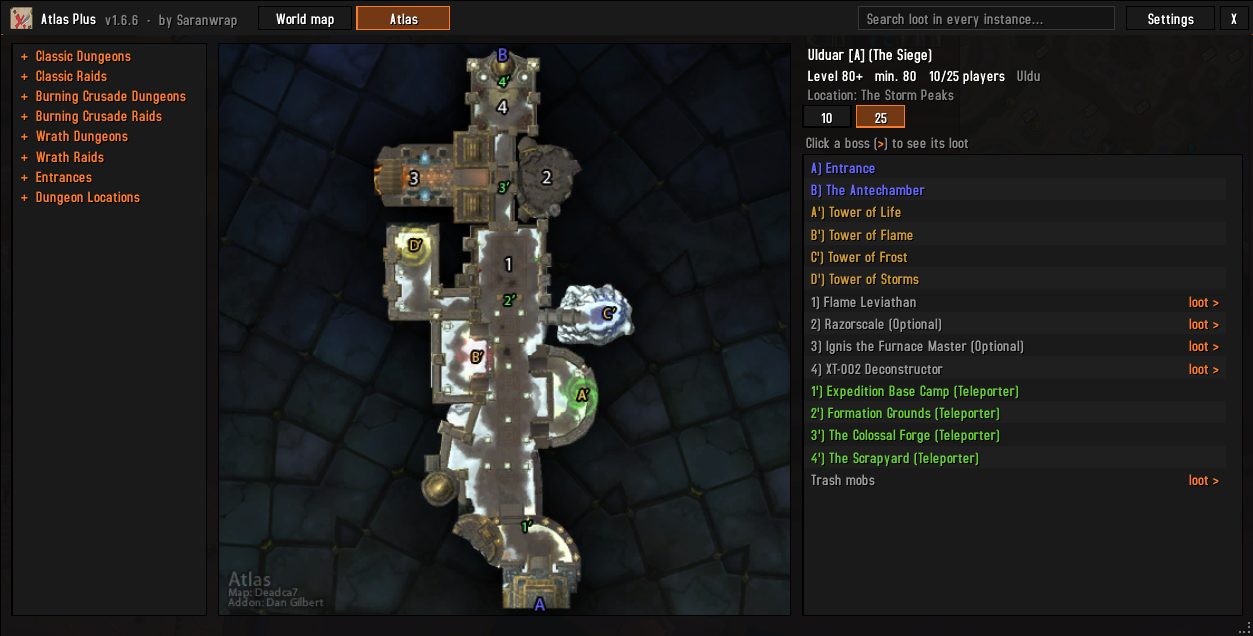
ATLAS TAB
Left every instance, by expansion: dungeons, raids, entrances and dungeon locations.
Every list is folded when the window opens. Click a title to open it.
Middle the map, with numbered bosses and points of interest.
Right-click on it: back to the world map, as you left it.
Right the legend of the map. A boss with "loot >" opens its loot:
- Normal / Heroic (dungeons) or 10 / 25 / 10 Heroic / 25 Heroic (raids)
- drop chance of each item, HM = hard mode (Ulduar, Steelbreaker last for the
Assembly of Iron) or drakes up (Sartharion)
- A / H = Alliance / Horde only
- right-click in the loot list: back to the bosses
"Trash mobs" at the end of the legend: what the trash of that instance drops.
"Entrance map" / "Instances" switch between an instance and its entrance.
Items: hover for the tooltip, Shift-click to link, Ctrl-click to try on.
SEARCH
The box at the top searches the loot of every instance (item name or type, such as
"trinket" or "two-hand"). Click a result to open its boss.
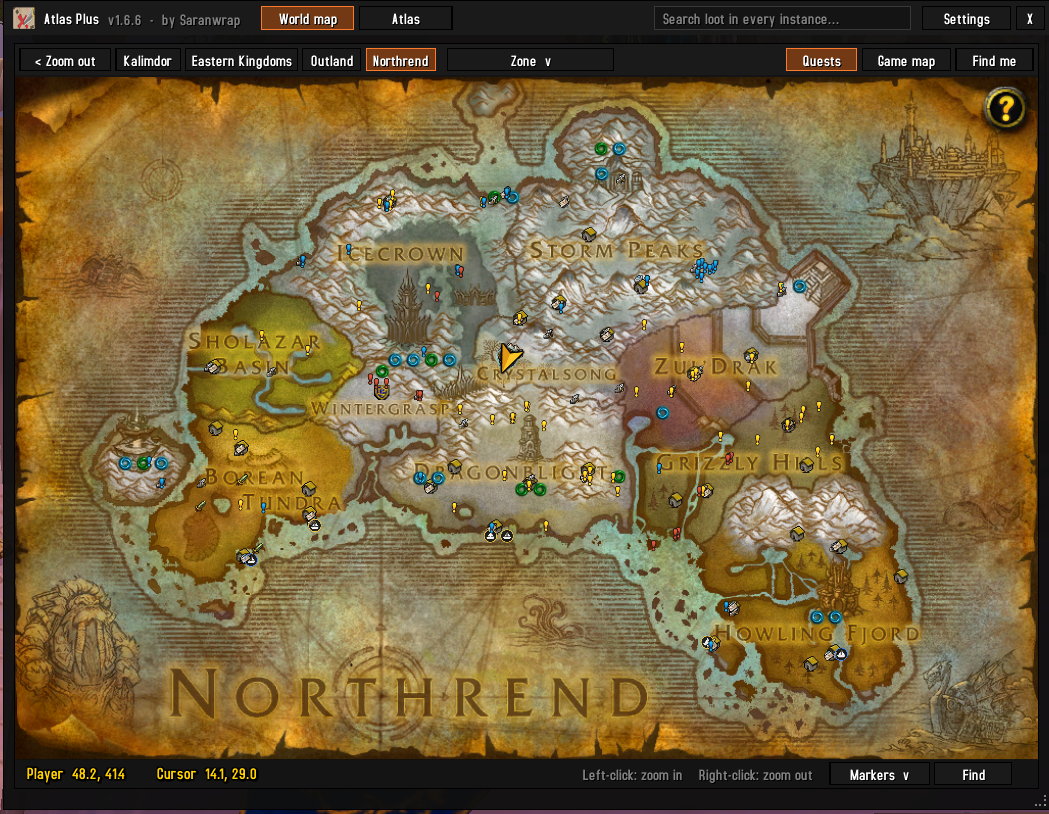
WORLD MAP (inside Atlas Plus)
The map key (M) opens Atlas Plus on its World map page. It holds the game's own map,
so quest objectives, your group and map addons such as Questie show on it.
- Left-click: zoom in. Right-click or "< Zoom out": zone > continent > world.
- Top: continent buttons, a zone list, "Quests" (quest objectives on / off),
"Game map", and "Find me" (your zone, with a pulse on your arrow).
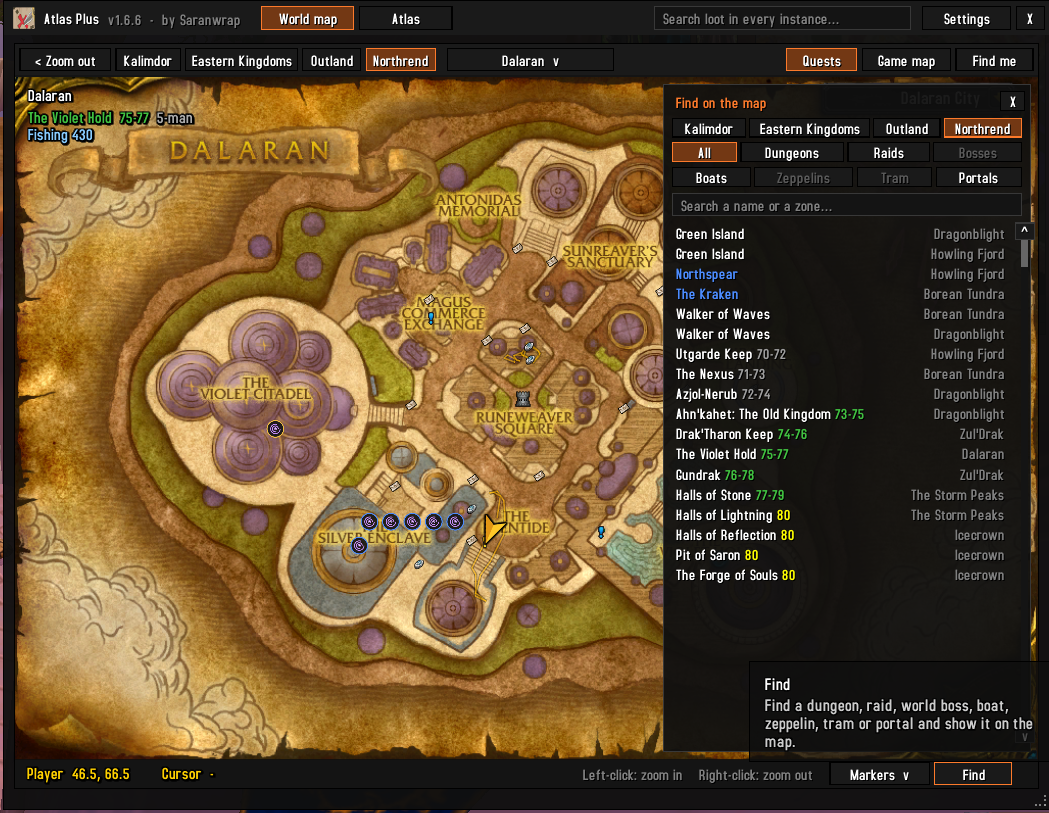
- Zone panel (top left): the zone shown, its level range (colored for your level), its
dungeons and raids, and its fishing skill. Point at a zone on a continent: the same
under its name.
- No fog of war: areas you have not explored yet are shown, a bit darker (settings).
- Your coordinates and the cursor coordinates, under the map.
MAP MARKERS
Dungeons (blue) and raids (green): click one for its map, bosses and loot.
World bosses, boats, zeppelins, the Deeprun Tram and portals: click one to go to
the map where it leads (the arrival point pulses).
Ring color: blue Alliance, red Horde, gold neutral.
Markers also show on continent maps (smaller), and can be turned off there.
Group size in the tooltips: 5, 10, 25, 40, or 10/25 for the Wrath raids.
"Markers" (under the map): choose which ones show, and "Only my faction's"
transports and portals.
"Find" (under the map): every marker of a continent, by type, or search a name or a
zone. Click one: the map goes there and the spot pulses.
With Questie installed, its own dungeon and raid icons are hidden while these are on
(setting), and come back when you turn these off.
THE GAME'S MAP ON ITS OWN
"Game map" (top right of the page) or the quest log's map button opens the game's
map full screen, with the quest list. It also gets the zone info and coordinates,
plus an opacity setting and a size setting for its small mode.
To get the game's map back on M, untick "The map key (M) opens Atlas Plus".
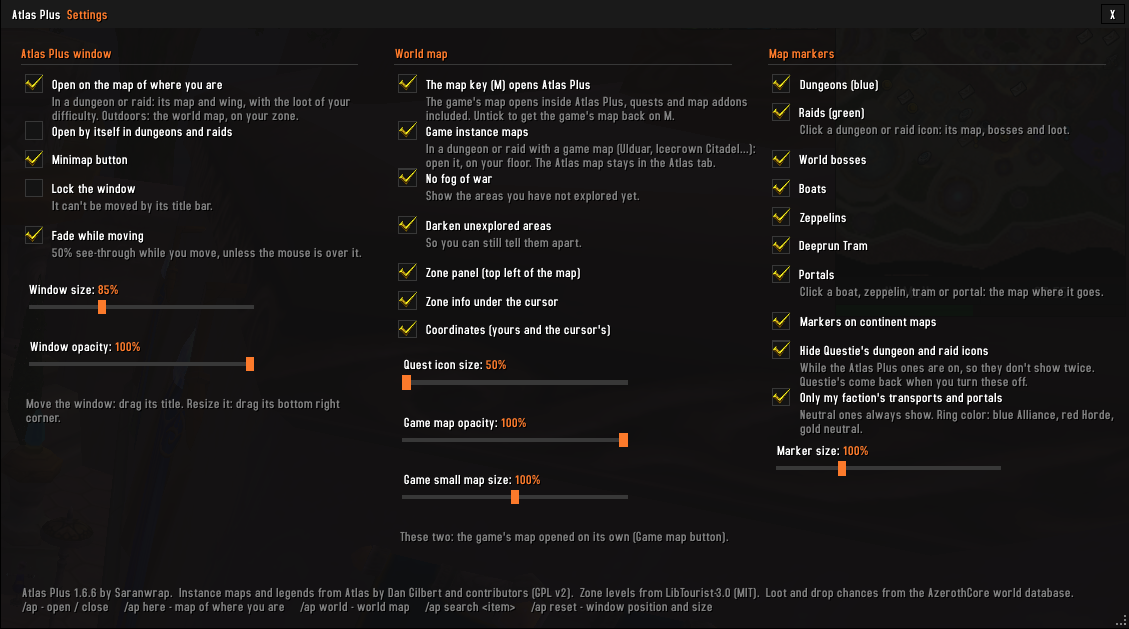
SETTINGS
Settings button (or right-click the minimap button, or /ap settings). It is a window
of its own: move it, resize it from its corner, and watch the map change as you go.
Window open on the map of where you are, open by itself in instances, minimap
button, lock, fade while moving, size, opacity.
World map map key (M), game instance maps, no fog of war, darken unexplored areas,
zone panel, zone info under the cursor, coordinates, quest icon size,
opacity and small map size of the game's map opened on its own.
Map markers each type on / off, on continent maps too, hide Questie's dungeon and
raid icons, only my faction's transports and portals, marker size.
Quest icon size changes the game's numbered quest icons. Questie's icons have their
own size settings in Questie.
COMMANDS
/ap open / close
/ap here the map of where you are
/ap world the world map page
/ap search <item> search the loot of every instance
/ap settings settings
/ap reset window position, size and opacity
ABOUT THE DATA
Maps and legends: Atlas by Dan Gilbert and contributors (GNU GPL v2). Atlas Plus is
released under the same license (LICENSE.txt).
Loot and drop chances: the AzerothCore world database (the core ChromieCraft runs on).
A server can change some of its loot, so treat the chances as a guide.
Zone levels and instances: LibTourist-3.0 (MIT, ckknight and Arrowmaster).
Boats, zeppelins, portals, world bosses: the AzerothCore world database (transport
routes, portals and their destinations, spawns), placed on the maps with the game's
own WorldMapArea table. Unexplored areas: the game's WorldMapOverlay table.
Exact entrances of the Hellfire, Coilfang, Tempest Keep and Auchindoun wings and a few
others: the game's AreaTrigger table.
Instance icons: Blizzard Entertainment game art, from the Questie icon set.
Marker icons (boat, zeppelin, tram, portal, world boss): drawn for Atlas Plus.
Settings are saved in WTF\Account\<ACCOUNT>\SavedVariables\AtlasPlus.lua
No changelog available.
You must be logged in to leave a comment.